• Skip to primary navigation
  • Skip to main content
  • Skip to primary sidebar
  • Skip to footer

AppleToolBox

Tools and Fixes for Mac, iPad, iPhone & iWatch

Search posts

  • About
  • Contact

CONNECT WITH US

CATEGORIES

  • iPhone
  • iPad
  • iPod
  • Apple Watch
  • Mac/MacBook
  • AirPods
  • Apple TV
  • News
  • Apple Services
  • HomePod
  • Reviews

SITE

  • Home
  • About Us
  • Contact
  • Advertise

Search posts

You are here: Home / iPhone / How to Use Google Photos for Custom Stickers on an iPhone

How to Use Google Photos for Custom Stickers on an iPhone

By Louis Roundtree 0 comments Last updated September 24, 2025

Things to Know
  • Google Photos allows iPhone users to create custom stickers with photos stored on the app.
  • To use this feature, you’ll need to have the app downloaded and iOS 17 or above.
  • Simply press and hold to highlight the subject and copy or share it.
  • There are a few downsides to the app, like a lack of customization and the inability to save to the library.

If you’re an Apple iPhone fundi, you’ve no doubt tried your hand at making custom stickers with pictures in your Photos app. The good news is that the fun doesn’t have to stop there. Other picture storage apps are also up to the task, like the star of our topic today: Google Photos.

In this article, we’ll be showing you how easy it is to use this app to make your own Google Photos custom stickers for iPhone.

Contents

  • Setting the Scene
  • How to Make Google Photos Custom Stickers for iPhone
  • The Downsides

Setting the Scene

Custom stickers are a fantastic way to express yourself and have been a wildly popular addition to iOS since their introduction. Though Apple doesn’t always play well outside its ecosystem, Google Photos is quite accommodating with this feature. That said, there will be a few caveats here and there.

Before attempting to create your own custom stickers with the app, it’s important to ensure the following:

  • Your iPhone model has iOS 17 installed or later (this was the version to introduce custom stickers).
  • You have the Google Photos app downloaded on your device and are signed into your Google account.
  • You need to choose photos that have a clear subject in sharp focus for the best results.

How to Make Google Photos Custom Stickers for iPhone

Once you’ve ensured the above, you’re ready to turn some Google snapshots into great custom stickers. The process is very similar to how you’d normally create a sticker in Photos. Here’s what to do:

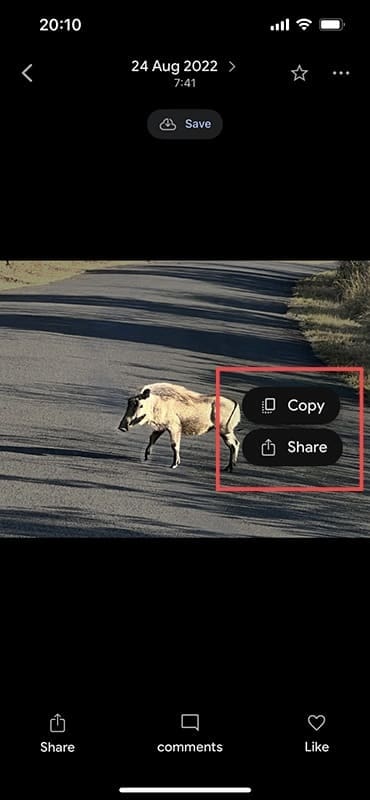
Step 1. Open the Google Photos app and open the picture you want to turn into a sticker.

How to Use Google Photos for Custom Stickers on an iPhone 1

Step 2. Press and hold on the subject until the ends around it are highlighted, and it appears to be cut out from the photo.

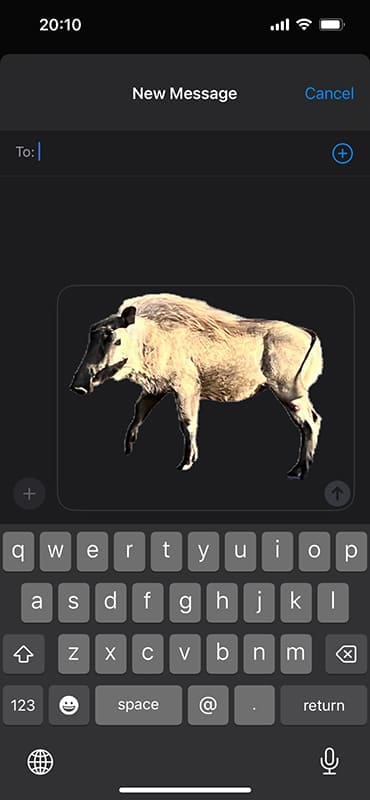
Step 3. You’ll have the option to copy the custom sticker to the clipboard (“Copy”) or share directly to an app (“Share”).

How to Use Google Photos for Custom Stickers on an iPhone 3

The Downsides

If you’ve been making custom stickers for a while, you’re probably accustomed to having a library of them assembled above your typing keyboard for use in any app. Unfortunately, the custom stickers you create in Google Photos will only be usable once and cannot be saved to your custom sticker library.

Another thing you might notice missing from the custom stickers you make from Photos is the sticker effects. Unfortunately, there’s no chance to add a puffy, holographic, or comic effect to your snaps. It’s just the essentials with Google Photos.

A third potential downside is that the custom sticker option only works with iOS devices, meaning that if you try to create custom stickers on Android, you’re doomed to fail. Seeing as the feature is an iOS one, it does make sense, unfortunate as that may be.

Related Posts:

  • iPhone 15 Pro Max - 4
    Best iPhone Lock Screen Widgets for iOS 17
  • iphone and airpods on a table
    These Apps Have the Best iOS 17 Widgets
  • pexels-dominika-roseclay-1036808
    The Best ADHD Apps For iPhone
  • Apple Home app in front of modern smart home
    An Introduction To the Apple Home App and How To Use It
  • MacBook Pro 2021 iPad Mini iPhone 13 Pro AirPods 3 Beats Fit Pro iPad Pro Best Apple Products - 2
    The Best Apps and Games Of 2022, According to Apple
  • How to Change Login Picture on Mac
    How to Change Login Picture on Mac
  • pexels-designecologist-1779487
    The Best iPhone And Mac Shortcuts For Beginners
  • 2022 Mac Mini with Studio Display and Accessories
    Mac Tips For New Users In 2023
  • iPhone App Store Header
    Best Free iPhone Apps 2023
Louis Roundtree
Louis Roundtree

As an avid gamer, I’ve run into my fair share of error codes and weird faults that have forced me to find fixes to problems I never anticipated. That gave me a passion for sharing those fixes with others so we can all game without feeling like our hardware is rebelling against us.
Reader Interactions

Write a Comment Cancel reply

Primary Sidebar

Recent Posts

  • How to Hide Username and Photo on the Mac Lock Screen
  • Microsoft Resume vs. Apple Handoff – Which Wins for Cross-Device Work?
  • How to Export iTunes Library to New Computer
  • What the Gemini Desktop App Will Bring to Mac
  • What to Do When Windows 11 Won’t Detect Your iPad
  • Outlook Outage 2026: iPhone Fixes for Sign-In Chaos

Connect with us

Footer

ABOUT

  • About Us
  • Contact us
  • Advertise
  • Privacy
  • Terms of Use

GUIDES

  • iOS & iPadOS
  • Apple ID
  • iCloud
  • App Store
  • iTunes
  • FaceTime
  • iMessage
  • Siri
  • Books and iBooks
  • Game Center
  • AirPlay

CONNECT

  • Facebook
  • Twitter
  • FeedBurner
  • YouTube

© Copyright 2010-2024 Guiding Tech Media · All Rights Reserved

This site and its content are in no way affiliated or endorsed by Apple, Inc. · Reproduction without explicit permission is prohibited

Last Updated on September 25, 2025 by Louis Roundtree