An iPad is a versatile tool by itself, but did you know it can also serve as a second monitor? Even more surprisingly, this is an option for Windows PC users as well. If you’re looking to expand your workstation and have an iPad that you’re not using much, this article will show you how to make your tablet work as a makeshift monitor.
It probably won’t surprise you that the heavy lifting of getting a Windows PC and iPad to communicate with each other falls to third-party apps. Apple devices are, after all, famously challenging to make work smoothly outside their own ecosystem.
There are plenty of options, available in both the App Store and Microsoft Store to bridge the gap between the two, from free to paid options. For purposes of accessibility, we’re going to be focusing on a free app for personal use: Spacedesk. Other apps like LetsView offer a freemium version, but for full functionality, we’re going to stick with the one.
How to Use iPad as a Second Monitor With Spacedesk
Spacedesk allows both your PC and iPad to communicate with each other via a shared WiFi connection or even USB. Both will need Spacedesk installed and both will need to ensure their software is up to date. Both Windows 10 and 11 are capable of supporting this functionality.
Installing the Drivers
Spacedesk is versatile and allows not only iOS to communicate with PCs, but Android, Amazon, Windows, and HTML5 too. The PC will be the main display, while the iPad will act as the viewer. To install Spacedesk drivers on your PC:
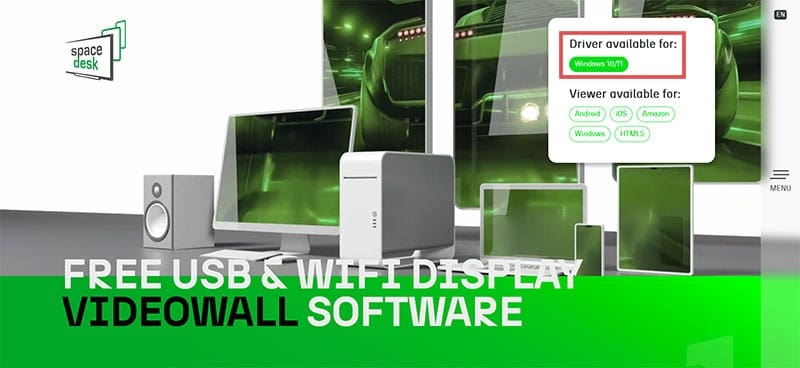
1. Head to the website and choose the “Windows 10/11” option under “Driver available for.”
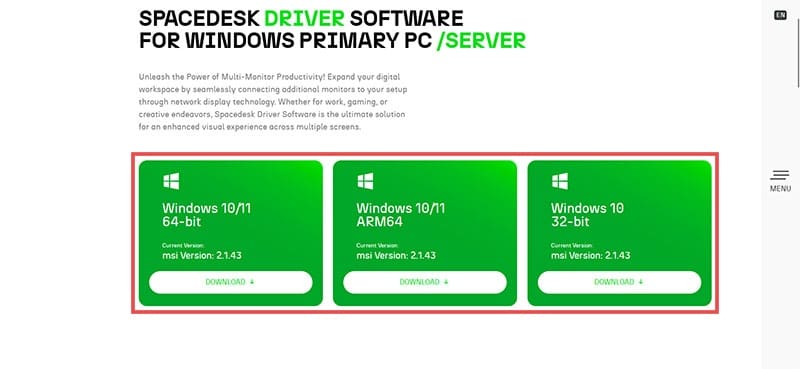
2. Choose your version of Windows and click to begin downloading.
3. Once the installation file has been downloaded, open it and follow the steps to begin installing. You may need to add firewall exceptions for your antivirus too.
4. Once Spacedesk is installed you can find it running in your Icon Tray.
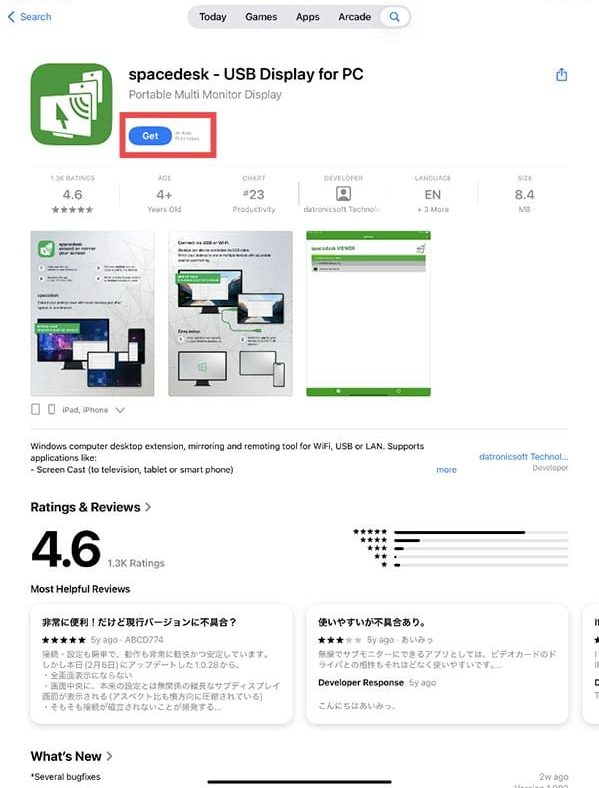
On your iPad, you’ll need to download the Spacedesk app via the App Store:
1. Search for the app and hit “Get” to install it.
2. Once installed, it should appear on your Home Screen.
Making the Second Monitor
With Spacedesk installed on both devices, it’s time to get connecting:
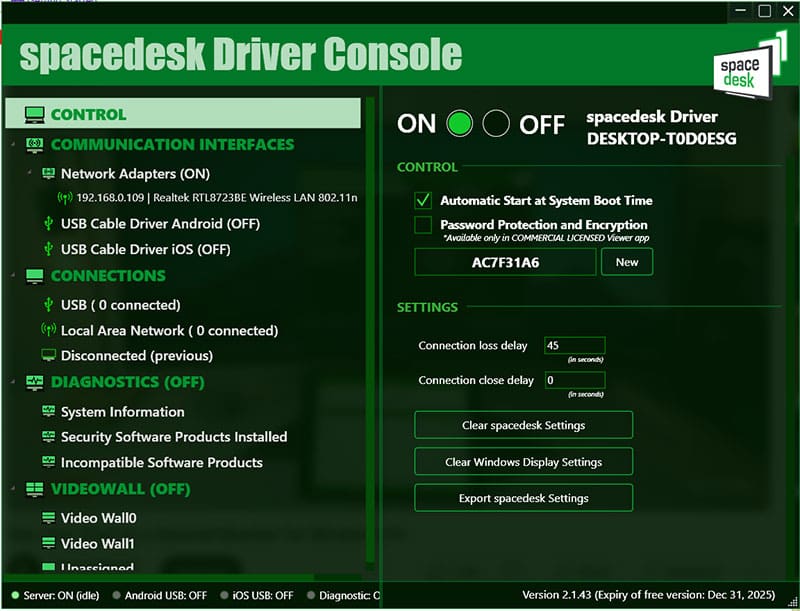
1. Open the Spacedesk Driver Console on your machine via the Search Bar or Icon Tray.
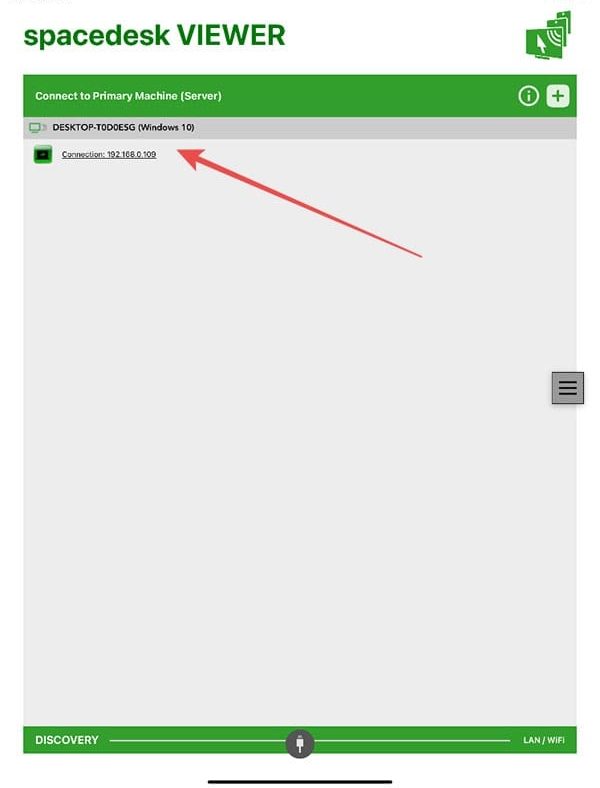
2. Open the app on your iPad. Ensure that both devices are connected, either via a USB cable, or a shared WiFi network. If all is working correctly, you should see your PC show up as a connection on the screen. If not, check your firewall and antivirus to ensure Spacedesk isn’t being blocked.
3. Tap the connection, and your devices will connect. Allow access on both devices if asked.
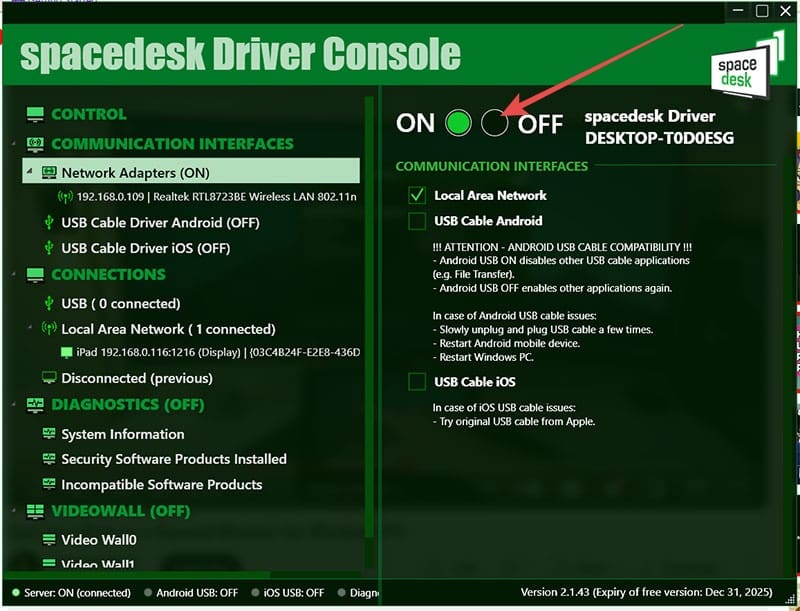
4. Your devices will pair and the Driver Console will show your connected iPad and its connection method. To disable the connection, either exit the app or switch the connection to “Off” via the Driver Console.
As an iPad, your second monitor should be touch-enabled. You can open programs, drag windows, and much more, all with a swipe or tap.
Changing Display Settings
If you want to change any display settings of your iPad, you can do so via the Settings of your PC. Here’s how:
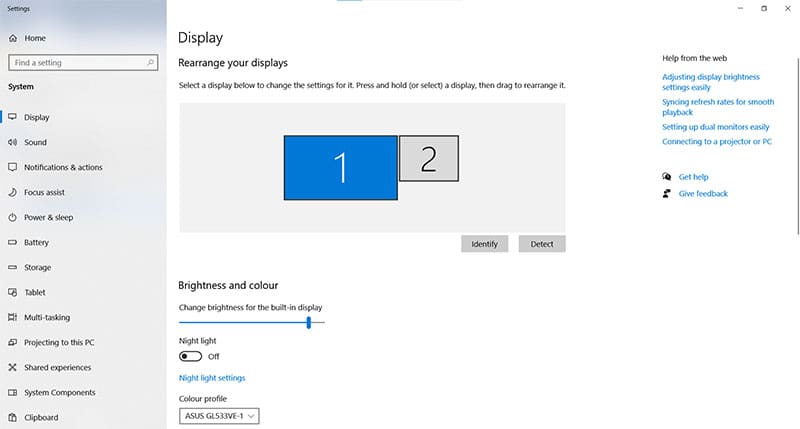
1. Open “Display” via the Search Bar or by right-clicking your Desktop.
2. From here, you can rearrange your monitors, duplicate them, and adjust their resolution. Simply click the box marked “2” to adjust the display settings of your iPad.
As an avid gamer, I’ve run into my fair share of error codes and weird faults that have forced me to find fixes to problems I never anticipated. That gave me a passion for sharing those fixes with others so we can all game without feeling like our hardware is rebelling against us.









Write a Comment