If you’re the average Mac user, you could probably stand to benefit from a little-known feature called Text Clippings.
But if you are the average Mac user, then there’s a good chance you have no idea what Text Clippings are — or how to use them. Which is a shame, because they could potentially boost your productivity and help automate tedious typing tasks.
Text clippings are, essentially, small pieces of text that have been “saved for later.” But they’re not a new feature at all. In fact, they’ve been around since OS X 9.
It’s such a simple part of the OS X and macOS experience that it’s probably easily missed. It also has no analog on Windows, which might explain why many users switching from PCs have no idea about the feature.
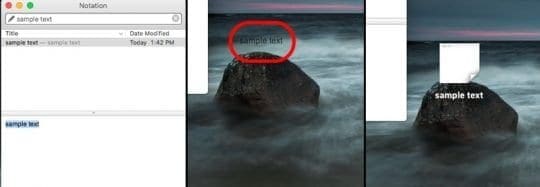
They’re also easy to create. Simply highlight a piece of text — any piece of text — and drag it to your desktop or a Finder window.
From there, you’ll see the highlighted text appear as a small .txt document. That’s about it.
Once you create a text clipping, you can treat them as basically any other standard text document.
By default, the text clipping will be named after the first few words or phrases of the highlighted text. But, of course, you can rename them.
From there, you can click on a clipping and tap the Space Bar to Quick Look the text.
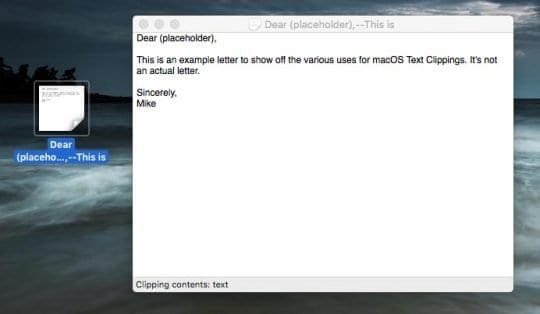
Or you can double-click the clipping to open it in the standard Mac text editor. From there, you can highlight a smaller piece of text from within the text clipping itself.
You can drag the clipping into another file, such as a Microsoft Word document, to essentially copy and paste it. This works in browsers too: you can drag the clipping into a search bar, Google or any online text field.
Text clippings will live indefinitely wherever you put them — until you delete them, of course. This can be especially handy if you create a “Clippings” folder on your desktop or in Finder.
Some Other Tips
The potential uses for text clippings are virtually limitless. But you can use them to save important and small pieces of information that you type regularly.
For example, you can create text clippings for email signatures that you frequently attach to business or personal messages.
You can also use text clippings to create templates for a cover letter, letter of recommendation, or other emails messages that only need to be nominally changed.
If you’re a programmer or you work with code, you can “clip” small bits of a programming language that you use frequently.
All in all, it can be a serious time saver, depending on the work you do and how often you repeatedly type small bits of text.
Mike is a freelance journalist from San Diego, California.
While he primarily covers Apple and consumer technology, he has past experience writing about public safety, local government, and education for a variety of publications.
He’s worn quite a few hats in the journalism field, including writer, editor, and news designer.
“Or you can double-click the clipping to open it in the standard Mac text editor.”
It should work that way… but when I double-click a clipping on my Mac, it tends not to open in TextEdit, or to open in such a way that I can’t edit it as a text file, sometimes can’t even re-save it under a different file name… totally wonky. No idea why.












“Or you can double-click the clipping to open it in the standard Mac text editor.”
It should work that way… but when I double-click a clipping on my Mac, it tends not to open in TextEdit, or to open in such a way that I can’t edit it as a text file, sometimes can’t even re-save it under a different file name… totally wonky. No idea why.