The new iOS 16 updates brought about a slew of changes, and since there’s a lot to unpack, casual users may feel a bit overwhelmed as to what is available to them. Additionally, Apple’s “Far Out” event didn’t exactly cover everything regarding iOS 16. A lot of us were left to explore the software update ourselves, meaning some may have missed crucial features or cool tricks. One of those cool tricks you may have missed is the currency converter built into the new iOS 16 camera software. You can do this through the new Live Text feature. This new feature allows you to translate foreign languages and perform currency conversions on the go without having to pull up Safari and perform a search. If you’re interested in the new iOS 16 currency conversion through Live Text, read on.
The process to convert currency on iOS 16 is extremely simple. Follow this straightforward guide:
Open up your Camera app.
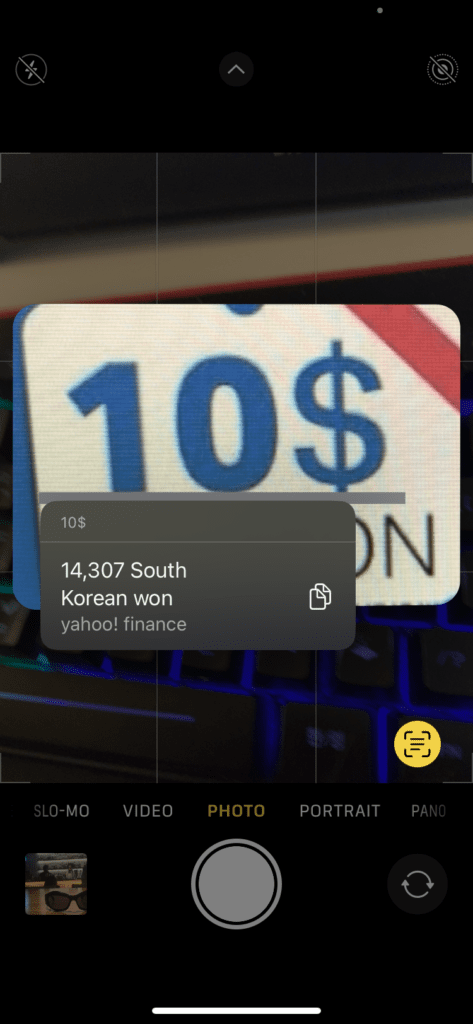
Hold your camera up to the price tag that you’re looking to convert.
Once your camera focuses on the price tag, you’ll see an icon pop up in the bottom right that looks like a square with three lines in it.
Press the Live Text icon (as described in Step 3) so that it turns yellow.
Apple will gather data from Yahoo Finance to find the latest exchange rates in your region’s currency.
Other iOS 16 Camera and Photo Tricks
If you feel in awe about the iOS 16 currency conversion trick, here are a few others you may have missed out on:
Remove Background From Photos
One of the blockbuster changes in iOS 16 was the ability to cut subjects out of a background so that you can copy and paste them into other backdrops. It’s extremely easy to do this and has a plethora of useful applications. Open up the photo that you want to cut the subject out of and long-press on the subject. Once you long-press it, an outline will shine around the subject, signifying that it’s been cut out. You can then tap on it again and click on Copy or Share. You can either the image via email, Instagram, iMessage. Additionally, you have other options like making the cutout into a watch face, adding it to a Quick Note, and more.
Hide Photos
There has been a Hidden Folder feature for a while now (although not a lot of people may have known about it), but you can now lock the Hidden folder with Face ID. To enable this security feature, go to Settings > Photos > toggle on Use Face ID. Then, go to your Photos album and select the photo you want to hide. Click on the ellipses icon in the top right and tap on Hide. Once that’s done, go to your Photos album directory and scroll down to Hidden. You’ll then need your Face ID to unlock it. The same applies to the Recently Deleted folder.
Copy Edits
If you’re a professional editor or simply have a bunch of pictures to edit at once, you can automate that process slightly through the new Copy Edits feature. If you have a few images with similar backdrops, lighting, and visual properties, you can make the edits you wish on one photo, then copy them to others. To do this, make edits, click on the ellipses icon in the top right, and tap on Copy Edits. To paste these changes, go to the next picture you want to edit, go to the editing screen, tap on the ellipses icon, then select Paste Edits.










Write a Comment