For years and years, many iPhone and Mac users relied on the popular Deliveries application to manage incoming orders and to track packages. However, in May 2022, the company behind the application announced that due to changes in how shipping companies provide tracking information, Deliveries would no longer be as reliable or detailed.
Since then, we’ve seen a few different apps try to take the place that Deliveries left behind, but none have really seemed to catch on in the same way. While that may be disappointing, all hope is not lost as Apple has announced some pretty exciting changes coming to the Wallet app in iOS 16. Instead of trying to find the right app to track packages on iPhone, you’ll be able to do so right from the Wallet app.
Much of the focus when it comes to major changes in iOS 16 have are revolving around the completely redesigned Lock Screen experience. But that’s not Apple’s only focus with this software release, as it’s also bringing a few new and potentially-useful updates to the Wallet app.
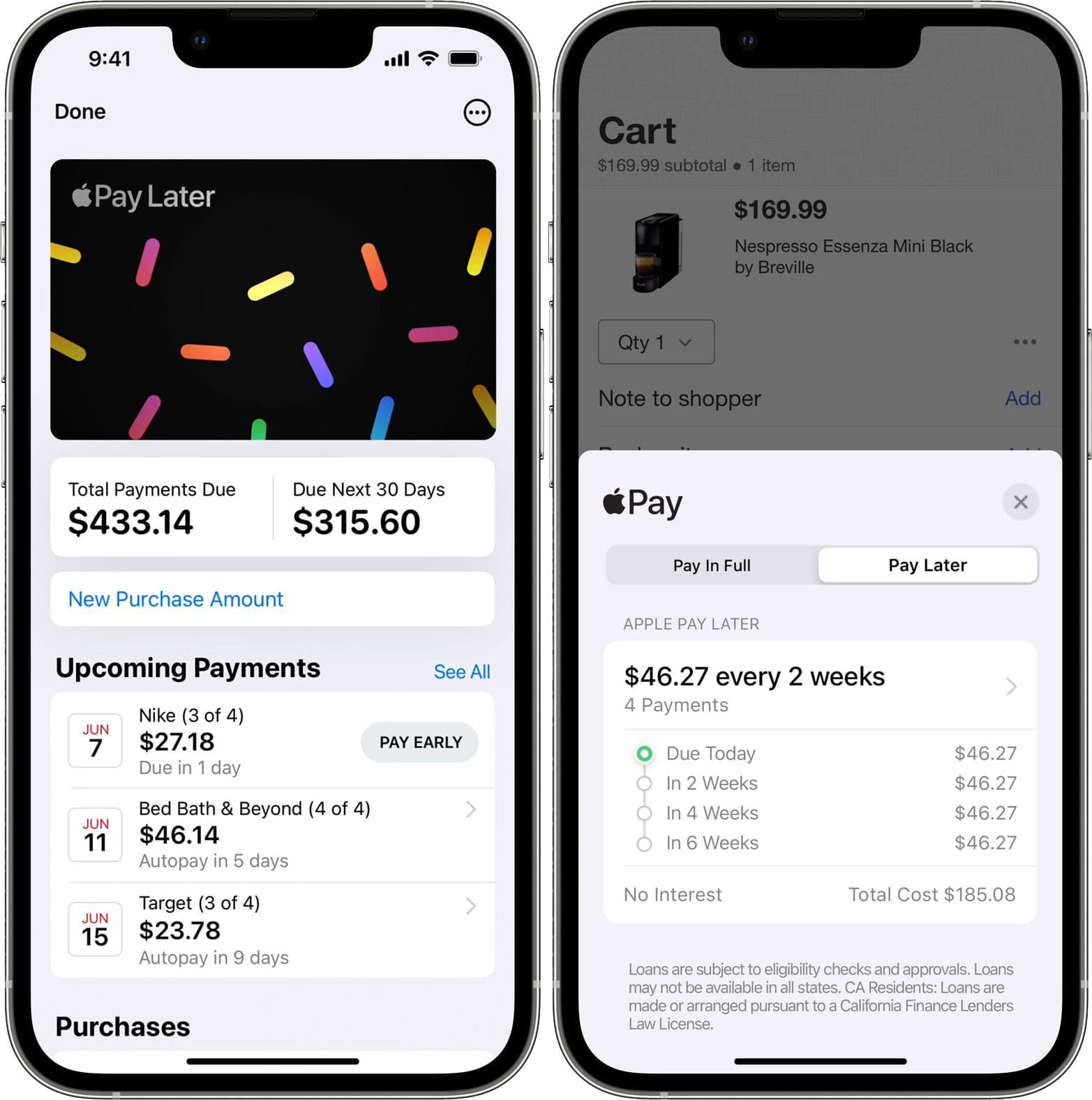
With iOS 16, along with being able to keep track of your orders and see the status of package deliveries, Apple Pay Later is being introduced. This allows users to “split the cost of an Apple Pay purchase into four equal payments spread over six weeks, with zero interest and no fees of any kind.” It’s similar to what we’ve seen from the likes of Affirm and Klarna, but will become immediately available from the Wallet app on your iPhone.
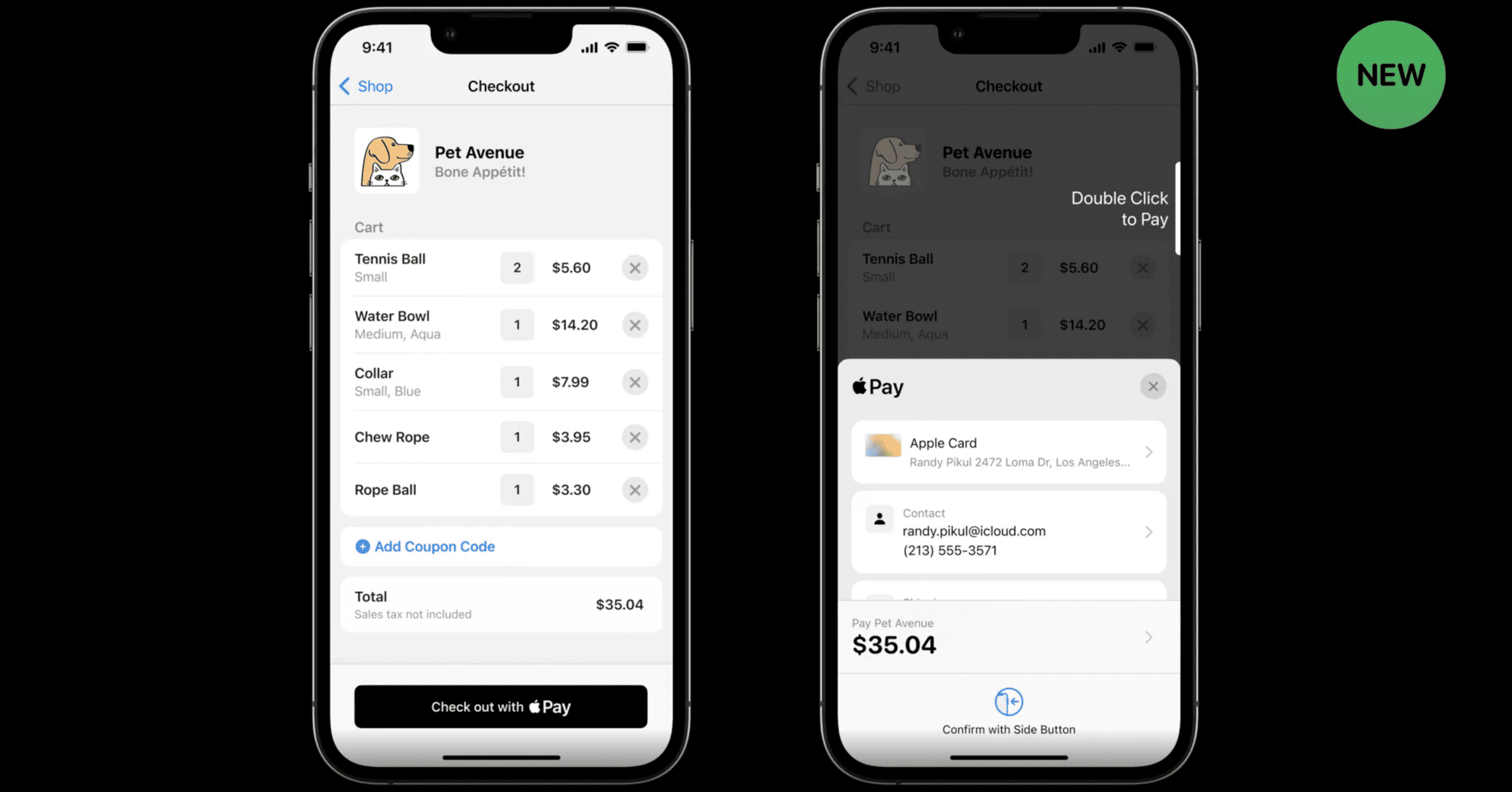
Additionally, iOS 16 brings expanded support for IDs in Wallet, along with Keys. You’ll be able to use and share your hotel keys, car keys, and even your home keys, right from the Wallet app. Plus, users will be able to store their ID in the Wallet app for applications that are “requiring identity and age verification.” Of course, Apple also points out that any apps that try to request the information will only be able to see “information required for the transaction”. And users can verify using Touch ID or Face ID, depending on which model iPhone they are using.
How to View Orders on iPhone With Apple Wallet
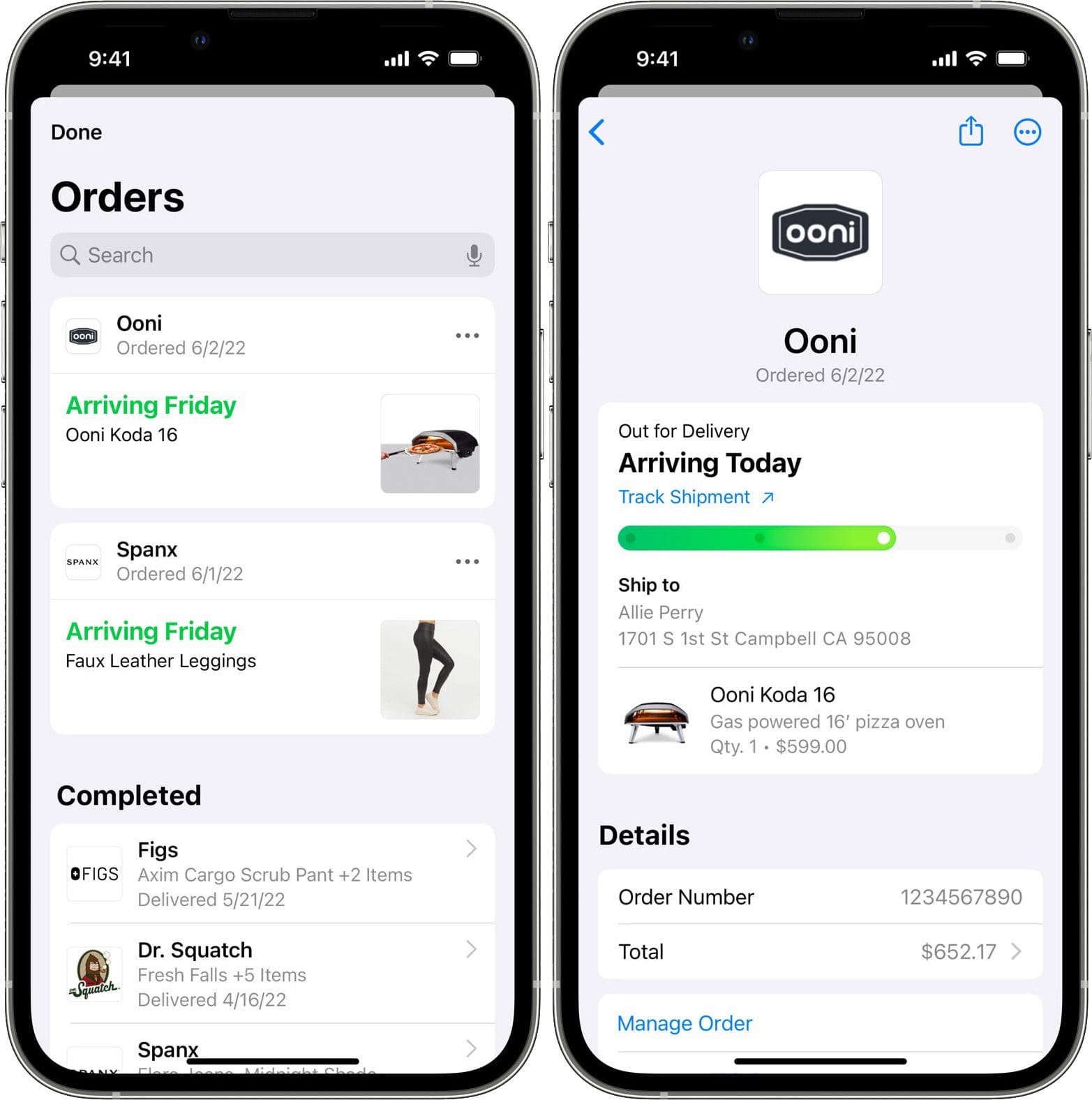
After you make a purchase at a participating online retailer, the purchase will appear in the Orders tab of the Apple Wallet app. From here, you will be able to view and interact with any of the orders or purchases that have been made with Apple Pay or the Wallet app.
At the time of this writing, this functionality is not yet available within the Wallet app on our iPhone 13 Pro max running the latest iOS 16 Developer Beta. However, Apple’s WWDC ’22 documentation gives us an indication of how we can expect this to work.
There will be an Orders section within the Wallet app on your iPhone. This will break down by orders placed every month, along with orders placed over the course of the year. By doing so, you’ll be able to revisit those orders in the event that you want to place the same order again, or if you just need to reference a purchase for your records.
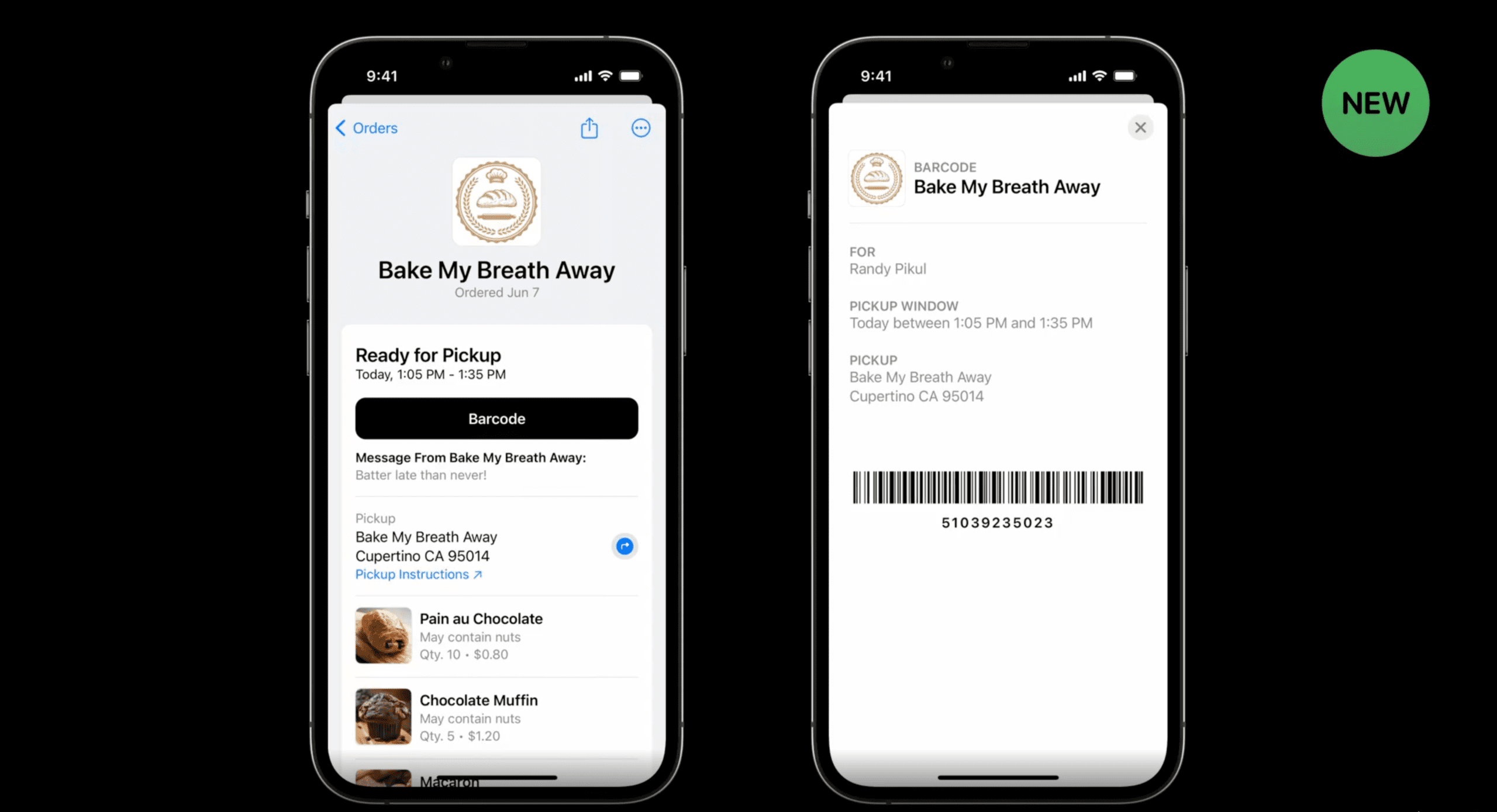
Something else that Apple is adding is the ability to interact with orders placed for local pick-up. As you might expect, this will need to be implemented by the retailer. In the example provided by Apple’s documentation, placing an order at the local bakery for pickup will provide a notification once it’s ready. Then, you can tap the Barcode button to display the barcode that’s needed to be scanned when you arrive.
How to Track Packages on iPhone With Apple Wallet
But what about those orders that you place that aren’t at a local bakery or that are placed online? Well, Apple has done the leg work on that front as well, as Wallet will essentially replace some of the best package and delivery tracking apps on the App Store.
When you place an order using Apple Wallet, the purchase will appear under the same Orders section as previously referenced. Tapping on one of the orders that you want to track will provide a breakdown of the entire order. This includes the contents of the order, the current shipping status, the order number, and the total cost of the purchase.
Something else worth mentioning is those instances when you don’t make a purchase using Wallet but still want to keep track of the order. According to the iOS 16 documentation, Apple is still making this possible by tapping a specific link. As this functionality is not yet available, we have been unable to see what this link would look like.
Just as you might have been accustomed to seeing in other apps that track packages on iPhone, you’ll be able to see the current status of the package. And whenever the status changes or signs of progress, Wallet will send you a notification letting you know what has changed.
In the event that your single order was split into multiple packages, this will also appear under the same Order listing. It’s not uncommon for a retailer to ship multiple packages on the same order, so it’s nice to see Apple bring support for this as well.
Andrew Myrick is a freelance writer based on the East Coast of the US. He enjoys everything to do with technology, including tablets, smartphones, and everything in between. Perhaps his favorite past-time is having a never-ending supply of different keyboards and gaming handhelds that end up collecting more dust than the consoles that are being emulated.









Write a Comment