Apple’s iOS is a very secure and reliable operating system. But that doesn’t mean it’s 100 percent malware or adware proof. Apple does everything it can to keep the ecosystem safe and secure. However, the company cannot control what users do on their devices. Your iPhone Calendar may sometimes throw strange alerts that suggest your information might have been exposed. On top of that, all sorts of strange URLs may also pop up on the screen.
Let’s explore what could be causing these annoying notifications and how to get rid of them.
How to Remove “Information Is Exposed” Notifications on iOS
Delete Rogue Accounts and Calendars
Check if there are any rogue accounts or unknown calendars on your iPhone, remove them, and then restart your device.
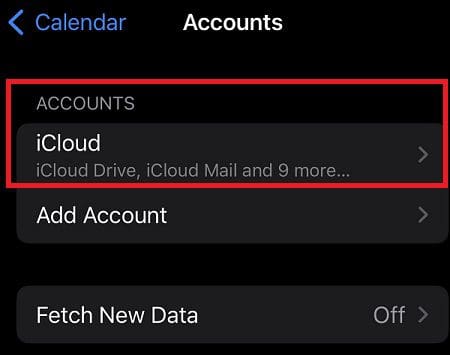
If you’re running iOS 14 and later:
Go to Settings.
Select Calendar.
Go to Accounts.
Remove all rogue accounts and entries.
Restart your iPhone.
If you’re running iOS 13:
Navigate to Settings.
Select Passwords & Accounts.
Go to Accounts.
Delete all rogue entries.
Remove Calendar Spam
You can also remove unwanted events and notifications straight from your calendar.
Launch the Calendar app.
Select the event you want to remove.
Then, tap Unsubscribe from this calendar.
Confirm your choice, and hit Unsubscribe.
Don’t Follow Fishy Links
To prevent unwanted notifications on iOS, never follow strange URLs, or links you’ve never asked for. Pay special attention to short URLs even if they come from a trusted source. Cybercriminals often use specially crafted links to install various adware and unwanted pop-ups on your device. That’s how probably you ended up with those annoying “Your information is exposed” notifications in the first place.
Conclusion
If your iPhone calendar says your information has been exposed, navigate to account settings, and check if there are any rogue accounts or unknown calendars entries. Remove all of them, and restart your device. To keep your iPhone secure, never follow any links from unknown sources.
Did you manage to get rid of the alert? Which method worked for you? Comment down below.
Madalina has been a Windows fan ever since she got her hands on her first Windows XP computer. She is interested in all things technology, especially emerging technologies — AI and DNA computing in particular.
I have a 13 pro IPhone. I can’t get the notifications off my calendar. They showed up and I keep trying to decline but it won’t let me. I shut my notifications off because they were set every day for 45 days. I would like to delete or remove them. Thanks Robert











I have a 13 pro IPhone. I can’t get the notifications off my calendar. They showed up and I keep trying to decline but it won’t let me. I shut my notifications off because they were set every day for 45 days. I would like to delete or remove them. Thanks Robert