You probably use a number of messaging services on your iPhone, from WhatsApp to email and more. But if you’re using the classic text messaging features, you may come across instances where your iPhone doesn’t receive texts from Android devices.
In most instances, this is a simple fix. Follow the steps below to check your cellular connection, iMessage settings, software version, and more.
Unlike most modern messaging services, SMS texts need a reliable cellular connection to work. If you’re in an area of no signal or you don’t have a connection, you won’t receive texts. Here’s how to check.
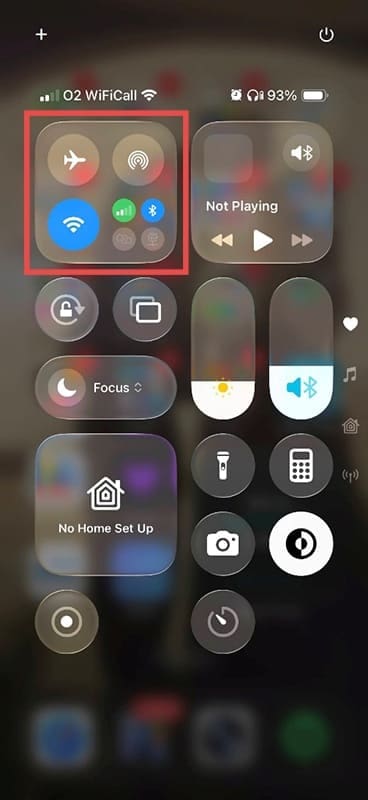
Step 1. Swipe down on your iPhone from the top right of the screen to show your quick action buttons.
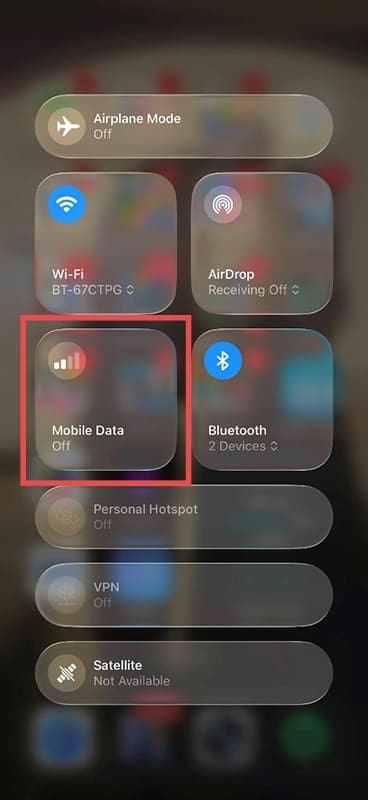
Step 2. Tap into the large square icon containing the airplane mode and Wi-Fi symbols. This shows all your current connections. If “Cellular Data” (“Mobile Data” in some regions) is grey, tap on this symbol.
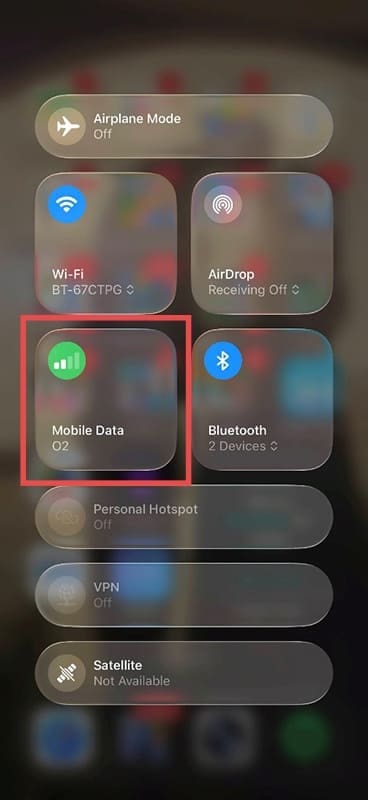
Step 3. The “Cellular Data” icon should now be green, indicating you have a cellular signal. You can also see on the “bars” image how strong this signal is. Test the fix by asking the original sender to try and send the text again.
Try Switching iMessage Off
The iMessage function allows Apple devices to send messages directly to each other without utilizing the cellular network. If your iPhone doesn’t receive texts from Android phones, switching the iMessage feature off is one possible fix.
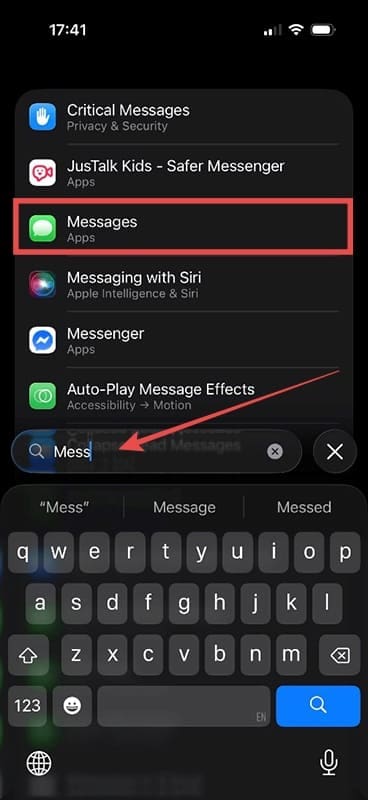
Step 1. Open “Settings” on the iPhone and look for “Messages.” It will either be in the “Apps” list or you can simply use the search feature, as shown.
Step 2. Navigate to iMessage and toggle the green “On” icon to “Off.”
Check Your Software Version
If your software is not up to date, this could be interfering with your SMS messaging service.
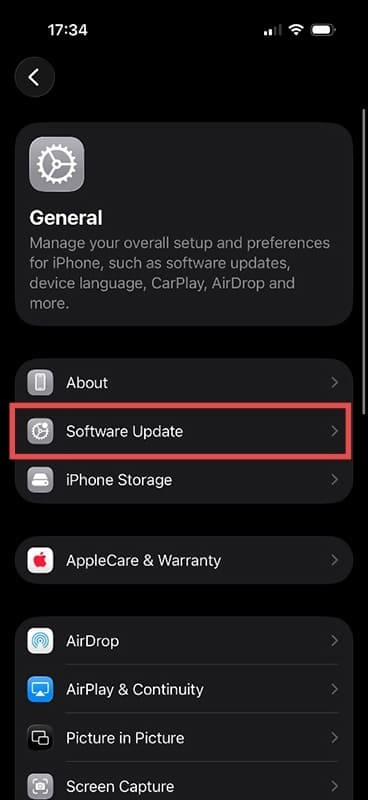
Step 1. Head back to settings and, this time, tap on “General,” then “Software Update.”
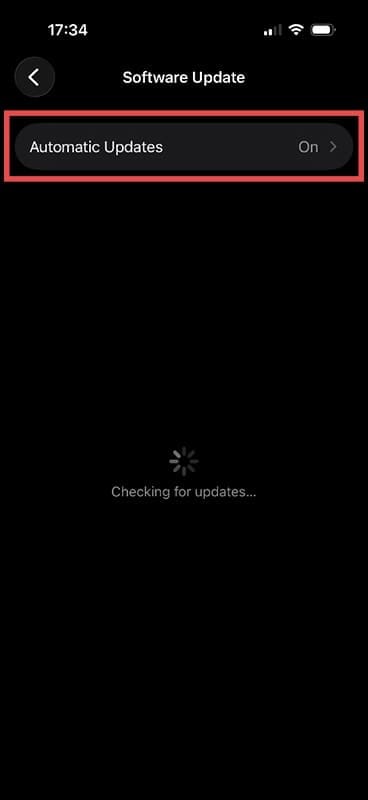
Step 2. Unless you have automatic updates switched on, you’ll most likely see a buffering symbol as the device searches for updates.
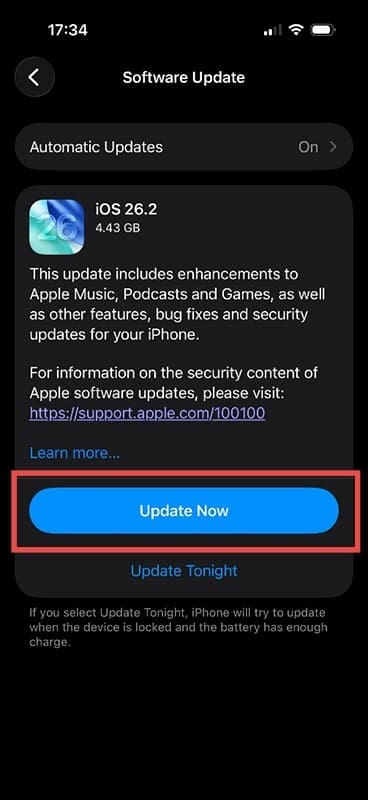
Step 3. If an update is available, click “Update Now.” Whenever you do an update, make sure your iPhone has plenty of battery or is plugged in. Also, don’t do a software update if you’re expecting an important call or email, as it can take a few minutes.
Ensure Your Cellular Line Is Switched On
Current iPhones offer the option to activate and deactivate your cellular line directly from the settings. If you’ve accidentally deactivated it, you might not realize until your iPhone stops receiving SMS messages.
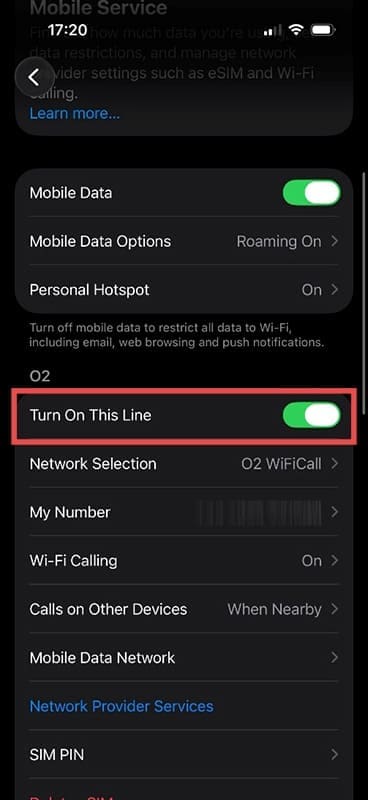
Step 1. Go back to the main “Settings” menu and look for “Cellular Service” or “Mobile Service.”
Step 2. In the “Cellular Service” page, look for “Turn On This Line.” It should be green. If not, press the toggle button next to the text.
If, after following the troubleshooting guide, your iPhone doesn’t receive texts from Android phones, check that it’s not just texts from one person. Get someone else with an Android device to text you. If that text comes through, you know it’s a problem with the original sender’s phone, not yours.
Where the steps above fail to resolve the issue, contact your cellular provider and report a fault. They may need to check that services like SMS and MMS (multimedia messaging services) are activated on your line.
As an avid gamer, I’ve run into my fair share of error codes and weird faults that have forced me to find fixes to problems I never anticipated. That gave me a passion for sharing those fixes with others so we can all game without feeling like our hardware is rebelling against us.











Write a Comment