Having overloaded system storage on the iPhone can cause a few issues. For one, you end up with a case where you can’t save as much to your phone. If you have too much stored on your phone, you might also end up having issues where your phone slows down or starts acting strangely. But you can clear the system storage on your iPhone to free up space.
Reasons your iPhone’s System Storage Gets Cluttered
First, the system storage on the iPhone contains things like items that your phone could not run without, but may also contain temporary files like backups, caches and certain logs.
To find how much space your System storage is taking:
Tap on Settings
Tap on General
Select iPhone Storage
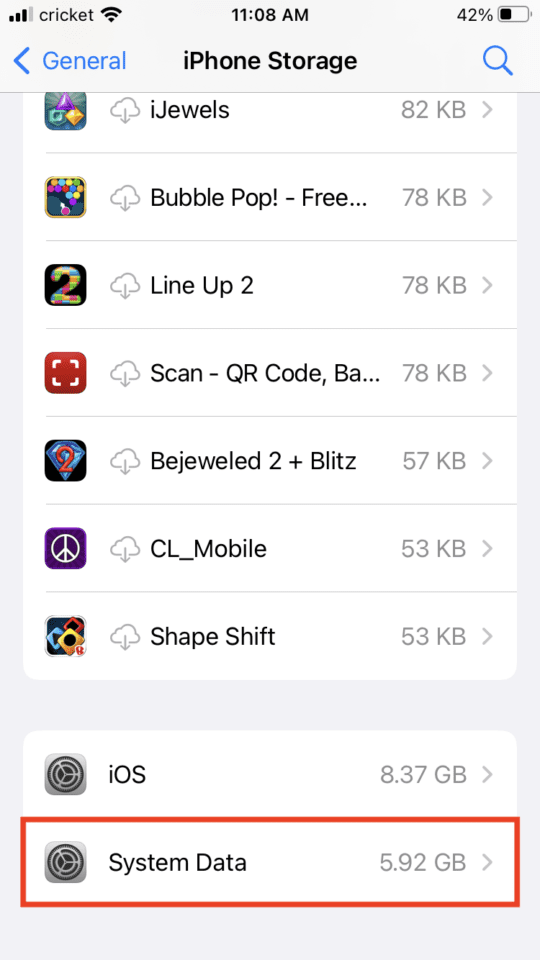
Scroll all the way down to System Data.
You might be shocked to see how much data is just going to System Storage. You can see mine is taking up 5.92GB. Sometimes it can go as high as 25GB.
You of course can’t delete everything in System Storage or the phone wouldn’t run properly, but there are some ways to clean it up a bit.
Clearing your iPhone’s System Storage
You may want to delete any updates that were unnecessary. If you decided not to install a Beta update or any other update, you might still find it saved in the System Storage. To find and delete any updates you don’t want to hold on to:
Tap Settings.
Select General.
Tap iPhone Storage.
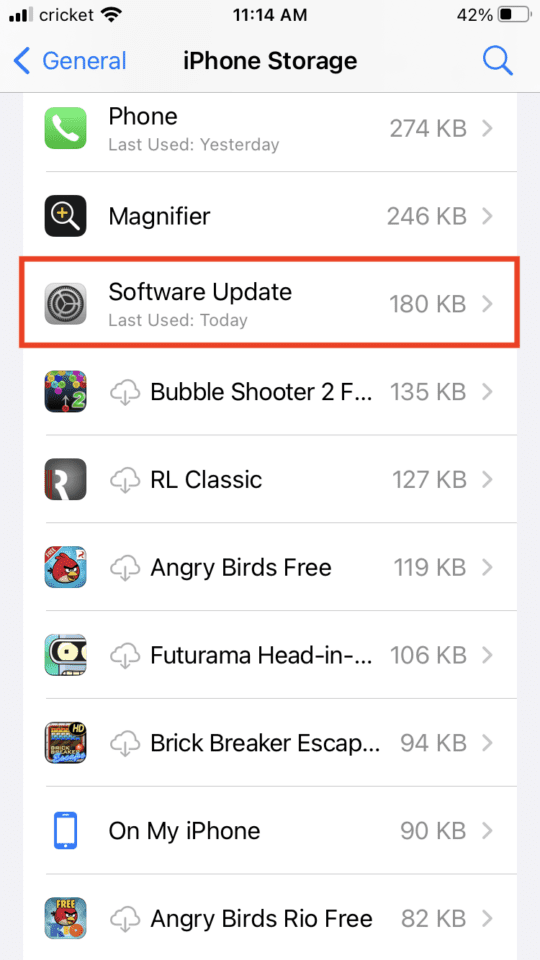
Scroll until you find Software Update.
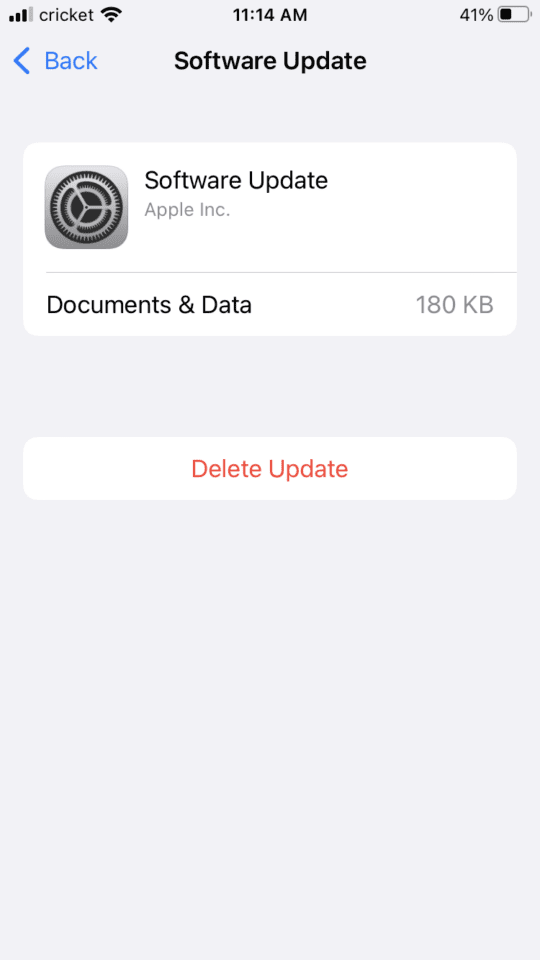
You can select the update and you will find a selection to hit that reads Delete Update.
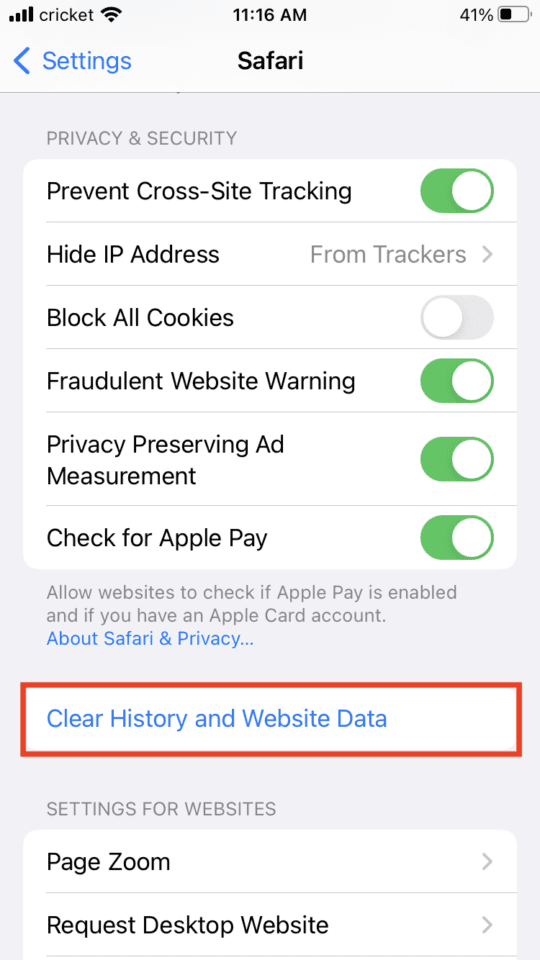
You can also work on getting rid of unnecessary caches on your phone. These are saved data from app use that don’t really need to hang around that long, but do. Unfortunately, there isn’t a way to universally clear caches. You’d have to go into each app and look for how to clear its cache. You might also delete and reinstall the app. However, you can easily delete your browser’s cache, which takes up quite a bit of data. If you use Safari, you’d find Safari under Settings, select it and tap “Clear History and Website Data.”
Another easy tip is to simply delete all those apps that you don’t use anymore, thus freeing up more system storage.
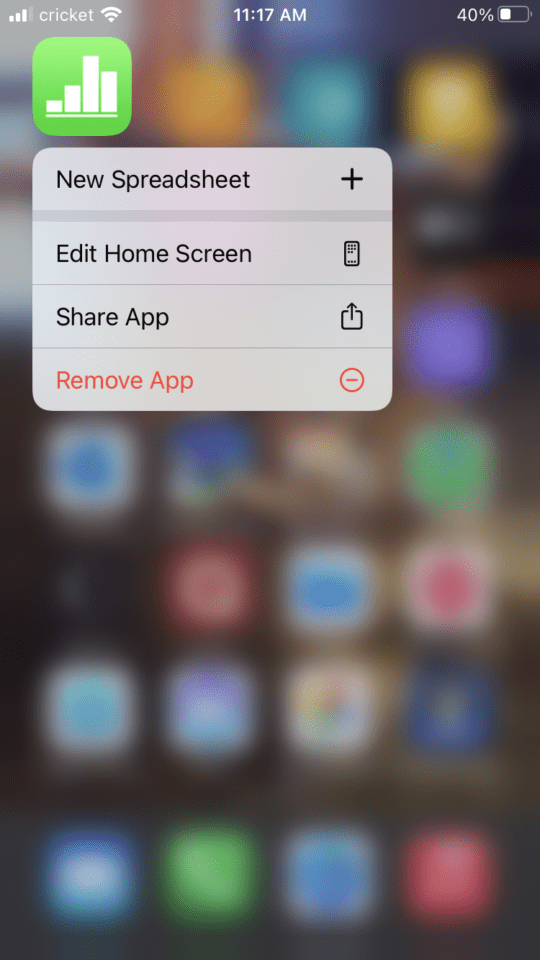
You just need to press and hold the app you want to delete.
A menu will pop up that gives you the option to remove the app at the bottom.
Select the Remove App option.
Select Delete App.
You may have to tab Delete again for confirmation.
You can also shrink the system storage on the iPhone by connecting it to iTunes through your computer like you normally would using a USB cable. You just have to:
Open iTunes.
Connect the iPhone to the computer with the USB cable.
Unlock your iPhone.
Let the two sync automatically for a few minutes.
You can now check how the sync altered the System Storage. Go to Settings, then General and then down to Storage. Then go down to System Data, which may have shrunk in size.
You can disconnect your phone from the computer.
The added storage can help your phone run more optimally and save room for things you actually use.










Connected to pc with itunes but no any effect. Syastem storage 23GB as it is remained
I am using two SIM cards for my iPhone 10 XR. I am unable to use FaceTime for another number.
Please help in resolving the issue.
Thank you.