Your iOS devices may sometimes throw a confusing error message saying they’ve been disabled and you need to wait for 24 or 25 million minutes to unlock them. This weird alert usually pops on the screen when you enter an incorrect passcode too many times or the battery dies unexpectedly. The error message is actually a security measure against brute-forcing. Let’s see how you can get rid of it.
What Do You Do When Your iPhone or iPad Is Disabled For 24 Million Minutes?
⇒ Fun Fact: This alert indicates your iOS device just reset its internal clock to midnight of Jan 1, 1970, or the Unix Epoch where Time = 0.
Force Start Your iOS Device
First of all, force restart your device and check if the issue is gone. Press and quickly release the Volume Up button. Do the same with the Volume Down button. Then hold the Side button until the Apple logo appears on the screen. If the issue persists, go to the next solution.
Insert a Valid SIM Card
Many users confirmed they fixed this issue by putting a valid SIM card in the faulty device. Your terminal should quickly get a time update. In other words, it should automatically set the correct date and time settings as soon as it joins the network.
Enable Recovery Mode
Syncing your iPhone or iPad with iTunes won’t work because your device is password locked out. What you can do is force it into Recovery Mode.
Use a cable and connect your iOS device to your Windows or Mac computer. By the way, if you’re running macOS Catalina or newer, launch Finder. If you’re running an older macOS version, you need to launch iTunes.
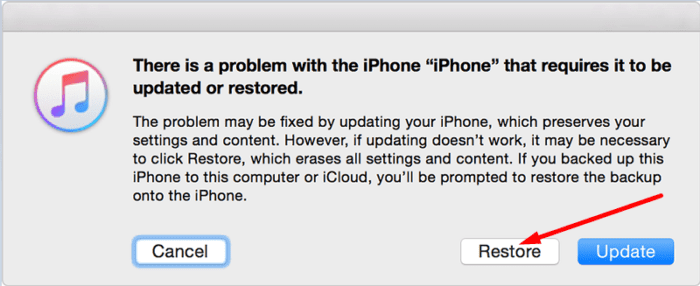
Follow the same steps you used to force restart the device. Namely, press and release the Volume Up button, and then the Volume Down button. Keep on pressing the Side button until the Apple logo pops on the screen. Don’t let go until you see the Recovery Mode screen. Restore your device and check if the problem is gone.
Conclusion
If your iOS device says you need to wait for 24 or 25 million minutes to unlock it, please don’t smash it against the wall. The device simply reset its internal clock to the Unix Epoch. To fix the issue, insert a valid SIM card or force your terminal into Recovery Mode. Which solution did the trick for you? Let us know in the comments below.
Madalina has been a Windows fan ever since she got her hands on her first Windows XP computer. She is interested in all things technology, especially emerging technologies — AI and DNA computing in particular.
mine is the same problem as yours. I put a valid simcard and waited for a while and it says Iphone disabled only, no more the minutes then I try to restore it connecting to iTunes.












My iPad will not unlock. It has never done this before. I keep getting a notice that it would unlock in 15 minutes.
help my i pad is in locked for 26,415,116 minutes what do i do about it
mine is the same problem as yours. I put a valid simcard and waited for a while and it says Iphone disabled only, no more the minutes then I try to restore it connecting to iTunes.
thank so much to this page.