• Skip to primary navigation
  • Skip to main content
  • Skip to primary sidebar
  • Skip to footer

AppleToolBox

Tools and Fixes for Mac, iPad, iPhone & iWatch

Search posts

  • About
  • Contact

CONNECT WITH US

CATEGORIES

  • iPhone
  • iPad
  • iPod
  • Apple Watch
  • Mac/MacBook
  • AirPods
  • Apple TV
  • News
  • Apple Services
  • HomePod
  • Reviews

SITE

  • Home
  • About Us
  • Contact
  • Advertise

Search posts

You are here: Home / Mac / Mac OS X: How to play old school arcade games in Terminal

Mac OS X: How to play old school arcade games in Terminal

By Sudz Kar 1 comment Last updated March 25, 2014

This article describes how you can play old arcade games, like Solitaire, Snake, Tetris, Fortune, Dunnet, Spook and many others (see available games below), in your Mac‘s Terminal (command line). You do not need any other apps. Here is how:

Related: Mac OS X: How to send SMS text messages from the command line

Steps:

1.Open your Mac OS X Terminal app (/Applications/Utilities):

Mac OSX Terminal Command Line

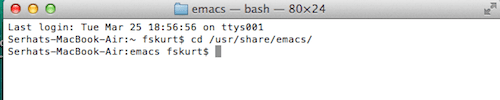
2.Enter the following command (this is to determine your emacs version):

cd /usr/share/emacs/

Terminal

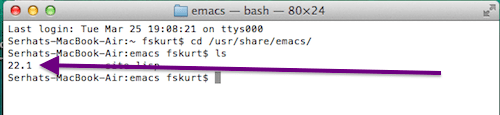
Then type:

ls

and hit enter

Emacs version

3.Write down the version number:

Emacs

4.Now enter this command:

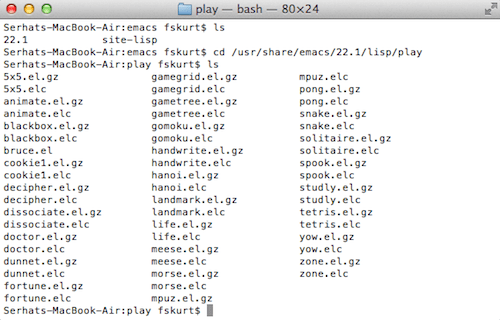
cd /usr/share/emacs/VERSION-NUMBER/lisp/play : Note replace Version with your version number, like this:

cd /usr/share/emacs/22.1/lisp/play

hit enter

then type:

ls

hit enter again

Now you will see all the games that are available:

Mac Emacs Games

5.To play games, you need to enter game names. Thus lets keep this Terminal window (so you can see the names) and then press Command + N to open a new Terminal window where you can play games.

6.Enter the following code:

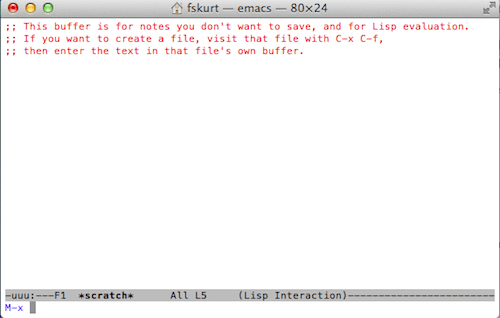
emacs

press enter

Then press the Esc key on your keyboard then the X key:

Emacs commands

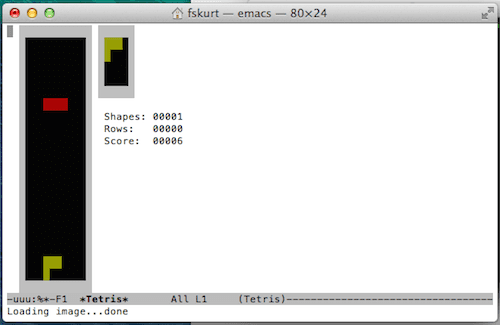
7.Now you need to enter the name of one of the game file names that you want to play. You do not need to enter the extension code. For instance, if you want to play Tetris, just type tetris and hit enter:

Tetris Terminal Mac

8.Have fun!

Emacs games:

5×5.el.gz
gamegrid.el.gz
mpuz.elc
5×5.elc
gamegrid.elc
pong.el.gz
animate.el.gz
gametree.el.gz
pong.elc
animate.elc
gametree.elc
snake.el.gz
blackbox.el.gz
gomoku.el.gz
snake.elc
blackbox.elc
gomoku.elc
solitaire.el.gz
bruce.el
handwrite.el.gz
solitaire.elc
cookie1.el.gz
handwrite.elc
spook.el.gz
cookie1.elc
hanoi.el.gz
spook.elc
decipher.el.gz
hanoi.elc
studly.el.gz
decipher.elc
landmark.el.gz
studly.elc
dissociate.el.gz
landmark.elc
tetris.el.gz
dissociate.elc
life.el.gz
tetris.elc
doctor.el.gz
life.elc
yow.el.gz
doctor.elc
meese.el.gz
yow.elc
dunnet.el.gz
meese.elc
zone.el.gz
dunnet.elc
morse.el.gz
zone.elc
fortune.el.gz
morse.elc
fortune.elc
mpuz.el.gz

More: Troubleshooting Guide: Mac OS X 

Related Posts:

  • pexels-rodnae-productions-7915313
    Trying Out the Best Apple Arcade Games for 2021
  • Games coming to macOS Sonoma
    How to Play Windows Games on Mac
  • pexels-rodnae-productions-7915405
    The Best iPhone Rhythm Games
  • iPhone 15 event - iPhone 15 Pro and iPhone 15 Pro Max A17 Pro Video Recording Promo
    iPhone 14 vs. iPhone 15: Should You Upgrade?
  • 2023 Mac Studio lifestyle - 1
    macOS Could Not Be Installed, How-To Fix
  • pexels-tranmautritam-251225
    Atom Alternatives On Mac For 2023
  • iOS 16 Unsend Messages on Your On Your iPhone
    No Text or Message Notification Alerts or Sounds on…
  • sidecar on iPadOS and macOS
    Sidecar not working in iPadOS and macOS? How to fix…
  • MacBook Pro 2021 iPad Mini iPhone 13 Pro AirPods 3 Beats Fit Pro iPad Pro Best Apple Products - 2
    The Best Apps and Games Of 2022, According to Apple
sudz - apple
Sudz Kar

Obsessed with tech since the early arrival of A/UX on Apple, Sudz (SK) is responsible for the original editorial direction of AppleToolBox. He is based out of Los Angeles, CA.

Sudz specializes in covering all things macOS, having reviewed dozens of OS X and macOS developments over the years.

In a former life, Sudz worked helping Fortune 100 companies with their technology and business transformation aspirations.
Reader Interactions

Write a Comment Cancel reply

Show 1 Comments

  1. Beatriz says

    June 4, 2017 at 9:28 AM

    How do you play the games once they load? is it possible to view how to control games?

    Reply

Primary Sidebar

Recent Posts

  • How to Disable Predictive Text in iOS 26
  • How to Stop Sharing Analytics in iOS 26
  • How to Manage Your iPhone Call Log
  • Are Apple’s Safety Precautions Enough for AirTags?
  • How to Hide Username and Photo on the Mac Lock Screen
  • Microsoft Resume vs. Apple Handoff – Which Wins for Cross-Device Work?

Connect with us

Footer

ABOUT

  • About Us
  • Contact us
  • Advertise
  • Privacy
  • Terms of Use

GUIDES

  • iOS & iPadOS
  • Apple ID
  • iCloud
  • App Store
  • iTunes
  • FaceTime
  • iMessage
  • Siri
  • Books and iBooks
  • Game Center
  • AirPlay

CONNECT

  • Facebook
  • Twitter
  • FeedBurner
  • YouTube

© Copyright 2010-2024 Guiding Tech Media · All Rights Reserved

This site and its content are in no way affiliated or endorsed by Apple, Inc. · Reproduction without explicit permission is prohibited

Last Updated on March 25, 2014 by