• Skip to primary navigation
  • Skip to main content
  • Skip to primary sidebar
  • Skip to footer

AppleToolBox

Tools and Fixes for Mac, iPad, iPhone & iWatch

Search posts

  • About
  • Contact

CONNECT WITH US

CATEGORIES

  • iPhone
  • iPad
  • iPod
  • Apple Watch
  • Mac/MacBook
  • AirPods
  • Apple TV
  • News
  • Apple Services
  • HomePod
  • Reviews

SITE

  • Home
  • About Us
  • Contact
  • Advertise

Search posts

You are here: Home / Mac / MacBook Sleep Feature Not Working, How-To Fix

MacBook Sleep Feature Not Working, How-To Fix

By Sudz Kar 0 comments Last updated July 17, 2017

Several users have found that their MacBook doesn’t Sleep when trying the  > Sleep command. Users also complain that their machine doesn’t go into the standby mode when closing the lid.

MacBook Sleep Feature Not Working,How-To Fix

Contents

  • After macOS update?
  • Reset SMC and PRAM (NVRAM)
  • Getting Sleeping Again with Terminal

After macOS update?

This situation often happens after a macOS upgrade. Although this problem can happen in any model of MacBook, we have seen that this problem usually happens more frequently on older MacBooks (2013 and older).

There could be many reasons why this feature may not be functioning for you. In this article, we will provide you with a short tip that might help you in fixing this issue.

Reset SMC and PRAM (NVRAM)

If you have already tried a SMC reset and PRAM Reset following Apple’s guidelines and are still facing the issue read on, otherwise we suggest that you perform the reset functions before going down the terminal route as explained in this article.

My Mac won't start: How to fix white screen

Getting Sleeping Again with Terminal

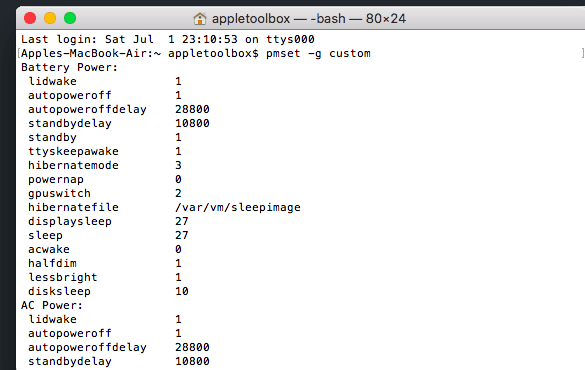
For some weird reason, the settings for sleep and standby get changed while doing an upgrade. You can verify the settings by opening up Terminal app on your MacBook.

Step – 1 Open a Terminal Session and type in pmset –g custom

MacBook Standby Not Working

Step – 2 This useful yet less known command help manages power management settings such as idle sleep timing, wake on administrative access, automatic restart on power loss, etc. In the command results, look for hibernate and standby

Step – 3 The default setting for Hibernate is 3 and standby is 1. Sometimes the standby setting turns into a 0, and that is what you will need to change.

Step – 4 To change the setting value, type in sudo pmset standby 1 and press Enter.

Step – 5 Restart your MacBook

This should hopefully fix your issue. Your MacBook will now go into standby when you close the lid and wake up when you open it. While using the command pmset, you can also check out the setting for lidwake. This setting helps wake the machine when the laptop lid (or clamshell) is opened (value = 0/1) and should be on 1.

Please let us know in the comments below if this fixed your issue with your MacBook. Or if something else worked!

Related Posts:

  • 2023 Mac Studio lifestyle - 1
    macOS Could Not Be Installed, How-To Fix
  • iPhone Standby Header
    How to Use StandBy Mode on iPhone With iOS 17
  • Delete-Group-Reminders-Folder-macOS
    MacBook Will Not Start Up After macOS Update, How-To Fix
  • 2022 Mac Mini with Studio Display and Accessories
    Mac Tips For New Users In 2023
  • An iPhone, Mac, and MacBook on a table
    Can You Use Time Machine to Back up Your Mac to…
  • photo of an iphone and ipad next to one another
    iOS 17/iPadOS 17 Problems & How to Fix Them:…
  • Photo of someone using Apple Music on their smartphone
    How to Fix Apple Music Not Working on iPhone / iPad
  • How to Disable the Login Password on Mac
    My Mac Won't Start or Boot: How To Fix White Screen
  • pexels-vlada-karpovich-7561034
    The Best Apple Gifts For Tech Fans
sudz - apple
Sudz Kar

Obsessed with tech since the early arrival of A/UX on Apple, Sudz (SK) is responsible for the original editorial direction of AppleToolBox. He is based out of Los Angeles, CA.

Sudz specializes in covering all things macOS, having reviewed dozens of OS X and macOS developments over the years.

In a former life, Sudz worked helping Fortune 100 companies with their technology and business transformation aspirations.

Reader Interactions

Write a Comment Cancel reply

Primary Sidebar

Recent Posts

  • How to Stop Sharing Analytics in iOS 26
  • How to Manage Your iPhone Call Log
  • Are Apple’s Safety Precautions Enough for AirTags?
  • How to Hide Username and Photo on the Mac Lock Screen
  • Microsoft Resume vs. Apple Handoff – Which Wins for Cross-Device Work?
  • How to Export iTunes Library to New Computer

Connect with us

Footer

ABOUT

  • About Us
  • Contact us
  • Advertise
  • Privacy
  • Terms of Use

GUIDES

  • iOS & iPadOS
  • Apple ID
  • iCloud
  • App Store
  • iTunes
  • FaceTime
  • iMessage
  • Siri
  • Books and iBooks
  • Game Center
  • AirPlay

CONNECT

  • Facebook
  • Twitter
  • FeedBurner
  • YouTube

© Copyright 2010-2024 Guiding Tech Media · All Rights Reserved

This site and its content are in no way affiliated or endorsed by Apple, Inc. · Reproduction without explicit permission is prohibited

Last Updated on July 17, 2017 by Sudz Kar