Having all your passwords at your fingertips no matter the device, browser, or even operating system can be a big help and go a long way toward making your life easier. But as is often the case in Microsoft and Apple synergy, sometimes wires get crossed, things go wrong and, in this case, your Microsoft Edge browser is no longer autofilling iCloud passwords.
Fear not. This article will guide you in getting those valuable passkeys back into your hands and on your screen.
There can be a few reasons why iCloud is not properly autofilling passwords on Microsoft Edge. It could be a sync issue, a problem with the browser itself, or one with your PC.
Before attempting any of the troubleshooting methods below, ensure that you have the iCloud app installed on your PC and that iCloud Passwords is both installed and enabled. Another good check is to see if iCloud Passwords is working on other browsers.
If the issue still persists, it’s time to try other methods.
Double Check the Installation
If you haven’t already, ensure that the iCloud Password Extension is installed specifically on the Edge app. If it isn’t, here’s what to do:
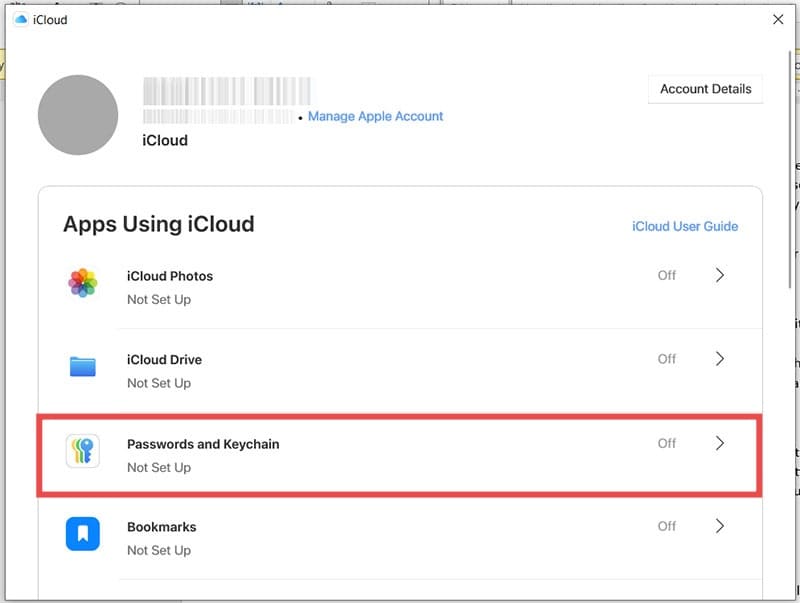
Step 1. Open the iCloud app and click the arrow next to “Passwords and Keychain.”
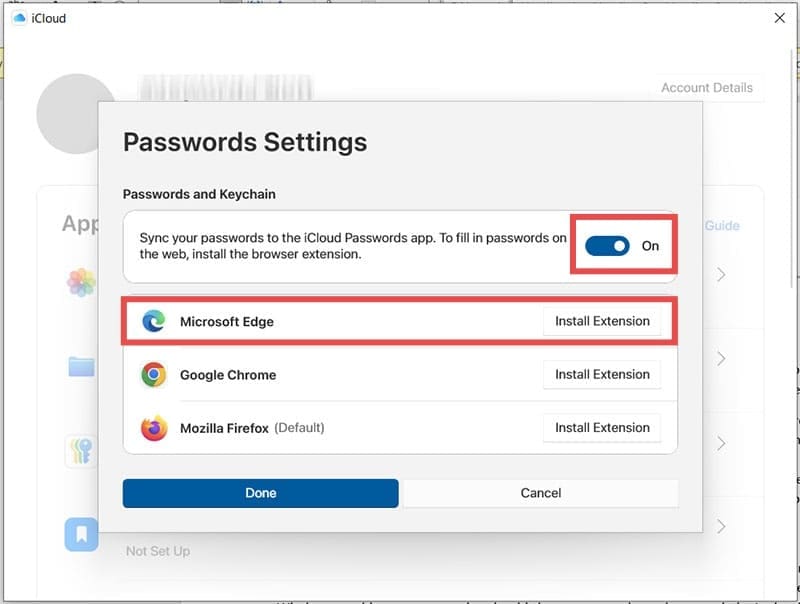
Step 2. Ensure the sync slider is dragged to “On” and click the “Install Extension” button next to “Microsoft Edge.”
Step 3. Edge will open. Click the “Get” button and the extension will install.
Step 4. You can now view the extension in Edge and adjust any further settings in the iCloud Passwords app.
Check for Verification Messages
Password apps are all about security and iCloud Passwords might request additional account verification to log in on Edge. You need to ensure this check is enabled on Edge. To do so:
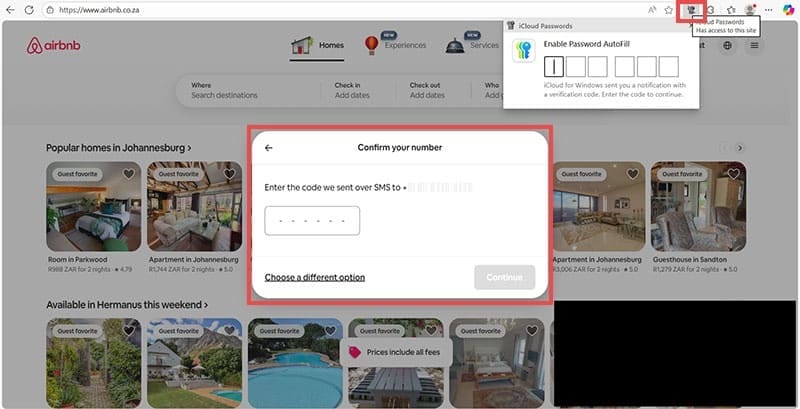
Step 1. When prompted to autofill your password, click the key icon (with a line through) in your Edge toolbar.
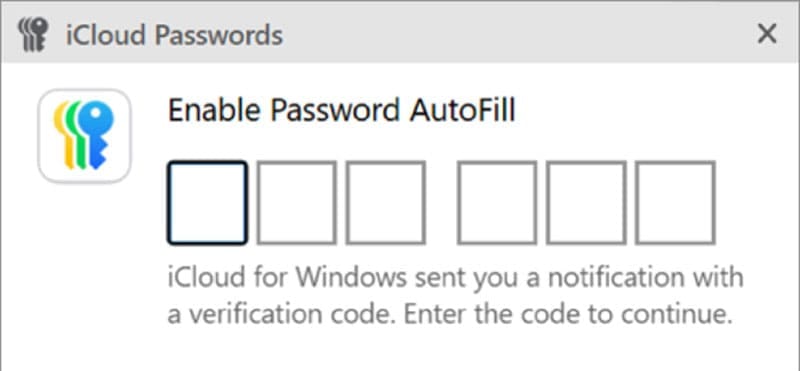
Step 2. A verification code will pop up from your taskbar. Input this into the autofill box provided.
Enable Edge Autofill
The problem may not solely rest with iCloud Passwords. In certain cases, Edge might be hampering the process by having its own autofill disabled. Here’s how to check and re-enable it:
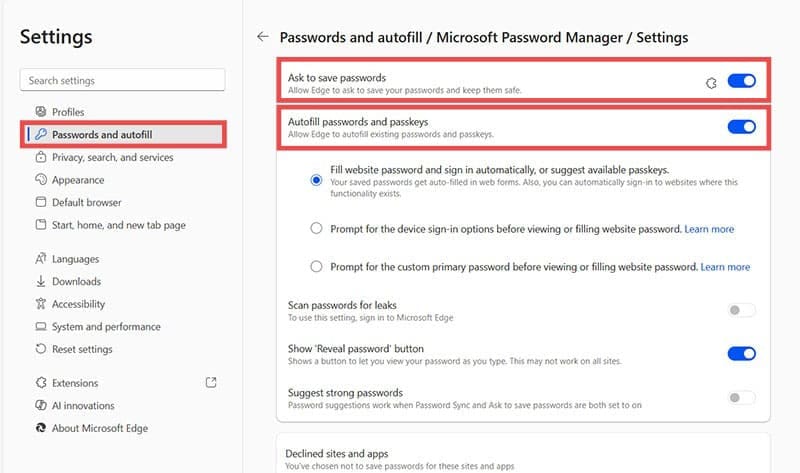
Step 1. Click the hamburger menu (three dots) in the top-right corner of the browser and choose “Settings.”
Step 2. Choose “Passwords & Autofill” in the sidebar and click “More Settings” in the main window.
Step 3. The extended range of password options will pop up. Ensure that “Ask to save passwords” in toggled to “On” (or that iCloud Passwords is recognized as the extension in charge of this choice). Importantly, drag the “Autofill passwords and passkeys” slider to “On.”
Step 4. Restart your browser and check if the issue is resolved.
Disable Conflicting Software and Extensions
iCloud autofill might also run into problems when operating alongside other password managers like Bitwarden and NordPass. Antivirus programs too might also flag the autofill process as problematic. If running other password manager extensions, try disabling them to see if the issue is resolved. You can also do the same with your antivirus temporarily.
Try a New Browser Profile
Sometimes an Edge profile might become corrupted in some way. To test this, you can create another profile and see if the issue persists. To do this:
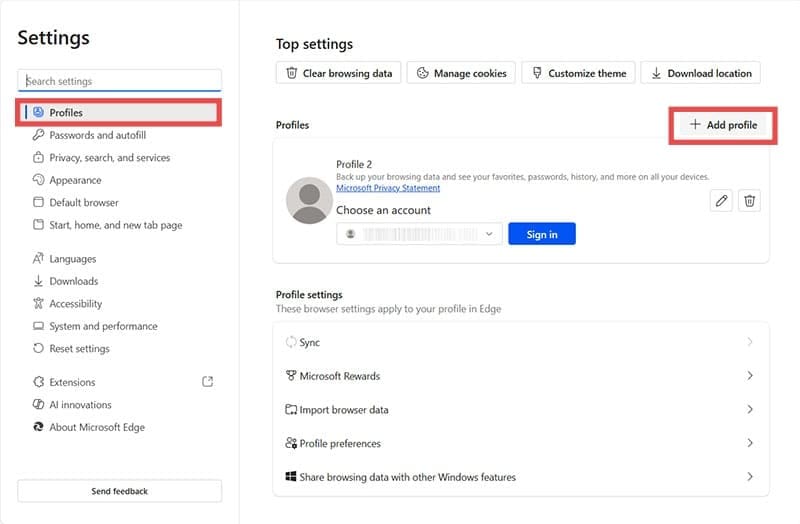
Step 1. Choose “Settings” from the hamburger menu and navigate to “Profiles” in the sidebar.
Step 2. Click the “Add Profile” button. Switch to this profile and see if the issue is resolved.
As an avid gamer, I’ve run into my fair share of error codes and weird faults that have forced me to find fixes to problems I never anticipated. That gave me a passion for sharing those fixes with others so we can all game without feeling like our hardware is rebelling against us.











Write a Comment