Error 8004ded0 usually pops up when you’re trying to sign in to OneDrive for Mac. Restarting the app may help you get rid of this error code, but this quick workaround doesn’t always do the trick. If you’re looking for a solution to fix this problem but don’t know where to start, follow the steps below.
How Do I Fix OneDrive Error Code 8004ded0 on macOS?
Use OneDrive Online
If you can’t use the desktop app, check if you can sign in to OneDrive Online. The good news is that the web app is rarely affected by the same glitches and errors plaguing the desktop app. So, if you need to quickly access your files, use the OneDrive web app. Meanwhile, pursue the steps below to troubleshoot the desktop app.
Disable Your Proxy, Firewall, and Antivirus
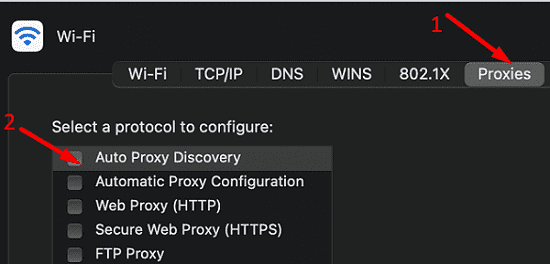
If you’re using specific proxy server settings, switch to Auto Proxy Discovery.
Go to System Preferences, and select Network.
Select your network (Ethernet or Wi-Fi).
Then click on Advanced, and select Proxies.
Select Auto Proxy Discovery to automatically discover proxy servers.
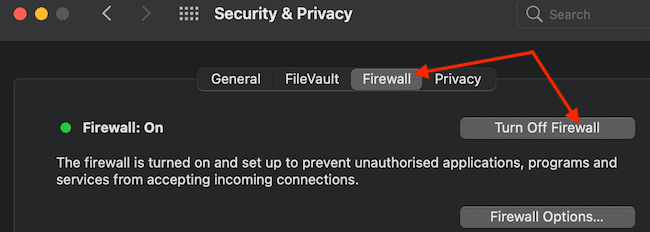
Then go to System Preferences, select Security & Privacy, and then click on Firewall. Disable your firewall and launch OneDrive again.
If the error persists, and you’re also using an antivirus program on your Mac, disable it and restart OneDrive again.
Kill All OneDrive Processes and Delete the Keys From Keychain Access
Go to Utilities, and launch the Activity Monitor.
Make sure to sort the Process Name column alphabetically.
Scroll down to OneDrive and kill all OneDrive-related processes.
After force-quitting all OneDrive processes, you need to wipe out any stored or cached user or password information.
Go back to the Utilities folder.
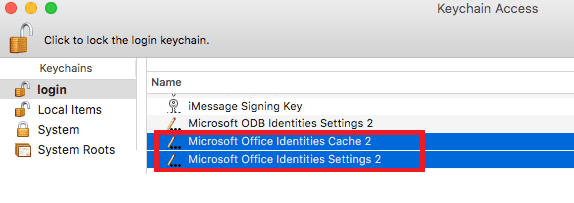
Launch Keychain Access and type OneDrive in the search field.
Simply select all OneDrive items and delete them. If there are no specific OneDrive items on the list, remove the Microsoft Office Identity entries.
Exit Keychain Access.
Reset OneDrive
If the issue persists, reset OneDrive so that you can start all over again.
Exit OneDrive completely.
Go to Applications and locate the OneDrive folder.
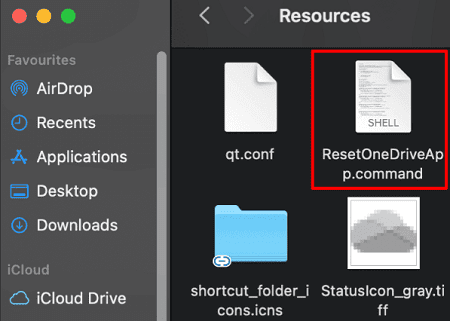
Open it and double-click the Resources folder.
Then launch the ResetOneDriveApp.command to run the script that allows you to reset the app.
Launch OneDrive for Mac again, and check if this solution worked.
Reinstall the App
If error 8004ded0 persists, go to Applications, and drag OneDrive to Trash. Empty your Trash folder and restart your Mac. Then download the latest OneDrive for Mac app version directly from Microsoft’s website, instead of downloading it from the App Store. Many users confirmed that reinstalling OneDrive from Microsoft did the trick for them.
Conclusion
To fix OneDrive error 8004ded0, disable your proxy settings, and turn off your firewall, and antivirus. Then launch the Activity Monitor and kill all OneDrive-related processes. Additionally, delete the OneDrive keys from Keychain Access as well. If the error persists, reset and reinstall OneDrive.
Did you manage to get rid of error 8004ded0? Which of these methods worked for you? Let us know in the comments below.
Madalina has been a Windows fan ever since she got her hands on her first Windows XP computer. She is interested in all things technology, especially emerging technologies — AI and DNA computing in particular.
I had to do all suggestions (did not work after each one) and in the end downloaded OneDrive from Microsoft. Launching OneDrive did make a new folder on my Mac. My school did move the OneDrive service to a new secure platform and that did start the problem. No problem connecting another OneDrive account (that was a problem a while ago to have two OneDrive accounts). Thanks for your very good and precise information and instructions and have a nice day :-).












I’ve gone through all these steps, but am still receiving the same error code. Any further tips? Thanks!
Enable Auto Proxy Discovery helps me to resolve the issue, Thank you so much!
I had to do all suggestions (did not work after each one) and in the end downloaded OneDrive from Microsoft. Launching OneDrive did make a new folder on my Mac. My school did move the OneDrive service to a new secure platform and that did start the problem. No problem connecting another OneDrive account (that was a problem a while ago to have two OneDrive accounts). Thanks for your very good and precise information and instructions and have a nice day :-).