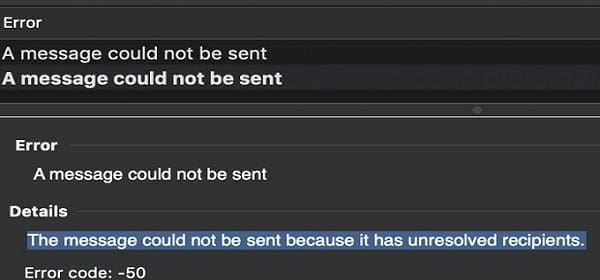
When you send an email or sync your mailbox, Outlook for Mac may sometimes throw the following error message: “The message could not be sent because it has unresolved recipients.” This error usually occurs when you’re trying to send an email with multiple attachments to multiple CC and BCC recipients. Let’s explore what could be causing this problem and how you can fix it.
Fix: Outlook Couldn’t Send the Message Because It Has Unresolved Recipients
Check the Email Address Format
Make sure you’re using the correct email address format. This error message may indicate you’re using an incorrectly formatted email syntax. For example, maybe there’s a typo in the domain, an extra space that shouldn’t be there, or the domain is missing completely. Double-check all the recipients and ensure you entered the correct email addresses.
Check Your Separators
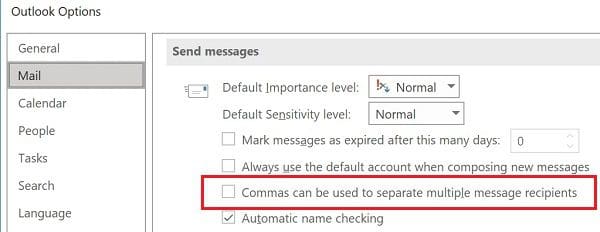
By default, Outlook uses semicolons to separate multiple recipients. On the other hand, Mail (macOS) treats multiple addresses differently. If you normally use commas to separate multiple email addresses, that could explain why you’re getting this error message. If you copy an address list from another email client and then paste it into Outlook, make sure to use a separator that Outlook supports. When transferring an address list, ensure the email addresses are formatted correctly.
As a quick workaround, you can edit your Outlook settings so as to use commas to separate multiple email recipients. Go to Outlook Options, select Mail, and enable the option that allows you to use commas to separate email recipients.
Check Your Address Book
If you’re using Outlook’s address book feature, check all the entries and ensure that each name is mapped to a valid email address. If there’s no email address associated with the names listed in your address book, Outlook won’t be able to deliver your messages. It’s as if you’re trying to send a message without actually selecting the recipient’s address.
Conclusion
Unresolved recipient errors indicate you’re using an incorrect email address format. Additionally, make sure to use an email address separator that Outlook supports. If you’re using an address book, make sure there’s a valid email address associated with your contacts. If you find this guide helpful, let us know in the comments below, and don’t forget to share it on social media.
Madalina has been a Windows fan ever since she got her hands on her first Windows XP computer. She is interested in all things technology, especially emerging technologies — AI and DNA computing in particular.
I get two of these errors all the time, with a little “bong” every minute or so. The messages both have misspelled domain names. They are months old. How can I find them to kill the errors? There is no “outbox”.
How do you remove the “Sync Error Code-50” for a message with an invalid email address? I have corrected the email address and I would like to stop future attempts by Outlook to try to send the email to the prior invalid email address. Thank you.
i have this error “message could not be sent error 50” every day for months. I cannot find the message that is/was causing this so i cannot correct it.
Help 🙁
I haven’t sent an email in over a day, yet this error has just popped up. I cannot follow the instructions if there are no recipients to resolve because there is no email.










I get two of these errors all the time, with a little “bong” every minute or so. The messages both have misspelled domain names. They are months old. How can I find them to kill the errors? There is no “outbox”.
How do you remove the “Sync Error Code-50” for a message with an invalid email address? I have corrected the email address and I would like to stop future attempts by Outlook to try to send the email to the prior invalid email address. Thank you.
i have this error “message could not be sent error 50” every day for months. I cannot find the message that is/was causing this so i cannot correct it.
Help 🙁
I haven’t sent an email in over a day, yet this error has just popped up. I cannot follow the instructions if there are no recipients to resolve because there is no email.