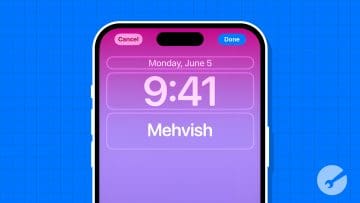
This can be done by creating and enabling a custom Focus mode.
You can also use a third-party app like AnyText or create a wallpaper with your name on it.
Method 1: By Creating a Custom Focus
This is one of the easiest ways to add your name on the lock screen of your iPhone. All you need to do is create a custom Focus mode and keep its name your actual name. For the unaware, Focus modes are customizable sound profiles that let you silence your phone’s notifications based on time, apps, and other factors.
Here’s what you need to do:
Open Settings on your iPhone and tap on Focus.
Tap on the + icon at the top and select Custom.
Enter your name in the Name text box and select the icon that should go along with the name. Press the Next button.
Tap on the Customize Focus button. You will be taken to the Focus settings page. You don’t need to do anything here.
Now, open Control Center and long-press on the Focus tile. Tap on your name to activate the Focus. That’s it. You will now see your name on your iPhone’s lock screen.
Few Tips:
If you have more than 10 focus modes, you might not see the + icon in step 2. To create a new focus, delete any existing one.
To remove the name, you need to turn off the Focus. For that, open Control Center again and tap on your name.
Method 2: Using Third-Party Apps
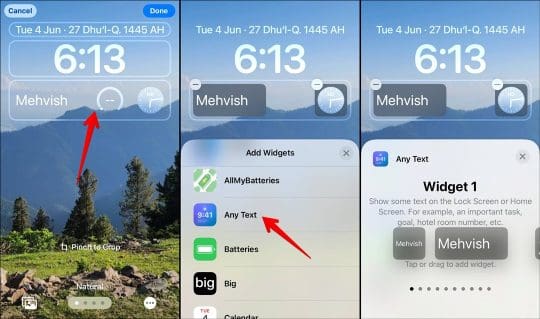
You can also use third-party apps like AnyText and Make It Big to add a name to the iPhone’s lock screen. All you must do is add the app widget on the lock screen, as shown below:
Download and open the AnyText app on your iPhone.
Enter your name in the text area that shows up in the app.
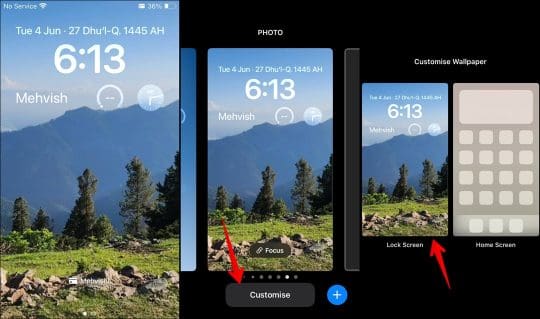
Now, swipe down from the top-left corner to open the lock screen panel. Long press on any empty space and press Customize. Select Lock Screen.
Tap on a widget or empty space below the clock to open the widget panel. Select Any Text widget and choose the widget with your name. Tap on Done to save the changes.
In this method, you must manually add the preferred text, i.e., your name, to your phone’s wallpaper picture. You will need to take a screenshot of the wallpaper or download it from the internet so that it shows in the Photos app. Then follow these steps:
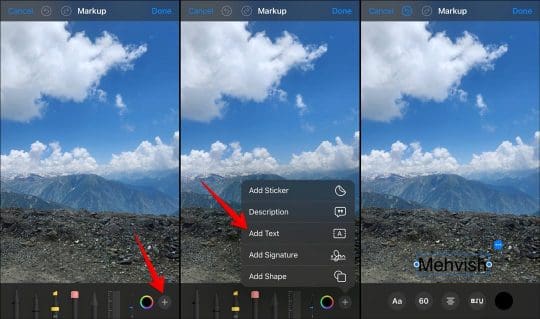
Open the picture in the Photos app and tap on the Edit button, followed by the Pen icon.
Tap on the + icon and select Add Text.
Enter your name in the text box and customize its color and font using the given options at the bottom. When finished, tap on Done, followed by Done again, to save the wallpaper.
Finally, tap on the Share icon and select Use as wallpaper. Then, follow the general instructions to add the wallpaper.
Note: You may need to reposition the text on the wallpaper so that it appears in the preferred position.
Mehvish Mushtaq is a computer engineer by degree. Her love for Android and gadgets led her to develop the first Android app for Kashmir. Known as Dial Kashmir, she won the prestigious Nari Shakti award from the President of India. She has been writing about technology for 6+ years and her favorite categories include how-to guides, explainers, tips and tricks for iOS/iPadOS, Android, social media, and web apps.















I love the contributions from Mehvish and the instructions are so simple. Thank you