Google Calendar and Apple Calendar are two of the most popular calendar apps, and both of them make it easy to keep your personal and professional lives organized. And while you can always stick with one or the other, they work well together if you’d prefer to try both.
You might want to use Google Calendar and Apple Calendar because you have some non-Apple devices, or because you like how one performs on certain gadgets. Regardless of your reasons, it’s easy to sync your calendars together.
Keep reading to find out how you can sync Google Calendar and Apple Calendar on your iPhone, iPad, and Mac.
How to Sync Google Calendar and Apple Calendar on Your iPhone and iPad
To sync your calendar apps on iOS and iPad, you’ll need to follow these steps.
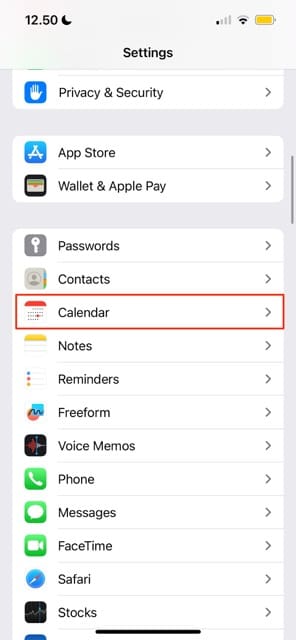
Open the Settings app on your device.
Go to Calendar.
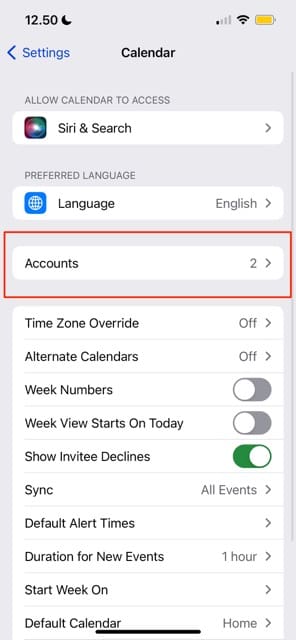
Select Accounts.
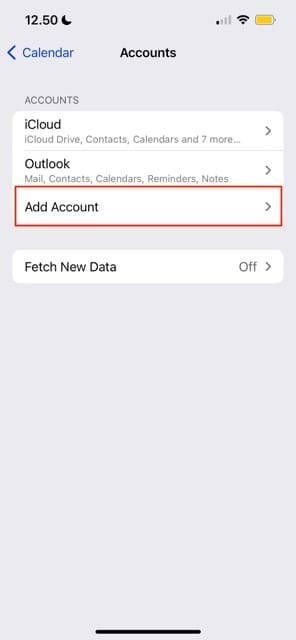
On the next page, go to Add Account. Then, select the Google logo.
Sign into your Gmail account. You might need to confirm your identity; if you do, follow the instructions required for that.
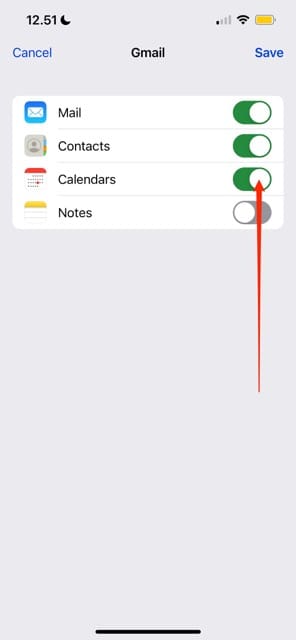
After signing into your Google account, you’ll see a list of syncing options. Make sure that you’ve toggled Calendars on; the rest are optional.
How to Check That Your Calendars Are Synced Together
Once you’ve added your Google account, you can check to ensure that your calendars are synced together. Here are the steps you should follow in order to do that:
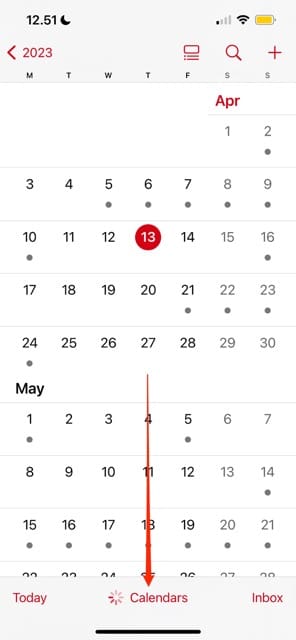
Open the Apple Calendar app and go to Calendars./li>
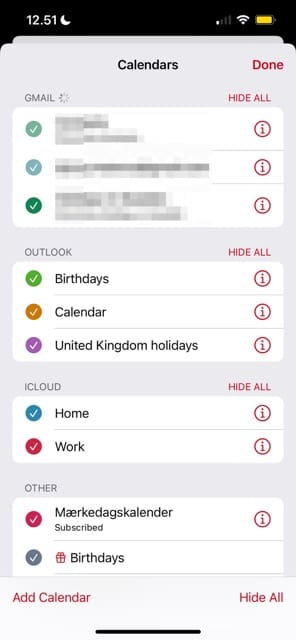
On the next screen, you should see a section called Gmail. Your calendars should appear here, and you can decide which ones you’d like to show within Apple Calendar.
Hit Done when you’re happy with how everything looks.
How to Sync Google Calendar and Apple Calendar on Your Mac
If you want to sync Google Calendar with Apple Calendar on your Mac, the steps are slightly different. Here are the steps you’ll need to follow:
1. Open Apple Calendar on your Mac.
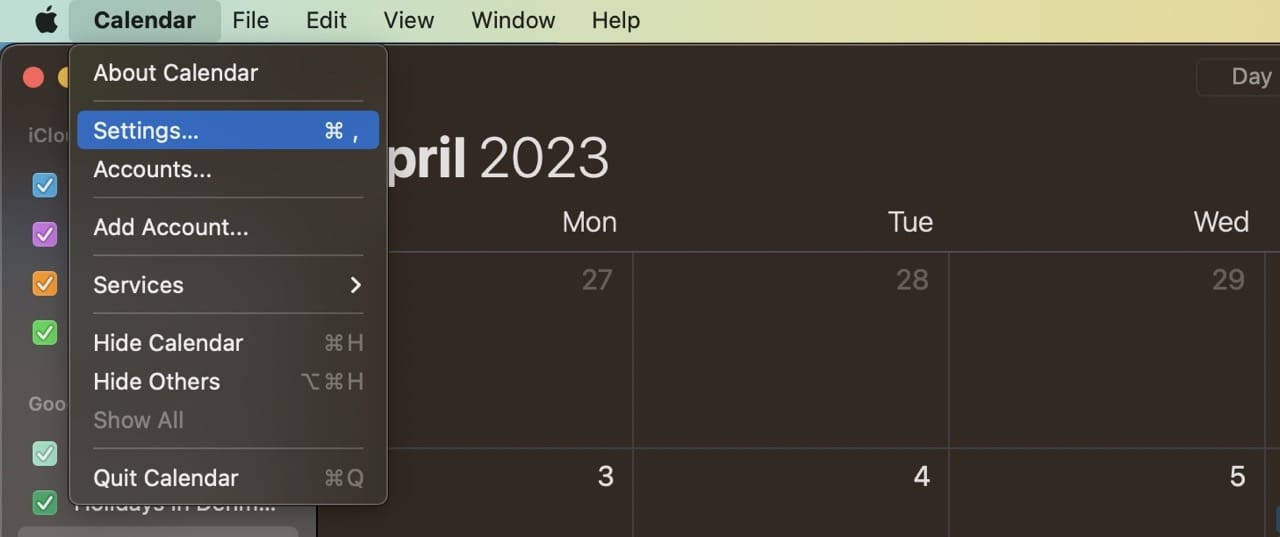
2. Go to Calendar > Settings.
3. Select the Accounts tab.
3. Hit the + button in the bottom left-hand corner of your screen.
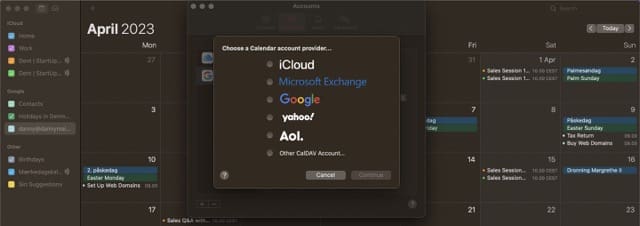
4. Select Google on the next window and press Continue.
5. Sign into your Google account and confirm your identity if necessary.
6. Make sure that you’ve selected to sync your calendars.
How to Change the Sync Frequency
You can change the frequency that your calendars sync together by following these instructions.
1. Go to Calendar > Settings > Accounts.
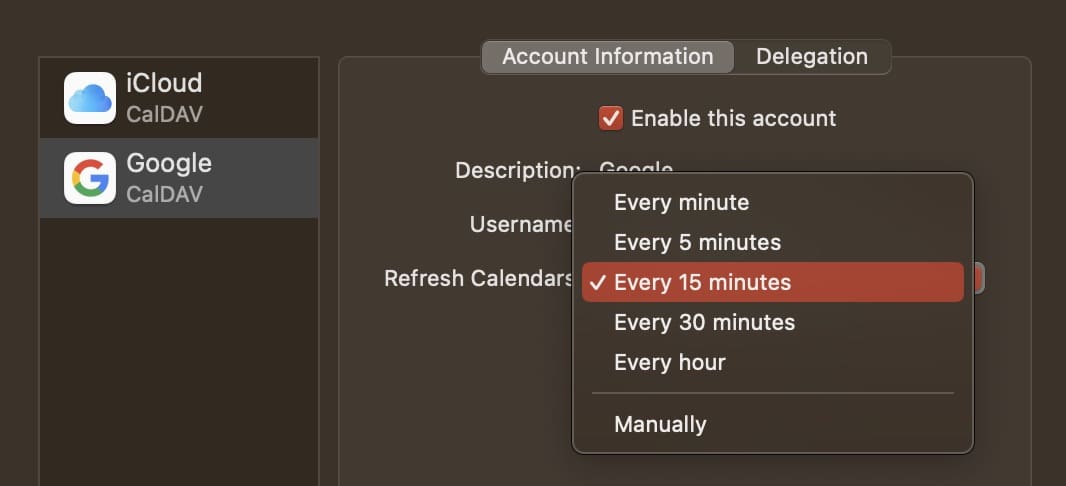
2. Expand the dropdown menu next to Refresh calendars.
3. Choose how often you want your calendars to sync. You’ve got a number of pre-made options to choose from, but you can also go to Manually if you want to pick your own timescales.
Syncing Your Calendars on Apple Devices Shouldn’t Take Too Long
Google Calendar and Apple Calendar are often used interchangeably, and it’s worth syncing all of your events in the same place. Once you’ve done that, you’ll find it much easier to stay on top of your most important tasks.
Having read this guide, you should have all the tools you need to successfully sync Google Calendar with Apple Calendar on your iPhone, iPad, or Mac.
Danny has been a professional writer since graduating from university in 2016, but he’s been writing online for over a decade. He has been intrigued by Apple products ever since getting an iPod Shuffle in 2008 and particularly enjoys writing about iPhones and iPads. Danny prides himself on making complex topics easy to understand. In his spare time, he’s a keen photographer.
I’m loving my brand new airbook with Mac OS X ver 10.7.4 but am also only getting a one-way sync from Google calendar TO iCal, but not back. I, too, would appreciate any help experienced users could offer.
I have the same problem as Anders. When I change something in Google Calendar it will appear immediately in ICal, but changes in ICal do no appear in Google Calendar. My operation system is Mac OS X version 10.7.4 Any tip?
Thanks for the info. My problem is that I don’t get the 2-way sync to work.OK from Google Calendar to iCal but nothing from iCal turns up in Googe Calendar. Any tips?
Thanks
/Anders
FABULOUS instructions. Just one question. How do I add another Accounts? Right now I have Birthdays and and one called Presto [from my iCal] as accounts but I want to add one called Appointments. When I try I get an error message that says
Cannot enable access to your account. “Appointments” was not found.
How did I get Birthdays and Presto added in the first place so I can add Appointments too?











thank you for explaining this so well.
I’m loving my brand new airbook with Mac OS X ver 10.7.4 but am also only getting a one-way sync from Google calendar TO iCal, but not back. I, too, would appreciate any help experienced users could offer.
I have the same problem as Anders. When I change something in Google Calendar it will appear immediately in ICal, but changes in ICal do no appear in Google Calendar. My operation system is Mac OS X version 10.7.4 Any tip?
Thanks for the info. My problem is that I don’t get the 2-way sync to work.OK from Google Calendar to iCal but nothing from iCal turns up in Googe Calendar. Any tips?
Thanks
/Anders
FABULOUS instructions. Just one question. How do I add another Accounts? Right now I have Birthdays and and one called Presto [from my iCal] as accounts but I want to add one called Appointments. When I try I get an error message that says
Cannot enable access to your account. “Appointments” was not found.
How did I get Birthdays and Presto added in the first place so I can add Appointments too?
Again, brilliant tool. Thank you so much!