• Skip to primary navigation
  • Skip to main content
  • Skip to primary sidebar
  • Skip to footer

AppleToolBox

Tools and Fixes for Mac, iPad, iPhone & iWatch

Search posts

  • About
  • Contact

CONNECT WITH US

CATEGORIES

  • iPhone
  • iPad
  • iPod
  • Apple Watch
  • Mac/MacBook
  • AirPods
  • Apple TV
  • News
  • Apple Services
  • HomePod
  • Reviews

SITE

  • Home
  • About Us
  • Contact
  • Advertise

Search posts

You are here: Home / Mac / How to Turn off Do Not Disturb on Mac: 5 Easy Ways (Keyboard Shortcut Included)

How to Turn off Do Not Disturb on Mac: 5 Easy Ways (Keyboard Shortcut Included)

By Mehvish 1 comment Last updated October 3, 2024

Here are different ways to turn off Do Not Disturb (DND) on MacBook:

Method Steps
1. Control Center Click Control Center > Do Not Disturb > Disturb.
2. Date and Time Hold Option and click on Date and Time
3. Using Focus Icon Click the Crescent icon > Do Not Disturb.
4. Using Siri Hey Siri, turn off Do Not Disturb
5. Using Keyboard Press the F6 key.

Contents

  • Method 1: Using Control Center
  • Method 2: By Clicking on Time
  • Method 3: Using the Focus Icon in the Menu Bar
  • Method 4: Using Siri
  • Method 5: Using the Dedicated Keyboard Key
  • Bonus Method: Set a Keyboard Shortcut to Enable or Disable Do Not Disturb Mode
  • Frequently Asked Questions

Method 1: Using Control Center

  1. Click on the Control Center icon in the Menu Bar and select Do Not Disturb.
  2. Click on the Do Not Disturb text to turn it off. The crescent icon will turn black, indicating that DND has been turned off.

Method 2: By Clicking on Time

Press and hold the Option key on your keyboard, then click on the date and time at the top-right of the screen to turn off Do Not Disturb on your Mac.

Method 3: Using the Focus Icon in the Menu Bar

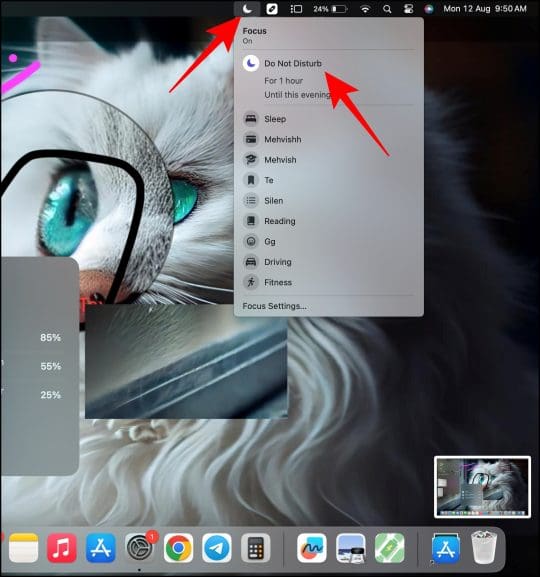
If you see the Focus (Crescent Icon) in the Mac’s Menu bar, you can use the same to disable Do Not Disturb. Click on the Crescent icon, followed by clicking on the Do Not Disturb text to switch it off.

Tip: If the Do Not Disturb icon isn’t showing in the Menu Bar, go to Settings > Control Panel > Focus > select Always Show in the Menu Bar.

Method 4: Using Siri

You can also ask Siri to turn off Do Not Disturb. Just say, “Hey Siri, turn off Do Not Disturb mode” or “Hey Siri, disable Do Not Disturb mode”.

Method 5: Using the Dedicated Keyboard Key

The latest MacBook models provide a dedicated key to enable or disable Focus mode. It’s usually the F6 key. So, look for the F6 key (in the row of function keys on your keyboard) or the one with the moon symbol and press it to disable Do Not Disturb on your Mac.

Tip: Know what to do if DND doesn’t turn off on your MacBook.

Bonus Method: Set a Keyboard Shortcut to Enable or Disable Do Not Disturb Mode

If you enjoy using shortcuts, set a keyboard shortcut to enable or disable Do Not Disturb mode on your device.

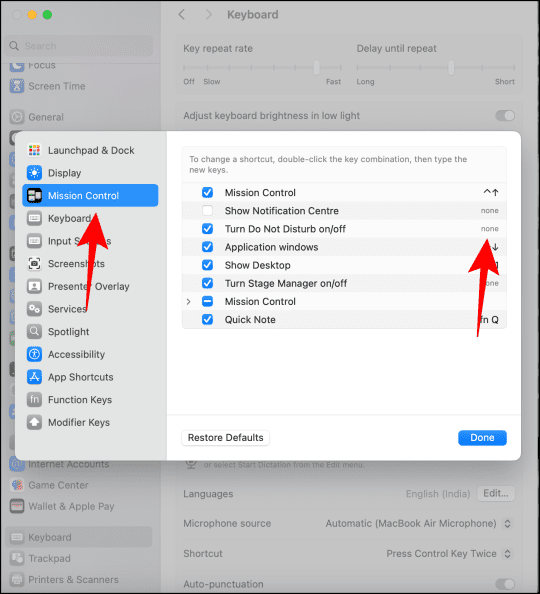
  1. Go to Settings > Keyboard > Keyboard Shortcuts > Mission Control.
  2. Check the box for Turn Do Not Disturb on/off.
  3. Then, double-click on the None text (or key combination mentioned next to Turn Do Not Disturb on/off) and type your shortcut keys. Click the Done button.

Frequently Asked Questions

1. How to check if DND is active on MacBook?

Go to Settings > Focus. You will see the text On written next to Do Not Disturb mode if enabled. Alternatively, click on the Control Center icon in the Menu Bar. If it says Do Not Disturb in one of the tiles, it means DND is on. Typically, when Focus is turned off, you will see the Focus text mentioned there.

2. Where do I find Do Not Disturb settings on Mac?

Go to Settings > Focus > Do Not Disturb to customize its settings.

3. How to put Mac on Do Not Disturb but not phone?

Open Settings on MacBook > go to Focus > turn off the toggle for Share across devices.

Related Posts:

  • Disable Do Not Disturb iPhone Header
    How to Turn Off Do Not Disturb on iPhone 14
  • iPhone 15 event - iPhone 15 Pro and iPhone 15 Pro Max A17 Pro Video Recording Promo
    iPhone 14 vs. iPhone 15: Should You Upgrade?
  • iPhone 15 Pro Max - 1
    10 Handy Apple Shortcuts You Can Use Every Day
  • pexels-designecologist-1779487
    The Best iPhone And Mac Shortcuts For Beginners
  • 2023 Mac Studio lifestyle - 1
    macOS Could Not Be Installed, How-To Fix
  • Photo of person sleeping after saving so much time with the best Automator routines for Mac
    The Best iPhone Shortcuts (2021 Edition)
  • How to use ChatGPT on iPhone and iPad - Hero
    How to Use ChatGPT on iPhone and iPad
  • Things-to-Try-If-You-Are-Unable-to-Turn-off-Do-Not-Disturb-on-Mac
    7 Things to Try if You Can't Turn Off Do Not Disturb on Mac
  • M1 MacBook Pro vs M2 MacBook Pro - M2
    M1 MacBook Pro vs M2 MacBook Pro: Should You Upgrade?
Mehvish
Mehvish

Mehvish Mushtaq is a computer engineer by degree. Her love for Android and gadgets led her to develop the first Android app for Kashmir. Known as Dial Kashmir, she won the prestigious Nari Shakti award from the President of India. She has been writing about technology for 6+ years and her favorite categories include how-to guides, explainers, tips and tricks for iOS/iPadOS, Android, social media, and web apps.

Reader Interactions

Write a Comment Cancel reply

Show 1 Comments

  1. Old Coot says

    August 13, 2024 at 10:51 PM

    I find Focus one of the worst features that Apple included into the Apple ecosystem. It take the focus off of one own focus. I guess Apple wants to control that aspect of your life since it seems to think we can’t.
    Reply

Primary Sidebar

Recent Posts

  • Are Apple’s Safety Precautions Enough for AirTags?
  • How to Hide Username and Photo on the Mac Lock Screen
  • Microsoft Resume vs. Apple Handoff – Which Wins for Cross-Device Work?
  • How to Export iTunes Library to New Computer
  • What the Gemini Desktop App Will Bring to Mac
  • What to Do When Windows 11 Won’t Detect Your iPad

Connect with us

Footer

ABOUT

  • About Us
  • Contact us
  • Advertise
  • Privacy
  • Terms of Use

GUIDES

  • iOS & iPadOS
  • Apple ID
  • iCloud
  • App Store
  • iTunes
  • FaceTime
  • iMessage
  • Siri
  • Books and iBooks
  • Game Center
  • AirPlay

CONNECT

  • Facebook
  • Twitter
  • FeedBurner
  • YouTube

© Copyright 2010-2024 Guiding Tech Media · All Rights Reserved

This site and its content are in no way affiliated or endorsed by Apple, Inc. · Reproduction without explicit permission is prohibited

Last Updated on October 3, 2024 by Nick