If your Photos Library won’t open, closes unexpectedly, or throws all kinds of error codes, you can use the Photos Repair Library tool to fix the problem. The tool scans your library’s database and automatically repairs any inconsistencies or corrupted files.
But sometimes the Photos Repair Library tool itself won’t work because the library could not be opened. The error message reads as follows: “The library could not be opened. Photos has attempted to repair the library “Photos Library”, but is unable to open it.” If you’re experiencing the same issue, use the troubleshooting tips below.
What to Do if the Photos Library Repair Tool Is Not Working
Quick Fixes
Force Photos to repair. Close the app, and press the Option and Command keys at the same time. Hit the Repair button.
Update your Mac. If you’re running outdated macOS versions, certain functionalities may not work properly. Go to System Preferences, select System Update, and check for updates.
Create a Barebone Library
Follow the steps below if you’re running Mojave or an older macOS version.
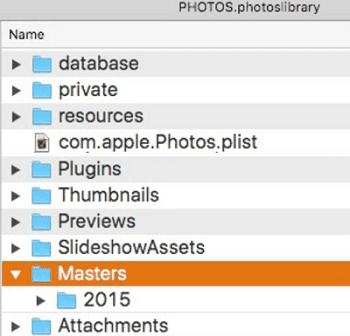
Right-click on your Photos Library and select Show Package Contents.
Then locate the Masters folder in the old library.
Select it and drag it on the Photos icon in the Dock to create a new library.
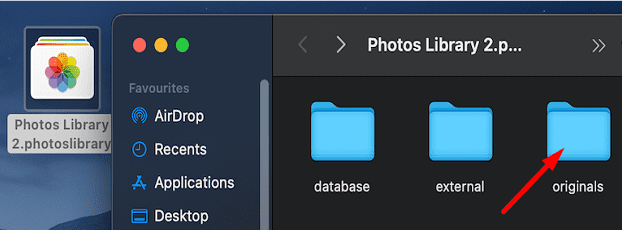
If you’re running macOS Catalina and newer, you need to go to the Originals folders. Right-click on your Photos Library, and select Show Package Contents. Locate and export your photos from the Originals folder.
The Photos app manages images differently on Catalina and newer macOS releases compared to old macOS versions.
Keep in mind this will be a barebone library. The new library folder contains the same images as the original one but it doesn’t include the metadata, albums, slideshows, and so on. The new library won’t affect your current library or your backup versions.
Restore Your Photos From iCloud
If all of your photos are stored in iCloud Photos, you can restore them from the cloud.
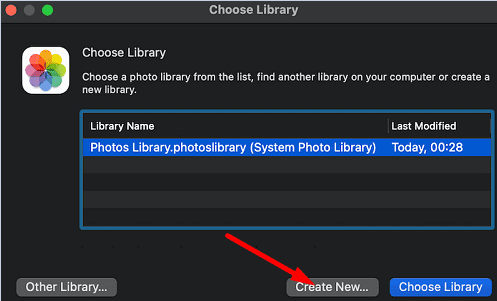
Launch Photos while holding down the Option key to create a new Photos Library.
Make it your main library (System Photo Library).
Hit the Create New button to create the new Library.
Then enable iCloud Photos in the new library, and wait until your Mac downloads all of your photos from the cloud.
Restore Photos Library With Time Machine
Alternatively, you can also try to restore your Photos Library with the help of the Time Machine. In this manner, you’ll also keep all of your internal links. To do that, you need to launch Time Machine and restore the Library directly from the Star Wars display.
Click on the Pictures folder you’re interested in and open it.
Then launch Time Machine and go back in time to the moment you created the backup.
Select your Photos Library and hit the Restore button.
Fix the Permissions
Additionally, you may also need to fix the permissions on the restored Photos Library.
Go to your Photos Library.
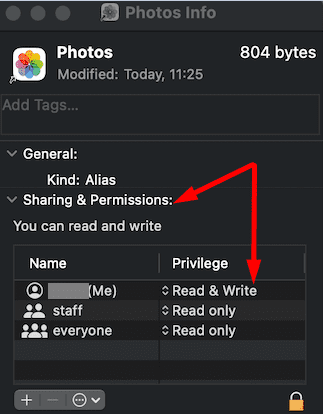
Then go to File, and select Get Info.
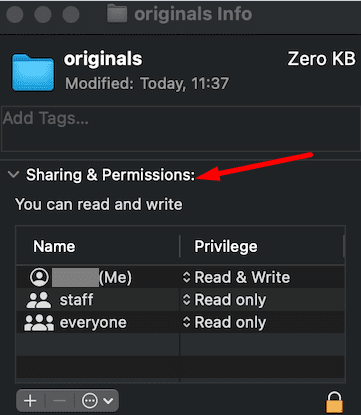
Check the Info Panel and make sure you have read and write access to the Library. If you don’t, change the settings.
After that, press the Control key and click on the Photos Library.
Select Show Package Contents.
In the new window that pops on the screen, check the permissions for each of your Library subfolders and make sure you have access rights to all of them.
Close everything, exit Photos completely, and restart your Mac.
Double-click on your Photos Library and check if you can open it.
Check Your Extensions
If some of your apps change the .JPEG extension to .jpeg, this could cause file conflicts. Some users fixed this issue by copying everything to an external hard drive (that is not case sensitive) and then formatting the problematic drive correctly. Copy everything back to your Mac and check the results.
Contact Apple Support
If none of these solutions work, contact Apple Support for further help. Let the technicians know what troubleshooting methods you’ve tried so far. We’re sure they’ll find the right solution for you.
Conclusion
If the Photos Repair Library tool could not repair your Photos Library, try restoring your pictures from iCloud. Alternatively, you can also use Time Machine to get the job done. If the issue persists, you can open the Photos Library package, and use the Masters or Originals folders to create a new library. Hit the comments below and let us know which of these methods worked for you.
Madalina has been a Windows fan ever since she got her hands on her first Windows XP computer. She is interested in all things technology, especially emerging technologies — AI and DNA computing in particular.
Sonoma messed up my machine. Copied library not Time Machine and reverted to Ventura after much hassle. Restoring music, movies and photos, I’m working with media files because library is not backwards compatible.
Can I extract and how do I extract picture data like facial recognition already done, locations etc or do I need to do all of that again manually?













Sonoma messed up my machine. Copied library not Time Machine and reverted to Ventura after much hassle. Restoring music, movies and photos, I’m working with media files because library is not backwards compatible.
Can I extract and how do I extract picture data like facial recognition already done, locations etc or do I need to do all of that again manually?