AAC is one of the many file formats you see much more often on Apple devices, like Macs and iPhones, than on Windows computers. That’s because it’s the Apple ecosystem’s main format for music files, whereas Windows users generally encounter MP3 or WAV files when listening to music.
Fortunately, you can still play AAC music files on Windows without much trouble. Here’s how.
One of the simplest ways how to play AAC music files on Windows is to use one of Apple’s own dedicated music playback programs – either iTunes or Apple Music. You might already have iTunes installed and can use it, but it’s being gradually phased out across Windows and replaced by Apple Music, so you may have to switch to that instead.
Step 1. Open the Windows Store and search for “Apple Music.” Click on the “Get” button to download and install it.
Step 2. Open up the app once it’s finished installing.
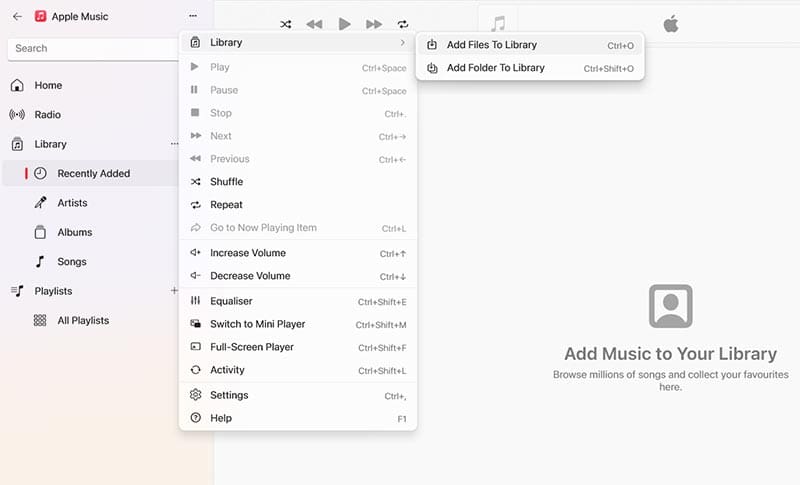
Step 3. Click the three little dots icon, then select “Library” and “Add Files to Library” (or just use the “Ctrl” and “O” shortcut). Find the AAC file on your device you want to add, select it, and it should load into your Apple Music library for playback. Note, however, that certain AAC files won’t work in this app, as Apple encodes them in a specific way, so if they come from another source, they might fail to play.
Method 2. Play AAC Music Files on Windows Media Player
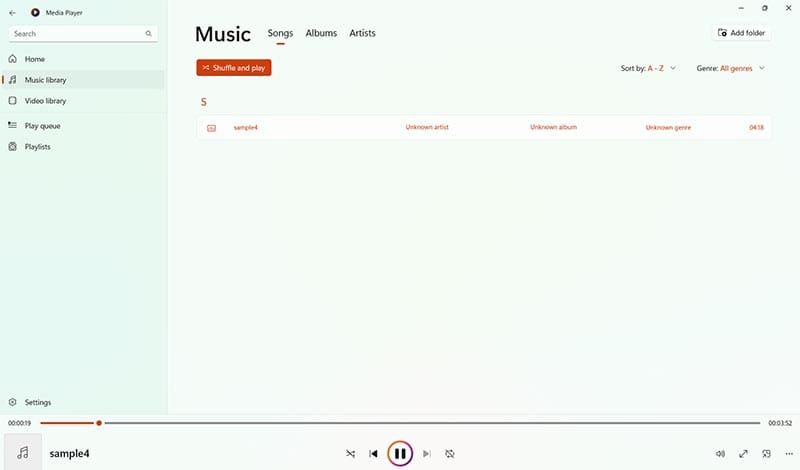
If you prefer to play AAC music files on Windows without having to download any extra apps from either Apple or third parties, you can use the built-in Windows Media Player. It’s capable of loading AAC files without any issues.
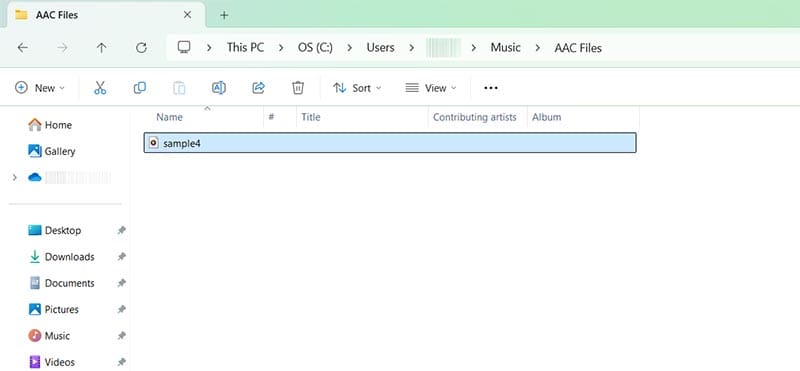
Step 1. Find the AAC file you want to play in your “File Explorer.”
Step 2. If Windows Media Player is your default music app, you can just double-click the file and it should open in Media Player automatically. Otherwise, right-click it, go to “Open with” and then choose Media Player from the list provided. The app should open and your track will start playing.
Method 3. Use a Third-Party Media Player
If you don’t like using Windows Media Player or want to use an alternative app, there are plenty of third-party media players that support AAC playback. That includes free options, like VLC, and paid variants, too. You may already have one or more media players on your device that’ll open AAC files, or you can head online and download one.
Some popular examples include:
VLC
MPlayer
Media Player Classic
KMPlayer
The exact process for using these apps will vary depending on which one you choose, but you can follow these general steps:
Step 1. Download the media player you want to use and install it (if it’s not on your device already).
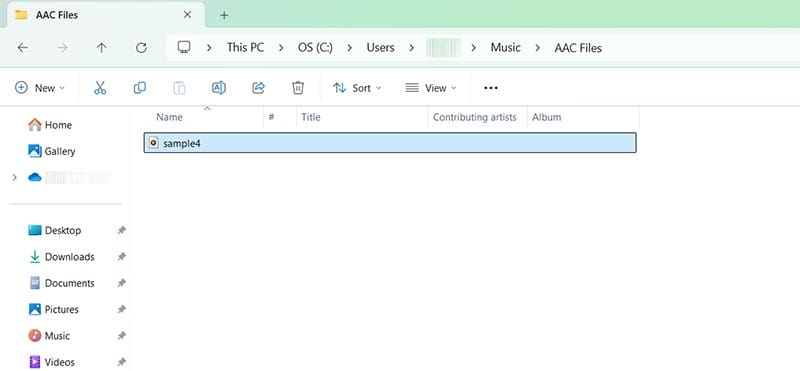
Step 2. Find the AAC file(s) in your File Explorer.
Step 3. Right-click the file, go to “Open with” and then choose your media playing app from the list (click on “Choose another app” if it doesn’t appear).
Method 4. Convert Your AAC File to Another Format
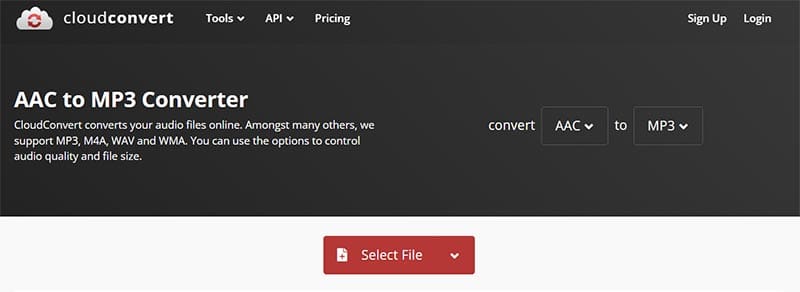
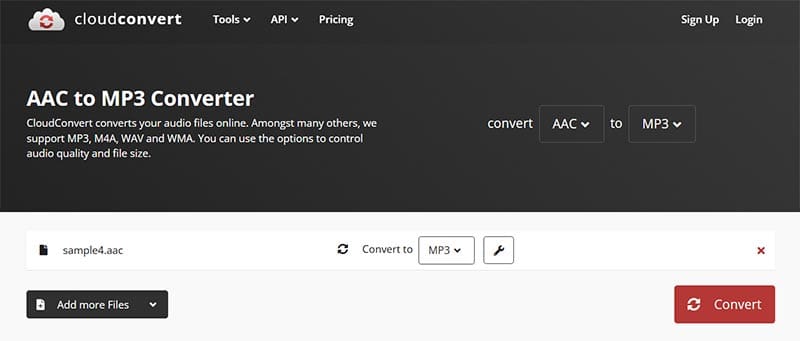
Lastly, if none of your favorite media players work with AAC or you want to make your AAC files easier to work with, you could convert them to a more Windows-friendly format, like MP3. There are various online and downloadable conversion tools you can use for this, like CloudConvert.
As an avid gamer, I’ve run into my fair share of error codes and weird faults that have forced me to find fixes to problems I never anticipated. That gave me a passion for sharing those fixes with others so we can all game without feeling like our hardware is rebelling against us.















Write a Comment