• Skip to primary navigation
  • Skip to main content
  • Skip to primary sidebar
  • Skip to footer

AppleToolBox

Tools and Fixes for Mac, iPad, iPhone & iWatch

Search posts

  • About
  • Contact

CONNECT WITH US

CATEGORIES

  • iPhone
  • iPad
  • iPod
  • Apple Watch
  • Mac/MacBook
  • AirPods
  • Apple TV
  • News
  • Apple Services
  • HomePod
  • Reviews

SITE

  • Home
  • About Us
  • Contact
  • Advertise

Search posts

You are here: Home / iPhone / What Is “Dial Assist” on the iPhone?

What Is “Dial Assist” on the iPhone?

By Michelle Honeyager 0 comments Last updated February 15, 2024

You might have seen a notification reading “Dial Assist” as you make a phone call. This is a feature that automatically finds the international or local prefix when you dial a number. It can be a very useful feature if you make a lot of international calls.  You can also turn the feature on or off, which we’ll cover below.

How Does Dial Assist Work on the iPhone?

If you make an international call, you will have to enter international or local prefixes before the phone number itself. If you call internationally often, this can get to be a pain, so Apple included an automatic Dial Assist feature on the iPhone. It determines which country you are calling and if it should add the correct international prefix that corresponds to that country.

It will help with country codes but does not handle domestic area codes. Also, while most major carriers enable Dial Assist, some do not. Check with your carrier if you are having trouble enabling it.

It’s important to keep in mind that this feature only works for saved or favorite contacts. If you try to enter the phone number on your own, it does not work. You will have to enter the country code yourself. If you saved a phone number with the international prefix already, Dial Assist may try to add the prefix anyway and the call may fail. As such, there may be times when you need Dial Assist on and when you do not.

How to Turn Dial Assist On or Off

  1. Tap the Settings icon, which has a cogwheel.
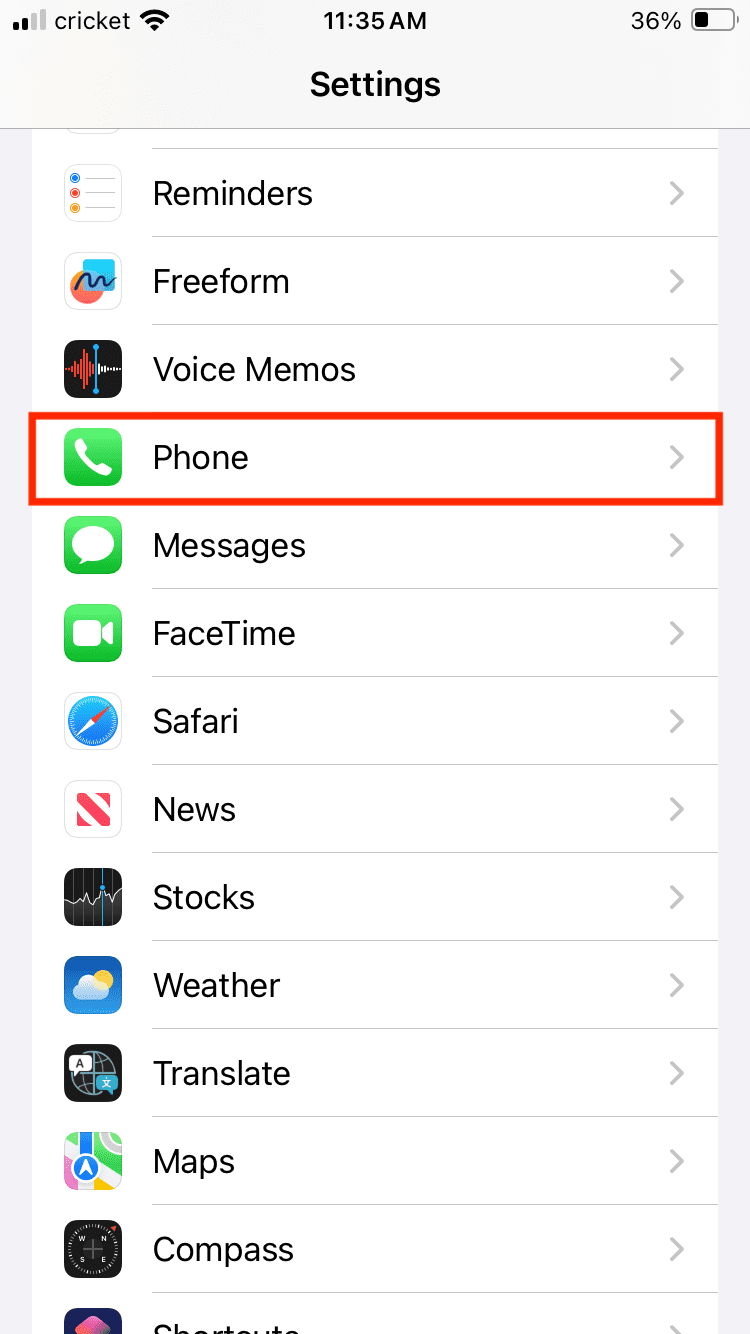
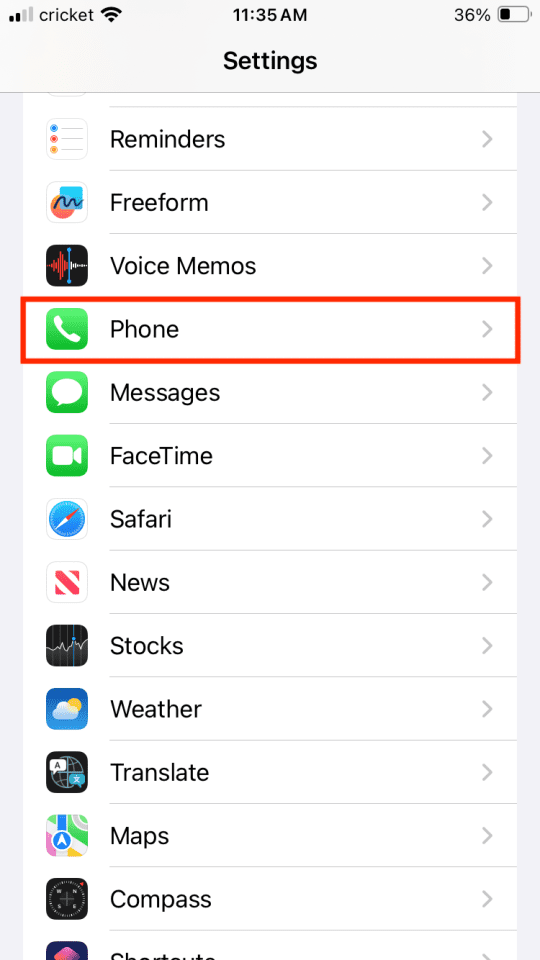
  2. Select Phone.

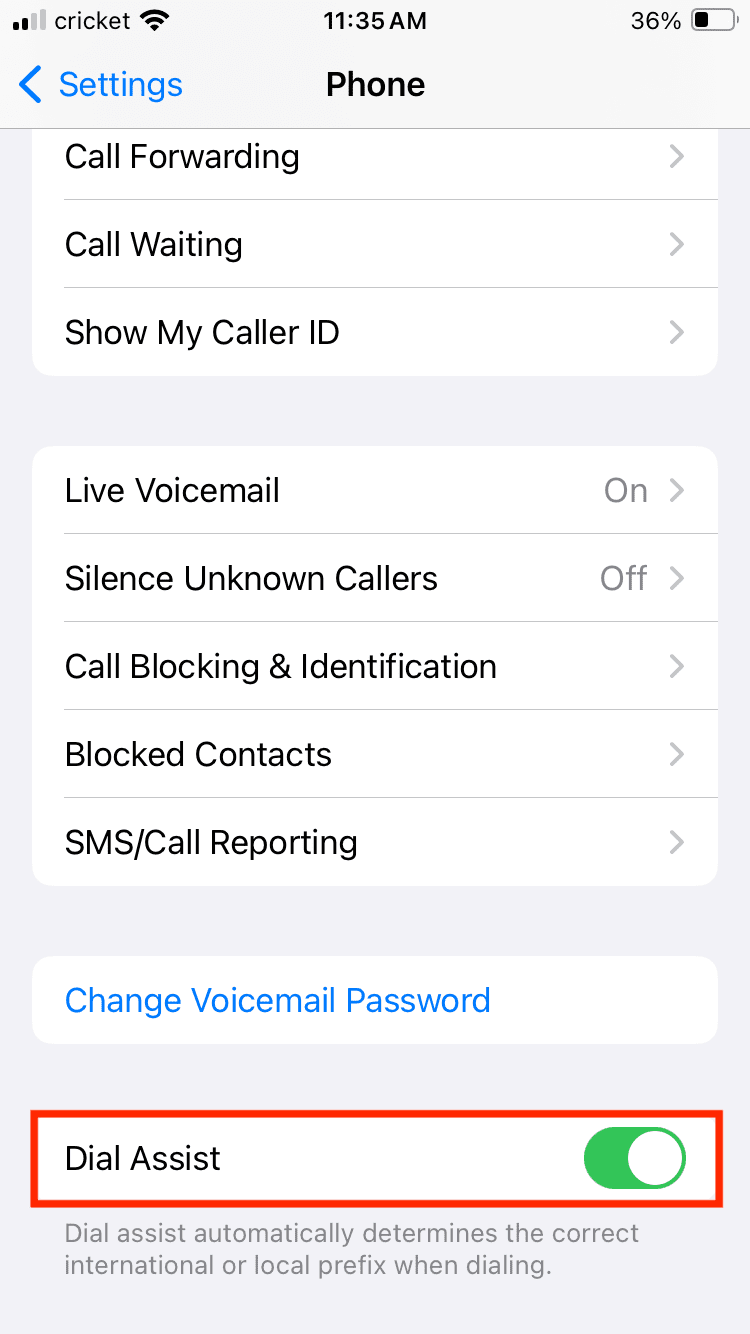
  1. Scroll a bit and then toggle on Dial Assist.

  1. Tapping it again will toggle it off if you don’t wish to use it.
Related Posts:

  • Games coming to macOS Sonoma
    How to Play Windows Games on Mac
  • pexels-designecologist-1779487
    The Best iPhone And Mac Shortcuts For Beginners
  • 2022 Mac Mini with Studio Display and Accessories
    Mac Tips For New Users In 2023
  • pexels-tima-miroshnichenko-6860464
    How To Start Using Regex With The Shortcuts App
  • 0E4A6A0B-65E8-4184-B0C9-16C2179A1256
    The Best Weight Loss Apps For iPhone In 2021
  • pexels-cottonbro-5082579
    Getting Started With iOS 15: Everything Good And Bad
  • pexels-tranmautritam-696899
    iPhone Tips for New Users In 2023
  • pexels-jess-bailey-designs-810079
    How To Run Linux On Mac: A Step-by-Step Guide
  • Photo of person sleeping after saving so much time with the best Automator routines for Mac
    The Best iPhone Shortcuts (2021 Edition)

Reader Interactions

Write a Comment Cancel reply

Primary Sidebar

Recent Posts

  • How to Stop Sharing Analytics in iOS 26
  • How to Manage Your iPhone Call Log
  • Are Apple’s Safety Precautions Enough for AirTags?
  • How to Hide Username and Photo on the Mac Lock Screen
  • Microsoft Resume vs. Apple Handoff – Which Wins for Cross-Device Work?
  • How to Export iTunes Library to New Computer

Connect with us

Footer

ABOUT

  • About Us
  • Contact us
  • Advertise
  • Privacy
  • Terms of Use

GUIDES

  • iOS & iPadOS
  • Apple ID
  • iCloud
  • App Store
  • iTunes
  • FaceTime
  • iMessage
  • Siri
  • Books and iBooks
  • Game Center
  • AirPlay

CONNECT

  • Facebook
  • Twitter
  • FeedBurner
  • YouTube

© Copyright 2010-2024 Guiding Tech Media · All Rights Reserved

This site and its content are in no way affiliated or endorsed by Apple, Inc. · Reproduction without explicit permission is prohibited

Last Updated on February 15, 2024 by Mitch Bartlett