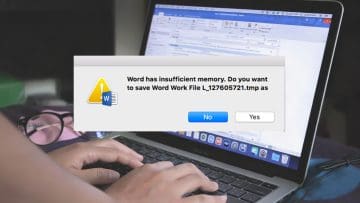
Have you got an important paper you’ve been working on for days, only to be hit with a message that Microsoft Word has insufficient memory to complete the task? You’ve probably got plenty of RAM and hard drive space free, not to mention a whole lot of questions, but the problem persists.
In this article, we’ll show you how to fix “Word has insufficient memory” (Mac).
The “insufficient memory” error you encounter in Microsoft Word is usually not a problem with the actual hardware limitations of your Mac, especially if it’s the only app that’s having difficulty. Word gets its memory information directly from the macOS, and sometimes the details are not clear due to bugs or incorrect reports. Sometimes the error might even be a catch-all message for something else going wrong.
Most of the time, this message will appear when the user is saving, requiring them to force-quit the application and lose valuable work.
How to Fix “Word Has Insufficient Memory” (Mac)
Now that you know your hardware is likely not to blame, it’s time to try some fixes.
Fix 1: Update Everything
We’re starting with the obvious here, but still updating both your macOS to the latest possible version and Word along with it can go a long way toward ruling out any potential clashes in compatibility. A reboot of both is a good idea, too.
Fix 2: Try Saving in a Different Location
Sometimes files can’t be saved in certain locations and trigger an error. If you’ve been experiencing issues with iCloud or OneDrive, then you might get this error when trying to save it there. Before giving up on trying to save, try doing so to a new location.
Fix 3: Clear Corrupted Temporary Files
When Word fails to save documents, it creates temporary versions for access later. Sometimes, these may become corrupted and trigger an error. Deleting them can help. Here’s how:
Step 1. Close Word.
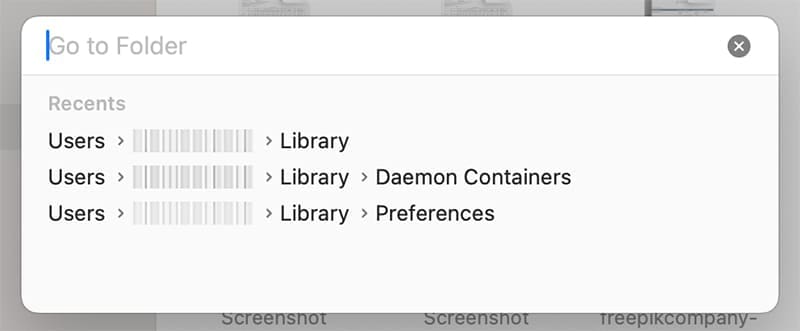
Step 2. Open Finder and press (Cmd + Shift + G) to open “Go To.”
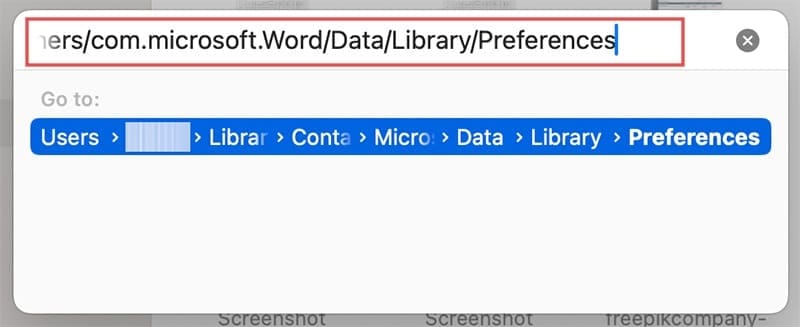
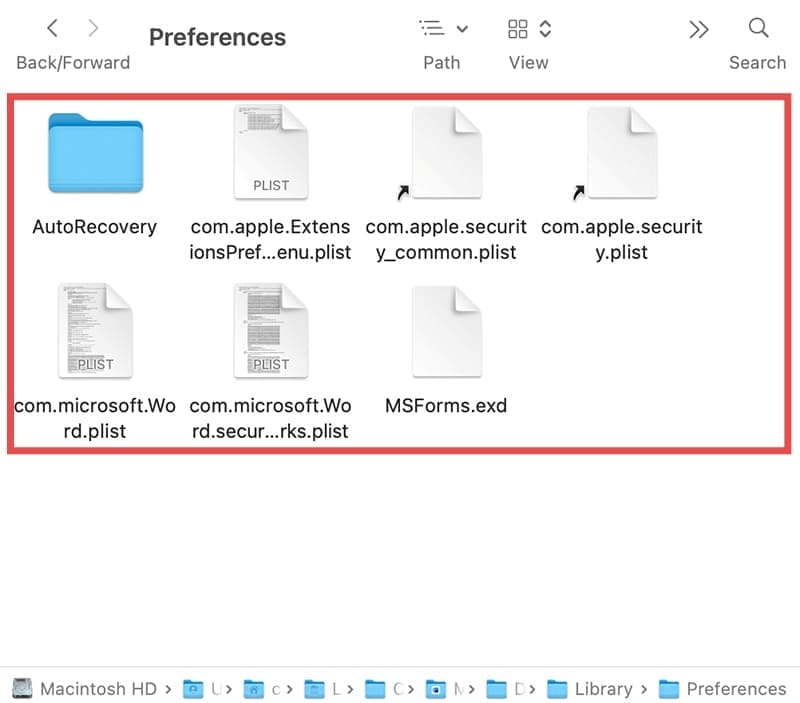
Step 3. Type “~/Library/Containers/com.microsoft.Word/Data/Library/Preferences” into the box and press “Go.”
Step 4. In the window, delete all files beginning with “~WRD” or move them to another location if you don’t want to lose them.
Fix 4: Delete Your Preferences
A known issue with Microsoft Word on Macs is a corrupted preference file. Every Mac app has its own “.plist” file, where all user preferences are stored. Deleting this file will cause it to be recreated and start fresh, albeit at the cost of your settings. Here’s how to do it:
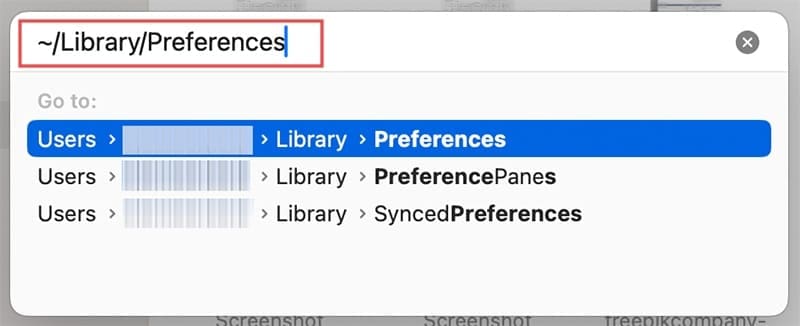
Step 1. Open a Finder window and press (Cmd + Shift + G) to open “Go To.”
Step 2. Type “~/Library/Preferences” into the input box and click “Go.”
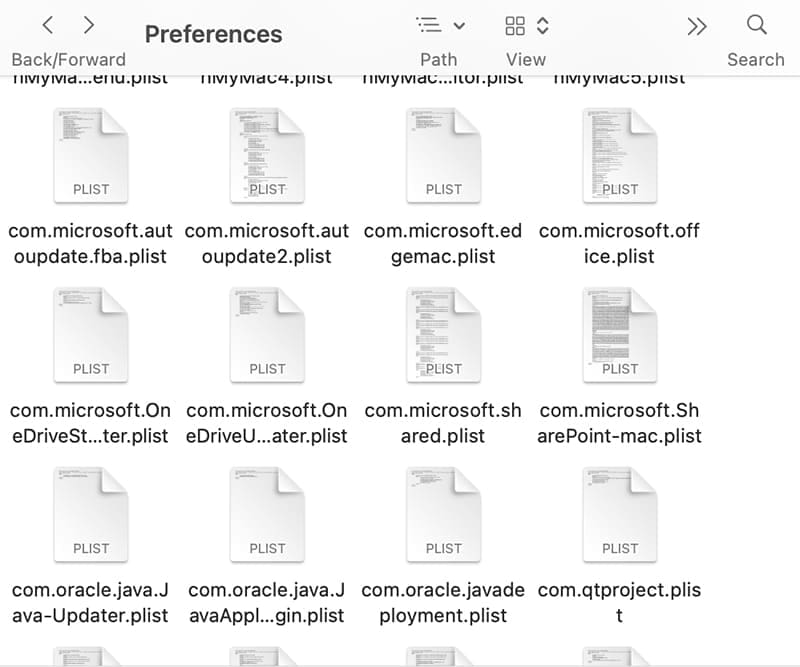
Step 3. You’ll see a long list of files. Navigate down to “com.microsoft.Word.plist”
Step 4. Move the file to Trash or a different location on your machine and restart. The file will be created again.
Fix 5: Free Up Some Memory
Even though memory is not the actual offender, there are a few things to do if you feel it might be a concern:
Close as many apps as possible that you aren’t using.
Uninstall some apps and move files to the cloud or an external device to free up disk space.
In addition, you can monitor Microsoft Word directly to see its memory usage. To do this:
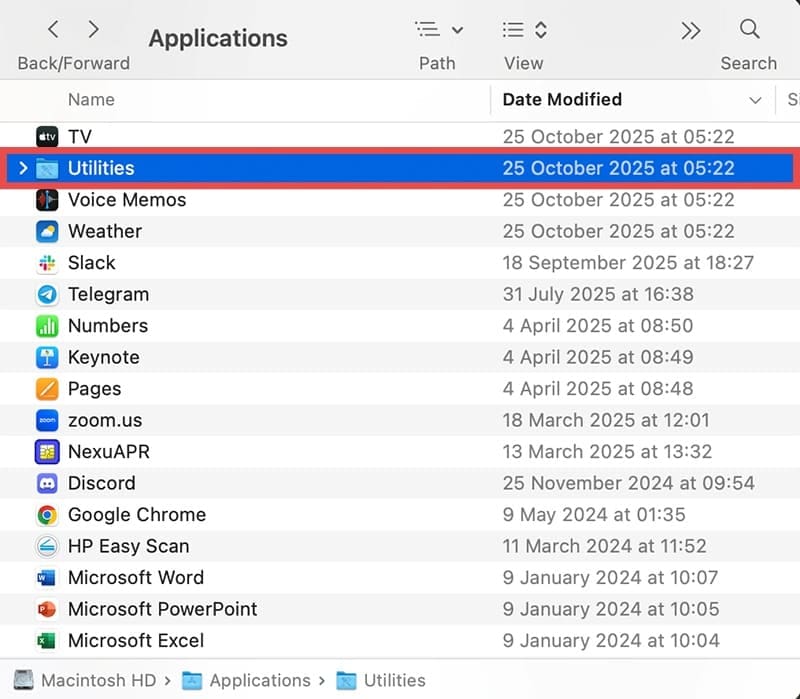
Step 1. Go to “Applications,” then click on “Utilities.”
Step 2. Click on “Activity Monitor.”
Step 3. You’ll see a detailed list of all processes and tasks running, and can check how much memory Word is really using.
As an avid gamer, I’ve run into my fair share of error codes and weird faults that have forced me to find fixes to problems I never anticipated. That gave me a passion for sharing those fixes with others so we can all game without feeling like our hardware is rebelling against us.












Write a Comment