YouTube not working on Safari (Mac) is a common issue often caused by misconfigured settings, various browser extensions, or outdated cache. If you’re facing this issue right now, we got you covered. We will walk you through proven fixes so you can get back to seamless streaming on your Mac.
There are many ways YouTube can fail on a browser. You might be faced with a blank page when trying to load the site, or you might not be able to access your profile and menu options. Whatever the case, here are some fixes that might help:
Start With the Obvious
Certain fixes may be obvious, but can save a lot of time and trouble. If YouTube isn’t working properly on Safari, do the following before proceeding with the other fixes:
Ensure that your internet connection is working. Restart your router, check your Wi-Fi connection, and restart things if necessary.
Have both your Safari browser and Mac up to date with the latest software.
Try a different browser if you have one installed to see if the problem is on the YouTube’s end.
Restart your Mac and browser, just to be sure. For Safari, it’s a good idea to close things properly with a Force Quit (Option + Cmd + Esc).
These fixes are good for solving erratic behaviors that creep into apps (and your Mac) after running for some time. A fresh start and reconnection can work wonders.
Disable Extensions
Third-party extensions can be useful, but can also get in the way of Safari functioning properly. It’s a good idea to re-enable extensions one-by-one, starting with any video or YouTube-related ones, to see which is the troublemaker. To do this:
Step 1. Click Safari in the menu bar, select “Settings” from the dropdown menu, then “Extensions.”
Step 2. In the next window, deselect all extensions and restart Safari, seeing if the issue is resolved.
Step 3. If YouTube is working, reenable each extension one-by-one, restarting every time, to check which one is causing the issue. Click the “Uninstall” button in the main window to remove it when you do.
Check Permissions
Even if unlikely, Safari might have its permissions for YouTube revoked, accidentally or otherwise. To check:
Step 1. Go to YouTube in Safari.
Step 2. Click Safari in the menu bar and select “Settings for youtube.com…” from the dropdown menu.
Step 3. Check that all options in the next menu are checked and do so if they are not.
Check Security and Privacy
Safari is stricter than other browsers when it comes to security and privacy. This might cause conflicts with certain websites. Here’s what to do:
Step 1. Click Safari and then “Settings.”
Step 2. Switch to the “Privacy” tab and uncheck “Prevent cross-site tracking.”
Step 3. Restart the browser and YouTube, and see if this solves the problem.
Ensure JavaScript Is Enabled
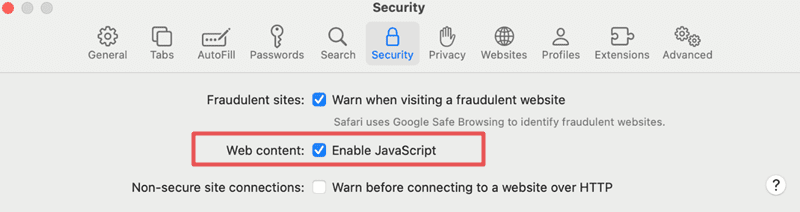
JavaScript is essential for YouTube to function in Safari. If it’s off, you have a problem. Here’s how to check:
Step 1. Click Safari > “Settings.”
Step 2. Head to the “Security” tab and ensure that the box next to “Enable JavaScript” is checked.
Clear the Cache
An erratic browser cache is the cause of many problems. If you still can’t fix the issue of YouTube not working on Safari, here’s how to clear browser cache:
Step 1. Open “Settings” in Safari.
Step 2. Navigate to the “Privacy” tab and click the “Manage Website Data” button.
Step 3. Type “YouTube” up in the search bar and click the site when it pops up.
Step 4. Click the “Remove” button to clear the cache and restart Safari.
As an avid gamer, I’ve run into my fair share of error codes and weird faults that have forced me to find fixes to problems I never anticipated. That gave me a passion for sharing those fixes with others so we can all game without feeling like our hardware is rebelling against us.

![YouTube Not Working on Safari [Mac] 1](https://appletoolbox.com/wp-content/uploads/2026/02/YouTube-Not-Working-on-Safari-Mac-1.png)
![YouTube Not Working on Safari [Mac] 2](https://appletoolbox.com/wp-content/uploads/2026/02/YouTube-Not-Working-on-Safari-Mac-2.png)
![YouTube Not Working on Safari [Mac] 3](https://appletoolbox.com/wp-content/uploads/2026/02/YouTube-Not-Working-on-Safari-Mac-3.png)
![YouTube Not Working on Safari [Mac] 4](https://appletoolbox.com/wp-content/uploads/2026/02/YouTube-Not-Working-on-Safari-Mac-4.png)
![YouTube Not Working on Safari [Mac] 7](https://appletoolbox.com/wp-content/uploads/2026/02/YouTube-Not-Working-on-Safari-Mac-7.png)
![YouTube Not Working on Safari [Mac] 5](https://appletoolbox.com/wp-content/uploads/2026/02/YouTube-Not-Working-on-Safari-Mac-5.png)
![YouTube Not Working on Safari [Mac] 8](https://appletoolbox.com/wp-content/uploads/2026/02/YouTube-Not-Working-on-Safari-Mac-8.png)
![YouTube Not Working on Safari [Mac] 9](https://appletoolbox.com/wp-content/uploads/2026/02/YouTube-Not-Working-on-Safari-Mac-9.png)










Write a Comment