• Skip to primary navigation
  • Skip to main content
  • Skip to primary sidebar
  • Skip to footer

AppleToolBox

Tools and Fixes for Mac, iPad, iPhone & iWatch

Search posts

  • About
  • Contact

CONNECT WITH US

CATEGORIES

  • iPhone
  • iPad
  • iPod
  • Apple Watch
  • Mac/MacBook
  • AirPods
  • Apple TV
  • News
  • Apple Services
  • HomePod
  • Reviews

SITE

  • Home
  • About Us
  • Contact
  • Advertise

Search posts

You are here: Home / Mac / Using an External Hard Drive with Time Machine

Using an External Hard Drive with Time Machine

By Sudz Kar 0 comments Last updated September 8, 2011

Time Machine is a great utility for the Mac. And it really should be taken advantage of. For me, I learned my lesson when my computer crashed a year ago. I knew that I had to start backing up my data. I looked at a lot of options, but none really made more sense to me than using Time Machine and an external drive. Being that I already had the two, this was the most cost effective for me. Let me show you how this works. One thing to note, is that you want to make sure that you have an external drive that is compatible with Time Machine. Not every external hard drive is. Most are though. I use a Western Digital external drive for the Mac and it is Time Machine compatible.

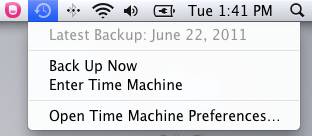
You should have a Time Machine icon in your menubar. If you don’t, you can always go to the Apple logo in the top left corner and click on it, then click on System Preferences. Here you will find Time Machine and click on it there. If you do find it in your menubar, click on it, then click on “Open Time Machine Preferences.”

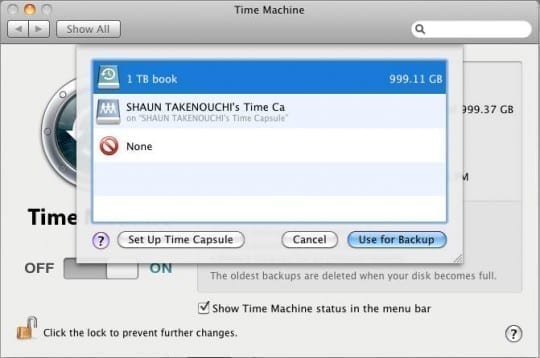
Here you will be able to set up your Time Machine and your external drive. First, make sure your external drive is hooked into your Mac and that your Mac recognizes it. Then, you are going to want to click the Time Machine “on”. After this you are going to want to click on “Select Disk.”

Here you will be provided with a menu that shows the list of available drives that you can use Time Machine with. You will want to select your external drive. As you can see from the picture below I have a 1TB external drive as well as a Time Capsule that I can use.

After you select your drive, click “Use for Backup.” Then, you are all set to go. Time Machine will now use your external drive to do automatic backups. The first backup will take a while, depending on your internet connection. This is typical as there is a lot of data to backup on the first backup.

Related Posts:

  • 2023 Mac Studio lifestyle - 1
    macOS Could Not Be Installed, How-To Fix
  • An iPhone, Mac, and MacBook on a table
    Can You Use Time Machine to Back up Your Mac to…
  • photo of a macbook with its screen open
    Problems Using External Hard Drive With Mac: How to Fix
  • sidecar on iPadOS and macOS
    Sidecar not working in iPadOS and macOS? How to fix…
  • 2022 Mac Mini with Studio Display and Accessories
    Mac Tips For New Users In 2023
  • Delete-Group-Reminders-Folder-macOS
    MacBook Will Not Start Up After macOS Update, How-To Fix
  • iPhone 15 event - iPhone 15 Pro and iPhone 15 Pro Max A17 Pro Video Recording Promo
    iPhone 14 vs. iPhone 15: Should You Upgrade?
  • How to Disable the Login Password on Mac
    My Mac Won't Start or Boot: How To Fix White Screen
  • pexels-jess-bailey-designs-810079
    How To Run Linux On Mac: A Step-by-Step Guide
sudz - apple
Sudz Kar

Obsessed with tech since the early arrival of A/UX on Apple, Sudz (SK) is responsible for the original editorial direction of AppleToolBox. He is based out of Los Angeles, CA.

Sudz specializes in covering all things macOS, having reviewed dozens of OS X and macOS developments over the years.

In a former life, Sudz worked helping Fortune 100 companies with their technology and business transformation aspirations.
Reader Interactions

Write a Comment Cancel reply

Primary Sidebar

Recent Posts

  • How to Hide Username and Photo on the Mac Lock Screen
  • Microsoft Resume vs. Apple Handoff – Which Wins for Cross-Device Work?
  • How to Export iTunes Library to New Computer
  • What the Gemini Desktop App Will Bring to Mac
  • What to Do When Windows 11 Won’t Detect Your iPad
  • Outlook Outage 2026: iPhone Fixes for Sign-In Chaos

Connect with us

Footer

ABOUT

  • About Us
  • Contact us
  • Advertise
  • Privacy
  • Terms of Use

GUIDES

  • iOS & iPadOS
  • Apple ID
  • iCloud
  • App Store
  • iTunes
  • FaceTime
  • iMessage
  • Siri
  • Books and iBooks
  • Game Center
  • AirPlay

CONNECT

  • Facebook
  • Twitter
  • FeedBurner
  • YouTube

© Copyright 2010-2024 Guiding Tech Media · All Rights Reserved

This site and its content are in no way affiliated or endorsed by Apple, Inc. · Reproduction without explicit permission is prohibited

Last Updated on September 8, 2011 by