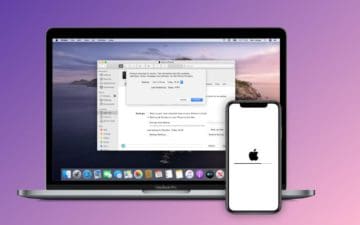
Several users have reported that when they attempt to create an iPad, iPhone, or iPod touch backup, they get the following error message: iTunes could not back up the iPhone or iPad because an error occurred.
The first thing that you’ll want to do before trying to go through any of the steps below is to back up your iPhone and/or iPad backups. Even with Apple’s move to Finder when it comes to managing your devices, the file location hasn’t changed. Meanwhile, things are just slightly different on the Windows side of the fence. iTunes stores the backup files in the following locations:
Windows 11:C:\Users\[account name]\AppData\Roaming\Apple Computer\MobileSync\Backup\
Windows 10:\Users\(username)\AppData\Roaming\Apple Computer\MobileSync\Backup\
Locate your backup files and get a copy of your backup; then go to iTunes > Preferences > Devices > Device backups. This is where you can delete older backups. Go through and delete any older backups that you no longer need. This could also help clear up some storage space on the computer that you are trying to use.
Plug Directly Into Your Computer
In a world of needing to use dongles, hubs, or docking stations to connect peripherals, this could actually be the reason why you are dealing with finding that iTunes could not back up iPhone or iPad because an error occurred. And it’s not limited to just those who own and use Macs, as it’s also prevalent on the Windows side of things. With that in mind, if you can’t back up your iPhone or iPad, we recommend plugging directly into your computer if possible.
Check for a Software Update
Another reason why you might not be able to back up your iPhone or iPad is due to a software update being available. Regardless of whether it’s your Mac, Windows PC, iPhone, iPad, or the iTunes app, we’ve always had problems trying to back up our devices if there’s a pending software update to install.
Update Mac
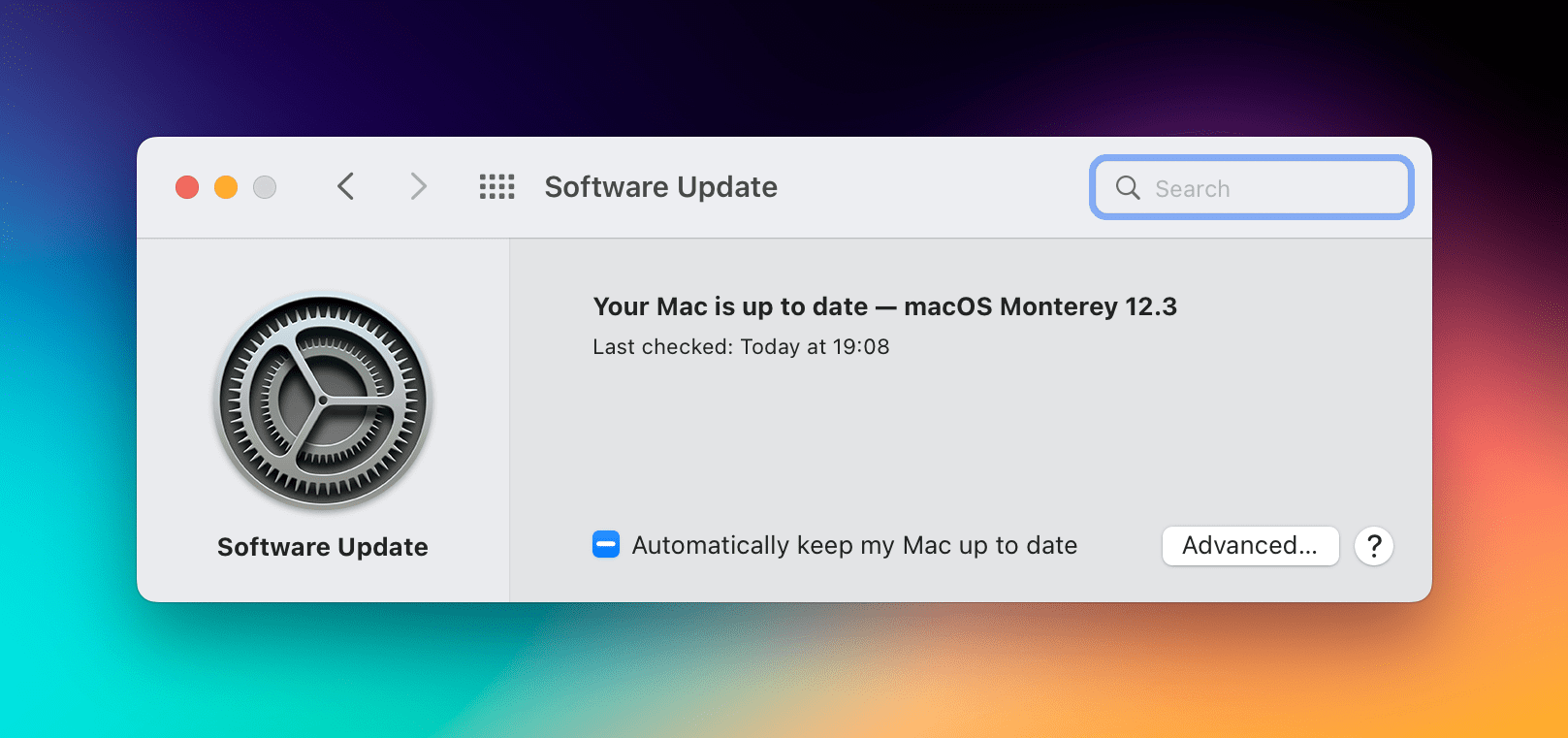
Open the System Settings (or System Preferences) app on your Mac.
In the sidebar, click General.
On the right side of the window, click Software Update.
If an update is available, click the Download and Install button.
Update Windows
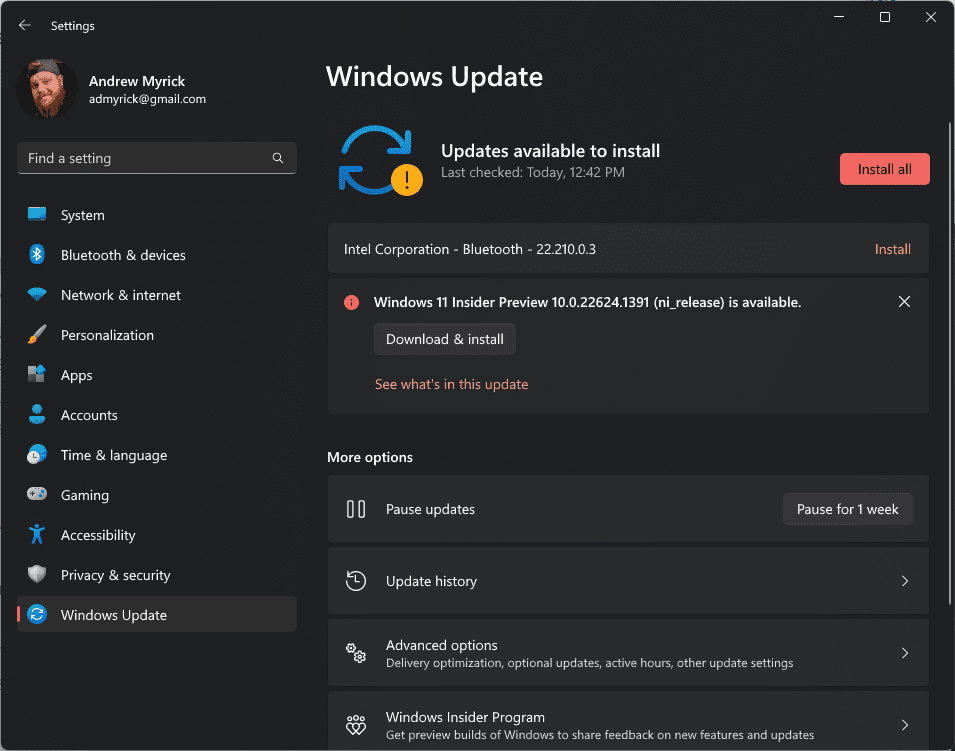
Open the Settings app on your Windows computer.
In the left sidebar, click Windows Update.
Click the Check for Updates button.
If an update is available, follow the on-screen steps to download and install the update.
Restart your computer once the update is finished installing.
Update iTunes
Open the iTunes app on your Windows computer.
In the Menu Bar at the top, click Help.
From the drop-down menu that appears, highlight and select Check for Updates.
If an update is available, follow the on-screen prompts to install the iTunes update.
Update iPhone or iPad
Open the Settings app on your iPhone or iPad.
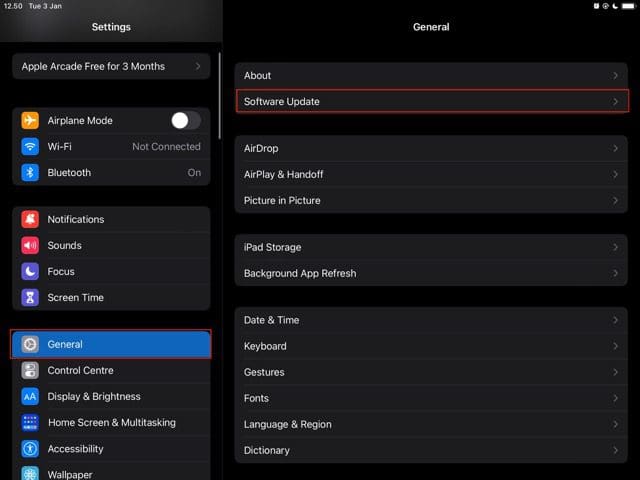
Tap General.
Tap Software Update.
Wait a few moments for your device to check for an update.
If an update is available, tap the Download and Install button.
Restart All of Your Devices
If the problem persists and you still can’t back up your iPhone or iPad, then you might want to start fresh and restart all of your devices. This includes the computer that you are trying to use, along with the iPhone or iPad itself. Some have found this to work, as it knocks out a random bug that was preventing the backup to be performed.
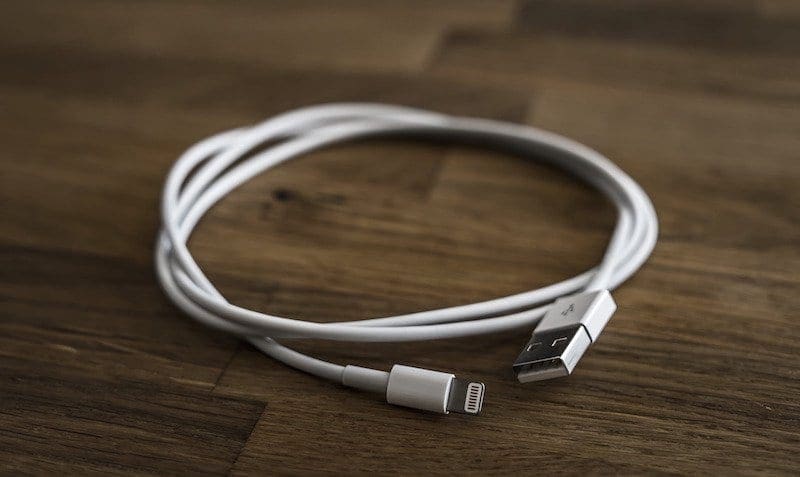
Use a Different Cable
Ideally, use the official Apple cable that came with your iPhone.
If you have been using the same charging cable from high school days with duct tape on it, Maybe it is time to revisit that strategy. Borrow a friend’s charging cable and try connecting it to your computer. If the other Lightning or USB-C cable works and connects your iPhone or iPad to your computer, this will solve a lot of headaches, as you can just grab another charger and cable, and replace your old one.
If Using Windows, Check Apple Driver
For the most part, you don’t need to worry about different “drivers” when it comes to connecting devices or peripherals to your Mac. If using third-party hardware, this is managed by the accompanying software that is available, such as Logi Options when using a Logitech Mouse and/or Keyboard. However, the same can’t be said if you are trying to back up your iPhone or iPad using iTunes on Windows.
Right-click the Start button on your Windows machine.
From the menu that appears, click Device Manager.
Locate the Other devices section.
Click the arrow to show all devices.
Locate your iPhone or iPad that is connected.
Right-click your device.
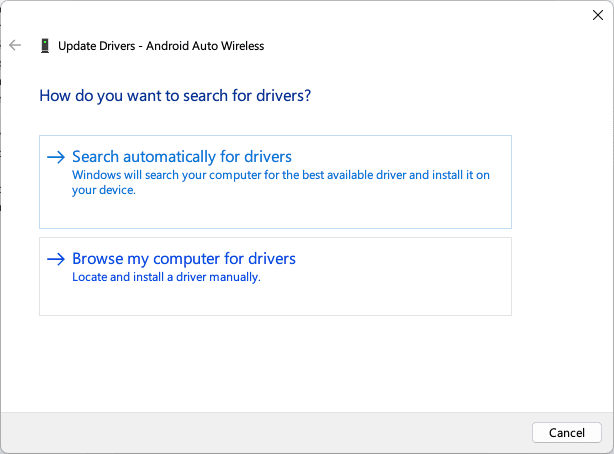
From the drop-down menu, click Update driver.
Click the Search automatically for drivers button.
Install any updates that are available.
Microsoft tries to alleviate these pain points, especially with hardware and peripherals that don’t have accompanying software that handles the drivers. However, this isn’t always the case, as there are instances where the drivers are updated and installed when you update your Windows machine. The steps above just provide a workaround in the event that you need to try and manually update and install a driver for your iPhone or iPad.
If an Alert Says That an Error Occurred
If a message says that your computer can’t back up your device because an error occurred, check that you have the latest version of iOS or iPadOS.
Open the Settings app on your iPhone or iPad.
Tap General.
Tap Software Update.
Wait a few moments for your device to check for an update.
If an update is available, tap the Download and Install button.
If an Alert Says There’s Not Enough Disk Space
If a message says there’s not enough disk space when you try to back up your device, free some space on your Mac or PC. This can be done by simply installing apps, or locating and removing locally-stored files. We recommend moving any important files to a separate cloud storage service so that you can access them after you have finished backing up your iPhone or iPad.
If an Alert Says That Your Backup Is Corrupt or Incompatible
If your iOS or iPadOS device can’t restore from a backup because the backup is corrupt or incompatible, make sure that your computer is updated. If you see an error that says your iOS or iPadOS software is too old, you’ll need to first update your iPhone or iPad before you can try to restore the backup.
Obsessed with tech since the early arrival of A/UX on Apple, Sudz (SK) is responsible for the original editorial direction of AppleToolBox. He is based out of Los Angeles, CA.
Sudz specializes in covering all things macOS, having reviewed dozens of OS X and macOS developments over the years.
In a former life, Sudz worked helping Fortune 100 companies with their technology and business transformation aspirations.
This is my fix.
My problem was caused by a dummy app, I removed it through iPhone’s SETTING, GENERAL, USAGE, MANAGE USAGE.
Look for empty app name or blank icon. Remove the app.
Try to backup again, if fail again, check for the LOG of your iTunes.
For Windows, go to
a) C:\Users\XXXXXX\AppData\Roaming\Apple Computer\Logs
b) Open the log, and see what’s the problem. For my case there problem was
[11132 @ Fri Oct 09 21:27:23 2015] [com.apple.console AppleMobileBackup.exe] ERROR: Backup message response: 101 Unable to open domain directory: No such file or directory (2) at path “/var/mobile/Containers/Shared/AppGroup/8E726549-3ED1-4171-818A-12B66843C156″ (MBErrorDomain/101)
c) For my case, this App ” 8E726549-3ED1-4171-818A-12B66843C156 ” caused the problem. So I just browse into my iPhone’s directory using iExplorer, and create a folder with the same name. Note: My iPhone is jailbroken.
Then I manage to backup my phone.
Note: If you see similar error message, thats mean it’s caused by an APP. Just try to delete more app and try to backup again.
Good Luck!
There are other solutions on this website too but this applied to my situation.
Apparently I was connecting through a USB Hub.
The connection has to be directly to the PC. There should only be the keyboard, mouse and the iPhone or other iOS devices connected to the PC directly via USB, remove any other USB connections and do not connect these via a USB HUb.
Still … In spite of trying everything, including iOS 8.1, iTunes comes out with an error message evrytime I try to backup my iPad3 64GB. Works well with my other devices, including an iPad3 16GB. I don’t know what else to do!
Before the last iOS update my 64GB iPad3 was backing up ok in iTunes. After the iOS 8.0.2 update, all my iPhones, and my other 16GB iPad3 backed up ok, but my 64GB iPad3 never did, always showing an error message. “iTunes could not backup the iPad “xxxxxxx” because an error occurred”. I wonder if this is a iTunes or Apple bug related to the new iOS and 64GB iPads. I have been a great fan of Apple, but, lately, Apple has been the master of bugs, forgetting that there is strong competition out there (example: Samsung), which, if they continue with this careless behavior of using unskilled and unprofessional software programmers/managers, will take away a big chunk of their business.
@Dem
Appdata is a hidden folder so you need to (windows 7) go to a folder click organise/Folder options go to the View Tab and tick Show Hidden Files then click apply to all folders.
do i need to register this tool? because its asking for a key.. if u kindly let me know if it’ll work without registering this tool then i’m glad to try it out.. thanks in advance
Im sorry but i have a windows 7 and the first step did not work, so i attempted to fix it the other way by:
“If your issue was not solved, it may be that you have a corruption in your current back up files: To resolve this: First; Back up your backup: iTunes stores the backup files in the following locations”
but i cannot seem to find the first step that it tells me to do.. clicking on users and then appdata..
I cannot even find the users button
Read read this from somewhere. Applied it and it worked.
Apparently I was connecting through a USB Hub.
The connection has to be directly to the PC. There should only be the keyboard, mouse and the iPhone connected to the PC directly via USB, remove any other USB connections and do not connect these via a USB HUb.
Hi, tried the above… doesn’t work for me. It’s only when I kill the backup task in windows task manager does the sync process carry on with a error (about the failed backup) at the end.. Any other good idea’s out there?











This is my fix.
My problem was caused by a dummy app, I removed it through iPhone’s SETTING, GENERAL, USAGE, MANAGE USAGE.
Look for empty app name or blank icon. Remove the app.
Try to backup again, if fail again, check for the LOG of your iTunes.
For Windows, go to
a) C:\Users\XXXXXX\AppData\Roaming\Apple Computer\Logs
b) Open the log, and see what’s the problem. For my case there problem was
[11132 @ Fri Oct 09 21:27:23 2015] [com.apple.console AppleMobileBackup.exe] ERROR: Backup message response: 101 Unable to open domain directory: No such file or directory (2) at path “/var/mobile/Containers/Shared/AppGroup/8E726549-3ED1-4171-818A-12B66843C156″ (MBErrorDomain/101)
c) For my case, this App ” 8E726549-3ED1-4171-818A-12B66843C156 ” caused the problem. So I just browse into my iPhone’s directory using iExplorer, and create a folder with the same name. Note: My iPhone is jailbroken.
Then I manage to backup my phone.
Note: If you see similar error message, thats mean it’s caused by an APP. Just try to delete more app and try to backup again.
Good Luck!
The problem that I found was causing the backup errors was an app called tap pet hotel. removed the app and all is well.
Hi All,
Try this. Read this solution from here.
https://support.apple.com/en-us/HT203271
There are other solutions on this website too but this applied to my situation.
Apparently I was connecting through a USB Hub.
The connection has to be directly to the PC. There should only be the keyboard, mouse and the iPhone or other iOS devices connected to the PC directly via USB, remove any other USB connections and do not connect these via a USB HUb.
Hope these would help.
Cheers,
Alvin
Still … In spite of trying everything, including iOS 8.1, iTunes comes out with an error message evrytime I try to backup my iPad3 64GB. Works well with my other devices, including an iPad3 16GB. I don’t know what else to do!
fix up speed up
Before the last iOS update my 64GB iPad3 was backing up ok in iTunes. After the iOS 8.0.2 update, all my iPhones, and my other 16GB iPad3 backed up ok, but my 64GB iPad3 never did, always showing an error message. “iTunes could not backup the iPad “xxxxxxx” because an error occurred”. I wonder if this is a iTunes or Apple bug related to the new iOS and 64GB iPads. I have been a great fan of Apple, but, lately, Apple has been the master of bugs, forgetting that there is strong competition out there (example: Samsung), which, if they continue with this careless behavior of using unskilled and unprofessional software programmers/managers, will take away a big chunk of their business.
PERFECT!!!
Thanks anyway… 🙂
I deleted the BackUps I had form my new iPad and tryied to make a new BackUp and nothing. The same message. Do Apple cares about this old problem?
@Dem
Appdata is a hidden folder so you need to (windows 7) go to a folder click organise/Folder options go to the View Tab and tick Show Hidden Files then click apply to all folders.
I tried everything and nothing worked :/
do i need to register this tool? because its asking for a key.. if u kindly let me know if it’ll work without registering this tool then i’m glad to try it out.. thanks in advance
Im sorry but i have a windows 7 and the first step did not work, so i attempted to fix it the other way by:
“If your issue was not solved, it may be that you have a corruption in your current back up files: To resolve this: First; Back up your backup: iTunes stores the backup files in the following locations”
but i cannot seem to find the first step that it tells me to do.. clicking on users and then appdata..
I cannot even find the users button
pls help
It did not work for me. THe error message still show ‘iTune could not backup XYZ ipad2 because the back up could not be saved in the computer.
Hey Dave, try this.
Read read this from somewhere. Applied it and it worked.
Apparently I was connecting through a USB Hub.
The connection has to be directly to the PC. There should only be the keyboard, mouse and the iPhone connected to the PC directly via USB, remove any other USB connections and do not connect these via a USB HUb.
Hope these would help.
Cheers,
Alvin
Thanks dear, it works: iTunes > Preferences > Devices > delete backups. Sync you phone again for a new backup.
Hi, tried the above… doesn’t work for me. It’s only when I kill the backup task in windows task manager does the sync process carry on with a error (about the failed backup) at the end.. Any other good idea’s out there?