Your iPhone recognizes the faces of people in your pictures and videos, and then organizes them in the Photos app. It’s a great feature because you can browse media by who is in them, but it doesn’t always work. It can mix up names and faces, create duplicate albums of the same person, and not register certain people — which is why you should learn how to organize your People albums.
It doesn’t require extensive work to fix these albums up, but it does take some knowledge because the settings and features aren’t always very obvious. In this guide we’ll teach you how to merge duplicate people, review additional and undiscovered photos, remove incorrectly tagged photos and more — so that the people in your photos are easier to find.
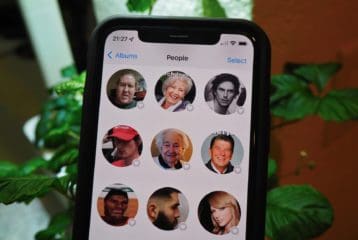
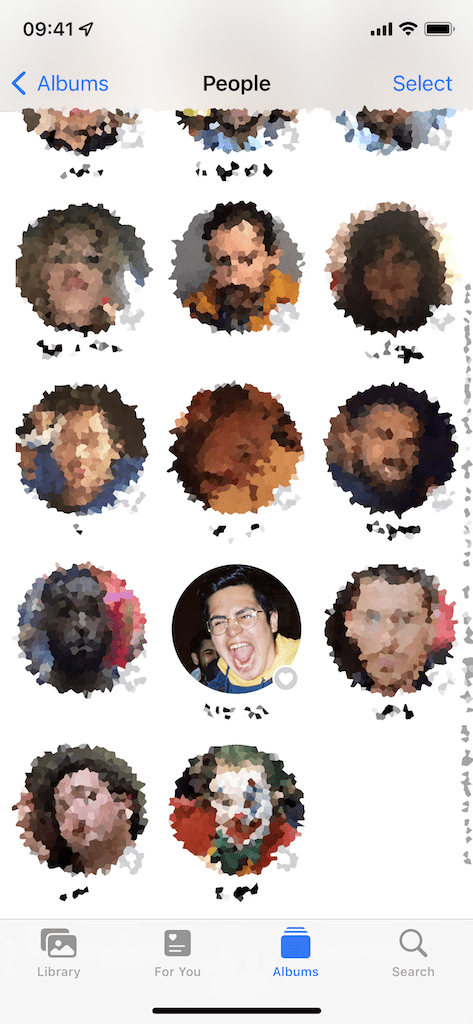
The Photos application automatically fills the People album (located in the Albums tab in the Photos app) with your friends and family, but also random celebrities, musicians, and athletes from photos you have saved in your camera roll. You probably don’t want an album full of Michael Jordan photos just because you love the meme, so the first step in organizing the People album is to get rid of unnecessary people.
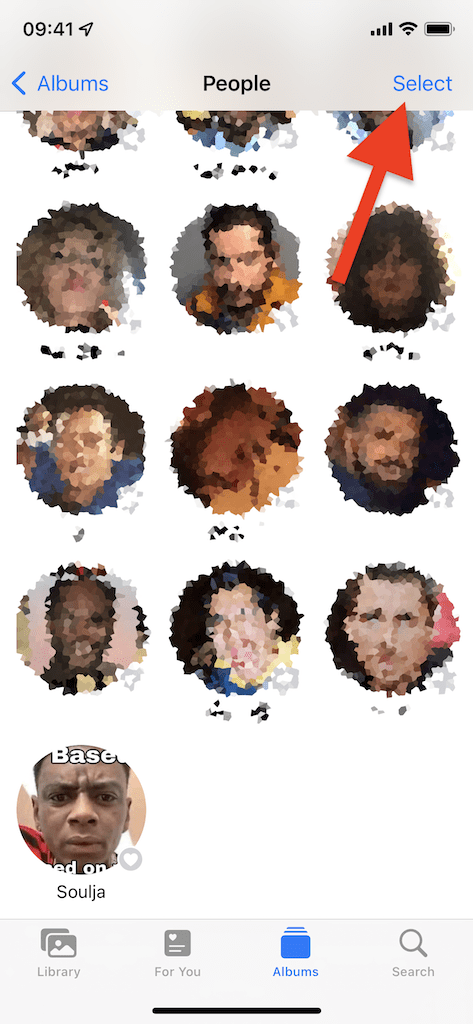
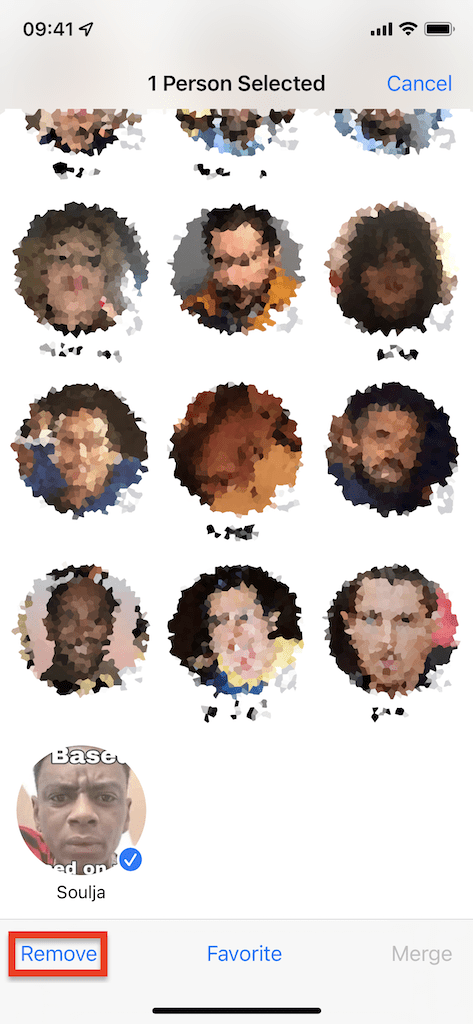
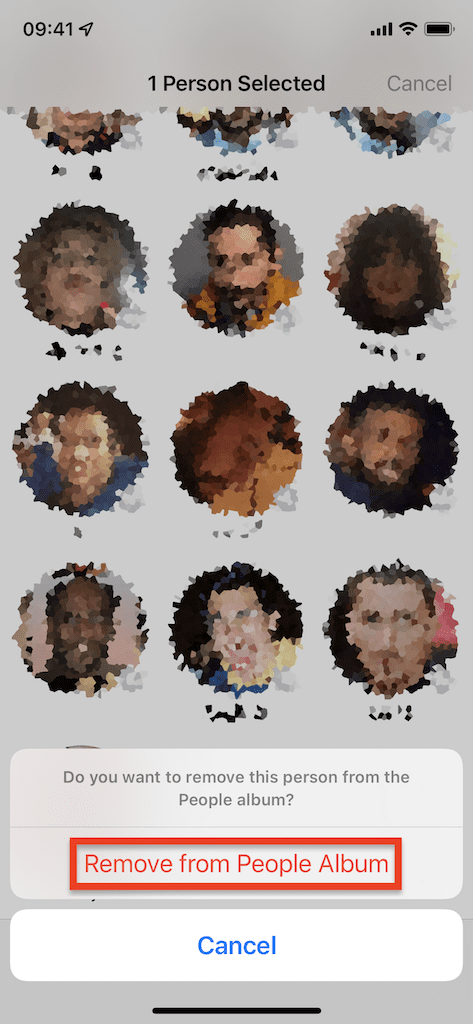
In the People album, tap on Select in the top right and then tap on the face you want to remove from the album; you can choose more than one person. Once you’ve selected your choice(s), tap on Remove at the bottom of the screen and then on Remove from People Album. That person’s album will be permanently deleted from People, but not from the rest of your camera roll.
2. Merge Duplicate People
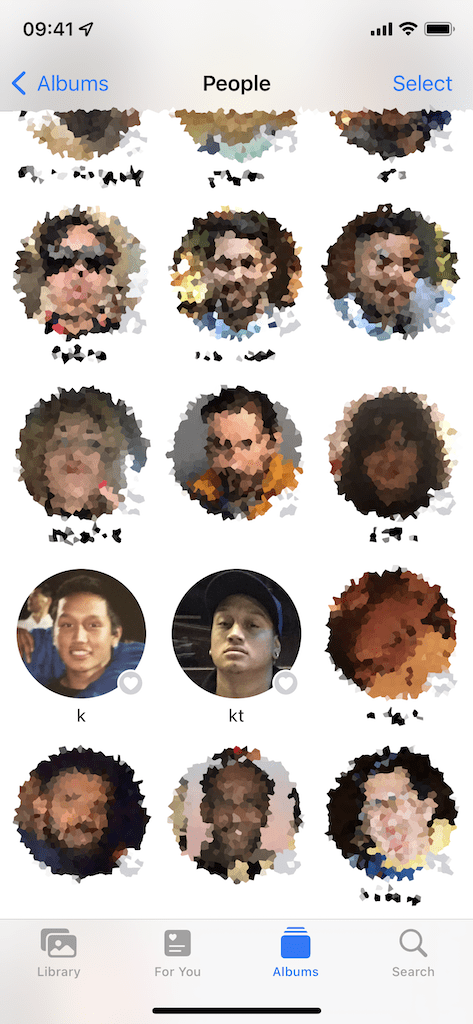
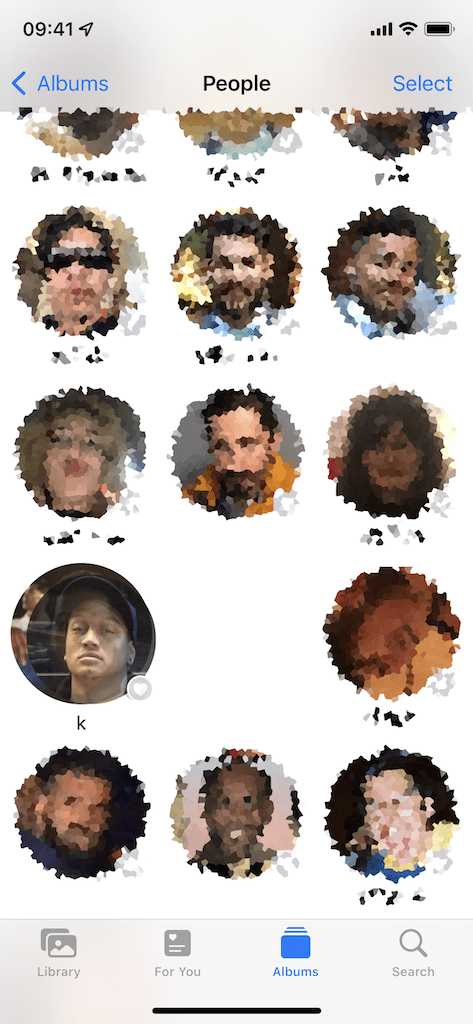
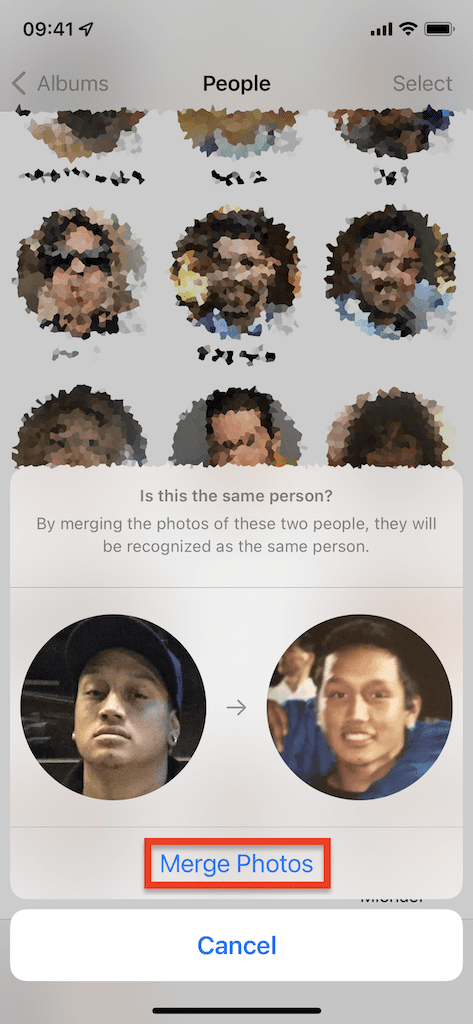
You may also have separate albums for the same person within the People album. Instead of deleting one album and keeping the other, you can merge several albums into one. The easiest way to do this is simply by holding your finger down on one album and then drag and release it over the other. A pop-up will appear asking you if the albums are of the same person. If so, tap on Merge Photos.
Additionally, you can tap on Select in the top right and then tap on all of the people you want to merge into one person. Once they’re all selected, tap on Merge in the bottom right and then on Merge Photos in the pop-up that appears.
3. Name People
Now that your albums are a bit more organized, you should go in and name the ones you already have in there. Some albums may already have names, but that’s only for names that iOS has pulled from your contacts that have photos that match the faces in your camera roll. If not, it’s up to you to name them manually.
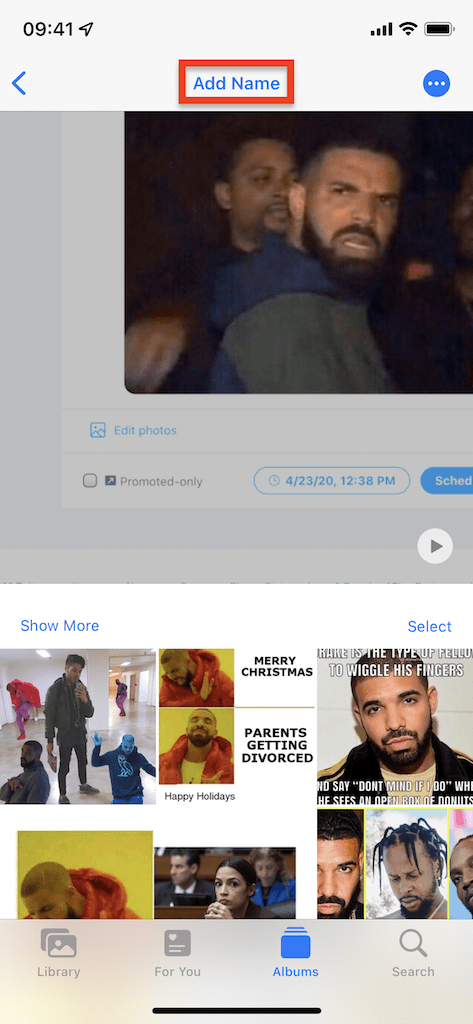
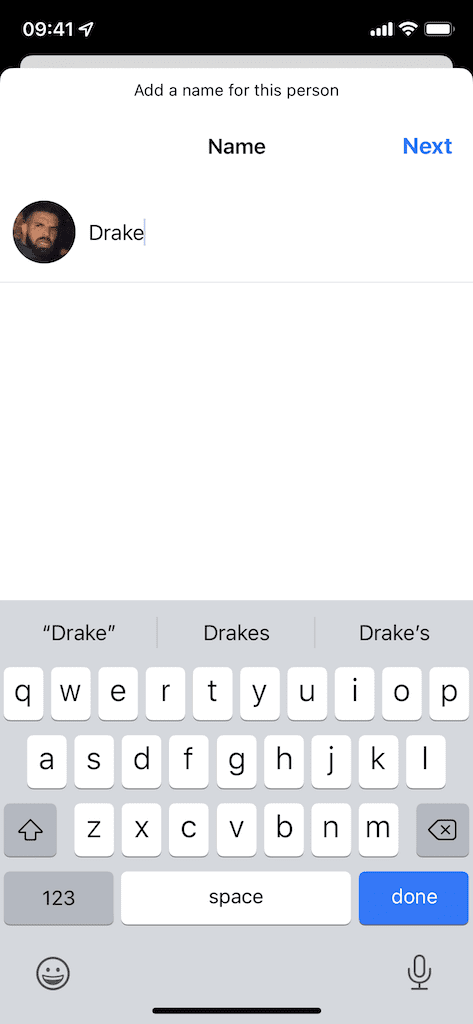
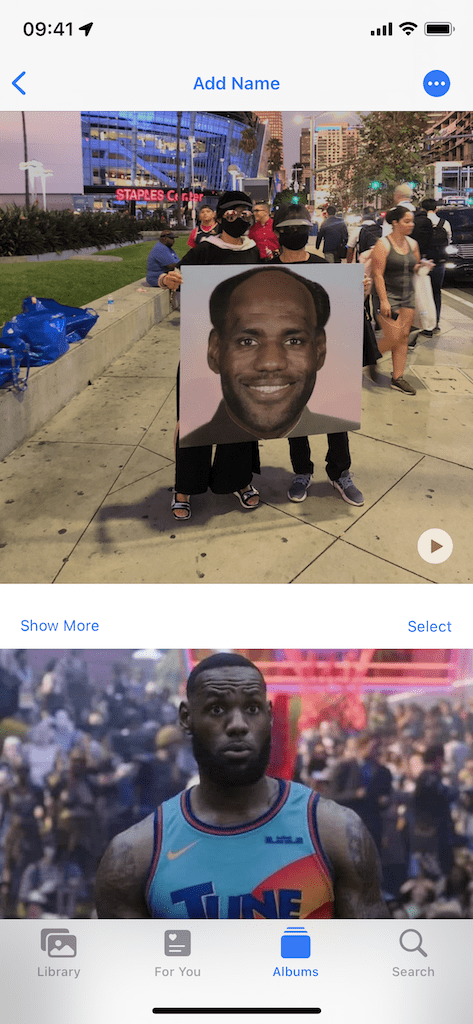
To do this, go into the People album and tap on a person you want to name. All of their photos will appear: tap on Add Name at the top of the screen. Once you start typing in a name, Apple will auto populate names from your contacts. If this person is in your contacts, and they already have a People album, it will add this photo to it. If not, it will create a new People album.
4. Manually Add More People
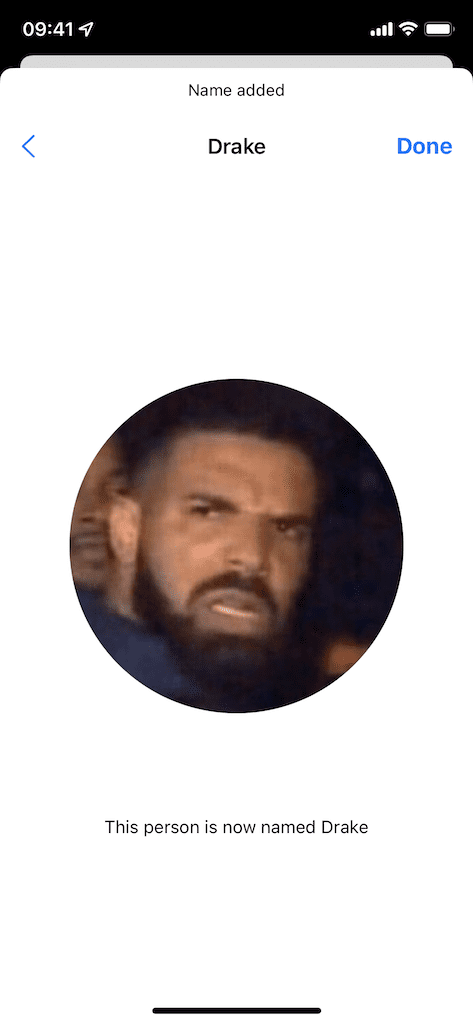
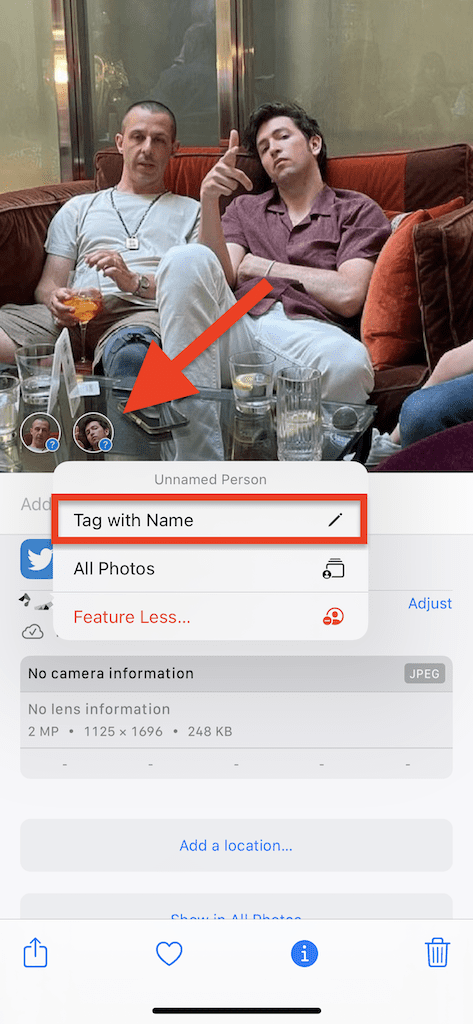
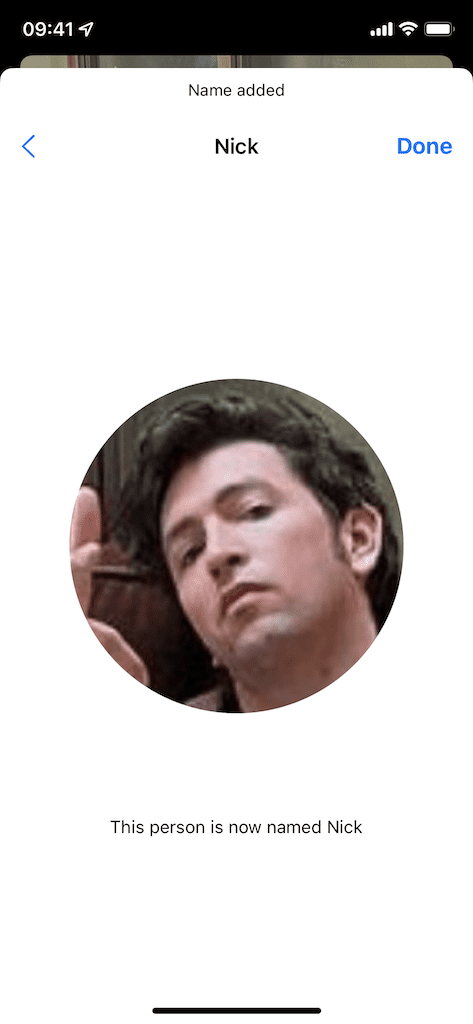
Obviously, not every person in your photos will be automatically added to the People album, which is why you can also do it yourself. The process is pretty simple: find a photo with the person in it in your camera roll, swipe up on the photo, tap on their face icon (if it appears in the bottom left of the photo), tap on Tag with Name, and add a new or existing name. Once you add a name, hit Done and their photos will be automatically included in the People album.
Note: You don’t necessarily need to add a name, you can just hit “Next” and “Done” without one, and the photos will be added to the People album, however, we wouldn’t recommend this.
5. Review Additional Photos
For all the people you have in the People album, iOS will begin searching for their other photos in your camera roll. Once your iPhone determines that some photos should be added to the album, you can review them to make sure.
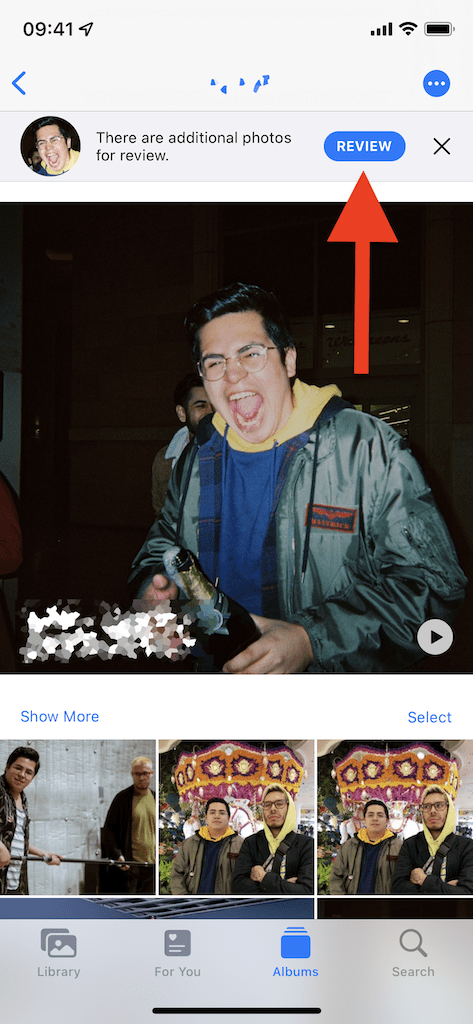
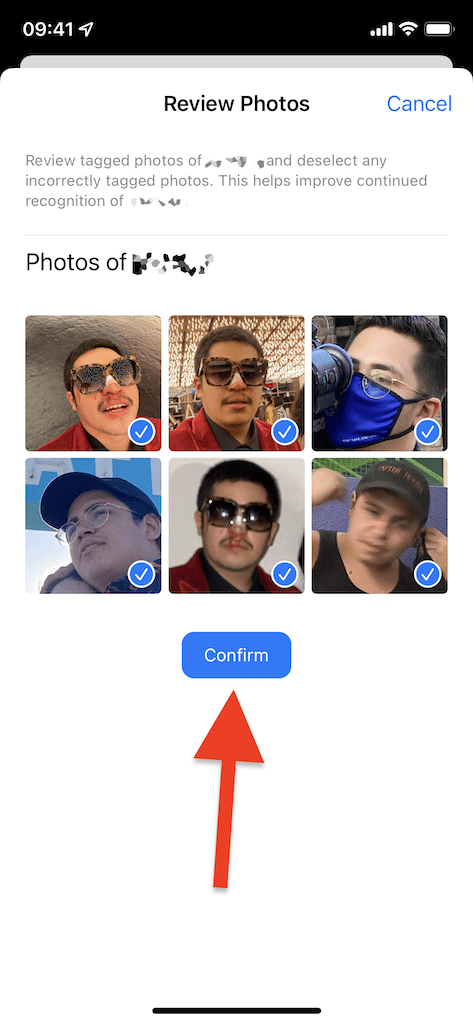
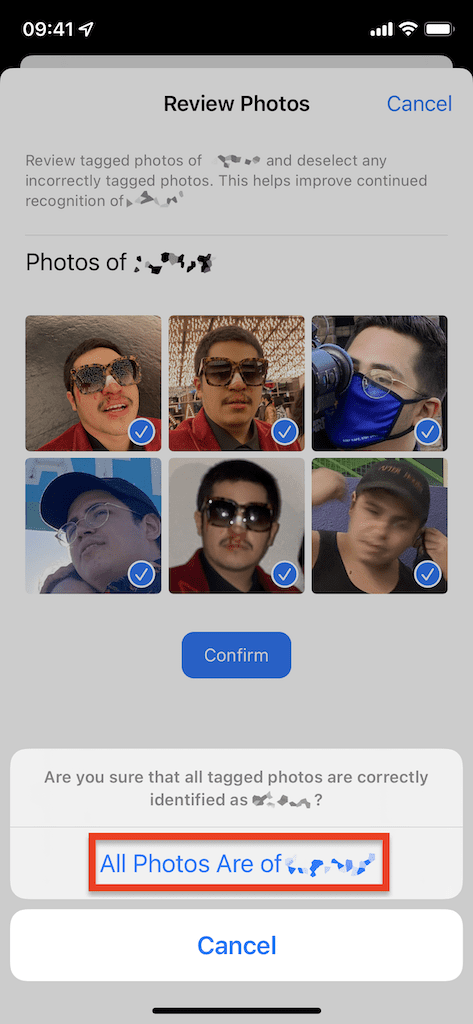
To review additional photos, go into a person’s album, and if there are photos to review, you’ll see a banner that says “There are additional photos for review.” Tap on the blue Review button and then deselect the photos you do not want to add to their album. Once you’re finished, tap on Confirm and then on All Photos Are Of (Name) to add the photos to their album.
Another way to do this is to tap on the three dot circle icon on the top right and then on “Confirm Additional Photos”. Not sure why, but different photos sometimes appear with this option, which may just be an oversight on Apple’s part. If you intend on keeping your People albums organized, you should use this feature occasionally, because it’s updated with more photos to review.
6. Change Thumbnail Photo
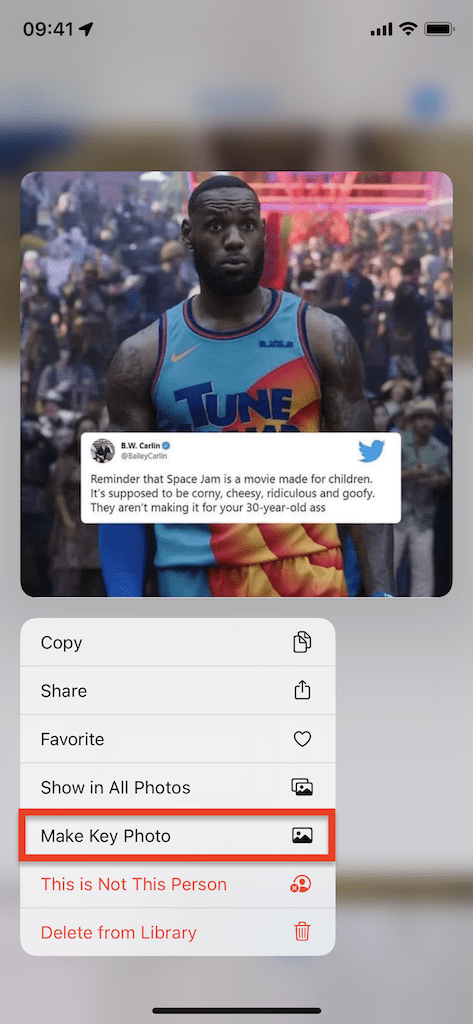
By default, the first image that Photos recognizes for a specific person becomes their thumbnail photo, but you can change it with a few taps. In that person’s album, long-press on the photo you want to become the new thumbnail and tap on Make Key Photo.
7. Remove Incorrect Photos
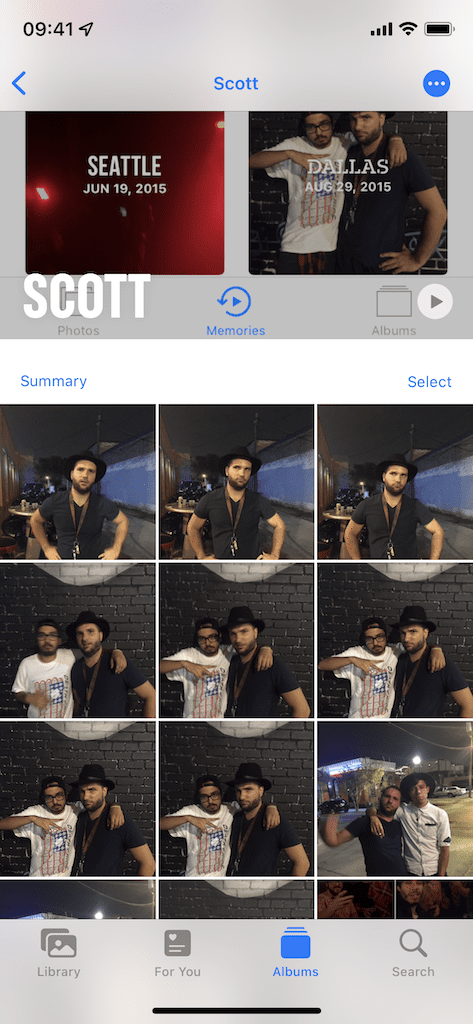
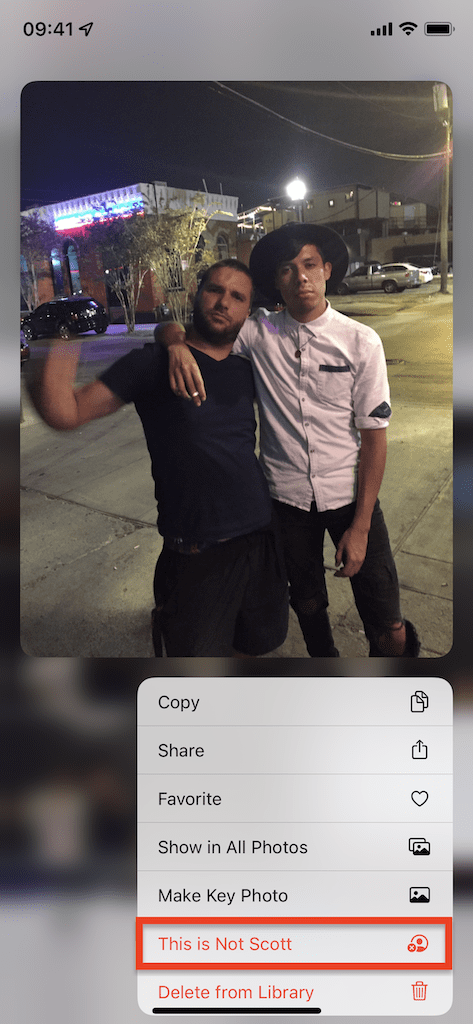
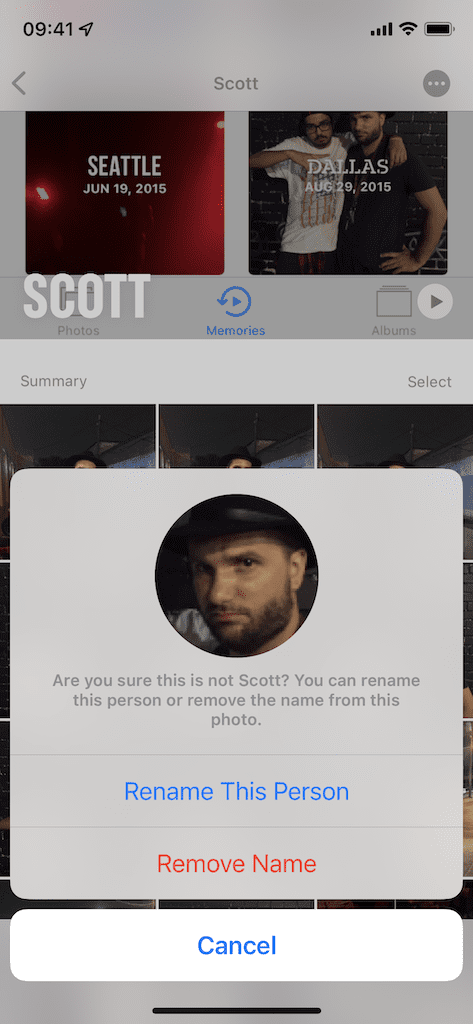
The Photos application is pretty good at correctly identifying people, but if two people look too closely alike, iOS be may fooled and put a photo in the incorrect album. To remove a photo from an album, long-press on a photo and tap on This Is Not (Name). A pop-up will then appear asking if you want to Remove Name, which will delete the photo from this specific album, or Rename This Person, which allows you to place this photo into a new People album.
8. Favorite Specific People
Once you begin adding more friends and family to the People album, the harder it might get to find the ones with the most photos. Luckily, with a single tap, you can favorite an album and move it to the top of the People album. Simply tap on the heart icon on a People album thumbnail to favorite it and move it to the top, as a much larger icon. Additionally, you can tap on Select in the top right, choose the albums you want to favorite, and then tap on Favorite in the bottom middle. You can do this for as many albums as you want.
9. Feature Person Less
Your iPhone recognizes photos and videos that are important to you and creates Memories with them, which are curated slideshows of certain events and people with background music that you can watch in the Photos application.
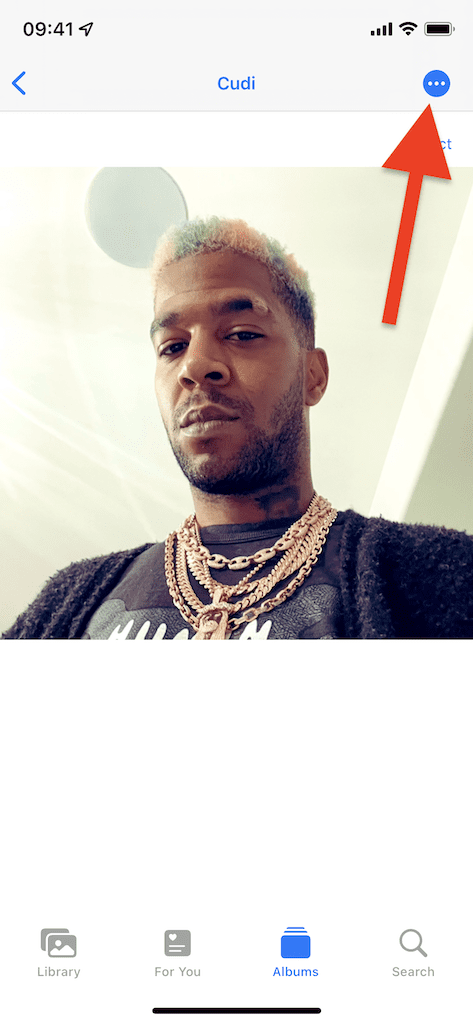
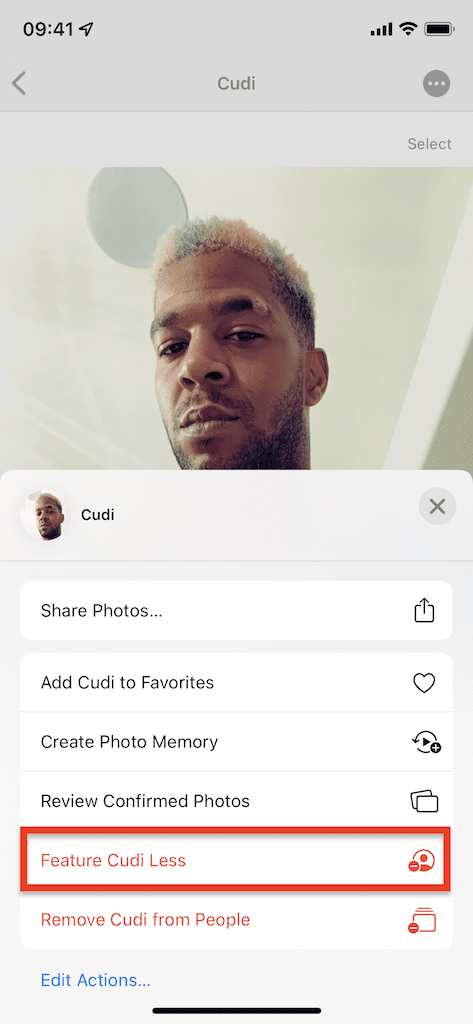
Anytime you create a People album, it’s more likely that the person in the album will be featured in your Memories. If you don’t want that to happen, you can prevent them from appearing in many or all Memories. In the person’s album, tap on the three-dot menu in the top right and then on Feature (Name) Less. You then have two choices:
Feature This Person Less: Stop featuring this person in Memories (excluding group photos).
Never Feature This Person: Stop feature this person in all Memories (including group photos).
Conclusion
The People album is an underrated feature on your iPhone, but it allows you to neatly organize photos of your friends and family (and more), so that you can easily search for and find them for whenever you want to share them with others. Let us know what you think about this feature in the comments below.













I need to change photo albums cover pic and rearrange in order! Like we are restoring a home ! Is it possible to do that?
Thank you in advance,
Joy