• Skip to primary navigation
  • Skip to main content
  • Skip to primary sidebar
  • Skip to footer

AppleToolBox

Tools and Fixes for Mac, iPad, iPhone & iWatch

Search posts

  • About
  • Contact

CONNECT WITH US

CATEGORIES

  • iPhone
  • iPad
  • iPod
  • Apple Watch
  • Mac/MacBook
  • AirPods
  • Apple TV
  • News
  • Apple Services
  • HomePod
  • Reviews

SITE

  • Home
  • About Us
  • Contact
  • Advertise

Search posts

You are here: Home / Apple Watch / Apple Watch Keeps Locking While on Wrist? Do This!

Apple Watch Keeps Locking While on Wrist? Do This!

By Madalina Dinita 0 comments Last updated February 29, 2024

There’s an ongoing issue with Apple Watches that’s been bugging users for years, irrespective of the watch model they own: the watches keep locking while on the wrist.

The first thing you should do if your watch isn’t working as intended is to restart it. If you can’t restart it, you can try a forced restart.

Hold down the side button and the Digital Crown until the Apple logo appears.

Equally important, don’t wear your watch too loose. Tighten it one more notch, and check if you notice any changes. Make sure the watch is against your skin or it will automatically lock.

Contents

  • Do You Have Tattoos?
  • Disable Wrist Detection
  • Check Your Sleep Mode Settings
  • Unpair and Pair Your Watch

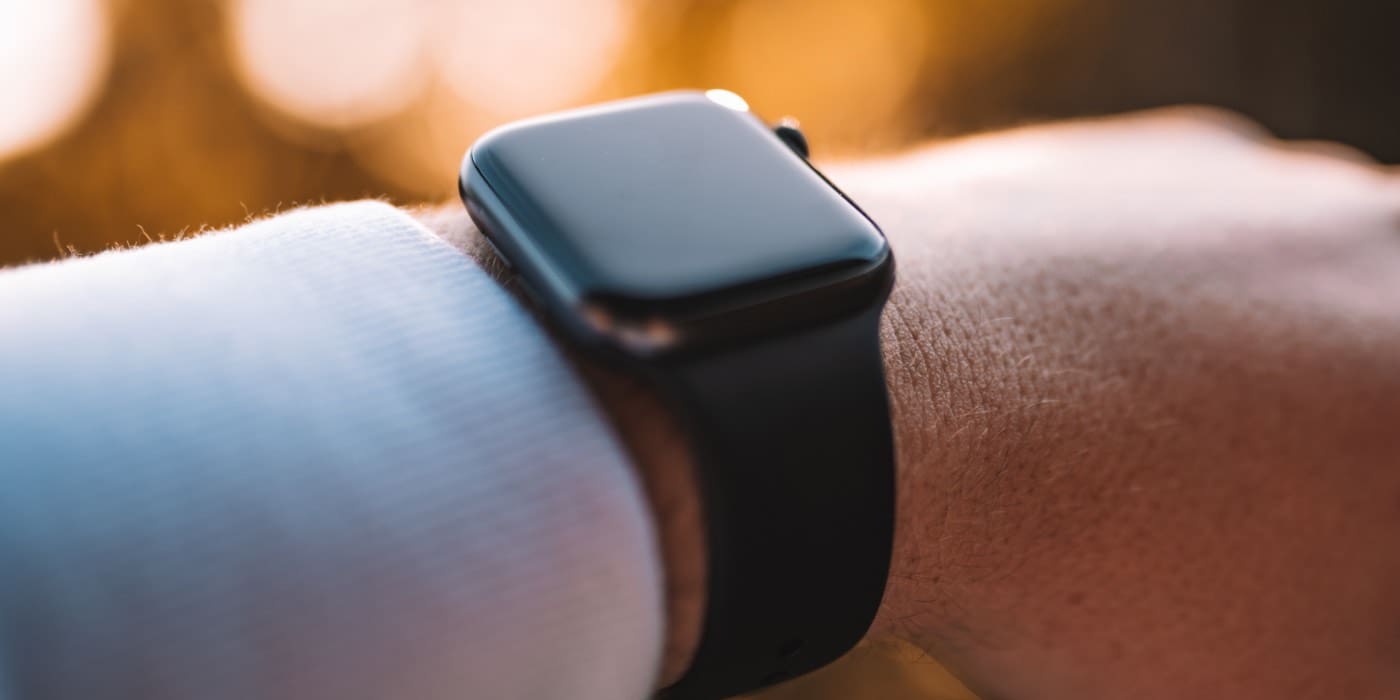
Do You Have Tattoos?Photo of an Apple Watch on a person's wrist

If you have tattoos on your wrist, such as a sleeve with thick dark ink that touches the sensor, that could explain the inconsistent behavior of your Apple Watch.

Dark tattoos or other changes to the skin may prevent the Apple Watch sensor from detecting your wrist, which can lead to the watch randomly locking.

If you don’t have any tattoos but your watch continues to randomly lock itself, as if it’s not detecting your wrist, check if the solutions below solve the problem.

Disable Wrist Detection

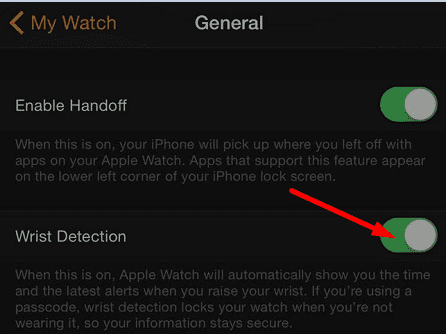
Open the Settings App on your Apple Watch, enter your passcode and temporarily disable Wrist Detection.wrist-detection-apple-watch

Wait for 30 seconds and then turn the Wrist Detection feature back on.

Check Your Sleep Mode Settings

If Sleep Mode is turned on during the daytime, don’t be surprised if your Apple Watch suddenly locks while it’s still on your wrist.

Sometimes, your watch may prompt you to disable Sleep Mode, giving you a clue as to what is causing this issue.

Other times, you may get no notifications and you only realize there’s a problem when the watch locks on your wrist.

On your Apple Watch, go to Settings, scroll down to Sleep and turn this option off.

Unpair and Pair Your Watch

If this glitch is caused by corrupted files, unpairing and then pairing your watch again should solve it. This quick workaround removes temporary and corrupted files without deleting data.

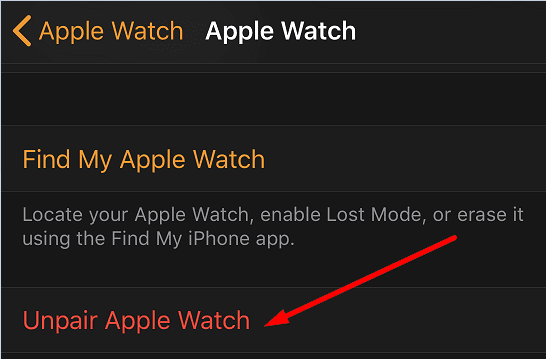
To unpair your Apple Watch, launch the Apple Watch on your iPhone, go to My Watch, tap All Watches and then tap the Info button. Select Unpair Apple Watch and restart your devices after successfully unpairing them.

unpair apple watch from iphone

To pair your Apple Watch and iPhone again, place your Apple Watch near your iPhone, open the Apple Watch app on your phone, and select the Pair option.

Did these solutions stop your Apple Watch from locking on your wrist? Let us know in the comments below.

Related Posts:

  • How to Buy MacBook Pro 2021 16-inch
    Best Apps To Hide the Notch on the MacBook Pro
  • Apple Watch Ultra Tips and Tricks
    Apple Watch Tips and Tricks for 2023
  • Person using Apple Watch in the Rain
    How to Reverse Your Apple Watch Orientation (+ Why…
  • Photo of someone using Apple Music on their smartphone
    How to Fix Apple Music Not Working on iPhone / iPad
  • 2023 Mac Studio lifestyle - 1
    macOS Could Not Be Installed, How-To Fix
  • Screen Shot 2021-07-12 at 4.52.12 AM
    AirPods Max Review: How They Look Six Months Later
  • 2022 Mac Mini with Studio Display and Accessories
    Mac Tips For New Users In 2023
  • pexels-designecologist-1779487
    The Best iPhone And Mac Shortcuts For Beginners
  • Screen Shot 2021-10-24 at 3.08.11 AM
    The 2021 iMac Review: The Future Of Computing
Madalina Dinita

Madalina has been a Windows fan ever since she got her hands on her first Windows XP computer. She is interested in all things technology, especially emerging technologies — AI and DNA computing in particular.
Reader Interactions

Write a Comment Cancel reply

Primary Sidebar

Recent Posts

  • How to Manage Your iPhone Call Log
  • Are Apple’s Safety Precautions Enough for AirTags?
  • How to Hide Username and Photo on the Mac Lock Screen
  • Microsoft Resume vs. Apple Handoff – Which Wins for Cross-Device Work?
  • How to Export iTunes Library to New Computer
  • What the Gemini Desktop App Will Bring to Mac

Connect with us

Footer

ABOUT

  • About Us
  • Contact us
  • Advertise
  • Privacy
  • Terms of Use

GUIDES

  • iOS & iPadOS
  • Apple ID
  • iCloud
  • App Store
  • iTunes
  • FaceTime
  • iMessage
  • Siri
  • Books and iBooks
  • Game Center
  • AirPlay

CONNECT

  • Facebook
  • Twitter
  • FeedBurner
  • YouTube

© Copyright 2010-2024 Guiding Tech Media · All Rights Reserved

This site and its content are in no way affiliated or endorsed by Apple, Inc. · Reproduction without explicit permission is prohibited