If you are familiar with the VLC video player, you may be familiar with VLC playlists as well. When you are playing a video on VLC and need to go into the playlist and select another video, the current video still plays on the side, but as a thumbnail. We also refer to this as Picture in Picture (PIP). PIP allows users to multitask, e.g., make a video call while still typing an email, or answer a text message while watching Netflix.
Recently, Apple has made the iPhone Picture in Picture (PIP) compatible with apps that support the feature with its iOS 14 updates. Unfortunately, not all apps for iPhones will support PIP, though, including the standard YouTube app. This is not a problem with your phone’s software. Rather, app developers have not rewritten their software to be PIP-enabled.
PIP has been an available feature for the iPad for some time now. Therefore, any app that supports iPad PIP should also work with your iPhone as well. Along with those, you can also use:
Video conferencing platforms like FaceTime, Skype, and WhatsApp. Zoom is not supported.
Web browsers, e.g., Google Chrome, Firefox, and Safari.
Streaming services like Amazon Prime Video, Netflix, Hulu, ESPN, and CNN.
Apple Pocket
iTunes
YouTube Compatibility
We use YouTube not only to watch videos but also to listen to music. This is why the standard YouTube app not supporting PIP is a bit of a bummer. However, you can use this mode if you have a YouTube Premium account or watch the videos through Google Chrome.
A Compatible App Isn’t Working
If you know that an application you are using is supposed to support picture in picture mode but isn’t, you may want to check for app updates. The app developer needs to write in support for picture in picture, so if you’ve delayed downloading the newest versions on your iPhone or iPad, you won’t be able to take advantage of updates and improvements.
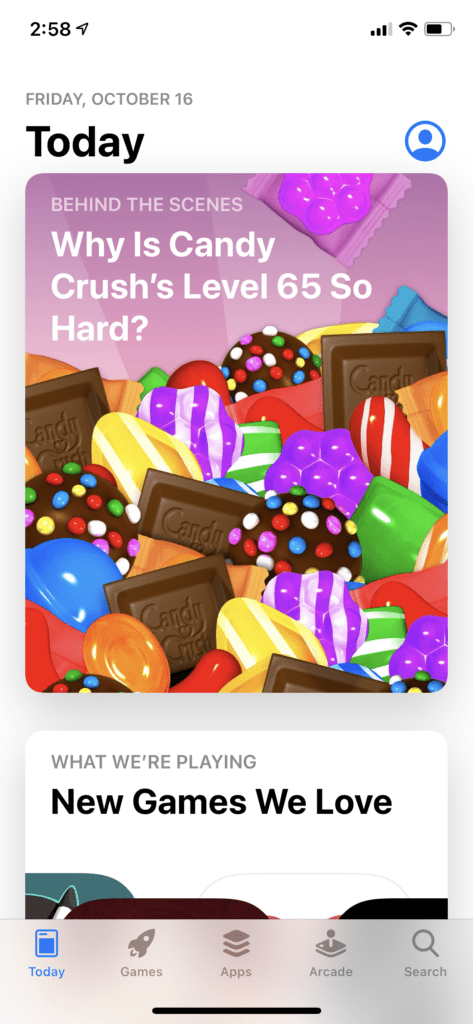
To update your apps, open the App Store.
Tap Today.
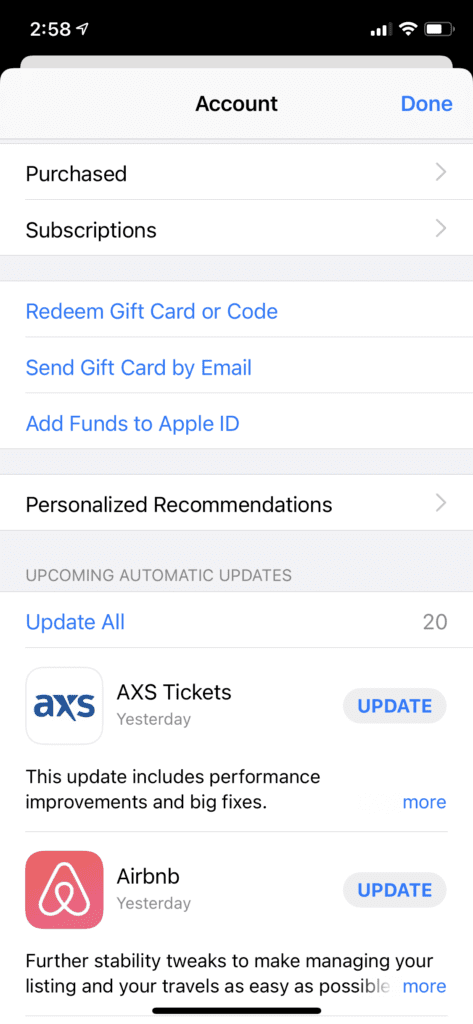
Tap your profile picture.
When you scroll down, you’ll see a list of updates available to you. If you see your app, select Update next to it.
To avoid having to update your apps manually, go to Settings > Your Profile > iTunes & App Store. Toggle on App Updates under Automatic Downloads.
How to Use Picture in Picture
Picture in picture is not complicated to use or set up. If you’re watching a video and a message pops up on your screen, go ahead, click the message notification. All that happens is that your video screen will shrink to the size of a thumbnail while you work on the message screen.
When you want to switch back to the video you were watching, all you need to do is double-tap on the PIP window with two fingers.
If you tap on it just once, you will see an X symbol at the top left corner and an open icon in the top right corner. Tapping the X will close the window and tapping on the open icon will resume the video in full screen.
Disable the Feature
If you aren’t a fan of the floating video on your screen, you can disable PIP. Why would you want to do this? If you take a lot of video conference calls throughout the day, you may not want to have a video playing in the background. The other reason is that these thumbnails take up room on your display. Instead of moving it around the screen, you might as well close them out.
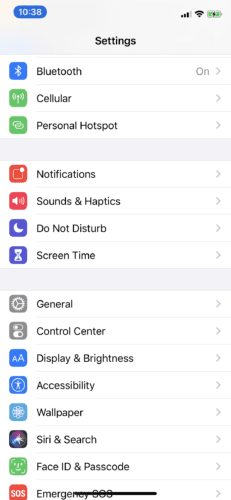
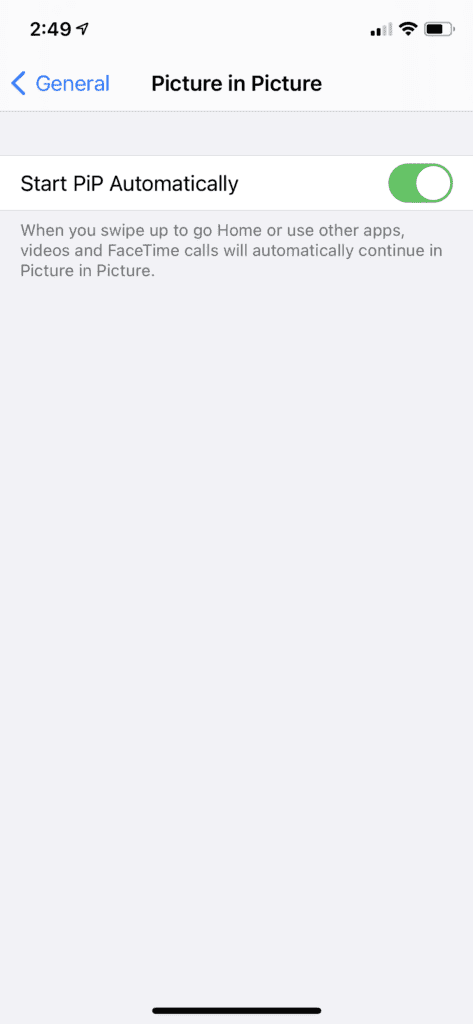
Go to Settings > General.
Scroll down the menu until you find Picture in Picture.
Toggle the switch next to Start PIP Automatically off. Now, whether the app is compatible with the feature or not, videos will close out when you switch screens.
Conclusion
Basically, almost all Apple applications with the video display feature work with picture in picture mode. Additionally, many third-party applications that can work on the iPad operating system will most likely support the picture in picture mode. If you are watching videos through a web browser like Google Chrome, even though the browser is compatible, embedded videos on websites may not be. To reiterate, this is not a problem with your phone. It is a case of, “It’s not me, it’s you.”










Write a Comment