It doesn’t matter who you are calling, a friend, relative, an office, or your favorite radio station, that busy line signal is both frustrating and disappointing. Now, if you’re really desperate to get in touch with someone, you know the drill — hang up, wait five seconds, and then type in the number again. But more than once or twice gets irritating fast! Let’s talk about ways you can automatically redial busy numbers with your iOS device.
Your iPhone or iPad can automate parts of the redial process for you with the help of third-party apps. While Apple’s built-in options will save you time, it’s important to know that these options aren’t completely automatic. To get a fully-automatic redialing feature, you’ll need to jailbreak your phone.
What the iPhone Will Allow
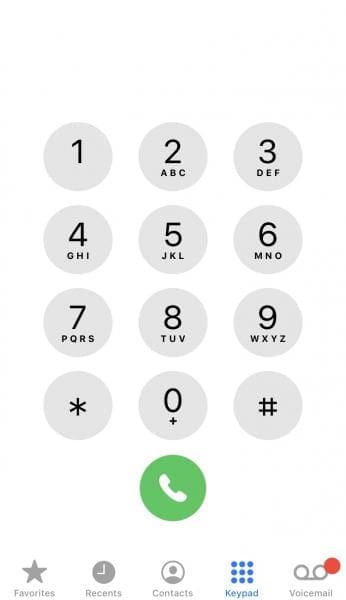
To quickly redial a busy number, go back into your phone app and go to Recents. Tap on the number you last called. You can also go into your phone app and press the green call button once. This will bring up the last number you dialed. Press the green call button again, and you’re good to go.
Though you can’t automatically redial a busy number on your iPhone without an app, you can still use Siri. This is especially helpful if this is the first time you’re calling the number, or you don’t have it saved in your contacts. If you happen to be in the car and need a hands-free redialing option, you can ask Siri. Just say, “Siri, redial the last number.”
It’s a way to quickly call someone up, and again, and again — until you get through!
Jailbreaking for Automatic Redialing Options
Usually, the solutions above are enough to do the trick, but jailbreaking your iOS device can open the door to completely automated options for redialing.
Jailbreaking removes the restrictions that Apple places on your phone’s software, but it removed the protection as well. It opens you up to more attacks from malicious sites and apps, so proceed with caution.
AutoRedial App
If you want to continuously try a busy number without losing precious seconds, you can check out the AutoRedial app. AutoRedial is available from Twickd for $2.79. In order for it to work with your iOS, you’ll need version 12.0-13.6.1. With the app, your phone will redial until it is connected to the desired party and set delays between call attempts.
There is even a specific setting for busy lines called BusyLine AutoRedials, which can be stopped with the simple press of a volume button.
Once you have installed the app, open it, and go into its Settings, and toggle on every option.
Set your delay setting, and then tap Save. The delay refers to how long it will sit at the busy signal before hanging up and redialing.
Dial the number in your phone app.
If you receive a busy line signal, swipe up from the green call button and a prompt will ask you if you want to start the AutoRedial feature.
If you tap Yes, it will keep redialing until it makes a connection, or you disable the feature. Before it redials, and after the delay, the app will ask if you want to redial — it won’t redial automatically.
Overall, it’s an easy-to-use app once you have it downloaded and installed to your device and gives you control despite it being an automated function.
Getting Past the Busy Signal
You don’t have to manually dial a phone number every time you get a busy signal. Even without a third-party app, your iOS device is quite capable of storing the number so you can quickly bring it back up on the screen. But sometimes you need to be able to continuously redial that number to get past that busy signal, and that’s what reliable third-party developers are for!
I found the above methods work…sort of. The best option I found if you have an iphone is AutoRedialer.com The website looks a little dated but it’s awesome and has got me through to Oregon Unemployment many times. It’s 5 bucks which I was gladly willing to pay.











A very helpful artical. Appreciate the very clear writing
Can highly reccomend.
I found the above methods work…sort of. The best option I found if you have an iphone is AutoRedialer.com The website looks a little dated but it’s awesome and has got me through to Oregon Unemployment many times. It’s 5 bucks which I was gladly willing to pay.