• Skip to primary navigation
  • Skip to main content
  • Skip to primary sidebar
  • Skip to footer

AppleToolBox

Tools and Fixes for Mac, iPad, iPhone & iWatch

Search posts

  • About
  • Contact

CONNECT WITH US

CATEGORIES

  • iPhone
  • iPad
  • iPod
  • Apple Watch
  • Mac/MacBook
  • AirPods
  • Apple TV
  • News
  • Apple Services
  • HomePod
  • Reviews

SITE

  • Home
  • About Us
  • Contact
  • Advertise

Search posts

You are here: Home / Mac / Common Google Drive Mac Issues and How to Fix Them

Common Google Drive Mac Issues and How to Fix Them

By Louis Roundtree 0 comments Last updated March 6, 2026

Things to Know
  • Most Google Drive issues are temporary and caused by a lack of internet connection to sync your online content with the offline app.
  • If you get a specific error message, note its error code and check Google Drive’s help center.
  • Reinstalling Google Drive and ensuring your Mac is up to date is the last resort, but it should resolve most problems.

Trying to use Google Drive on Mac and seeing folders unavailable for download? Or perhaps only visible on one platform but not the other (whether it’s offline or on the browser version)? Here are the main causes for common Google Drive Mac issues and how to solve them.

Contents

  • Option 1: Internet Connection for Google Drive Mac Issues
  • Option 2: Google Drive Cannot Start Due to Permission Issue Mac
  • Option 3: Running Out of Storage Space

Option 1: Internet Connection for Google Drive Mac Issues

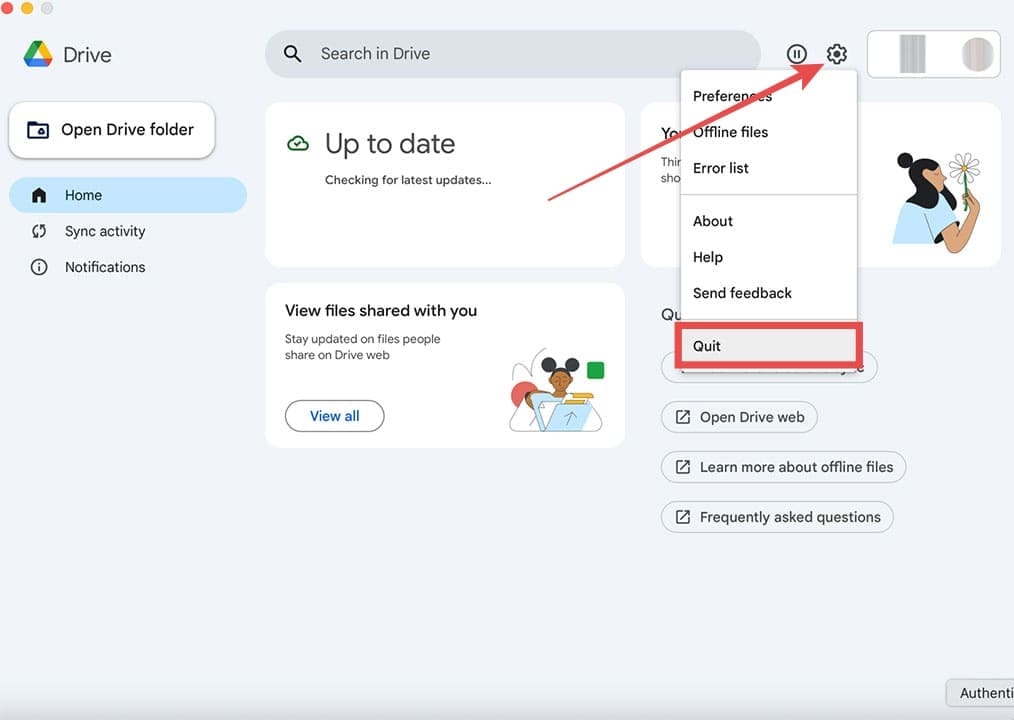
If your Google Drive doesn’t properly sync between your online and offline storage, you should check if your internet connection is stable. Beyond that, you can restart the application to force it to recheck your account.

Step 1. Click on the Drive icon in the toolbar.

Step 2. Go to “Settings,” then click on “Quit.”

Common Google Drive Mac Issues and How to Fix Them 1

Step 3. Find Google Drive in Finder > Applications and run it.

If this doesn’t work, you may need to re-log in to your account.

Common Google Drive Mac Issues and How to Fix Them 2

Step 1. Click on your account name on the app.

Step 2. Go to “Manage storage” then click “Log out.”

Common Google Drive Mac Issues and How to Fix Them 3

Step 3. When you reopen the app, you’ll be prompted to re-enter your account credentials.

Option 2: Google Drive Cannot Start Due to Permission Issue Mac

There’s a rare issue where user settings are incorrectly set to prevent Google Drive from creating local cache folders to sync files. You can try to circumvent this by manually changing permissions and locating the folder.

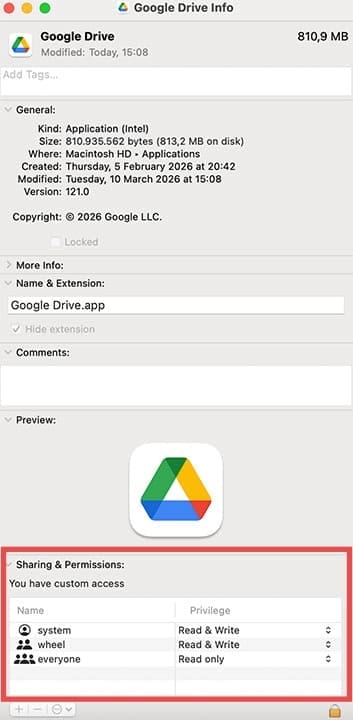
Step 1. Go to Finder and select Google Drive. Then, right-click on the folder and choose “Get Info.”

Common Google Drive Mac Issues and How to Fix Them 4

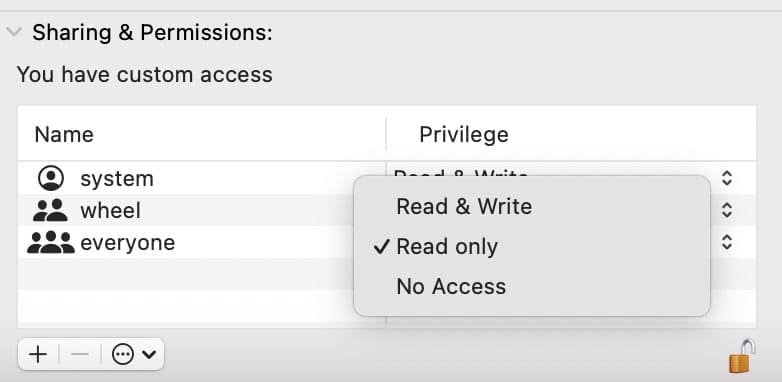
Step 2. Open the Sharing & Permissions area, then check that folder permissions allow everyone to open and modify them. You may need to unlock the folder (by inputting your password).

Step 3. Highlight the option “Everyone,” then click on the action menu at the bottom and select “Apply to enclosed items.”

Common Google Drive Mac Issues and How to Fix Them 6

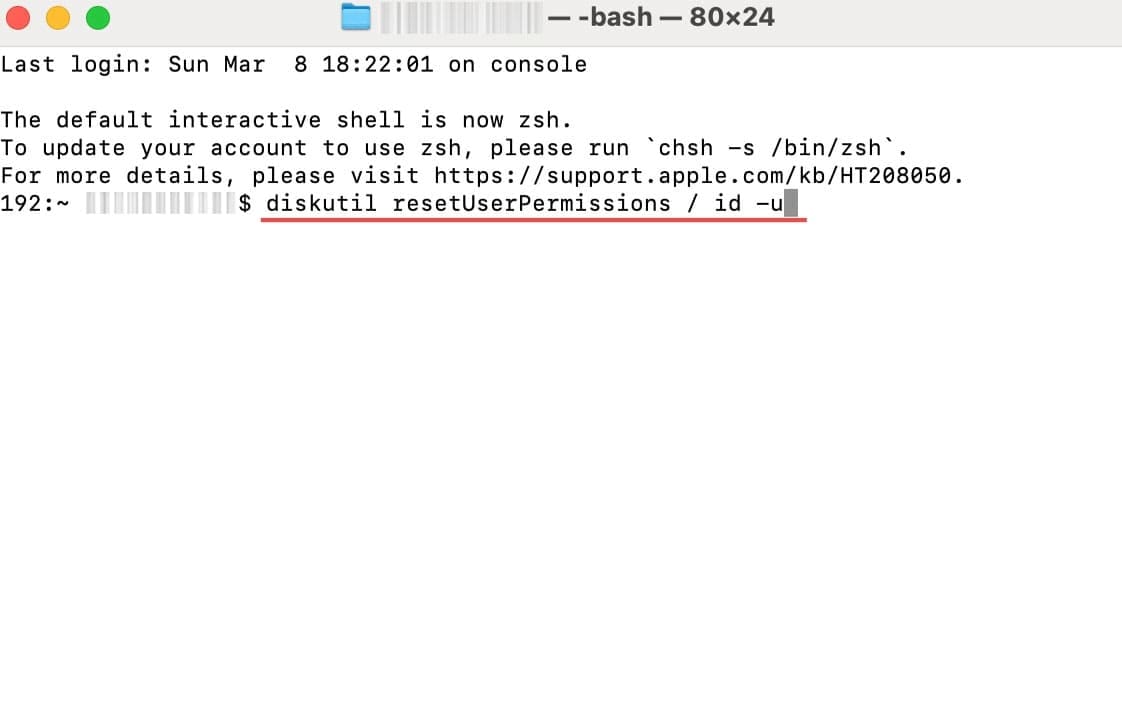
Step 4. Open Terminal and run the commands:

diskutil resetUserPermissions / id -u

Common Google Drive Mac Issues and How to Fix Them 7

If you get an error, enter “chflags -R nouchg ~” then retry the command.

Step 5. Try to restart Google Drive.

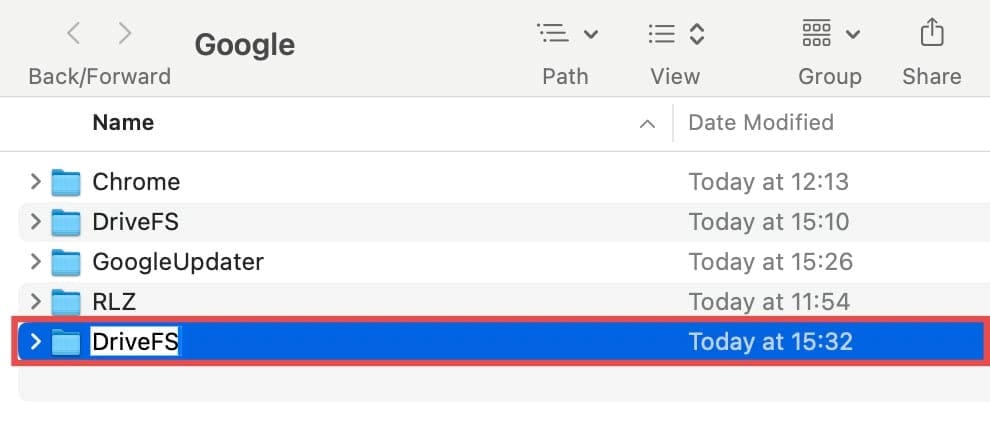
Step 6. If you still can’t get it to open, click on “Go” in the Finder menu bar then “Go to Folder” and type “/Users/myusername/Library/Application Support/Google”

Common Google Drive Mac Issues and How to Fix Them 8 Common Google Drive Mac Issues and How to Fix Them 9

Step 7. Create a folder named “DriveFS” and restart Google Drive. This should allow Google Drive to start populating the cache and sync files.

Common Google Drive Mac Issues and How to Fix Them 10

Option 3: Running Out of Storage Space

If you’ve run out of storage space on Google Drive, you’ll get persistent warnings that files can’t sync, but only in the browser. In the app, you might see syncing just stop.

You can confirm how much storage space you have by logging into your Google Drive account and going to “Storage.” Then, you can move out large items and store them offline to save space, or subscribe to get extended storage space if needed.

Related Posts:

  • 2023 Mac Studio lifestyle - 1
    macOS Could Not Be Installed, How-To Fix
  • Mac Output Audio Header
    How to Control Individual Application Volume on Mac
  • sidecar on iPadOS and macOS
    Sidecar not working in iPadOS and macOS? How to fix…
  • iPhone 15 Pro Max - 4
    Best iPhone Lock Screen Widgets for iOS 17
  • 14 Best Mac Cloud Storage for Home, Work, and School in 2023
    14 Best Mac Cloud Storage for Home, Work, and School in 2023
  • Photo of someone using Apple Music on their smartphone
    How to Fix Apple Music Not Working on iPhone / iPad
  • photo of a macbook with its screen open
    How to Set up and Use Google Drive on Mac
  • An iPhone, Mac, and MacBook on a table
    Can You Use Time Machine to Back up Your Mac to…
  • pexels-jess-bailey-designs-810079
    How To Run Linux On Mac: A Step-by-Step Guide
Louis Roundtree
Louis Roundtree

As an avid gamer, I’ve run into my fair share of error codes and weird faults that have forced me to find fixes to problems I never anticipated. That gave me a passion for sharing those fixes with others so we can all game without feeling like our hardware is rebelling against us.

Reader Interactions

Write a Comment Cancel reply

Primary Sidebar

Recent Posts

  • How to Stop Sharing Analytics in iOS 26
  • How to Manage Your iPhone Call Log
  • Are Apple’s Safety Precautions Enough for AirTags?
  • How to Hide Username and Photo on the Mac Lock Screen
  • Microsoft Resume vs. Apple Handoff – Which Wins for Cross-Device Work?
  • How to Export iTunes Library to New Computer

Connect with us

Footer

ABOUT

  • About Us
  • Contact us
  • Advertise
  • Privacy
  • Terms of Use

GUIDES

  • iOS & iPadOS
  • Apple ID
  • iCloud
  • App Store
  • iTunes
  • FaceTime
  • iMessage
  • Siri
  • Books and iBooks
  • Game Center
  • AirPlay

CONNECT

  • Facebook
  • Twitter
  • FeedBurner
  • YouTube

© Copyright 2010-2024 Guiding Tech Media · All Rights Reserved

This site and its content are in no way affiliated or endorsed by Apple, Inc. · Reproduction without explicit permission is prohibited

Last Updated on March 10, 2026 by Louis Roundtree