Apple’s newest take on revolutionizing photos is neat, but there is still one glaring issue. As magical as Live Photos are, they are still unsupported in a majority of places you may want to share them. Say you wanted to send a Live Photo to your friend who is stuck on an android phone. You would be out of luck.
This article tackles the problem and will help you convert your Live Photos to the popular GIF format along with other popular formats so you can share your Live Photos anywhere.
Lively
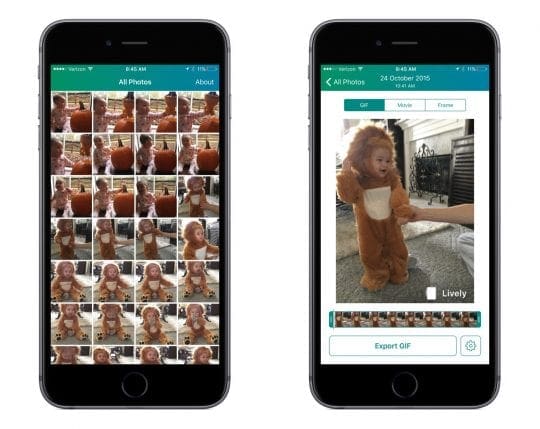
The popular tag line for the iPhone is certainly true in this case, “there’s an app for that”. The easiest way to convert your Live Photos to other formats is by using an app. Like with every app category, there have been loads of apps released to help iPhone users convert Live Photos, but there are only a few that I would recommend. One of the best is called Lively.
What helps Lively stand out is its ease of use and the clever features included in the app. Not only does Lively allow you to convert a Live Photo to GIF, but it can also convert to a movie or extract a still image.
The app is actively developed, and a recent update added the ability to trim your Live Photos as well. Although Apple has fixed the issue of Live Photos capturing you lifting and lowering your iPhone after taking a pictures, you likely still have older Live Photos that you would like to trim. It is certainly nice to be able to edit that out.
While trimming is great, the best recent feature Lively has added is being able to extract a still image from any moment in the Live Photo. Within the app, Lively lets you scroll through each frame of a Live Photo and pick which one you want to convert into a still image.
Lively is free to download on the App Store, but requires a $2.99 in-app purchase to get rid of the watermark on exported images and videos.
Live GIF
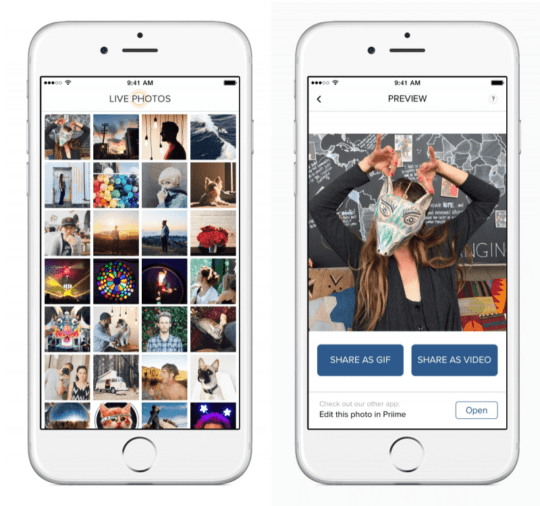
Another stand out app in this category is Live GIF. As you’ve already guessed, it allows you to convert any Live Photo into a GIF. Unlike Lively, this app stands out because of its pure simplicity and not its features.
Live GIF has a bare bones design, and that’s not a bad thing. The single focus in this app is to convert your Live Photos to either GIFs or videos. Live GIF puts a premium on simplicity and prompts you to open your converted GIF or video in your favorite editing app rather than providing features of its own. There are no extra features and there is no ability to extract single frames, but the focus and minimal user interface makes Live GIF attractive.
Live GIF is available for $1.99 on the app store.
Since a main part of both apps is sharing, each features plenty of sharing options so you can send your converted files wherever you want.
Live Photos are still a relatively new feature, and hopefully they will continue be supported in more and more places, but for now GIFs and videos are much easier to share. Apps like Lively and Live GIF are currently the easiest way to convert your Live Photos.
I tried suggestions to convert photos to jpg (from the inanely frustrating and UNWANTED) HEIC format. I tried changing settings so that transferred pics automatically transfer as jpg’s. NOTHING works! I spent an hour on the phone with a tech support person and even SHE couldn’t get them to convert. I HATE APPLE!
I’ve been using iPhones since 2008 – but as soon as I figure out how to move MY PICTURES (note: I said MY pix -they don’t belong to you, Apple) I am getting a pixel phone and devices. SO DONE.
I’ve been trying for hours to convert HEIC photos to JPEG and can’t do it. I’ve used several apps. They don’t work.
Tim Cook is destroying Apple. He does not care about the user experience. Apple is turning into a techy engineer’s company with cumbersome, frustrating technology. Gone are the days of sublimely beautifully designed products, easy to use, durable and just a pleasure with which to interact. Apple products are now poorly designed, opaque, frustrating. You used to be able to interact with apple products intuitively. Now you need to be a techy with a lot of patience, and just a lot of luck.
I wish the Board would replace Tim Cook with someone who is singularly focused on the user experience and not so production focused. Take more time to develop a wonderful, or at least tolerable, user experience.









I tried suggestions to convert photos to jpg (from the inanely frustrating and UNWANTED) HEIC format. I tried changing settings so that transferred pics automatically transfer as jpg’s. NOTHING works! I spent an hour on the phone with a tech support person and even SHE couldn’t get them to convert. I HATE APPLE!
I’ve been using iPhones since 2008 – but as soon as I figure out how to move MY PICTURES (note: I said MY pix -they don’t belong to you, Apple) I am getting a pixel phone and devices. SO DONE.
I’ve been trying for hours to convert HEIC photos to JPEG and can’t do it. I’ve used several apps. They don’t work.
Tim Cook is destroying Apple. He does not care about the user experience. Apple is turning into a techy engineer’s company with cumbersome, frustrating technology. Gone are the days of sublimely beautifully designed products, easy to use, durable and just a pleasure with which to interact. Apple products are now poorly designed, opaque, frustrating. You used to be able to interact with apple products intuitively. Now you need to be a techy with a lot of patience, and just a lot of luck.
I wish the Board would replace Tim Cook with someone who is singularly focused on the user experience and not so production focused. Take more time to develop a wonderful, or at least tolerable, user experience.
So tired of posting pics to sites and going to look at them they are blocked off on both sides how do i fix this