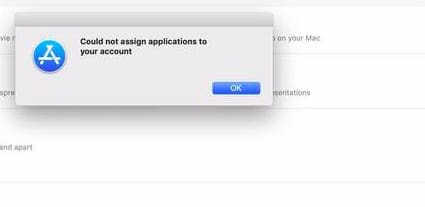
Did you recently purchase a new Mac or MacBook? Several users find that when they are trying to install their previously purchased/install apps on their new MacBook, they get this weird error message “Could Not Assign Applications” .
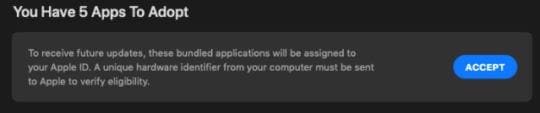
This message primarily shows up when you are trying to update the existing Apple apps on your new Mac. The app store asks you to adopt these apps.
“To receive future updates, these bundled applications will be assigned to your Apple ID. A unique hardware identifier from your computer must be sent to Apple to verify eligibility.”
When you click on Accept and continue, you may see the message ‘Could Not Assign Applications”.
Not sure, why this happens but most users who encountered this error found that when they tried updating the apps after a few days they were able to update / install apps on their MacBook without any issues.
How To Fix Could not Assign Applications Error on MacBook
Here are some tips that should help if you find yourself with this error on your new Mac or MacBook. Please follow each of the steps and check if it solves your issue. The steps involve deleting apps and re-installing them, so make sure that you have backed up your MacBook.
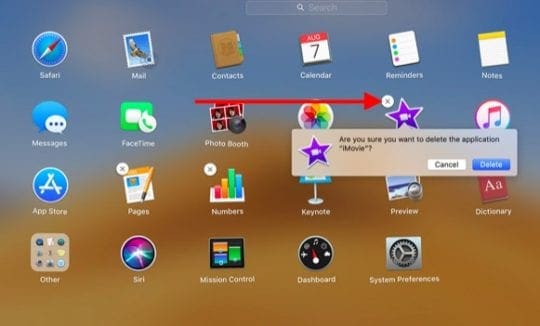
Open up the Launchpad app on your MacBook
Press the ‘Option’ key and you will see the app icons jiggle with a ‘X’ next to them
Click on ‘X’ and confirm to delete the App
If you don’t see the app on your Launchpad, you may have to search it in Finder and then delete it by dragging it into Trash.
Empty Trash once you have deleted the app/apps in question
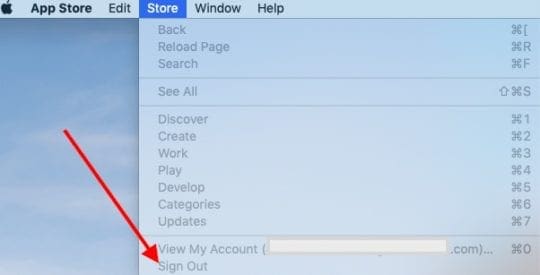
Next, Sign out of the AppStore by clicking on Store > Signout from the top menu
Restart Your MacBook
Login into App Store and then sign-in using your Apple ID
Search for the App that you want to install (The ones that you deleted earlier)
Re-install the App
This sequence of deleting the existing Apple apps, followed by signing out and then restarting your MacBook and re-installing the App usually fixes the issue. Since the Apple apps are free, you should not have any issues when re-installing the apps back onto your Mac.
Some users have also had success by deleting the affected apps and then re-installing the apps. The difference is that after re-installing the apps, they created a new user id on their MacBook and tied it to their existing Apple Id. Using the new user id to log in into their MacBook, they “adopted” the apps in question.
When they logged back in using their original user id, the problem was resolved on the app store at which point they deleted the new user id that had created to solve this issue.
For whatever reason, we have seen this issue with users who are running macOS Mojave and either have a new Mac or had their Macs serviced with new hardware update or repairs. The error message goes off in a couple of days after deleting and re-installing the apps.
We hope that you were able to successfully fix the issue with the simple delete and re-install. If you are still having issues, you may want to reach out to Apple support and see if they can help you with this problem.
Obsessed with tech since the early arrival of A/UX on Apple, Sudz (SK) is responsible for the original editorial direction of AppleToolBox. He is based out of Los Angeles, CA.
Sudz specializes in covering all things macOS, having reviewed dozens of OS X and macOS developments over the years.
In a former life, Sudz worked helping Fortune 100 companies with their technology and business transformation aspirations.












Write a Comment