• Skip to primary navigation
  • Skip to main content
  • Skip to primary sidebar
  • Skip to footer

AppleToolBox

Tools and Fixes for Mac, iPad, iPhone & iWatch

Search posts

  • About
  • Contact

CONNECT WITH US

CATEGORIES

  • iPhone
  • iPad
  • iPod
  • Apple Watch
  • Mac/MacBook
  • AirPods
  • Apple TV
  • News
  • Apple Services
  • HomePod
  • Reviews

SITE

  • Home
  • About Us
  • Contact
  • Advertise

Search posts

You are here: Home / Mac / macOS: Document Could Not Be Saved. You Don’t Have Permission

macOS: Document Could Not Be Saved. You Don’t Have Permission

By Madalina Dinita 0 comments Last updated February 27, 2024

If you’re getting the error message “The document could not be saved. You don’t have permission” when you try to save a file on your MacBook, you’ve come to the right place. In this quick guide, you’ll find 4 handy solutions to get rid of this error.

Contents

  • Enable Full Disk Access
  • Create a New File
  • Repair Permissions
  • Create a New Admin User

Enable Full Disk Access

In most cases, this error pops up because the app that is trying to save the file on your Mac doesn’t have full disk access. In other words, it’s lacking the necessary permissions to make changes to your disk.

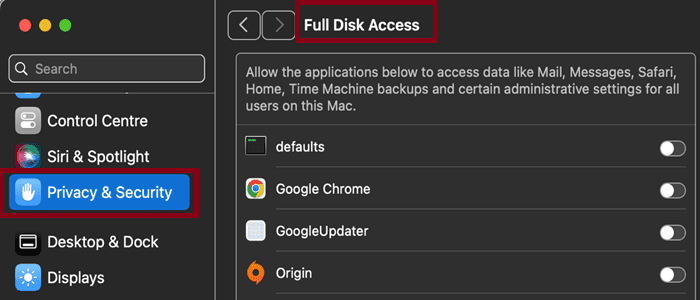
Go to System Preferences and select Privacy & Security.

Click on the padlock and enter your password. Go to the Privacy tab and scroll down to Full Disk Access.macOS-Full-Disk-Access

Tick the checkbox associated with the app that’s trying to save your file to allow it to make changes to your disk.

If your app doesn’t show up on the list, click the + button and manually add it to the list.

Create a New File

If you don’t have permission to save your file to a particular folder or location, make a copy of the problematic document and save it to a different location.

For example, if you can’t save your Pages document to a specific folder, copy the content into a new Pages document and save it on your desktop.

If you use a template, you may not be able to save your Pages document straight to a folder on your desktop. Save it in the Pages app first, and then move it to your desktop.

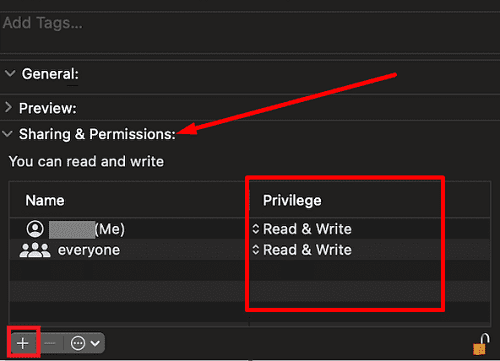
You may also want to change the permission settings for the folder that triggered this issue. Open Finder, select the problematic folder, click on the File menu and then Get Info.

Select your username in the Name column and set the permission to Read & Write.

outlook-permissions-macOS

Repair Permissions

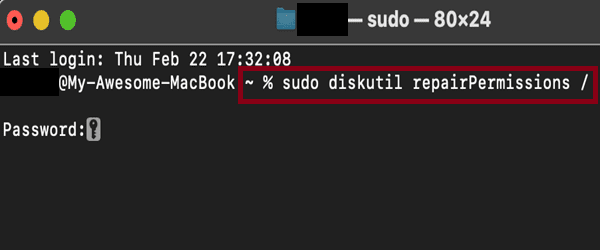
Launch Terminal and enter the following command to repair permissions: sudo diskutil repairPermissions /macOS-Terminal-repair-permissions

Enter your password and wait until your Mac completes the process. Check if the issue is gone.

Create a New Admin User

Not being able to save documents may also indicate something is wrong with your admin profile. Create a new admin user and check if you can save documents under that profile.

Go to System Settings, select Users & Groups, click Add User, and create your new admin profile.

Have you managed to solve the problem? Which of these four solutions worked for you? Let us know in the comments below.

Related Posts:

  • 2023 Mac Studio lifestyle - 1
    macOS Could Not Be Installed, How-To Fix
  • 2022 Mac Mini with Studio Display and Accessories
    Mac Tips For New Users In 2023
  • pexels-jess-bailey-designs-810079
    How To Run Linux On Mac: A Step-by-Step Guide
  • How to Recover Unsaved Word Document on Mac in 5 Best Ways
    How to Recover Unsaved Word Document on Mac in 5 Best Ways
  • sidecar on iPadOS and macOS
    Sidecar not working in iPadOS and macOS? How to fix…
  • Delete-Group-Reminders-Folder-macOS
    MacBook Will Not Start Up After macOS Update, How-To Fix
  • pexels-tima-miroshnichenko-6860464
    How To Start Using Regex With The Shortcuts App
  • Photo of person sleeping after saving so much time with the best Automator routines for Mac
    The Best Automator Routines For Mac
  • pexels-designecologist-1779487
    The Best iPhone And Mac Shortcuts For Beginners
Madalina Dinita

Madalina has been a Windows fan ever since she got her hands on her first Windows XP computer. She is interested in all things technology, especially emerging technologies — AI and DNA computing in particular.

Reader Interactions

Write a Comment Cancel reply

Primary Sidebar

Recent Posts

  • How to Hide Username and Photo on the Mac Lock Screen
  • Microsoft Resume vs. Apple Handoff – Which Wins for Cross-Device Work?
  • How to Export iTunes Library to New Computer
  • What the Gemini Desktop App Will Bring to Mac
  • What to Do When Windows 11 Won’t Detect Your iPad
  • Outlook Outage 2026: iPhone Fixes for Sign-In Chaos

Connect with us

Footer

ABOUT

  • About Us
  • Contact us
  • Advertise
  • Privacy
  • Terms of Use

GUIDES

  • iOS & iPadOS
  • Apple ID
  • iCloud
  • App Store
  • iTunes
  • FaceTime
  • iMessage
  • Siri
  • Books and iBooks
  • Game Center
  • AirPlay

CONNECT

  • Facebook
  • Twitter
  • FeedBurner
  • YouTube

© Copyright 2010-2024 Guiding Tech Media · All Rights Reserved

This site and its content are in no way affiliated or endorsed by Apple, Inc. · Reproduction without explicit permission is prohibited