Most of the time, downloading a file on a Mac goes pretty fast and is painless. The file typically shows under the download icon on Safari or might even appear directly on the desktop, especially if you’re installing something. But a file can just get stuck downloading. Below we’ll look into how to troubleshoot this issue on the Mac.
Troubleshooting Files That Get Stuck at End of Download
The most common reason for a file not downloading is actually due to the Wi-Fi speed. Large files trying to download on slow or even normal Wi-Fi can often become corrupted or simply not finish downloading.
To fix this issue, simply put whatever you downloaded so far in the Trash can, if anything has yet appeared. Set up an Ethernet connection and try downloading outside of the Wi-Fi.
To set up an Ethernet connection:
Start by turning off your Wi-Fi by selecting the Wi-Fi icon at the top right of the screen and hitting Turn Wi-Fi Off.
Connect an Ethernet cable to your computer Ethernet port and link to a modem or different network device, or use a USB Ethernet Adapter to use a USB port or a Thunderbolt to Gigabit Ethernet adapter.
You’ll often automatically connect to the internet, but if you don’t, you may have to enter the network information manually.
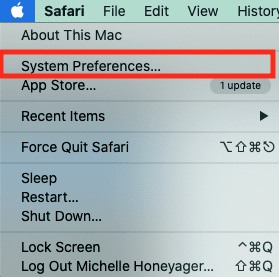
Click the Apple icon on the top left of the screen and select System Preferences.
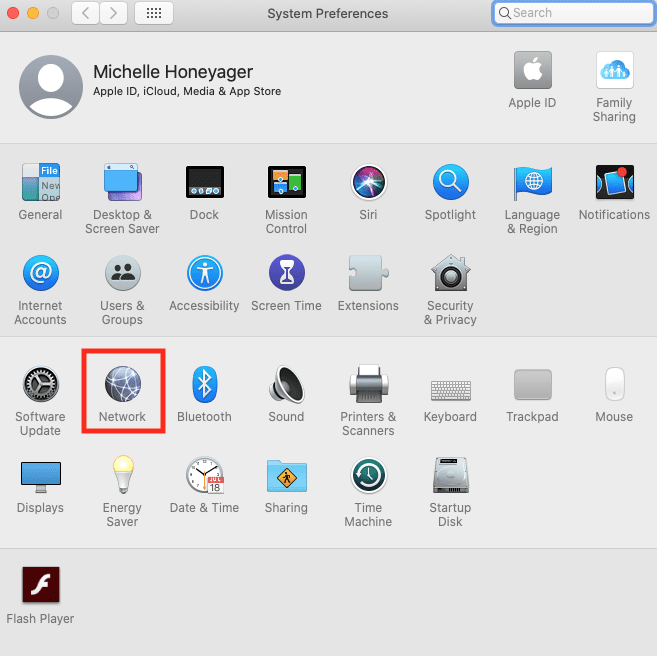
Click Network.
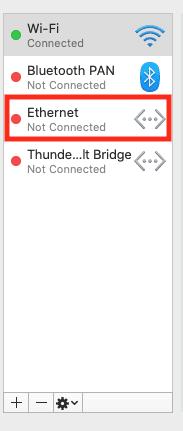
On the left you’ll see Ethernet.
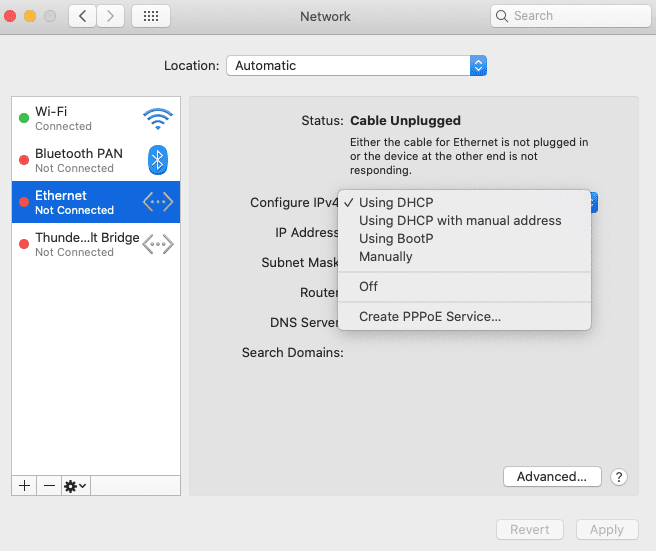
The drop down menu then lets you enter which connection type you are using. You may have to check which is your ISP recommended configuration.
Click Apply once you’ve added your network information.








Write a Comment