Public transportation is the best way to get around many cities in the world. And while many networks now have their own dedicated apps, that’s not universally the case. You might also find it easier to use your Apple Wallet and access your pass that way instead.
If you want to add a transit pass to your Apple Wallet, you’re in the right place. In this article, we’ll show you how to do precisely that. You’ll also learn which cities this feature is available for.
Before we look at how you can add a transit pass to your Apple Wallet, it’s worth checking whether you can do so for the city you live in. At the time of writing in December 2022, you can only use this feature for a selection of cities.
Many of the cities you can add transit passes to your Apple Wallet for are in Asia. The Hong Kong Octopus card is one of them, and several cities on the Chinese mainland – including Shanghai, Xi’an, and Guangzhou – are also included.
Further afield, you can add the Clipper card if you’re in the San Francisco Bay Area. SmarTrip for Washington DC and TAP for Greater Los Angeles are also available.
In Japan, you can add Suica and PASMO cards to your Apple Wallet.
If you’re not sure whether your city is available, you can use the search bar when looking for your transit pass.
How to Add a Transit Card to Your Apple Wallet
Now that we’ve got the basics of where this feature is available out of the way, let’s look at how you can add your transit card to your Apple Wallet on your iPhone. This article tells you everything you need to know.
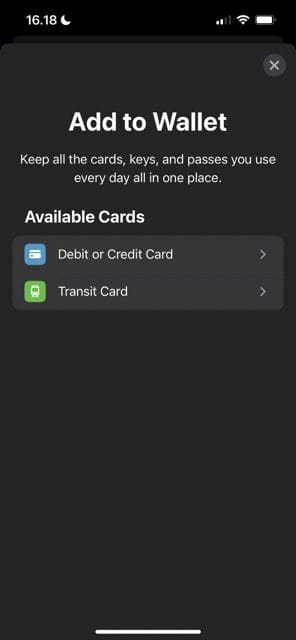
Open the Wallet app and click on the + icon in the top right-hand corner.
When the Add to Wallet window appears, hit the Transit Card option.
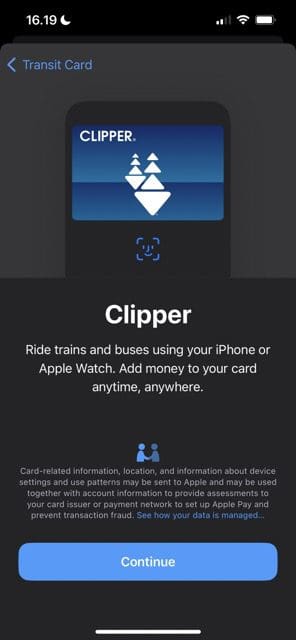
Look for your city’s transit card and click on it.
Click Continue if an explainer window appears.
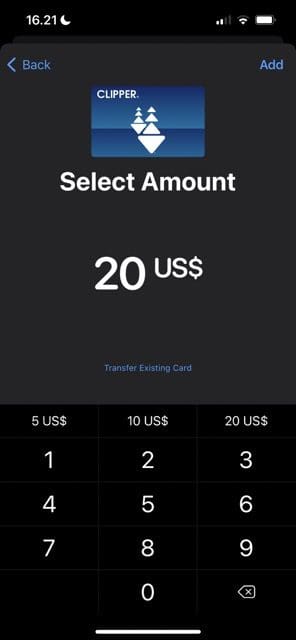
Enter the amount of money you’d like to add to your card. Alternatively, you can hit Transfer Existing Card and add your registered transit pass if you’ve already got one. To do that, follow the list of instructions relevant for your card.
If you added money to a card instead, hit Add in the top right-hand corner after entering your desired amount.
Complete your purchase and add the card to your wallet.
Once you’ve added the transit card to your wallet, you can start using it straight away. In addition to your iPhone, you can also use this feature on your Apple Watch.
Adding a Transit Card to Your Wallet Shouldn’t Take Too Long
Adding a transit card to your Apple Wallet is incredibly easy. You can incorporate your existing transit pass if you already have one – but if you don’t, there’s no need to worry. You can easily add money to a card directly from the Wallet app and begin using it instantly.
The feature isn’t widespread at the moment, but that will hopefully change in the future. If you’re living in or visiting one of the places where it does exist, you’ve got a much easier way to travel.
Danny has been a professional writer since graduating from university in 2016, but he’s been writing online for over a decade. He has been intrigued by Apple products ever since getting an iPod Shuffle in 2008 and particularly enjoys writing about iPhones and iPads. Danny prides himself on making complex topics easy to understand. In his spare time, he’s a keen photographer.












Write a Comment