Now that the iPhone 14 has been available for awhile, we’ve learned that Apple’s plans for the future no longer include a traditional SIM card. On paper, at least, an eSIM looks to be pretty convenient, as long as you don’t plan on traveling internationally. Otherwise, you might end up incurring some pretty steep roaming fees and charges, or need to pick up an older iPhone so that you can still use a physical SIM card while traveling abroad. That being said, here are the different ways to change SIM card on iPhone 14.
BEFORE PROCEEDING: It’s important to point out that if you want to know how to change SIM card on iPhone 14, the steps involving a physical SIM card only apply to iPhone 14 models outside of the U.S. In the U.S., there are no iPhone 14 models available with the SIM card tray, as it has been removed entirely. Instead, you will need to rely on eSIM moving forward, and if you are upgrading from an Android phone to an iPhone 14, then you’ll need to reach out to your carrier in order to properly complete the switch.
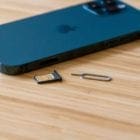
The SIM card tray is located on the same side as your volume buttons on the iPhone 14. Look at the right side of the frame, and both the tray and ejection hole are near the bottom. Here’s how you can change SIM Card on iPhone 14.
Power the iPhone 14 off completely.
Locate the eject hole on the outer frame of the device.
Using the SIM eject tool (or paper clip), insert it, and gently push the button inside.
The tray will eject.
Carefully remove the tray from the frame.
Remove the SIM card from the tray.
When it’s time to put a new SIM card back into the iPhone 14, it’s important to have the card lined up properly. If the phone is facing upwards, the gold contacts will be facing down. You can also line up the SIM Card with the outline in the tray.
Set Up eSIM on iPhone 14
While setting up an eSIM on your iPhone 14 might seem daunting, it’s pretty simple. All you need to do is follow the steps below; note that your devices will both need to have iOS 16 installed before you can successfully complete the process.
Open the Settings app on your new iPhone.
Tap Cellular.
Tap Add Cellular Plan.
Select the phone number that you want to transfer to your iPhone 14.
From your old iPhone, confirm this is the number that you want to move.
When prompted, tap the Finish Setting Up Your Carrier’s Cellular Plan prompt.
Transfer eSIM Between iPhones
You’ve also been able to transfer an eSIM between iPhones in the past, such as when you upgrade to a new version. But with iOS 16, Apple is making it possible to transfer an eSIM between iPhones using Bluetooth, as opposed to relying on Wi-Fi or other methods. Here’s how you can do so:
Open the Settings app on your new iPhone.
Tap Cellular.
Above the Cellular Data section, tap the Set Up eSIM button.
When prompted, tap the Transfer From Another iPhone button.
From there, you’ll be prompted to the next screen which provides the following message:
“To transfer a phone number from another iPhone, make sure your other iPhone is passcode protected, nearby, unlocked, has Bluetooth turned on, and is running iOS 16 or later.”
It’s pretty obvious from this message that Apple isn’t bringing Bluetooth transfer of eSIM to older versions of iOS. And considering that iOS 16 is still in its Developer Beta phase, you might have to wait until the final version is released later this year. Apple is working with carriers to bring this functionality to more iPhone users, and that’s a potentially-frustrating process in its own right.
How to Remove eSIM from iPhone 14
Whether you are upgrading to a new iPhone or just switching over to a new carrier, you might need to remove eSIM from iPhone. The process for doing so is pretty straightforward. However, if you are using a physical SIM and an eSIM, you’ll need to make sure you are selecting the correct account during the removal process.
Open the Settings app.
Tap Cellular.
Under Cellular Plans, select the phone number being used with the eSIM.
Tap Remove Cellular Plan.
Confirm.
After you have confirmed that you want to remove the eSIM profile from your iPhone, there’s one more step to take. Once you return to the Cellular settings screen, tap the number that you just removed again.
A prompt appears that will ask you to Update Contacts, tap the button, and then the eSIM profile will be completely removed. As a reminder, doing this essentially merges the contacts saved on the eSIM with whatever new SIM card is being used. So you might want to go through your contact list and double-check it for any duplicate entries.
Andrew Myrick is a freelance writer based on the East Coast of the US. He enjoys everything to do with technology, including tablets, smartphones, and everything in between. Perhaps his favorite past-time is having a never-ending supply of different keyboards and gaming handhelds that end up collecting more dust than the consoles that are being emulated.








Write a Comment