• Skip to primary navigation
  • Skip to main content
  • Skip to primary sidebar
  • Skip to footer

AppleToolBox

Tools and Fixes for Mac, iPad, iPhone & iWatch

Search posts

  • About
  • Contact

CONNECT WITH US

CATEGORIES

  • iPhone
  • iPad
  • iPod
  • Apple Watch
  • Mac/MacBook
  • AirPods
  • Apple TV
  • News
  • Apple Services
  • HomePod
  • Reviews

SITE

  • Home
  • About Us
  • Contact
  • Advertise

Search posts

You are here: Home / iPad / How To Change the Text Size for Each App on iPhone and iPad

How To Change the Text Size for Each App on iPhone and iPad

By Andrew Myrick 1 comment Last updated October 29, 2021

With iOS 15, Apple implemented a few major changes, such as introducing Focus Mode and greatly improving apps like Reminders and Notes. But there are also quite a few features that didn’t catch headlines, such as the ability to change the text size for each app.

Related Reading

  • iPhone 13 vs Pixel 6: Which Should You Buy?
  • The Best iOS 15 Features No One Is Talking About
  • How To Use Cinematic Mode on iPhone 13
  • The Best iOS Apps and macOS Apps: October 2021
  • How to Customize Apps To Send Notifications in Focus Mode

Until iOS 15 was released, the only way that you could change the text size was to do so across the system. This was fine for some, as it also adjusted the text size automatically, but there are some instances where you might not want the entire app to feature larger text. Thankfully, that’s no longer an issue with iOS 15 and iPadOS 15.

Change the Text Size for Each App

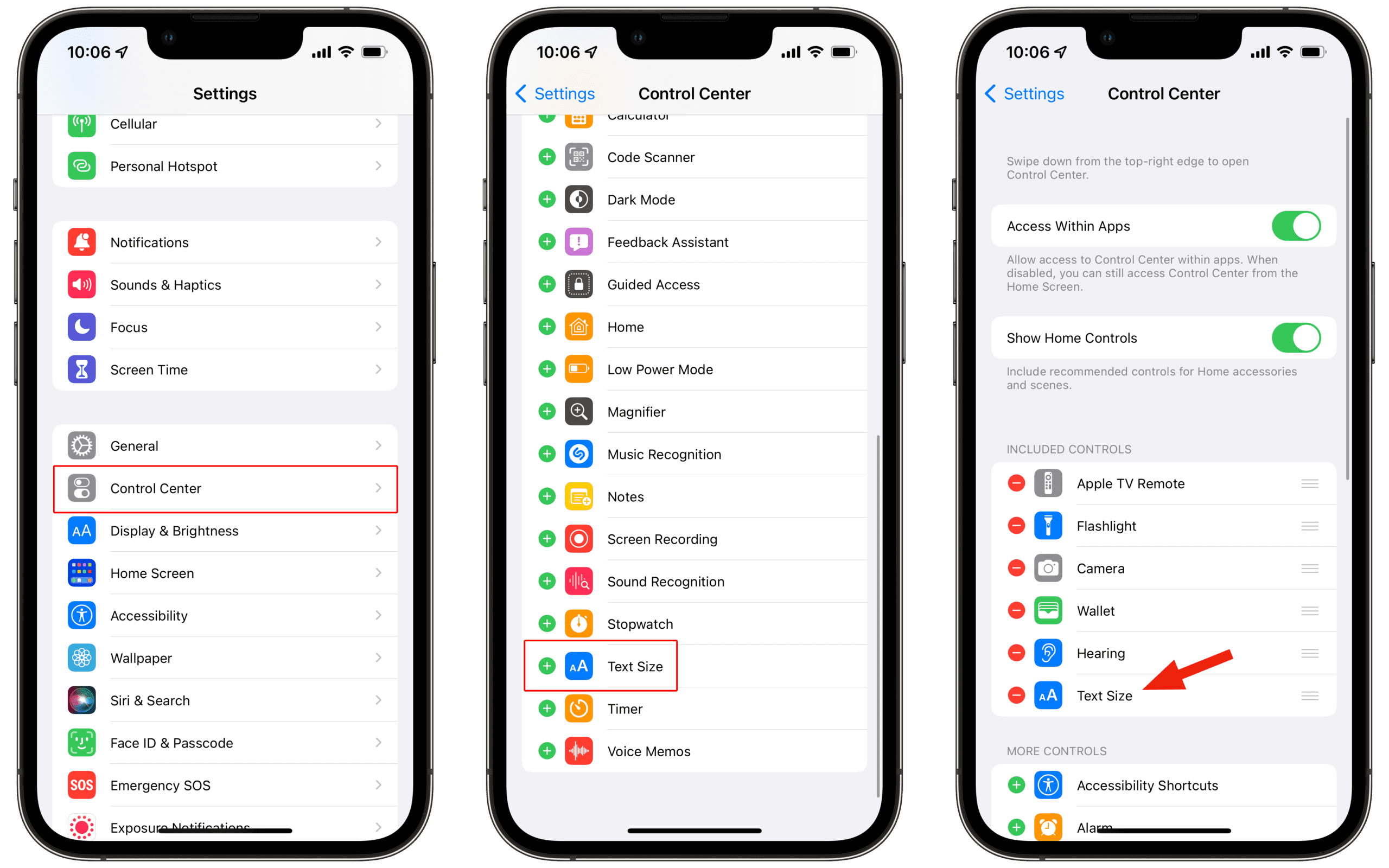
Fortunately, Apple isn’t leaving the ability to change the text size up to developers to implement. Instead, iOS 15 and iPadOS 15 give you the option to change the text size for each app manually, or you can opt to change the size for all of your apps. But before you can do so, you’ll first need to add the option to Control Center.

  1. Open the Settings app on your iPhone or iPad.
  2. Scroll down and select Control Center.
  3. Toggle Access Within Apps to the On position.
  4. Under More Controls, locate Text Size.
  5. Tap the + icon next to Text Size to add it to your Included Controls.

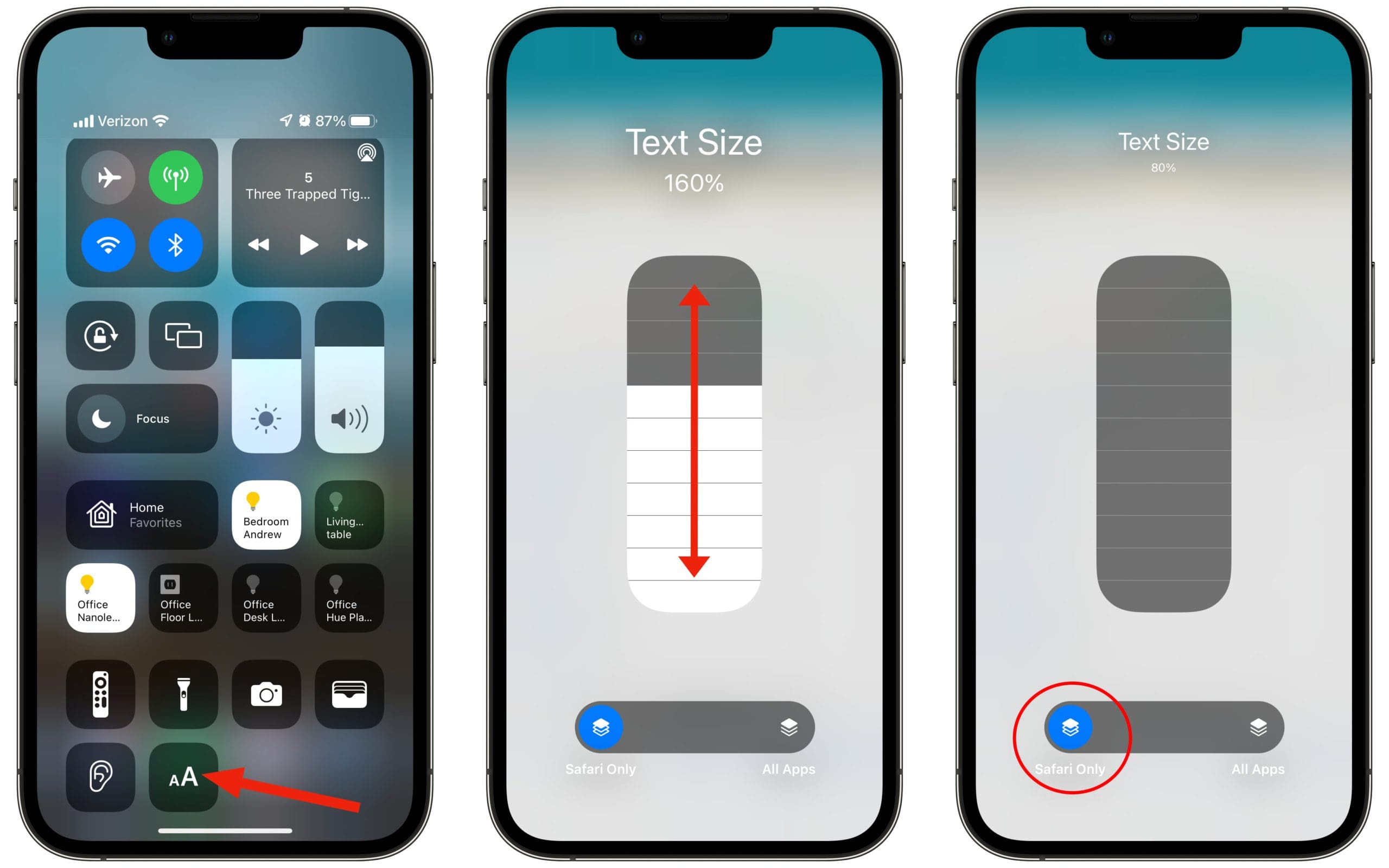
Now that the Text Size toggle has been added to Control Center, you have the ability to change the text size for each app manually. Here’s how you can do that from your iPhone or iPad.

Change the Text Size for Each App

  1. Open the app that you want to change the text size for.
  2. Swipe down from the top right corner to reveal Control Center.
  3. Tap the Text Size icon that has two different sized letters in it.
  4. Tap the [This App] Only icon at the bottom.
  5. Move the slider up or down to change the text size for the app.
    • At the top of the screen, you will see a preview to determine whether anymore adjustments are needed.
  6. Tap any empty space on the screen, or swipe up, to exit the Text Size panel.

Having the preview at the top is definitely a nice touch, as you can get a quick look at what to expect. You can even go so far as to exit out of this Control Center panel and view the app yourself, before making a final determination. This is one of those examples where Apple is trying to cater to the masses, and make their iPhones and iPads even more useful.

Related Posts:

  • photo of an iphone with ios 16 downloaded on it
    iOS 16 Tips and Tricks: The Definitive List
  • pexels-cottonbro-5082579
    Getting Started With iOS 15: Everything Good And Bad
  • airpods-wont-reset-no-light-flashing
    Google Pixel Buds vs AirPods vs Beats Fit Pro:…
  • WWDC 2021 Hero
    WWDC21 Recap: Everything You Missed In Apple's 2-Hour Event
  • 2023 Mac Studio lifestyle - 1
    macOS Could Not Be Installed, How-To Fix
  • pexels-designecologist-1779487
    The Best iPhone And Mac Shortcuts For Beginners
  • How to create Smart Lists in Reminders Hero
    Reminders Not Working? How To Fix
  • iPhone 15 Pro Max - 4
    Best iPhone Lock Screen Widgets for iOS 17
  • AirPods Max and iPhone 13 Pro 2
    How To Use Cinematic Mode on iPhone 13
Andrew Myrick
Andrew Myrick

Andrew Myrick is a freelance writer based on the East Coast of the US. He enjoys everything to do with technology, including tablets, smartphones, and everything in between. Perhaps his favorite past-time is having a never-ending supply of different keyboards and gaming handhelds that end up collecting more dust than the consoles that are being emulated.
Reader Interactions

Write a Comment Cancel reply

Show 1 Comments

  1. joe abe says

    December 16, 2021 at 3:02 PM

    Thank you for this post!!! concise and yet informative!

    Reply

Primary Sidebar

Recent Posts

  • How to Restore Deleted Contacts via iCloud
  • What Is a Firmware Password (Mac), and Why Do You Need It?
  • Water Resistance and Your iPhone Model – How Safe Is It?
  • Liquid Detected on iPhone? Here’s What to Do
  • 5 Signs It’s Time to Replace Your iPhone Battery
  • Unstable Wi-Fi on Tahoe? Try These Fixes

Connect with us

Footer

ABOUT

  • About Us
  • Contact us
  • Advertise
  • Privacy
  • Terms of Use

GUIDES

  • iOS & iPadOS
  • Apple ID
  • iCloud
  • App Store
  • iTunes
  • FaceTime
  • iMessage
  • Siri
  • Books and iBooks
  • Game Center
  • AirPlay

CONNECT

  • Facebook
  • Twitter
  • FeedBurner
  • YouTube

© Copyright 2010-2024 Guiding Tech Media · All Rights Reserved

This site and its content are in no way affiliated or endorsed by Apple, Inc. · Reproduction without explicit permission is prohibited