Thanks to cloud computing and better connectivity, it’s easier than ever to work across machines, locations, and in this case, operating systems. Microsoft Office, available both for Windows and macOS enables seamless connectivity and easy collaboration on documents and projects.
This article will show you what you need to collaborate on Microsoft Office documents in real-time on Mac and PC, regardless of operating system, and how best to do so.
The best place to start is with what you need to effectively collaborate. As real-time editing and co-authoring rely on connectivity, it goes without saying that your Mac and PC both need a stable internet connection.
The edition of Microsoft Office you’re using is also crucial. Office 365 is a must with its cloud computing capabilities. Older versions of the suite won’t be sufficient when it comes to this task. You might be able to edit documents, but you can’t do anything in real time. Similarly, using modern document formats. Word files that aren’t “.docx,” for example, can’t be co-authored in real time.
It’s also important that those you collaborate with have permission to edit and view your documents. Granting permission and sharing access is the next aspect to cover.
The Way to Collaborate on Microsoft Office Documents in Real-Time on Mac and PC
As Microsoft Office runs pretty much the same way on macOS and Windows, the steps you follow to collaborate should largely be the same. Let’s get started.
Sharing Documents and Enabling Permissions
Collaboration is possible only if you enable permission first. To allow real-time editing and viewing, here’s what to do:
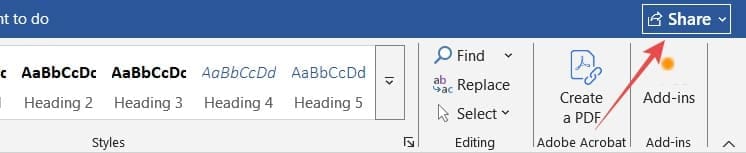
1. The “Share” button can be found in the top right corner of any Office Suite program. Click it.
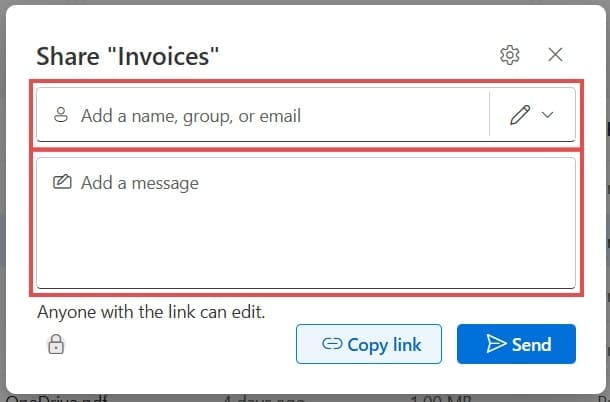
2. The “Send Link” window will pop up. Enter an existing contact or type an email address to share your document. You can also share with multiple people.
3. Click the “Share” button to confirm and a link will be sent.
You can also share documents directly via your OneDrive. Here’s how:
1. Access OneDrive via your preferred browser.
2. To share a document or entire folder, right-click it and select “Share.”
3. Enter the email address of the collaborator, along with a message if you’d like.
Edit Your Sharing Settings
For both OneDrive and Office 365, you can choose the level of access to grant by changing the “Settings” in the “Sharing” menu. You can control things like:
Whether or not the document is shared locally or just between specific people
Whether others can edit the document or just view it
How long they can have access
If a password is needed to access the document
Collaborating on Shared Documents
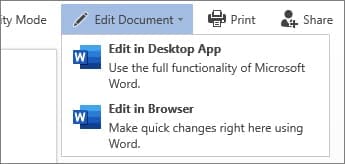
If you’ve had a document shared with you, then real-time collaboration is a cinch. You’ll receive an email with a link. Open it and edit the content either in your app or via a browser tab.
Those editing and viewing the document in real-time will be indicated by named and colored tabs right next to where they’re currently viewing or making changes. You’ll also be able to see their icons or avatars in the top right of your window, right next to the “Share” button.
As an avid gamer, I’ve run into my fair share of error codes and weird faults that have forced me to find fixes to problems I never anticipated. That gave me a passion for sharing those fixes with others so we can all game without feeling like our hardware is rebelling against us.














Write a Comment