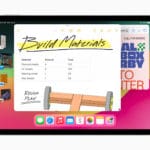
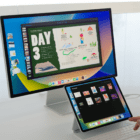
iPad owners are in store for quite an incredible update when iPadOS 16 lands later in 2022. This is one of the biggest updates to the platform that we’ve ever seen, as Apple is pushing closer and closer to turning select iPad models into true laptop-replacement devices. With the addition of things like Stage Manager and proper external monitor support, you no longer feel like the iPad is just an oversized iPhone.
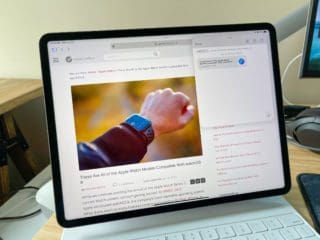
While iPadOS 16 aims to change the experience in a big way, Apple has been laying the groundwork for a desktop-like experience for years. Safari Extensions arrived with iPadOS 15, providing different tools and ways to improve or enhance how you use Safari.
Going even further back, iOS 13 introduced “desktop-class browsing” on the iPad, providing a similar experience to what you have with Safari on the Mac. And with iPadOS 16, this “desktop-class” mantra is expanding into more areas of the iPad.
How to Customize Toolbars in Apps on iPad
At one time or another, we’ve all wanted to customize the buttons and toggles that are found in the toolbars of our apps. What’s the point of having a button in the toolbar if you never end up using it? What if you could swap out the different menu options or buttons from the toolbar?
Well, Apple is bringing exactly that to the iPad with iPadOS 16. This is coming to many different first-party (Apple developed) applications, and we hope it sparks some third-party developers to provide similar implementations. Here’s how you can customize toolbars in apps on iPad:
Open the app that you want to customize the toolbar for.
Tap the Ellipsis icon in the top right corner.
This may vary depending on the app, but for Apple apps, it’s a circle with three horizontal dots in the middle.
From the drop-down menu, tap Customize Toolbar.
Drag and drop the different wiggling buttons to the toolbar.
You can also drag and drop buttons to the Customize window that appears in order to remove them.
Tap Done in the top right corner of the Customize box.
From here, Apple also gives you the option to Reset the toolbar buttons. This is helpful and useful for those that have tinkered way too much, and just want to go back to the “normal” button layout that comes by default.
As you would expect, the options available within each app will vary depending on the app being customized. For example, you won’t find a button to mark something as “read” or “unread” within the Notes application. But it’s available as a button that you can add to the toolbar in the Mail app.
Toolbars in Third-party Apps
When it comes to whether these new features will be implemented in third-party apps, it’s solely up to the developers. Apple is making it possible to customize toolbars for the apps that are pre-installed on your iPad. But we’ll have to wait and see whether developers implement similar changes as Apple inches closer to a desktop-like experience on the iPad.
There are already quite a few third-party apps that implement similar functionality. You’ll find customizable toolbars available in the likes of Spark Mail, Drafts, Obsidian, and many other “power-user” types of applications. And the best part about toolbar customization coming to Apple’s own apps is just the fact that it gives users more control over their experience.
Andrew Myrick is a freelance writer based on the East Coast of the US. He enjoys everything to do with technology, including tablets, smartphones, and everything in between. Perhaps his favorite past-time is having a never-ending supply of different keyboards and gaming handhelds that end up collecting more dust than the consoles that are being emulated.






Write a Comment