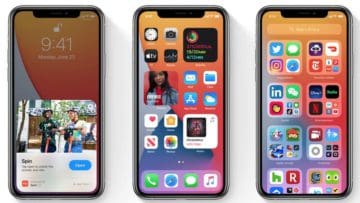
With the introduction of the App Library in iOS 14, Apple finally allows you to either hide or delete Home Screen on the iPhone. However, iPad users were left out of the mix, that is, until iPadOS 15. With the release of the latest version of iPadOS, you can now delete home screen or even go so far as to rearrange them.
If you’re anything like us here at AppleToolBox, you have more apps downloaded than you even realize. And instead of being envious of the App Drawer offered on Android phones, we have something similar with App Library. While this was first introduced with iOS 14 for the iPhone, Apple is now bringing it to the iPad with iPadOS 15. So without further adieu, if you want to clean up your iPhone or iPad a bit, here’s how you can delete Home Screen on iPhone and iPad:
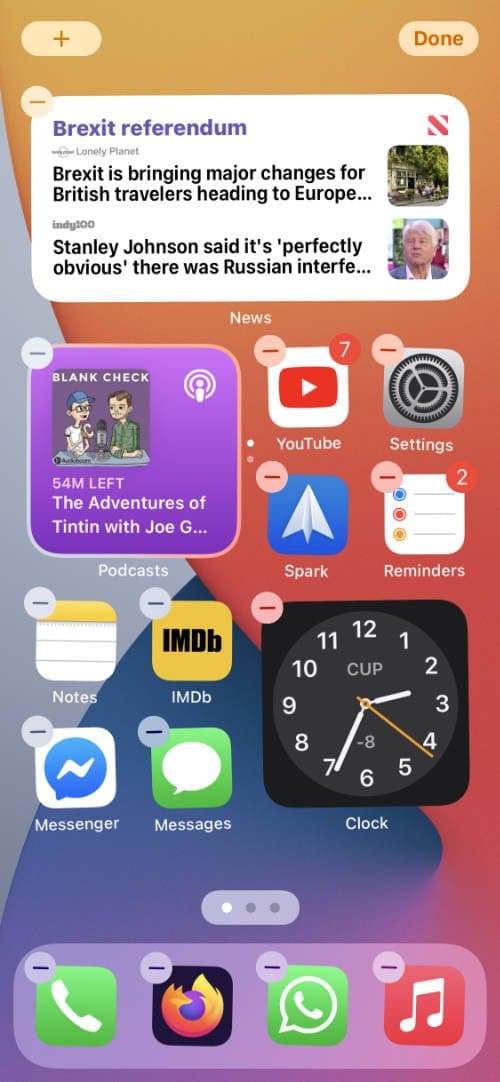
Tap and hold to enter Jiggle mode.
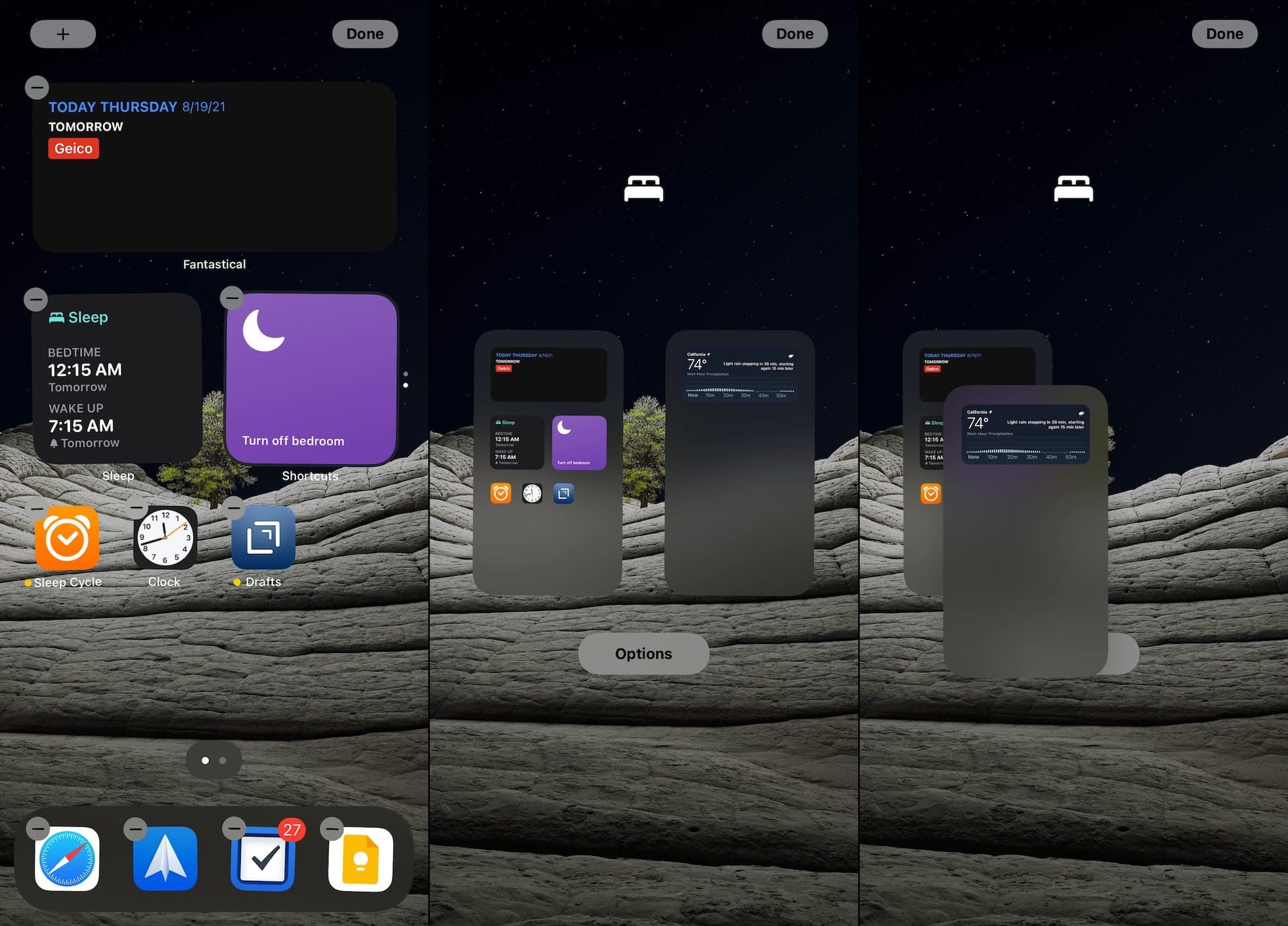
Touch and hold on an empty space on your Home Screen to enter “jiggle mode”.
Tap the row of dots at the bottom, above the Dock.
From the grid of Home Screens that appears, tap the circle under the page you want to delete.
Now that it’s not active, tap the minus (-) icon in the top left corner of the page to delete Home Screen.
Tap Done in the top right corner of your iPhone or iPad.
That’s it! You have just deleted one of the Home Screens on your iPhone and iPad. And just as a reminder, this won’t actually delete any of the apps that were on the home screens. Instead, they continue to reside in the App Library for quick and easy access.
How to rearrange Home Screen on iPhone and iPad
One new feature arriving for both the iPhone and iPad with iOS 15 is the ability to rearrange your Home Screen. With iOS 14, this was not available, and instead, you can only hide the Home Screen or make it appear again when scrolling. But here’s how you can rearrange the Home Screen on iPhone and iPad with iOS and iPadOS 15:
Touch and hold on an empty space on your Home Screen to enter “jiggle mode”.
Tap the row of dots at the bottom, above the Dock.
From the grid of Home Screens that appears, touch and drag the page to the position that you want it.
For example, if you want to move a page to the front, just drag it to the left-side of your iPhone or iPad screen.
Tap Done in the top right corner of your iPhone or iPad after you have rearranged the Home Screens.
One Step Closer to Full Customization
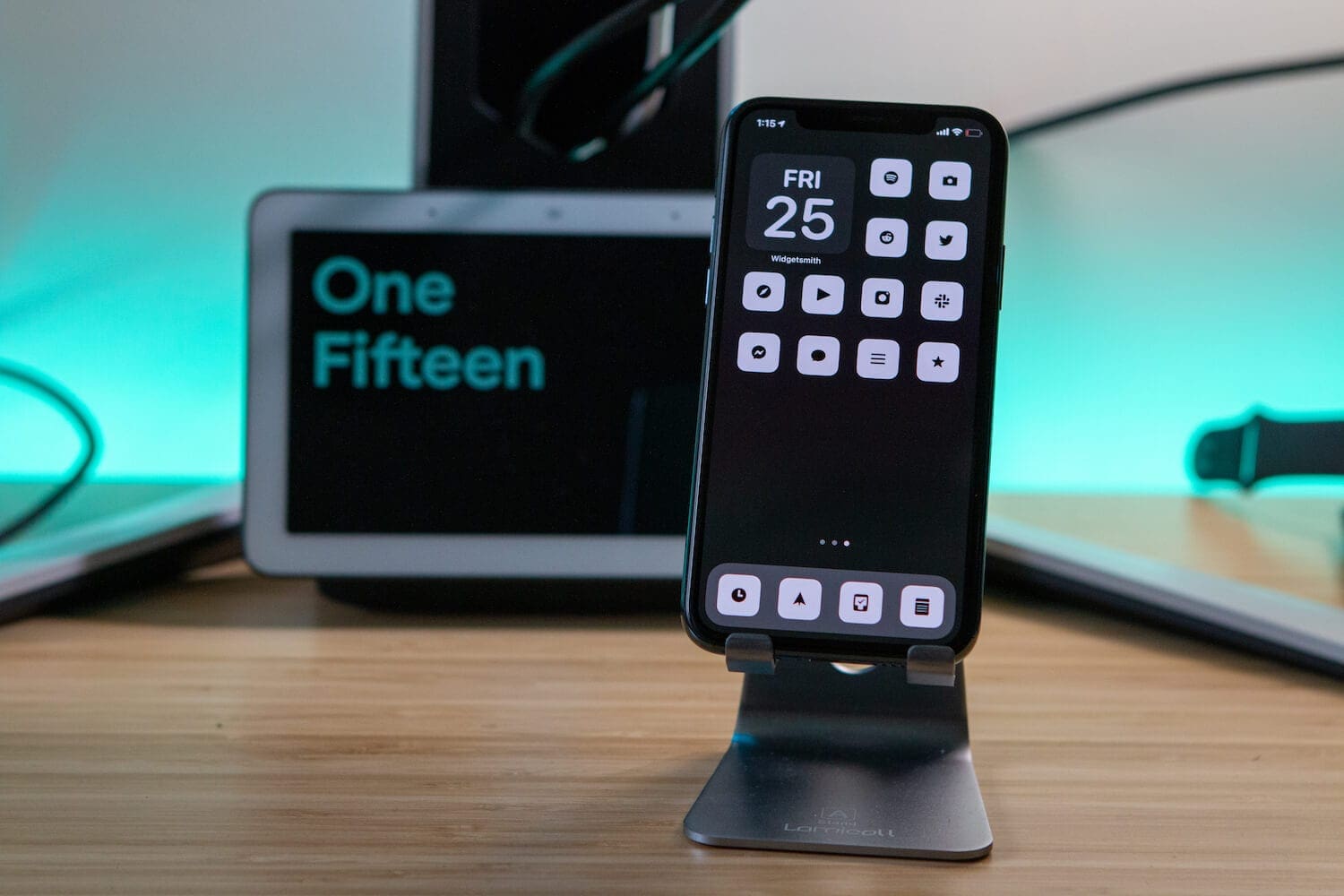
It definitely seems that Apple is moving closer and closer to providing full-on customization on the iPhone and iPad. Of course, it’s Apple and the whole “walled garden” is still a thing, so it’s probably just a pipe-dream at this point. However, with the addition of the App Library and the fact that Apple didn’t cut-off the Shortcuts workaround for using custom icons there’s a chance we could see more customization.
Apple is giving its users more and more control over what their devices can do, and we’re definitely trending in the right direction. It’s great to see these feature changes, especially coming from someone who used to spend way too much time on the jailbreak scene back in the day.
Andrew Myrick is a freelance writer based on the East Coast of the US. He enjoys everything to do with technology, including tablets, smartphones, and everything in between. Perhaps his favorite past-time is having a never-ending supply of different keyboards and gaming handhelds that end up collecting more dust than the consoles that are being emulated.











Write a Comment