There are different reasons why you need to know specific information about your iDevice. For example, a new update could come out, and you want to see if your model will get it. Despite the reason, the good news is that getting the information you need is quick and easy whether you’re using an iPhone or iPad. Keep reading to see how you can access this important information and determine what the listed options mean.
Quick and Easy Steps to Find Information About Your iDevice
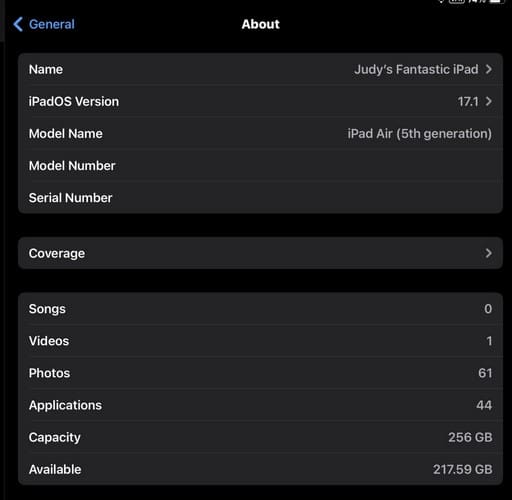
To find all sorts of information on your device, you’ll need to open the Settings app. From the menu on the left, tap General, followed by the About option. On the About page, you’ll see all sorts of information, such as:
Name – Not only can you see the name you gave your device, but by selecting it, you can also change it.
iPadOS Version/iOS version – If you’re not sure what version you’re running on, here is where you can check
Model Name – The name will depend on your iDevice, but if you have an iPad, it will say something like iPad Air (5th generation).
Serial Number – Why is a serial number important? It helps you specify the hardware if you ever need to use the warranty. If you ever need to sell your device, it’s safe to give it out since they can use the serial number to see that it matches the model you’re selling. But don’t freely give it out since you expose yourself to warranty fraud.
Coverage – This is where you can see your warranty
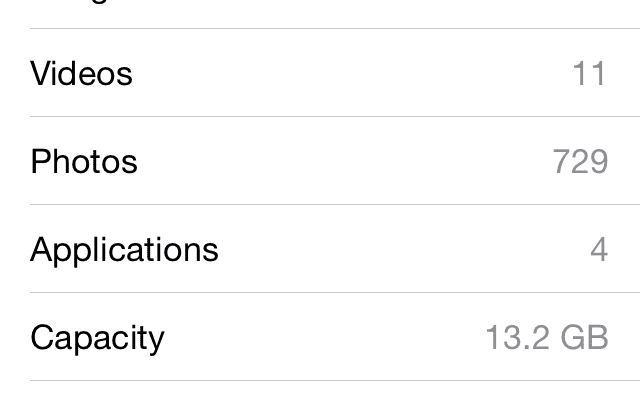
Songs – This will tell you how many songs you have saved on your iDevice
Photos – Same as songs
Videos
Carrier
Applications – You can see how many apps you have installed on your device.
Capacity
Available – Here is where you can see how much storage capacity you have left.
Wi-Fi Address – Since iPadOS 14/iOS 14, your unique MAC address is your device’s private Wi-Fi address, and it’s used for that network only.
Bluetooth – Here, you’ll find a unique identifier assigned to your device by Apple to identify your device.
SEID – This is the Secure Element Identifier. It is an NFC chip that has data such as SEID to ensure your transactions are secure.
Certificate Trust Settings – If you’re running on the latest version of the OS, then you have the latest certificates.
How to Find Info on Your iPhone 15
If you’re using your iPhone, you’ll need to open the Settings app > General > About; you could also see options that you won’t see on your iPad, such as:
Modem Firmware
EID – Embedded Identity Document: Here is where you’ll find a unique serial number that is attached to your iPhone that uses an eSIM.
Carrier Lock – As the name states, this will tell you if your iDevice is locked to a specific carrier.
Network – You’ll see the network you’re connected to.
Carrier – Here, you’ll see the name of your carrier.
IMEI – International Mobile Equipment Identity: this is your device’s fingerprint, a 15-digit number on every device. Your carrier will use this to track your device if it’s ever stolen or compromised. It is not something you want to give out.
ICCID – Integrated Circuit Card Identifier: this is your serial number. It is a string of numbers that are installed on the SIM card. The code holds information such as your home network, SIM’s country, and more.
Under the Battery section, you’ll also find options such as:
Manufacturer Date
First Use
Cycle Count
Further Reading
If you’re curious as to when your iPhone was manufactured, here is an article to help you out with that. If you’re looking for an article on a specific device or problem, remember you can always use the search bar at the top left.
Conclusion
There will always be a reason to know information about the iDevice you’re using. You may need to know if your device is still under warranty or if you want to know if your device is going to get the next big update. Whatever the reason is, you can easily get the information you need by going to settings. What info did you need to get on your device? Don’t forget to leave a comment below and share the article with others on social media.
I am a tech geek who loves technology. I have been writing about tech for over a decade, covering various devices and programs. I write about the latest Apple products and services and never go far without my Apple devices. I always stay updated on the latest gadgets, upgrades, features, and news. I aim to make complicated tech information easy for everyone to read. I’ve been with TechniPages from the beginning to help others fix their tech issues with the easy-to-follow guides.
I don’t remember having the find my iPhone app on the phone and the battery was close to being dead before it was misplaced, so I haven’t been able to reach the number, every means I’ve tried to know the last location so as to track the phone never worked and I’m confused already.
My phone number would be updated in 23 days time and I can’t be calm till that time.
We suggest contacting your carrier and let them know that your iPhone is missing and potentially stolen so they can place a temporary hold on your account for that device.
Check out the tips in this article to learn what else you can do when you cannot locate a device.
This iPhone my little brother buy for his fiancé–now they break up already then.
My brother then sells the iPhone to me but after the update to iOS 12, the screen says my iPhone lost and erase.
I checked its clean no blacklist …now a few days I on my iPhone write update its complete but when I try on my iPhone like in progress…I don’t know what happen
It sounds like the iPhone is still a registered device under your brother’s fiance.
Try to remove the Apple ID from the iPhone and then re-activate it on your network.
If that doesn’t work, your brother, as the original purchaser of the iPhone, can contact Apple Support in your home country and with this proof of purchase, have them assist in getting the iPhone working for you.












I misplaced my iPhone 6 on the 3rd of May, 2019.
I don’t remember having the find my iPhone app on the phone and the battery was close to being dead before it was misplaced, so I haven’t been able to reach the number, every means I’ve tried to know the last location so as to track the phone never worked and I’m confused already.
My phone number would be updated in 23 days time and I can’t be calm till that time.
What can I do? Do I still have any options left?
Hi Adenike,
So sorry to hear about your misplaced iPhone.
We suggest contacting your carrier and let them know that your iPhone is missing and potentially stolen so they can place a temporary hold on your account for that device.
Check out the tips in this article to learn what else you can do when you cannot locate a device.
Liz
My iPhone 7 is activated and FMI is off.
This iPhone my little brother buy for his fiancé–now they break up already then.
My brother then sells the iPhone to me but after the update to iOS 12, the screen says my iPhone lost and erase.
I checked its clean no blacklist …now a few days I on my iPhone write update its complete but when I try on my iPhone like in progress…I don’t know what happen
Hi Al,
It sounds like the iPhone is still a registered device under your brother’s fiance.
Try to remove the Apple ID from the iPhone and then re-activate it on your network.
If that doesn’t work, your brother, as the original purchaser of the iPhone, can contact Apple Support in your home country and with this proof of purchase, have them assist in getting the iPhone working for you.
Sam
Dumb. UUID and UDID is not the same thing.