Microsoft and Apple have never had the best synergy, even at the best of times. Many users report numerous problems with OneDrive on their Apple Macs and MacBooks. One such problem is the failure to sync.
If you’ve run into this error, this article will provide you with a few fixes and hopefully get things back to normal.
If your Mac isn’t syncing files with OneDrive, there are a few steps to try. We’ve listed them below, starting with the simplest.
Start With the Obvious
It’s amazing how often the solutions to the most common problems are the simplest ones. Before trying any other fixes, ensure the following:
Your machine is connected to the internet, and your connection is working.
Your operating system is fully updated.
That OneDrive is running (check for the icon in the Menu Bar).
You’re signed into your Microsoft account.
You’ve restarted your machine.
If you’ve done these, it’s time to move forward.
Unlink and Relink Your Account
If OneDrive is active and showing that it’s synced, but your Finder window says otherwise, then you can try to reestablish a connection by linking and unlinking your account. Here’s what to do:
Step 1. Click the OneDrive icon in the Menu Bar and then click the Settings icon.
Step 2. Select “Preferences” from the menu.
Step 3. In the window that pops up, navigate to the “Account” tab.
Step 4. At the bottom of the top subsection, click on “Unlink this Mac” and confirm the pop-up message.
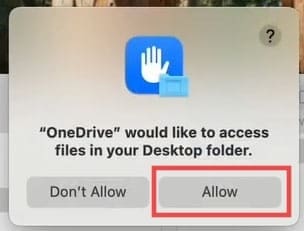
Step 5. A pop-up should then display asking you to give access to OneDrive. Click “Allow.”
Step 6. The OneDrive signup window will then pop up. Enter your details and click “Sign In.”
Step 7. Enter your password and click “Sign In.”
Step 8. Choose the existing OneDrive folder as the folder for Microsoft to use. You might get a message about an existing folder. If so, click “Use This Folder.”
Step 9. See if the files are now syncing with OneDrive.
If you’re having trouble after relinking your account, it may help to move your OneDrive folder to another location. Some users report success after moving their folder from their external hard drive to the system SSD.
Confirm Your File Path Length
Another reason reported for files and folders not syncing is excessive file path length. Any file path over 400 characters won’t sync with OneDrive, which has this hard limit in place. Rather, keep paths brief and see if that solves the problem.
Check Your Storage
It’s not just the available space on your Mac you’ve got to look out for, but on your OneDrive as well. Space limits can sneak up on you and are a major cause of syncing issues. To check the free space left on your OneDrive, do the following:
Step 1. Click the OneDrive icon in the menu and the Settings icon.
Step 2. Choose “Preferences” and then navigate to “Account” in the new window.
Step 3. In the first subsection, you’ll see how much space you’re currently using. Click “Manage Storage.”
Step 4. A window will pop up that’ll show you the current state of your OneDrive online, including all folders currently stored.
As an avid gamer, I’ve run into my fair share of error codes and weird faults that have forced me to find fixes to problems I never anticipated. That gave me a passion for sharing those fixes with others so we can all game without feeling like our hardware is rebelling against us.














Write a Comment