You go to do a simple update, and it turns out your iOS just doesn’t want to update today. It shows that frustrating “unable to verify update” message when you’re installing a new iOS update. This can strike when you’re simply updating the iOS, not even when you’re installing a whole new iOS version. Below we’ll go over the error in more detail and what you can do about it.
The Quick Fixes
First, to update, the phone has to be connected to a power source. It’s also a good idea to back up the phone before attempting to update.
The general advice is to restart the device so that it powers down completely and then starts back up, however this is accomplished on your particular device. However, users report this often doesn’t work for this type of error, leading to needing other fixes.
The next step is to work on deleting the download. This is usually accomplished by:
Tap Settings.
Tap General.
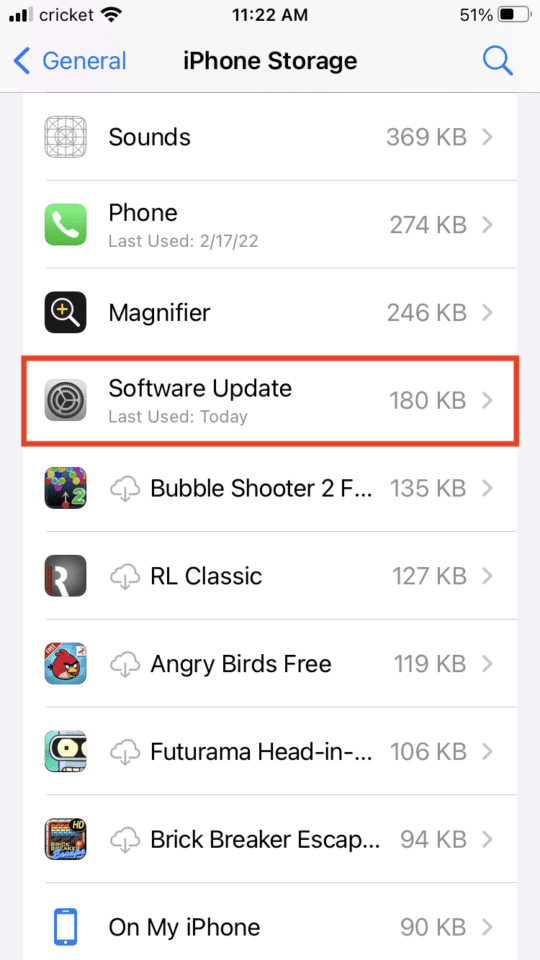
Select iPhone/iPad storage.
Scroll until you see a listing with a cogwheel, either labeled Software Update or your iOS version. Tap it.
On the next screen, you’ll see Delete Update and the update that didn’t download should be listed. Tap Delete Update, which you may have to do a couple of times to confirm.
No go back until you are in the main Settings menu.
Tap General.
Tap iPhone/iPad storage.
Select Software Update or your iOS listed.
The phone should check for updates again and then tell you the update is available. Try the update once more.
More Involved Routes
You might also try resetting your network, as network issues can sometimes cause the issue. Just be aware that you will have to re-enter your information like Wi-Fi passwords. To do this:
Go into the Settings app.
Tap General.
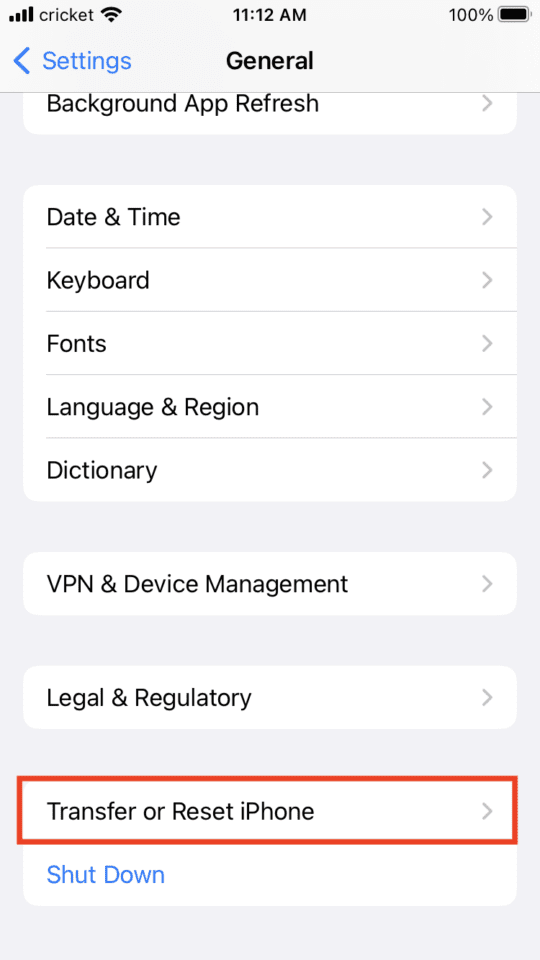
Scroll until you see a Reset option and select it. For instance, on some iPhones, it may look like this:
Select your Reset option.
Choose Reset Network Settings:
Follow any additional prompts to reset.
Once the reset has completed, rejoin your Wi-Fi under your main Settings screen by selecting Wi-Fi and selecting your network.
After resetting the network, you might try deleting the update again and trying it fresh.
If this does not work, you might consider going to the Apple Store for support. Also, for updates related to specific iOS versions, you can check some of our guides, like updating to iOS 13.3.
just purchased my new ipad air on its first system update it asked for 2 factor authentication which i typed user name and mobile number and got message unable to update 2 factor authentication. went on line and updated there and received text and email stating all done. ipad still has red1 on settings and asking to update details why is this











just purchased my new ipad air on its first system update it asked for 2 factor authentication which i typed user name and mobile number and got message unable to update 2 factor authentication. went on line and updated there and received text and email stating all done. ipad still has red1 on settings and asking to update details why is this