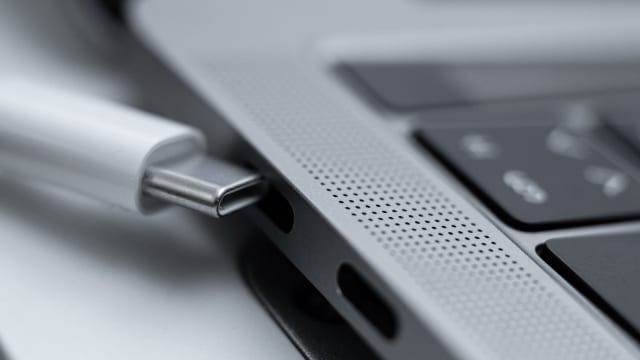
USBs can be annoying devices, especially when you’ve bought a cheap one that seemingly never connects no matter how many times you plug it in and out. Of course we recommend you a reliable external hard drive or USB that has a large storage capacity and fast read and write speeds so that you don’t have to face this error, but the world isn’t perfect. Sometimes you have to make do with a poor product. Not all is lost, though. If you receive the USB not detected error, there are multiple ways to fix it.
Usually when you connect an external drive, you receive a notification on your Mac’s Finder that you’ve connected a new device. If you don’t get a notification, it means you may not have fully connected the device or there’s something blocking it or the Mac can’t scan it. Other reasons include:
Issues with your Mac’s port.
Issues with your USB’s formatting.
Hard drive compatibility problems.
OS-related problems.
7 Solutions on how to fix the “USB not detected” error
If your Mac can’t find your USB, it could have any variety of compatibility issues. We’ll list the seven most common solutions Mac users can implement when facing the USB not detected error.
Method 1: Retry the connection
Even computers can be weird and make mistakes. First of all, try to reconnect the USB into the same USB port. If that doesn’t work, try it in every port on your Mac. If each port still doesn’t work, then try connecting your USB on another Mac or PC if you have one. If you see that the USB works on the other device, you can deduce that it’s an issue with your Mac and not the USB.
Method 2: Check your desktop settings
You may have accidentally changed some settings where your Finder doesn’t show your USB icon even though it’s connected. Follow these steps to ensure that your Mac displays these icons and fix the “USB Not Detected” error:
Go to Finder, then select Preferences and navigate to General.
In the Finder Preferences screen, ensure that “External disks” is checked.
This ensures that if you do connect your USB, it will show up on your desktop.
Method 3: Reset your USB ports
There may be a problem with your Mac’s ports if you can use your USB on a different device but not on the one you’re using. You can reset the ports by following these steps:
Restart your Mac and immediately press Command+Option+P+R until the Apple logo emerges.
Press the Command+Option+Esc keys to close any applications that may not be responsive.
Insert your USB.
Wake up the Mac by pressing any key.
Try rebooting your computer.
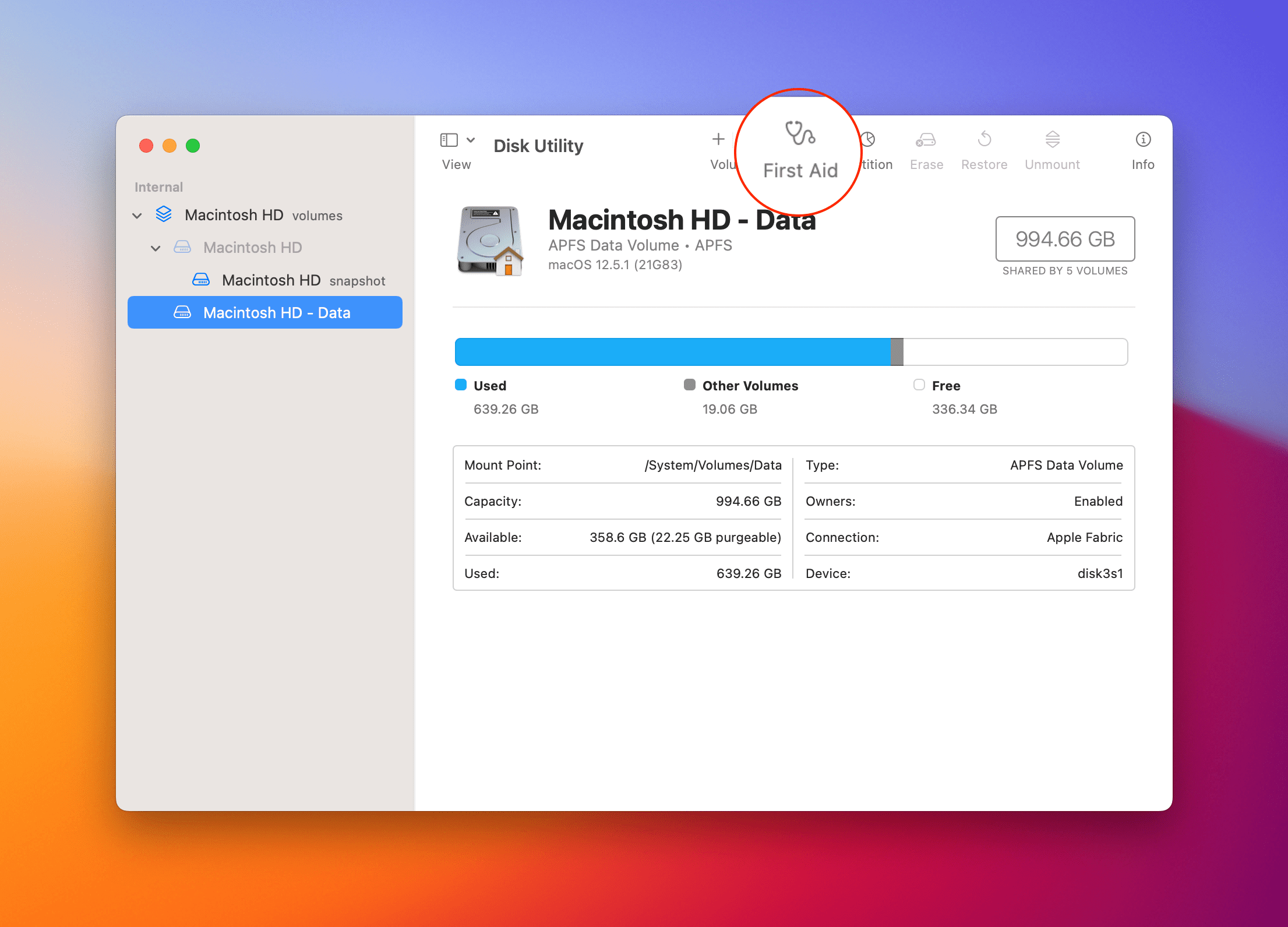
Method 4: Use First Aid on your USB
If you believe that the USB drive is the problem, you may want to try and fix it on your Mac. Here’s how you can do that:
Go to Applications > Utilities > Disk Utility.
Select the USB drive in question on the left-hand navigation.
Press on the First Aid button at the top.
Disk Utility will troubleshoot your device and fix any issues it finds.
Unmount the USB by pressing the button at the top navigation.
Insert back in after a few seconds.
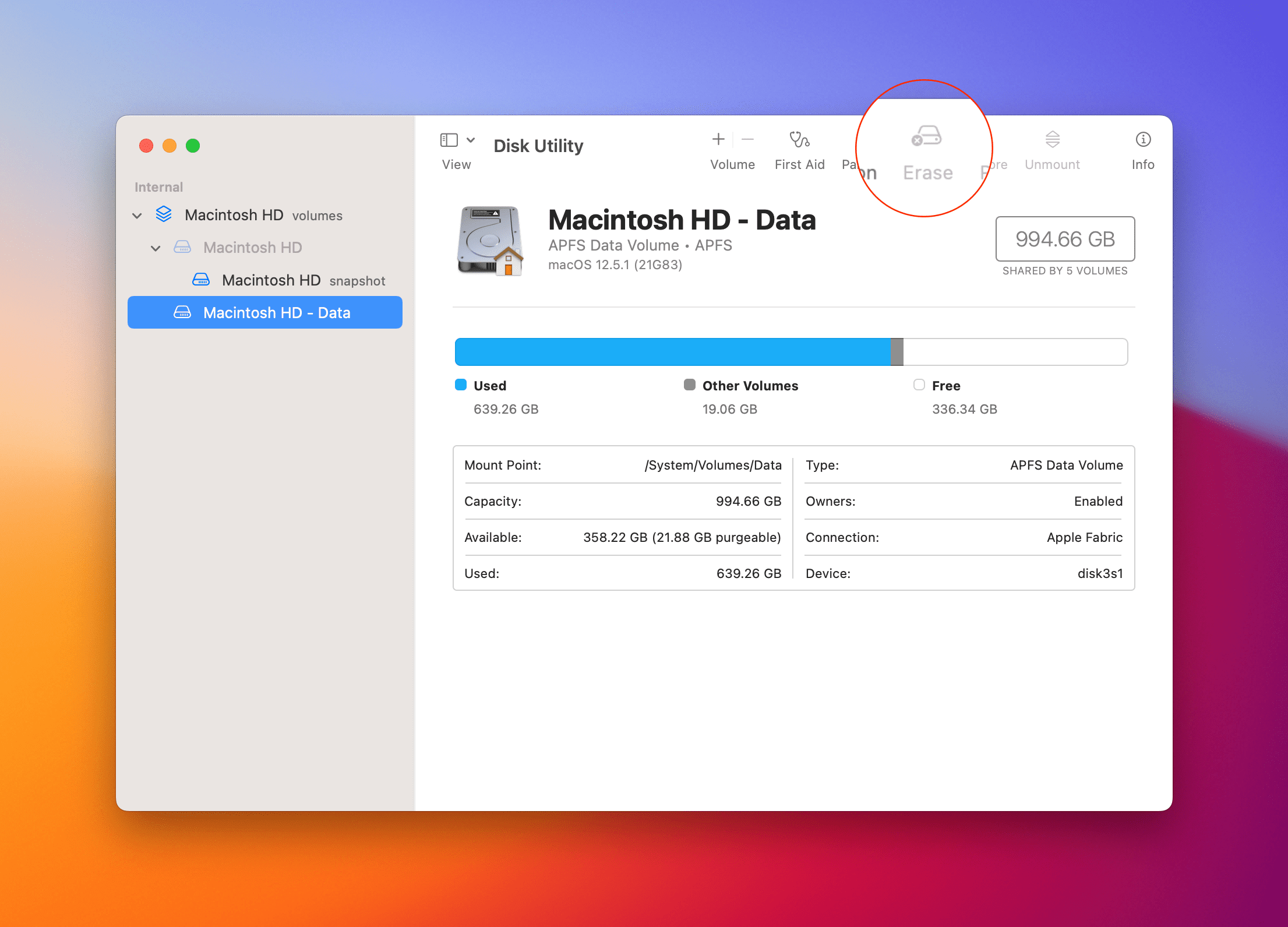
Method 5: Reformat your USB drive
Similarly to performing the First Aid function on your USB drive, you can use Disk Utility to reformat the drive so that it restores to factory settings. Here’s how:
Go to Applications > Utilities > Disk Utility.
Select the USB drive in question on the left-hand navigation.
Click Erase on the top menu.
Rename your device.
Your USB will now be completely restored to factory settings. Any files, settings, and data has been removed.
Method 6: Update your macOS
It may feel like a chore for tech blogs and gurus to constantly rehash the importance of keeping your OS updated, but it truly is important. All critical functions rely on your macOS being up-to-date, and a USB or external drive is no different. Read Apple’s detailed guide on how to keep your Mac updated for more information on this topic. If you have an older Mac model, some OS may not be compatible with your device. This may produce unique problems due to outdated software. Simply by updating your OS, you can fix the “USB Not Detected” error!






Write a Comment