Monterey brings many new features to the table but also packs issues of its own, such as battery drain problems. Many users also complained the USB 3.0 ports on their hubs stopped working after upgrading to Monterey. Sometimes, power is allowed to pass through to connected devices, but users can’t transfer data. The HDMI and USB-C ports work properly, the only problem is with the USB 3.0 ports.
This bug has been around ever since Monterey was in the Beta testing phase. Unfortunately, it made it all the way to release. MacBooks already have a limited number of ports and this bug only makes matters worse. People not being able to use their peripherals is actually a big deal.
Try using a USB-FI certified USB-C 3.1 or USB 3.0 Type-A cable. Apparently, using a different cable forces your peripherals to connect at USB 2.0 speeds. Devices that don’t support USB 2.0 connections instantly become unusable.
Hopefully, Apple will release a hotfix to correct this issue in the coming weeks. Install the latest updates as soon as they’re available.
Downgrade to Big Sur
If this annoying bug makes you regret installing Monterey on your device, you can roll back to Big Sur. Use a pre-Monterey Time Machine backup to restore Big Sur. Don’t forget to back up your data before downgrading to a previous macOS version.
Connect your Time Machine drive to your Mac.
Restart your computer and keep pressing the Command and R keys until you see the Apple logo on the screen.
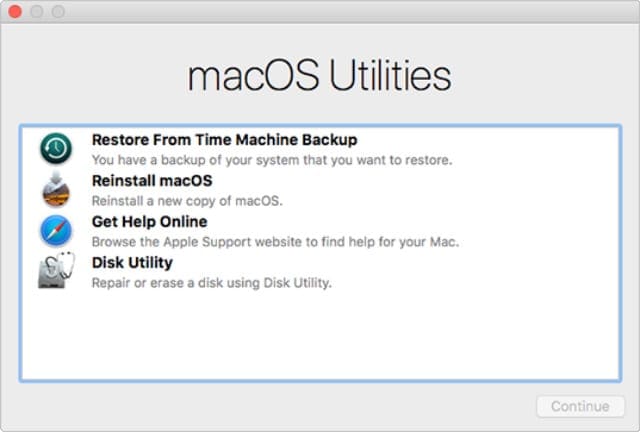
Select Restore From Time Machine Backup.
Follow the on-screen prompts to restore your Time Machine backup from
Then select the backup you want to use.
Follow the rest of the on-screen steps to complete the process.
As many Mac users confirmed, Monterey may sometimes break USB 3.0 connections. Try using a USB-FI certified USB-C 3.1 cable, and check if you notice any improvements. If the issue persists, roll back to Big Sur until Apple pushes a hotfix to patch this annoying bug.
Have you experienced any USB 3.0 issues after upgrading to Monterey? Did you find other ways to troubleshoot these problems? Let us know in the comments below.
Madalina has been a Windows fan ever since she got her hands on her first Windows XP computer. She is interested in all things technology, especially emerging technologies — AI and DNA computing in particular.
I’m on 12.3.1, and this is still a problem. This had me totally confused for a while, with Hard disks mounting and then immediately unmounting. Then I plugged a drive into a USB 2 hub, and it magically worked. That hub, is off of a USB 3.0 port, so it is not the hub, but failing to recognising a USB 2 device on a USB 3 port.
Hi,
I’m not technical on matters of ports:
The Sparkfun programmer has an attiny84 front-end. After Monterey, the usb port will not show for this device in the Arduino App. In bootcamp Microsoft environment, the port shows up as an “ISP” . Though not fixing the problem, it never the less it points to the programmer itself not being at fault. It is not a cable/speed problem as the device is plugged directly into the USB port. Changing ports has no affect.
I loaded an FTDI driver, but it also did not solve the problem.
it points to an Apple induced issue.
Regards Ted.
I don’t know if this is still a mystery in 2022, but I had the same problem and found a solution, so I’m posting it where I can. I have a Philips Brilliance 272P7VUBNB external monitor that has two USB 3.2 inputs and can connect via USB C, so it can act as both monitor and hub connection with the one computer port. When I upgraded to the 2021 MacBook Pro Max, the external drives connected to the monitor wouldn’t show up in finder. I looked for solutions online and saw may other people having issues with hubs, but no resolutions. After some experimenting, I found that I could reliably get it to connect by installing Rosetta, the software that allows the M1 to run Intel apps. (In my case, it was installed to run the Carrot Weather app.) I hope this helps.
Hi,
can you please explain a little bit more on how do we use rosetta to get the USBs connected? I have rosetta installed but not sure if it has to be configured to read USB drives









I’m on 12.3.1, and this is still a problem. This had me totally confused for a while, with Hard disks mounting and then immediately unmounting. Then I plugged a drive into a USB 2 hub, and it magically worked. That hub, is off of a USB 3.0 port, so it is not the hub, but failing to recognising a USB 2 device on a USB 3 port.
Hi,
I’m not technical on matters of ports:
The Sparkfun programmer has an attiny84 front-end. After Monterey, the usb port will not show for this device in the Arduino App. In bootcamp Microsoft environment, the port shows up as an “ISP” . Though not fixing the problem, it never the less it points to the programmer itself not being at fault. It is not a cable/speed problem as the device is plugged directly into the USB port. Changing ports has no affect.
I loaded an FTDI driver, but it also did not solve the problem.
it points to an Apple induced issue.
Regards Ted.
I don’t know if this is still a mystery in 2022, but I had the same problem and found a solution, so I’m posting it where I can. I have a Philips Brilliance 272P7VUBNB external monitor that has two USB 3.2 inputs and can connect via USB C, so it can act as both monitor and hub connection with the one computer port. When I upgraded to the 2021 MacBook Pro Max, the external drives connected to the monitor wouldn’t show up in finder. I looked for solutions online and saw may other people having issues with hubs, but no resolutions. After some experimenting, I found that I could reliably get it to connect by installing Rosetta, the software that allows the M1 to run Intel apps. (In my case, it was installed to run the Carrot Weather app.) I hope this helps.
Hi,
can you please explain a little bit more on how do we use rosetta to get the USBs connected? I have rosetta installed but not sure if it has to be configured to read USB drives