• Skip to primary navigation
  • Skip to main content
  • Skip to primary sidebar
  • Skip to footer

AppleToolBox

Tools and Fixes for Mac, iPad, iPhone & iWatch

Search posts

  • About
  • Contact

CONNECT WITH US

CATEGORIES

  • iPhone
  • iPad
  • iPod
  • Apple Watch
  • Mac/MacBook
  • AirPods
  • Apple TV
  • News
  • Apple Services
  • HomePod
  • Reviews

SITE

  • Home
  • About Us
  • Contact
  • Advertise

Search posts

You are here: Home / Apple TV / How to get the new underwater screensavers on your Apple TV

How to get the new underwater screensavers on your Apple TV

By Elizabeth Jones 1 comment Last updated October 2, 2019

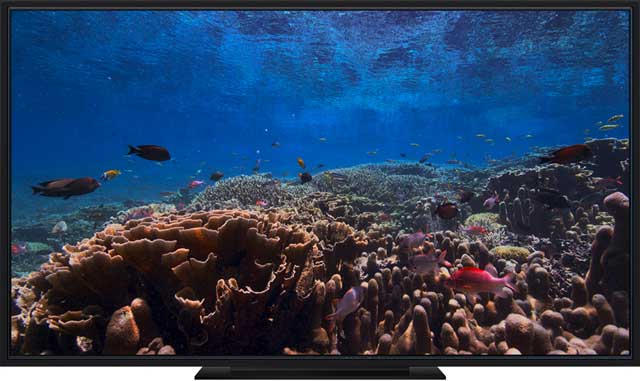
Want to check out the new BBC Natural History underwater screensavers or the 5 new space screensavers on your Apple TV? It’s not as easy as it sounds!

Apple does not universally push out its Apple TV screen savers as it does for its iDevices or Macs. And you can’t manually download them to your Apple TV either.

Instead, your Apple TV screensavers are temporarily cached, with new ones swapped daily, weekly, monthly, or not at all depending on your Apple TV screensavers settings.

Apple set up tvOS to self-manage its storage. So if your Apple has space available, tvOS caches screensavers. When your Apple TV has little space, tvOS caches just a few screensavers or possibly none at all. Unfortunately, since tvOS manages its own storage, it also means you cannot pick and choose which screensavers show up on your Apple TV!


Contents

      • Quick tip: tvOS stores the underwater screensavers under the Aerial category
  • Check the requirements for Apple TV screen savers!
    • Change your Apple TV screen saver settings & frequency
    • How to view your Apple TV screensavers
    • How to exit from a screensaver & return to the app
  • Not seeing the screensavers? Free up some space on your Apple TV
      • So let’s manage your Apple TV’s storage!
    • New screensavers missing? Still not seeing any new screensavers?
  • tvOS 13 new screensavers
    • Underwater sea screensavers by BBC Natural History
    • New Space screensavers

Quick tip: tvOS stores the underwater screensavers under the Aerial category


Related articles

  • How to set up and use multiple users on Apple TV with tvOS 13
  • Everything you need to know about Apple TV+
  • How to manage storage on Apple TV

Check the requirements for Apple TV screen savers!

  • First, make sure you update your Apple TV to tvOS 13 or higher
  • tvOS 13 is compatible with fourth-generation Apple TV or an Apple TV 4K.
  • To update, Go to Settings > System > Software Updates and select Update Software 
  • If there’s an update, select Download and Install download and install Apple TV tvOS update

Change your Apple TV screen saver settings & frequency

  • Settings > General > Screen Saver screensaver settings on Apple TV
  • Choose Aerial (at this time, Apple classifies these underwater screensavers as aerials)
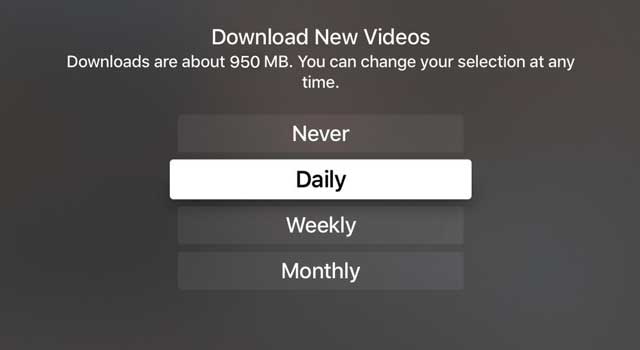
  • Change your download setting to Daily download new videos to daily Apple TV
  • Once you update your screensaver setting to daily, you should see the new screensavers within a few days. It takes at least 24 hours before new screen savers are cached.

Since we cannot designate what screensavers tvOS caches, it may take some time before the underwater screen savers appear–and even a longer time for one you really want to see! So be patient.

How to view your Apple TV screensavers

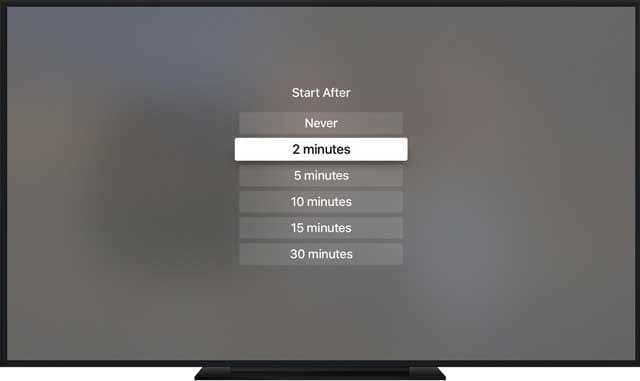
Your Apple TV shows a screensaver when it’s been idle for a defined number of minutes.

To change that defined number of idle minutes before a screensaver starts, go to Settings > General > Screen Saver and select Start After. screensaver start after times on Apple TV

But you can start the screen saver at any time!

On your Apple TV Siri Remote, press and hold the Menu button to return to the Home screen and then press the Menu button again.

The screensaver immediately displays!

To find out details on the screensaver’s  location

 Tap the Touch surface. On some screen savers, the location information changes with the viewing area so that specific landmarks are highlighted.

To see a different location

Swipe left (backward) or right (forward) on the Apple TV remote’s Touch surface.

How to exit from a screensaver & return to the app

Press the Touch surface on the Siri Remote to return to the app you previously used.

Not seeing the screensavers? Free up some space on your Apple TV

The number of screensavers downloaded depends on how much storage is available on your Apple TV.

So let’s manage your Apple TV’s storage!

  • Go to Settings > General general settings on Apple TV
  • Scroll down to Usage and choose Manage StorageApple TVManage Storage settings
  • A list of the apps on your Apple TV shows how much space each item is using
  • Select an app you want to remove
  • Highlight the trash icon
  • Press the Touch surface on your remote to delete the app
  • The app and all of its data are deleted
  • You can also delete apps directly on the Home screen

New screensavers missing? Still not seeing any new screensavers?

Check that you set the screensaver type to Aerial.

Although it may make no sense that underwater screensavers are listed as aerials — that’s where you find them!

Yes, we know that aerial means from the air–and that things under the water cannot possibly also be from the air. However, Apple sees aerials more broadly with aerials including locations shot from all over the world, underwater, and even space.

If you select Aerial and wait a few days but still don’t see any underwater scenes, try restarting your Apple TV and confirm your settings and that your Apple TV has sufficient space for downloading new screensavers.

tvOS 13 new screensavers Apple TV screensaver underwater aerial

Underwater sea screensavers by BBC Natural History

  • Barrucada
  • Bumpheads
  • Jacks
  • Kelp
  • Palau Coral
  • Palau Jellies (3)
  • Sea Stars
  • Seals

New Space screensavers

  • The Atlantic Ocean to Spain and France
  • Australia
  • Caribbean
  • Nile Delta
  • South Africa to North Asia

Related Posts:

  • macOS Sonoma Screensaver
    How to Use Screen Savers on macOS Sonoma
  • Apple Watch Ultra Tips and Tricks
    Apple Watch Tips and Tricks for 2023
  • Update Apple ID settings on your iPhone, iPad, or Mac after changing your password
    Getting a Message to Update Apple ID Settings on…
  • iPhone 15 Pro Max - 4
    Best iPhone Lock Screen Widgets for iOS 17
  • Photo of someone using Apple Music on their smartphone
    How to Fix Apple Music Not Working on iPhone / iPad
  • 2023 Mac Studio lifestyle - 1
    macOS Could Not Be Installed, How-To Fix
  • sidecar on iPadOS and macOS
    Sidecar not working in iPadOS and macOS? How to fix…
  • iphone and airpods on a table
    These Apps Have the Best iOS 17 Widgets
  • MacBook Pro 2021 iPad Mini iPhone 13 Pro AirPods 3 Beats Fit Pro iPad Pro Best Apple Products - 2
    The Best Apps and Games Of 2022, According to Apple
liz - apple
Elizabeth Jones

For most of her professional life, Amanda Elizabeth (Liz for short) trained all sorts of folks on how to use media as a tool to tell their own unique stories. She knows a thing or two about teaching others and creating how-to guides!

Her clients include Edutopia, Scribe Video Center, Third Path Institute, Bracket, The Philadelphia Museum of Art, and the Big Picture Alliance.

Elizabeth received her Master of Fine Arts degree in media making from Temple University, where she also taught undergrads as an adjunct faculty member in their department of Film and Media Arts.

Reader Interactions

Write a Comment Cancel reply

Show 1 Comments

  1. Ed Campbell says

    September 30, 2019 at 6:26 AM

    This popped up yesterday for us. It’s so lovely, I shouted to my wife – who came down the hall from the study to check out the clamor – and she loved it, too. Delightful underwater photography.

    Then, back to Britbox.

    Reply

Primary Sidebar

Recent Posts

  • How to Set Up iCloud Passwords on a Windows PC?
  • How to Turn Off Apple Music’s Dark Mode
  • How to Disable Predictive Text in iOS 26
  • How to Stop Sharing Analytics in iOS 26
  • How to Manage Your iPhone Call Log
  • Are Apple’s Safety Precautions Enough for AirTags?

Connect with us

Footer

ABOUT

  • About Us
  • Contact us
  • Advertise
  • Privacy
  • Terms of Use

GUIDES

  • iOS & iPadOS
  • Apple ID
  • iCloud
  • App Store
  • iTunes
  • FaceTime
  • iMessage
  • Siri
  • Books and iBooks
  • Game Center
  • AirPlay

CONNECT

  • Facebook
  • Twitter
  • FeedBurner
  • YouTube

© Copyright 2010-2024 Guiding Tech Media · All Rights Reserved

This site and its content are in no way affiliated or endorsed by Apple, Inc. · Reproduction without explicit permission is prohibited

Last Updated on October 2, 2019 by Elizabeth Jones