Over the past few years, Apple has been making a conscious effort to improve iOS and iPadOS on the whole. From bringing widgets to the Home Screen to providing some of the best software optimizations that we’ve ever seen, the iPhone and iPad are arguably better than ever. But it seems that the decisions to improve other areas of our devices have come at the cost of a feature that is extremely important.
There was once a time when the stock iOS keyboard was the best in the business. Google’s Gboard couldn’t hold a candle to Apple’s ability to predict what we were going to, or are trying to type on our phones at any given moment. Slowly but surely, the landscape has shifted, as there are quite a few people that have grown tired of the iPhone’s inability to autocorrect even the simplest of words. Today, we’re taking a look at a few ways that you can try to improve autocorrect for the iPhone and iPad.
Turn Off Autocorrect And Spell Check
This may sound a bit counter-intuitive, but the best way to “fix” autocorrect, is to turn the feature off altogether. The reason for this is that you won’t find yourself needing to get through a couple of sentences, only to go back and fix whatever mistakes were made along the way. We’re also recommending that you turn off Spell Check on your iPhone and iPad for similar reasons. There are times when your iPhone is right about you misspelling a word, but Apple’s machine learning keyboard doesn’t recognize that the weird word you’ve typed multiple times is actually a word.
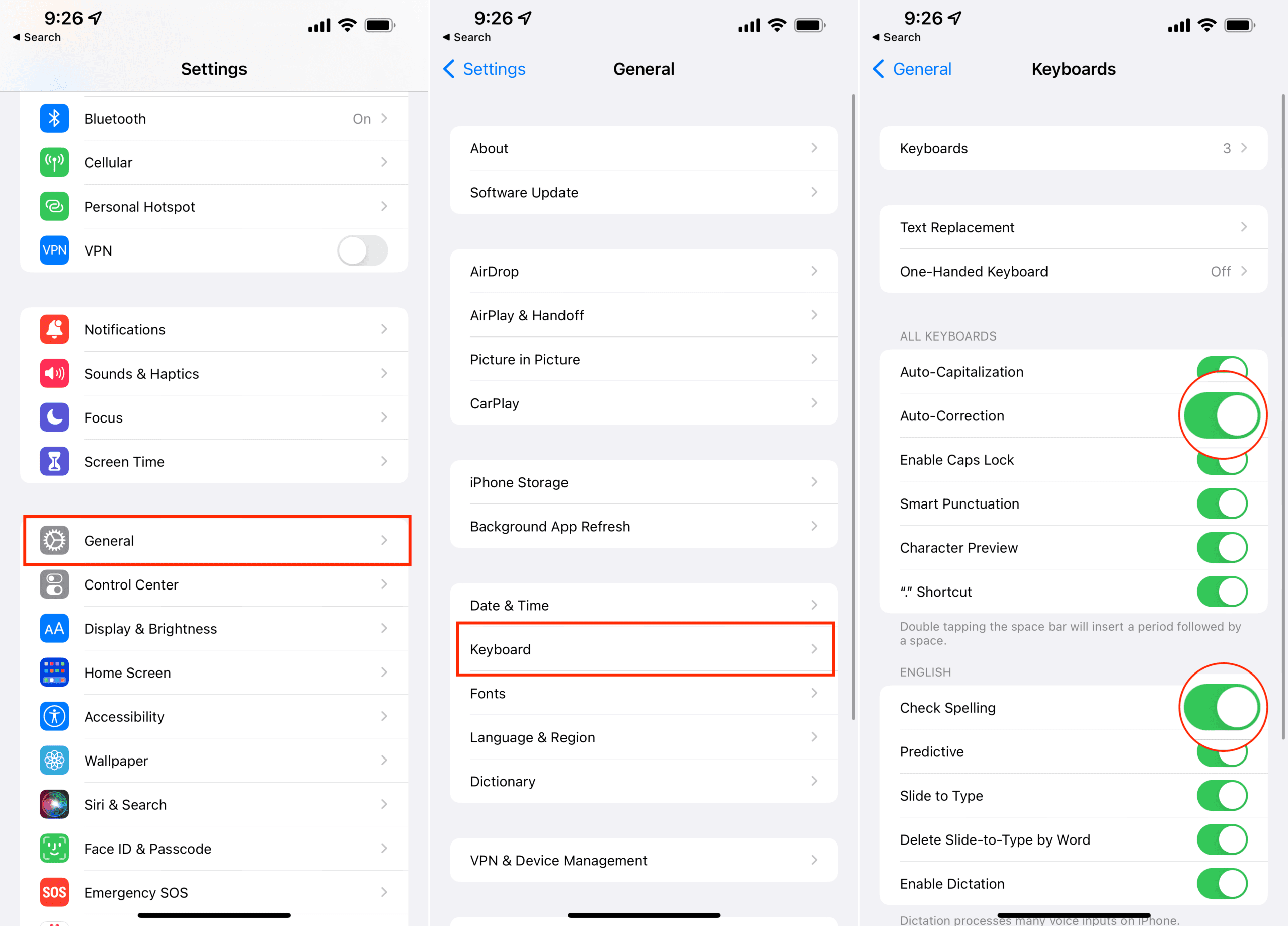
Open the Settings app on your iPhone or iPad.
Tap General.
Select Keyboard.
Scroll down until you reach the All Keyboards section.
Tap the toggle next to Auto-Correction.
Under the English section, tap the toggle next to Check Spelling.
Even if autocorrect and spell check have frustrated you to no end on your devices, that doesn’t mean that it hasn’t worked. So it may take you a bit of time to get used to typing things out the right way, without relying on Apple’s keyboard to fix any errors that come up.
Take Advantage of Text Replacement
Another way that you can try to improve the overall typing experience on your iPhone and iPad is to use text replacement. This was not always built right into the operating system, as you would need to rely on third-party apps such as TextExpander to create replacement snippets. But a few years ago, Apple finally brought this to the iPhone and iPad, and here’s how you can create various shortcuts:
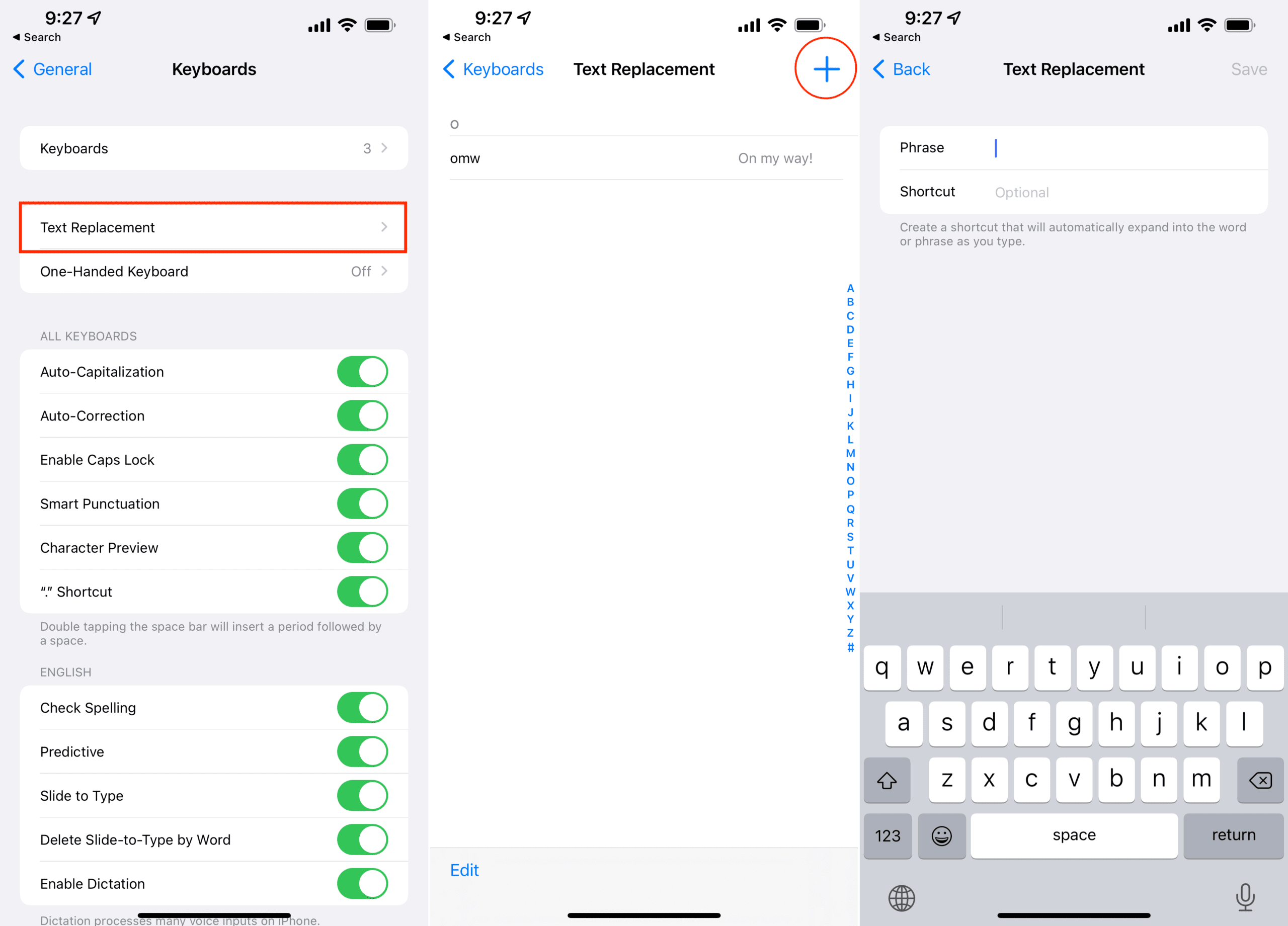
Open the Settings app on your iPhone or iPad.
Tap General.
Select Keyboard.
Tap Text Replacement.
In the top right corner, tap the + icon.
Enter the Phrase that will be used.
Create a Shortcut.
Tap Save in the top right corner.
Repeat this process for as many words or phrases as you need.
Some key examples that you might want to use include swapping “youre” for “you’re”, but Text Replacement also allows you to create other shortcuts. For instance, you could use something like your initials to enter your name, or a string of numbers to enter your address. It may not seem like much, but over time, text replacement can really come in handy.
Andrew Myrick is a freelance writer based on the East Coast of the US. He enjoys everything to do with technology, including tablets, smartphones, and everything in between. Perhaps his favorite past-time is having a never-ending supply of different keyboards and gaming handhelds that end up collecting more dust than the consoles that are being emulated.
How about Apple making a really great effort to go back to what it was before. So many times I had to bactrack to write these two sentences to correct ridiculous auto correction. Disabling them help but put you way behind android/google in term of ease of use. It’s troublesome to always havng to find the apostrophe, hyphen, capital letters for example. It probably took me 5 times the amount of time to write these compared to usung my android phone.











How about Apple making a really great effort to go back to what it was before. So many times I had to bactrack to write these two sentences to correct ridiculous auto correction. Disabling them help but put you way behind android/google in term of ease of use. It’s troublesome to always havng to find the apostrophe, hyphen, capital letters for example. It probably took me 5 times the amount of time to write these compared to usung my android phone.