• Skip to primary navigation
  • Skip to main content
  • Skip to primary sidebar
  • Skip to footer

AppleToolBox

Tools and Fixes for Mac, iPad, iPhone & iWatch

Search posts

  • About
  • Contact

CONNECT WITH US

CATEGORIES

  • iPhone
  • iPad
  • iPod
  • Apple Watch
  • Mac/MacBook
  • AirPods
  • Apple TV
  • News
  • Apple Services
  • HomePod
  • Reviews

SITE

  • Home
  • About Us
  • Contact
  • Advertise

Search posts

You are here: Home / Apple Services / How to Manage Apple Devices From a Windows PC Using the Apple Devices App

How to Manage Apple Devices From a Windows PC Using the Apple Devices App

By Louis Roundtree 0 comments Last updated November 15, 2024

Things to Know
  • iTunes used to be the best way to connect Apple devices to a Windows PC, but it’s been replaced by the Apple Devices app.
  • Apple Devices is free to download from the Microsoft Store.
  • You can sync media, backup your device, or update your software using the app.

Contents

  • Install the Apple Devices App
  • Manage Apple Devices From a Windows PC: What You Can Do
    • Option 1: Update Your Software
    • Option 2: Transfer Selected Files
    • Option 3: Sync Apple Media to Your iOS Device
    • Option 4: Add Pictures From Your Windows PC to Your iOS Device

Install the Apple Devices App

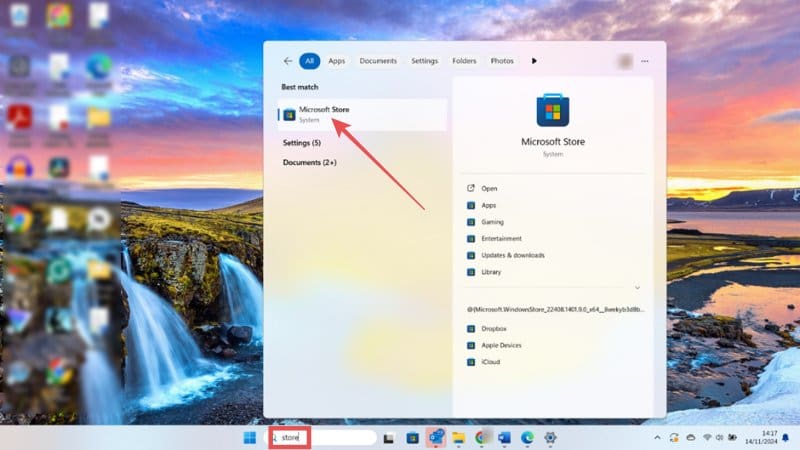
Step 1: Type “store” in the search bar at the bottom of the screen on your Windows 11 device then click Open under the Microsoft Store icon.

How to Manage Apple Devices From a Windows PC Using the Apple Devices App 1

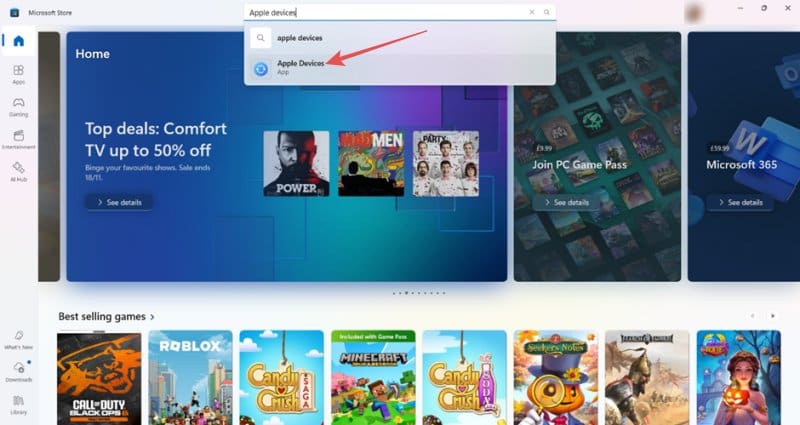
Step 2: Use the search bar at the top of the Store window to find the Apple Devices app. Click the blue icon as shown in our screenshot.

How to Manage Apple Devices From a Windows PC Using the Apple Devices App 2

Step 3: If you see a blue button that says Open, you already have the app installed. If it says Get or Install, click that button and follow the onscreen prompts to install the new app — don’t worry, it’s totally free of charge.

How to Manage Apple Devices From a Windows PC Using the Apple Devices App 3

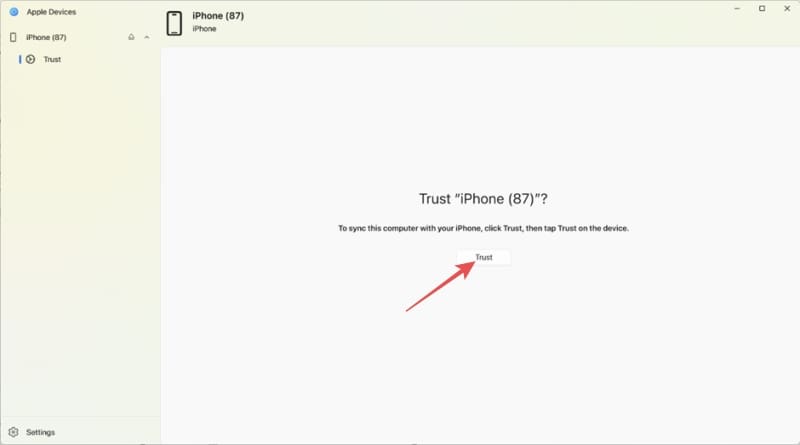
Step 4: Once installed, you can use Apple Devices straight away. Plug your Apple device in using the charging cable and open the Apple Devices app. Confirm that you want to trust the iPhone or iPod you just connected.

How to Manage Apple Devices From a Windows PC Using the Apple Devices App 4

Now you can start using the Apple Devices app to manage Apple devices from a Windows PC with ease.

Manage Apple Devices From a Windows PC: What You Can Do

Option 1: Update Your Software

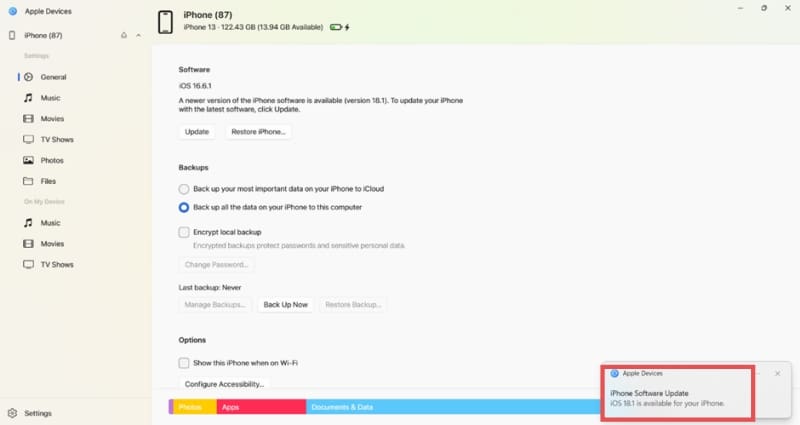
Apple Devices will automatically prompt you if your device needs a software update. You’ll see a popup at the bottom of the screen and the General screen of Apple Devices will have an Update button if new software is available.

From the same General screen, you can also:

  • Do a full backup of your iOS device
  • Back up your most important data
  • See your iOS device storage — that’s the colorful bar at the bottom of the screen

How to Manage Apple Devices From a Windows PC Using the Apple Devices App 5

Option 2: Transfer Selected Files

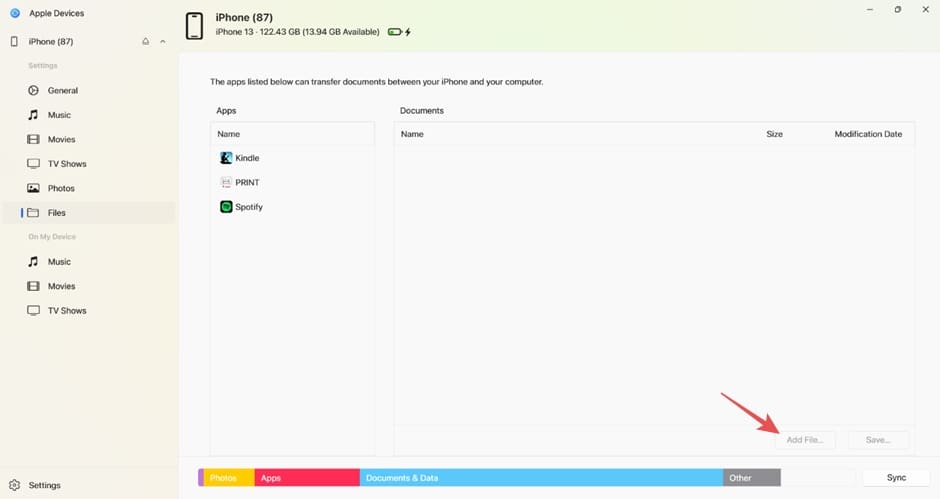
Click Files on the left-hand side of the screen to see what options are available here. On this iOS device, for example, you could click Add File in the bottom right to add a Kindle-compatible e-book to your iOS device.

How to Manage Apple Devices From a Windows PC Using the Apple Devices App 6

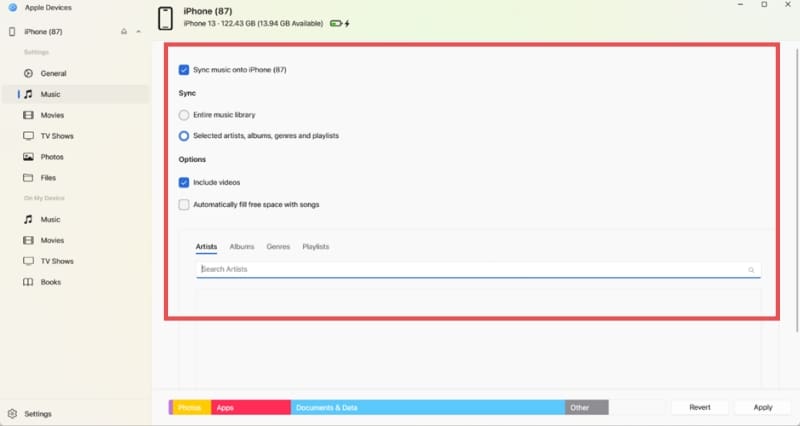
Option 3: Sync Apple Media to Your iOS Device

Click Music (or Movies, TV Shows, or Books) on the left-hand side of the screen. You’ll now see options that allow you to sync an existing Apple Music library onto your iOS device. You can either select the songs you want on your device or simply click Entire music library to get everything you own onto your device. Follow the same principles for the other media types.

Note: This currently only works for media purchased or downloaded via Apple services.

How to Manage Apple Devices From a Windows PC Using the Apple Devices App 7

Option 4: Add Pictures From Your Windows PC to Your iOS Device

Click Photos, tick the top box (Sync photos onto [iOS device name]), and choose the folder you want to sync images from. This is ideal if you want a specific image for your phone background or need to send one to someone using a certain messaging service.

How to Manage Apple Devices From a Windows PC Using the Apple Devices App 8

Related Posts:

  • How to Fix Verifying Microsoft Outlook Mac Stuck Error 11 Best Methods
    How to Fix Verifying Microsoft Outlook Mac Stuck…
  • 2023 Mac Studio lifestyle - 1
    macOS Could Not Be Installed, How-To Fix
  • How to Install Windows 11 on Mac
    How to Install Windows 11 on Mac
  • Windows computer
    How to AirDrop from iPhone to Windows PC
  • MacBook Pro 2021 iPad Mini iPhone 13 Pro AirPods 3 Beats Fit Pro iPad Pro Best Apple Products - 2
    The Best Apps and Games Of 2022, According to Apple
  • 2022 Mac Mini with Studio Display and Accessories
    Mac Tips For New Users In 2023
  • Update Apple ID settings on your iPhone, iPad, or Mac after changing your password
    Getting a Message to Update Apple ID Settings on…
  • Apple Watch Ultra Tips and Tricks
    Apple Watch Tips and Tricks for 2023
  • photo of an iphone with ios 16 downloaded on it
    iOS 16 Tips and Tricks: The Definitive List
Louis Roundtree
Louis Roundtree

As an avid gamer, I’ve run into my fair share of error codes and weird faults that have forced me to find fixes to problems I never anticipated. That gave me a passion for sharing those fixes with others so we can all game without feeling like our hardware is rebelling against us.

Reader Interactions

Write a Comment Cancel reply

Primary Sidebar

Recent Posts

  • How to Set Up iCloud Passwords on a Windows PC?
  • How to Turn Off Apple Music’s Dark Mode
  • How to Disable Predictive Text in iOS 26
  • How to Stop Sharing Analytics in iOS 26
  • How to Manage Your iPhone Call Log
  • Are Apple’s Safety Precautions Enough for AirTags?

Connect with us

Footer

ABOUT

  • About Us
  • Contact us
  • Advertise
  • Privacy
  • Terms of Use

GUIDES

  • iOS & iPadOS
  • Apple ID
  • iCloud
  • App Store
  • iTunes
  • FaceTime
  • iMessage
  • Siri
  • Books and iBooks
  • Game Center
  • AirPlay

CONNECT

  • Facebook
  • Twitter
  • FeedBurner
  • YouTube

© Copyright 2010-2024 Guiding Tech Media · All Rights Reserved

This site and its content are in no way affiliated or endorsed by Apple, Inc. · Reproduction without explicit permission is prohibited

Last Updated on November 15, 2024 by Louis Roundtree