• Skip to primary navigation
  • Skip to main content
  • Skip to primary sidebar
  • Skip to footer

AppleToolBox

Tools and Fixes for Mac, iPad, iPhone & iWatch

Search posts

  • About
  • Contact

CONNECT WITH US

CATEGORIES

  • iPhone
  • iPad
  • iPod
  • Apple Watch
  • Mac/MacBook
  • AirPods
  • Apple TV
  • News
  • Apple Services
  • HomePod
  • Reviews

SITE

  • Home
  • About Us
  • Contact
  • Advertise

Search posts

You are here: Home / Apple Services / How to Merge Contacts From iCloud and Outlook

How to Merge Contacts From iCloud and Outlook

By Louis Roundtree 0 comments Last updated July 23, 2025

Things to Know
  • Despite Microsoft and Apple often clashing over cross-platform support, merging contacts between iCloud and Outlook is pretty simple.
  • You can download the iCloud app for Windows and sync contacts during setup.
  • iCloud on the browser allows you to manually export and import contacts between the two.
  • There are also plenty of third-party options to help you merge contacts, too.

Having separate email accounts can be useful in many cases. But what if you want to migrate to only one, or share your contacts between them? iCloud and Outlook can merge their contacts in quite a few ways, and this article will show you how.

Contents

  • How to Merge Contacts from iCloud and Outlook in Three Ways
    • Via the iCloud App on Windows
    • Using the iCloud on Browser
    • Using a Third-Party Tool

How to Merge Contacts from iCloud and Outlook in Three Ways

We’ve got three handy methods for combining your iCloud and Outlook address book. Let’s get started:

Via the iCloud App on Windows

Did you know that you can get iCloud on your Windows PC? Much like iTunes, Apple has released a Windows-compatible app for cross-platform users to better enable file sharing. It’s also an excellent way to merge contacts. Here’s how:

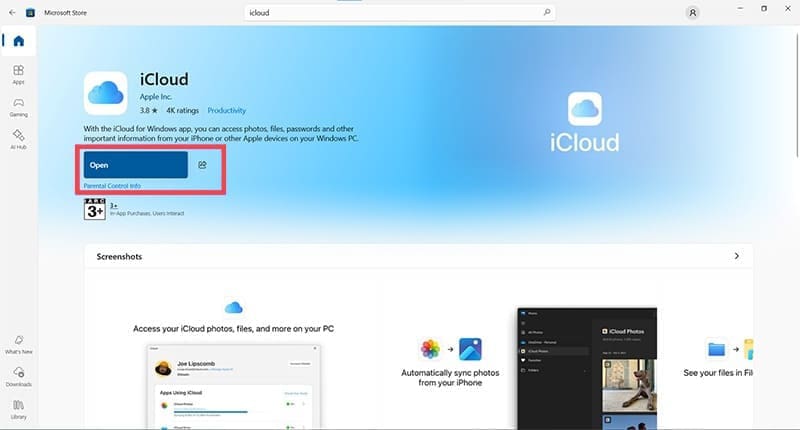
Step 1. Open up the Microsoft Store and download “iCloud.”

How to Merge Contacts From iCloud and Outlook 1

Step 2. Open up the app and enter your iCloud login details and verification code, if prompted.

How to Merge Contacts From iCloud and Outlook 2

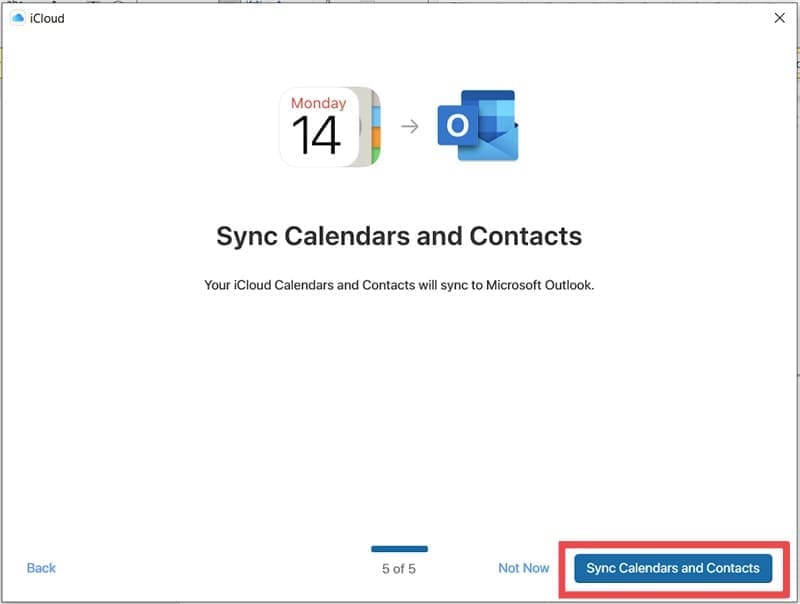
Step 3. You’ll be taken through a series of steps asking what you’d like to sync with your PC. Step 5 should ask you if you’d like to “Sync Calendars and Contacts.” Click the “Sync Calendars and Contacts” button to proceed.

How to Merge Contacts From iCloud and Outlook 3

Step 4. Your address books should be merged with Outlook after syncing is complete.

Using the iCloud on Browser

If you don’t want the iCloud app installed directly, or cannon complete the process, then you can always access your iCloud contacts via any browser. Here’s how to merge:

Step 1. Open your browser and sign in to your iCloud account, providing a verification code if prompted.

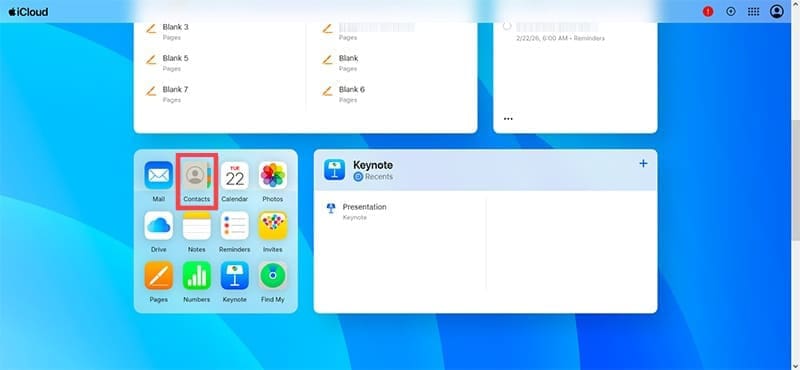
Step 2. Navigate down to the apps and select “Contacts.”

How to Merge Contacts From iCloud and Outlook 4

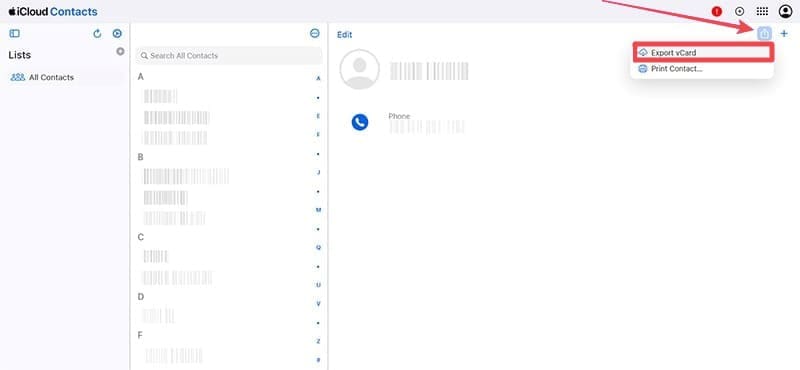
Step 3. The browser gives you the chance to export individual or bulk contacts manually. In the Contacts app, select a name and click the Share icon.

How to Merge Contacts From iCloud and Outlook 5

Step 4. Click “Export vCard” and save the file via File Explorer.

How to Merge Contacts From iCloud and Outlook 6

Step 5. For bulk exporting, click the “hamburger” menu in the Contacts column (three horizontal lines) and choose “Select all contacts.

How to Merge Contacts From iCloud and Outlook 7

Step 6. Click the Share icon, select “Export vCard,” and save it as a bulk vCard file.

In Outlook, you can then import the vCard file into your app and merge contacts:

Step 1. Open Outlook and click “File” from the top menu.

Step 2. Select “Open & Export” from the menu, then “Import/Export.”

Step 3. Select “Import a vCard file (.vcf)” from the menu and choose your file’s location in File Explorer.

Step 4. The contacts should then load into Outlook.

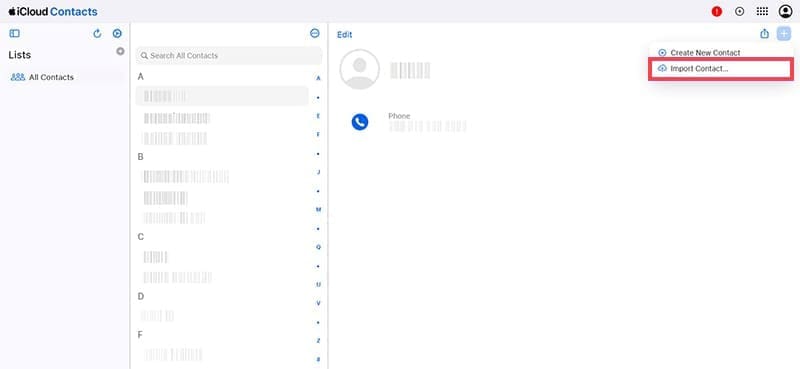
The same process can be reversed. Accessing iCloud on the browser allows for the import of contacts, too. Simply click the “Import Contact” option from the Add icon and import a vCard address file from Outlook.

How to Merge Contacts From iCloud and Outlook 8

Using a Third-Party Tool

There are also plenty of third-party options ready to help you sync your contacts. Apps – like Sync.Me Contacts Sync Pro – are ideal for merging address books. Unlike the first two solutions, these are either freemium or paid solutions and offer convenience for a price. Still, if you’re going to be merging contacts regularly, this can be a good option.

Related Posts:

  • New Outlook for Mac 7 Best Features You Should Know
    New Outlook for Mac: 7 Best Features You Should Know
  • How to Fix Attachments Not Showing in Outlook for Mac
    How to Fix Attachments Not Showing in Outlook for Mac
  • How to Switch From New Outlook to Old on Mac 4 Best Steps
    How to Switch from New Outlook to Old on Mac: 4 Steps
  • photo of an iphone with ios 16 downloaded on it
    iOS 16 Tips and Tricks: The Definitive List
  • Screen Shot 2021-08-21 at 6.58.10 PM
    DuckDuckGo's Email Privacy Features Might Beat Apple
  • pexels-cottonbro-5082579
    Getting Started With iOS 15: Everything Good And Bad
  • 2022 Mac Mini with Studio Display and Accessories
    Mac Tips For New Users In 2023
  • Photo of someone using Apple Music on their smartphone
    How to Fix Apple Music Not Working on iPhone / iPad
  • Windows computer
    How to AirDrop from iPhone to Windows PC
Louis Roundtree
Louis Roundtree

As an avid gamer, I’ve run into my fair share of error codes and weird faults that have forced me to find fixes to problems I never anticipated. That gave me a passion for sharing those fixes with others so we can all game without feeling like our hardware is rebelling against us.

Reader Interactions

Write a Comment Cancel reply

Primary Sidebar

Recent Posts

  • How to Manage Your iPhone Call Log
  • Are Apple’s Safety Precautions Enough for AirTags?
  • How to Hide Username and Photo on the Mac Lock Screen
  • Microsoft Resume vs. Apple Handoff – Which Wins for Cross-Device Work?
  • How to Export iTunes Library to New Computer
  • What the Gemini Desktop App Will Bring to Mac

Connect with us

Footer

ABOUT

  • About Us
  • Contact us
  • Advertise
  • Privacy
  • Terms of Use

GUIDES

  • iOS & iPadOS
  • Apple ID
  • iCloud
  • App Store
  • iTunes
  • FaceTime
  • iMessage
  • Siri
  • Books and iBooks
  • Game Center
  • AirPlay

CONNECT

  • Facebook
  • Twitter
  • FeedBurner
  • YouTube

© Copyright 2010-2024 Guiding Tech Media · All Rights Reserved

This site and its content are in no way affiliated or endorsed by Apple, Inc. · Reproduction without explicit permission is prohibited

Last Updated on July 23, 2025 by Louis Roundtree