When it comes to customization, the Mac has a big advantage over the likes of your iPhone or iPad. And a lot of this comes down to the macOS Dock, which houses all of your most-used apps. But in recent years, Apple has made different changes to how you can interact with different apps. One example of this is a dedicated section in the Dock that houses any open applications.
But what if you only want open apps to show up in the dock? Did you know that with a simple Terminal command you can only show open apps in Mac dock? It truly couldn’t be easier, and could be just the tool that you need to help keep you focused on the task at hand.
The first step that we recommend taking is to take a screenshot of your Dock with all of the apps that are currently housed there. This gives you a reference guide in the event that you want to reverse the upcoming changes and go back to using a normal dock. For reference, you can take a screenshot using the CMD + Shift + 3 combination with your keyboard. You can also take a screenshot of just the dock with the CMD + Shift + 4 combination and dragging the crosshair across the portion of the screen where your Dock is.
With that out of the way, here’s how you can only show open apps in Mac Dock:
Open the Terminal app on your Mac.
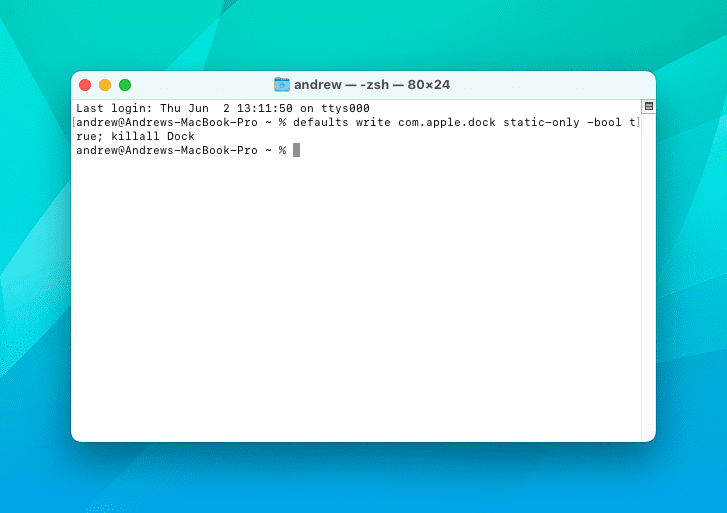
Type (or copy and paste) the following command into Terminal:
defaults write com.apple.dock static-only -bool true; killall Dock
Press Enter.
After you press the Enter key, any applications that are open but were minimized will spring back to life on your display. The Dock itself will temporarily disappear, as the “killall Dock” command is essentially the same as pressing the restart button.
Once the Dock returns, the only applications that should appear are the ones that are actively open. But you might notice that there are two apps that will always appear, and that’s Finder and Trash. This is done by default on the Mac, as the Finder app is technically always open and can’t actually be closed.
How To Bring Back The Normal Dock
Over time, you might end up growing tired of only seeing open applications, or needing to rely on a combination of Spotlight and Launchpad to find apps. Since the previous command removed the ability to keep any unopened apps on your Dock, you will want to grab the screenshot that you previously captured.
With the screenshot handy, you can go ahead and bring back the “normal” Dock on your Mac. Just follow these steps:
Open the Terminal app on your Mac.
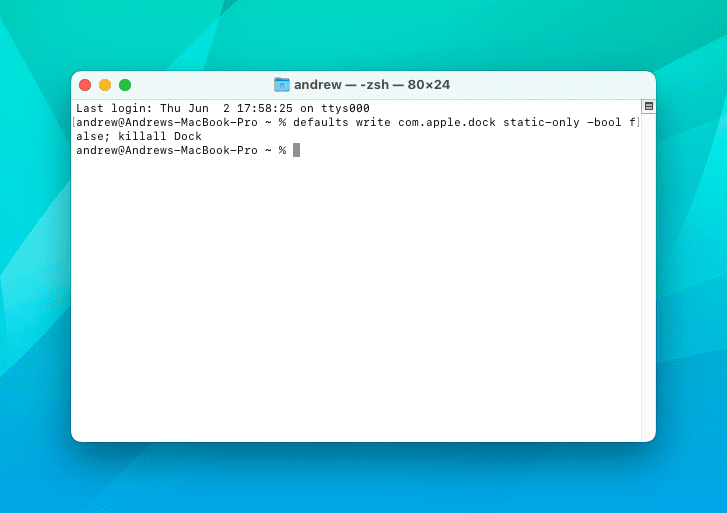
Type (or copy and paste) the following command into Terminal:
defaults write com.apple.dock static-only -bool false; killall Dock
Press Enter.
Just as you would expect, the Dock will again restart, showing the windows for any apps that had minimized windows. But once the Dock is finished restarting, you’ll be able to go back to the traditional Dock that Apple ships with macOS.
This will include the dedicated section for any open apps, which you may want to remove if you have a tendency to use a lot of different apps at the same time. All you need to do here is follow the steps below:
Open the System Preferences app on your Mac.
Click Dock & Menu Bar.
Click the check box next to Show recent applications in Dock.
Moving forward, the only way you can tell whether an app is open or not is by looking for an indicator dot placed beneath the app. But you can always go back to the other methods for showing applications in various states on your Dock if you want.
Andrew Myrick is a freelance writer based on the East Coast of the US. He enjoys everything to do with technology, including tablets, smartphones, and everything in between. Perhaps his favorite past-time is having a never-ending supply of different keyboards and gaming handhelds that end up collecting more dust than the consoles that are being emulated.












Write a Comment