As the years have gone on, Apple continues to release new iPad models that offer a completely new design compared to what we were used to. For example, at the time of this writing, only one iPad in Apple’s lineup still uses a Home button. Every other iPad in the lineup has ditched the Home Button in favor of slimmer bezels and a more uniform design.
Because of this, the method for those needing to put iPad in Recovery Mode has changed quite a bit. Sometimes this might occur accidentally or automatically, specifically if a software update has gone awry, causing problems with your iPad. Or maybe something on your iPad just isn’t working right any longer and you need to reset it back to factory settings without being able to do so from the Settings app. No matter the case, we’ve got you covered.
How to Put iPad in Recovery Mode
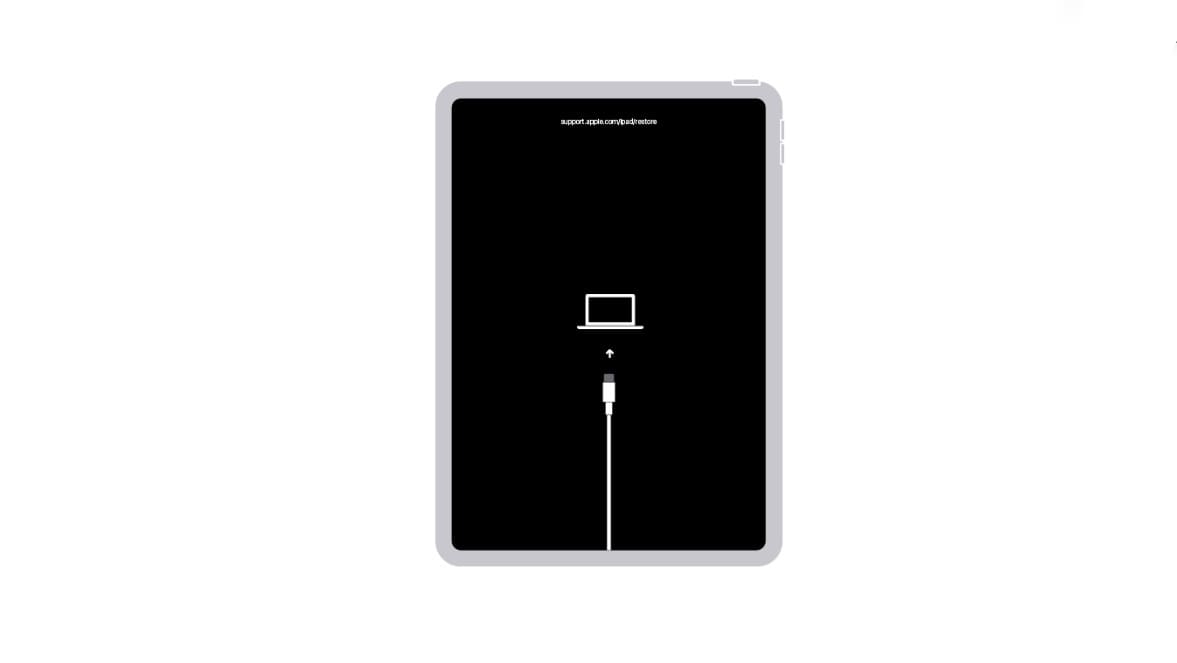
Recovery mode is a powerful tool you can use to fix problems with your iPhone, iPad, or iPod touch. It can be used to reinstall iPadOS or install the latest available update, resolving a wide range of software-related issues in the process.
Connect your device to a computer using an Apple-certified USB cable.
Quickly press and release the Volume Up button.
Quickly press and release the Volume Down button.
Press and hold the Side or Top button.
Your iPhone or iPad will restart, keep holding the Side or Top button until it enters recovery mode.
Once you have put iPad in Recovery mode, you’ll see a prompt appear on the computer that it’s connected to.
Select Restore or Update.
If selecting Restore, this will completely wipe your iPad, putting it back to factory settings.
If selecting Update, your iPad will download and install the latest available software update with the help of your connected computer.
After 15 minutes, your device may automatically exit recovery mode. If this happens, repeat the instructions above to put it in recovery mode again and finish updating or restoring the software.
How to Exit Recovery Mode
While in recovery mode, your iPhone, iPad, or iPod touch is totally unresponsive. You can’t wake it up, receive phone calls, or use it in any other way. You may be able to exit recovery mode by holding the Sleep/Wake button or following these instructions to force restart your device.
iPhone 8 and above and iPad models with Face ID: Press and quickly release the Volume Up button. Press and quickly release the Volume Down button. Then press and hold the Power button (Top or Side) until the device restarts
iPhone 7, iPhone 7 Plus, and iPod touch 7th generation+: Press and hold both the Top (or Side) button and the Volume Down buttons until you see the Apple logo
iPad with Home button, iPhone 6s or earlier, and iPod touch (6th generation) or earlier: Press and hold both the Home and the Top (or Side) buttons until you see the Apple logo
In the event that you cannot exit Recovery Mode, it’s probably time to reach out to Apple Support to see what your options are. In some cases, you might be directed to take the iPad to a local Apple Store or certified Apple repair location in order to get things back in working order.
Andrew Myrick is a freelance writer based on the East Coast of the US. He enjoys everything to do with technology, including tablets, smartphones, and everything in between. Perhaps his favorite past-time is having a never-ending supply of different keyboards and gaming handhelds that end up collecting more dust than the consoles that are being emulated.













Write a Comment